Salesforce CPQ in Excel: how to bulk and inline edit quote lines

The Salesforce CPQ Quote Line Editor (QLE) works well for a quote with a few dozen lines. Past that, reps hit the same wall: edits happen one line at a time, a change across 200 lines means 200 edits, and large quotes slow down or time out.
Most teams end up rebuilding the quote in Excel and re-keying it into Salesforce. This guide covers the better options: what the QLE can and cannot do, how inline editing, bulk updates and an Excel connector compare, and how to edit CPQ quote lines in Excel or Google Sheets while CPQ stays the system of record.
Key takeaways
- The Quote Line Editor supports inline edits line by line. It has no fill-down, no paste down a column and no formulas across lines.
- Data Loader handles bulk changes, but through a CSV round trip, outside the quote reps are working on.
- A Salesforce CPQ Excel connector, such as Valorx Fusion, loads live quote lines into Excel or Google Sheets, lets reps edit them in bulk and saves the changes back to Salesforce with CPQ rules still applied.
- An in-Salesforce grid, such as Valorx Wave, suits bulk updates to quote, product and price book records without leaving Lightning.
- Teams that moved quoting to a connected spreadsheet report results such as BP cutting quote cycle time from 4 days to 4 hours.
What the Quote Line Editor does well, and where it stops
The QLE is the editing screen of Salesforce CPQ. Reps add products, set quantities and discounts, and CPQ applies price rules, product rules and approvals as they go. For governed, standard quoting, that is exactly what you want.
The limits show up as quotes grow:
- Inline editing, but one line at a time. Reps can edit fields directly in the grid, but each line is its own edit. There is no fill-down, no pasting a column of values and no formula that sets a discount across a product family.
- Performance on large quotes. Each change triggers a calculation round trip. With several hundred lines and heavy price rules, the editor slows down and can hit Salesforce governor limits.
- One layout for everyone. Reps, deal desk and finance all work in the same view, so the screen either gets crowded or people export to see the quote their way.
- No modeling. Margin checks, scenario pricing and comparisons with earlier quotes happen in a separate spreadsheet.
We cover these and four other gaps in detail in our guide to Salesforce CPQ limitations.
Inline editing, bulk updates and an Excel connector: what each solves
Teams looking for a Salesforce CPQ bulk update tool or a better inline editor usually compare four options. They differ most on bulk editing and on whether reps see pricing while they work.
| Option | Inline edits | Bulk edits across lines | Large quotes | Pricing during edits | Best for |
|---|---|---|---|---|---|
| Native Quote Line Editor | Yes, one line at a time | No fill-down, paste down a column or formulas | Slows down in the hundreds of lines | Recalculates as you edit | Standard quotes with dozens of lines |
| Data Loader or CSV import | No | Yes, through a CSV round trip | Yes | Changes land after the import, not as you work | Admin-led mass changes |
| In-Salesforce grid (Valorx Wave) | Yes, in a grid | Yes: filter, select, update | Yes | Edits save as Salesforce updates | Bulk updates without leaving Lightning |
| Excel connector (Valorx Fusion) | Yes, in Excel or Google Sheets | Yes, with every spreadsheet tool | Thousands of lines | CPQ rules still apply on live data | Building and changing large or complex quotes |
Swipe the table to see all columns
Data Loader is the right tool for one-off, admin-led changes. For the quoting work reps do every day, the choice is between a grid inside Salesforce and a connected spreadsheet. If you are comparing connectors more broadly, our guide on how to choose a Salesforce Excel connector lists what to check.
How to edit Salesforce CPQ quote lines in Excel
A Salesforce CPQ Excel connector puts the quote in a spreadsheet without making the spreadsheet the source of truth. With Valorx Fusion, our Salesforce Excel connector, the workflow has four steps.
- Connect. Install Fusion from the Salesforce AppExchange and sign in with your Salesforce credentials. Your profiles, permissions and field-level security carry into the workbook.
- Load the quote. Open a quote and its lines load into Excel or Google Sheets. Fusion handles thousands of quote lines in a single sheet.
- Edit with spreadsheet tools. Paste values down a column, drag-fill discounts, sort and filter by product family, and use formulas to set pricing or check margin.
- Save to Salesforce. Changes save back to the CPQ quote, with your CPQ rules still applied. There is no export file and no re-import.
Click through the interactive tour above to see how Fusion connects Excel to Salesforce.
What changes for reps
The day-to-day difference, at a glance:
| Task | In the Quote Line Editor | In Excel with Fusion |
|---|---|---|
| Changing many lines | Edit quote lines one by one | Bulk edit with copy and paste, fill-down and drag-and-drop |
| Working on the move | Needs a stable connection to keep working | Work offline, then sync to Salesforce when back online |
| Seeing the whole quote | One layout for everyone, one set of data at a time | All the data you need in one view, with conditional formatting on what matters |
Swipe the table to see all columns
In more detail:
- Bulk edits in seconds. A discount or term change across 300 lines is one fill-down, not 300 edits. Copy and paste, drag-fill and drag-and-drop work as they do in any spreadsheet.
- Large quotes without timeouts. Thousands of lines load in seconds and save back without page reloads.
- Multi-dimensional quotes as columns. Years, sites, shipping dates or delivery locations sit across the top of the sheet. The same product no longer needs a new line for every date or location.
- Pricing and margin in view. Formulas show margin impact before the quote goes for approval. Read more on keeping discounts consistent in Salesforce CPQ discount management.
- Views by role. Each user sees the quote lines and fields that matter to their role, in a single view. Conditional formatting flags discounts, margins or dates that need attention.
- Existing workbooks keep working. Rate cards and pricing models can be connected rather than rebuilt, which matters most for professional services quoting.
- Offline quoting. Poor connectivity or a customer site does not stop the work. Reps keep building the quote offline, and when they are back online every change syncs to Salesforce in one save.
- Analysis on live numbers. Pivot tables and charts run on current quote data, not an export. See how to analyze real-time Salesforce data in Excel.
For quotes with deep bundles and many options, see how to make Salesforce CPQ work for the most complex quotes, or the complex quoting overview. Our list of Excel shortcuts for Salesforce data speeds up the editing itself.
Inline editing inside Salesforce with Wave
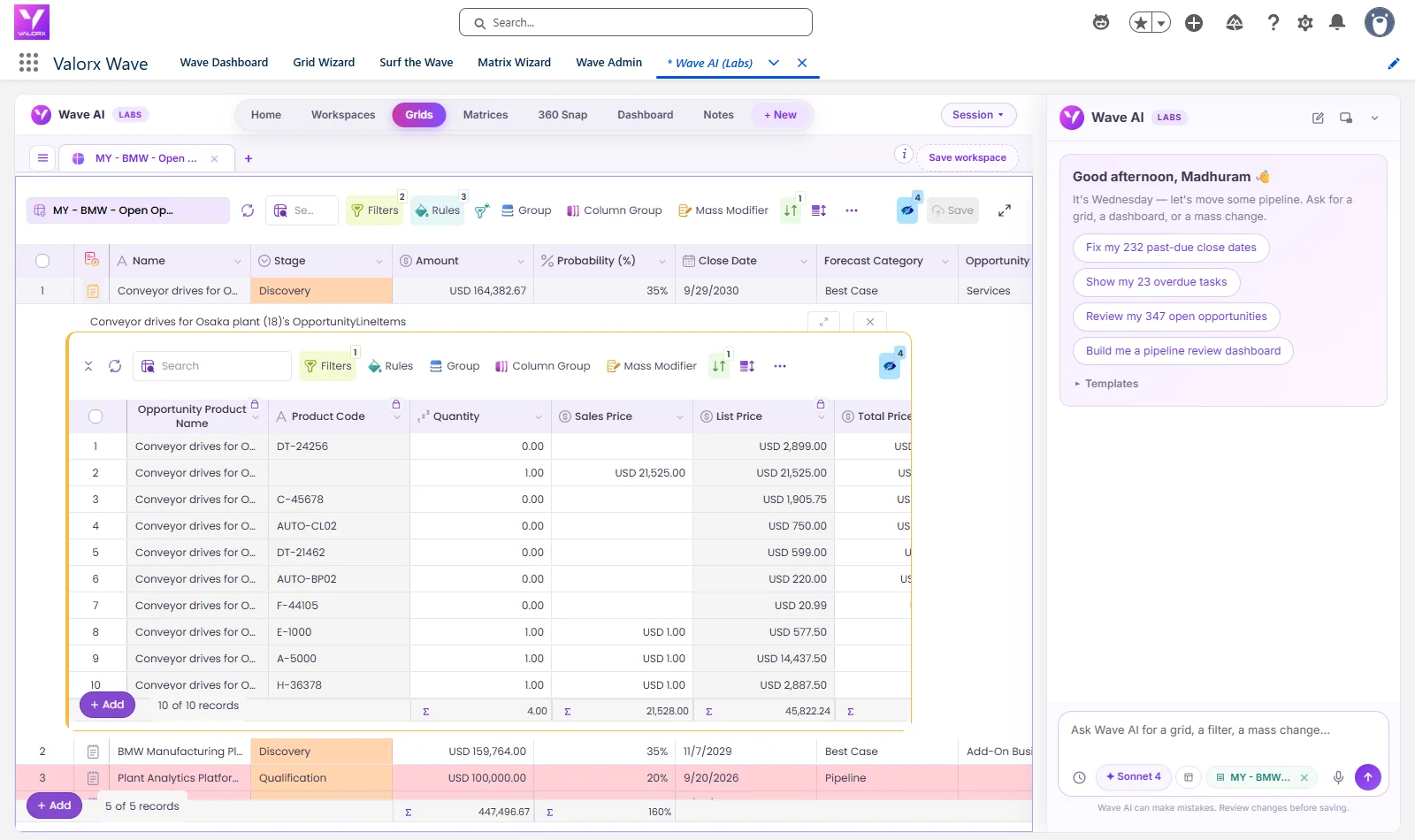
Not every team wants to quote in Excel. Valorx Wave puts a spreadsheet-style grid on any Salesforce object, inside Lightning, with no add-in to install. CPQ teams use it to filter and update quotes, products and price book entries in bulk.
The interactive demo above shows price book entries updated in bulk in a Wave grid. More walkthroughs are in our product demos.
Which option fits your team
Use the spreadsheet when quotes are large or the pricing logic already lives in a workbook. Stay inside Salesforce when the job is fast updates across many records.
| If your team needs to | Use |
|---|---|
| Build or change quotes with hundreds or thousands of lines | Valorx Fusion in Excel or Google Sheets |
| Keep pricing logic, rate cards or margin models that live in a workbook | Valorx Fusion |
| Quote offline, then sync when back online | Valorx Fusion |
| Update quote, product or price book fields across many records inside Salesforce | Valorx Wave |
| Give reps a spreadsheet-style grid without installing an add-in | Valorx Wave |
| Edit standard quotes with a few dozen lines | The native Quote Line Editor |
Swipe the table to see all columns
Many CPQ teams run both: Fusion for building and changing large quotes, and Wave for day-to-day record updates.
Results from CPQ teams
The biggest gains come where quotes are long, change often or depend on spreadsheet logic.
| Customer | What changed | Result |
|---|---|---|
| BP | 15,000+ quotes a year across 200 account managers, with 40% of the work in disconnected spreadsheets | Quote cycle time cut from 4 days to 4 hours |
| Genpact | Complex services quoting with hundreds of line items, location-based pricing and no offline access | 750,000 hours saved a year across 600 users |
| Teladoc Health | Manual exports, merges and re-entry across three Salesforce CPQ orgs | 70% less data management time and zero manual re-entry errors |
Swipe the table to see all columns
To estimate the time your team would save, try the CPQ ROI calculator. You can also see how this works across quoting on our Salesforce CPQ page.
Will this still work after the move to Revenue Cloud?
Salesforce stopped selling CPQ to new customers in March 2025 and now develops Revenue Cloud Advanced. Existing CPQ customers keep support and renewals. Fusion and Wave work with any Salesforce object, so the same spreadsheet workflow carries over to Salesforce Revenue Cloud when you migrate.
Frequently asked questions
Is there an Excel connector for Salesforce CPQ?
Yes. Valorx Fusion connects Excel and Google Sheets to Salesforce CPQ. It loads live quote lines into a workbook, lets you edit them with spreadsheet tools and saves the changes back to the CPQ quote.
What is the best inline editing tool for Salesforce CPQ?
It depends on where your team works. For large or complex quotes, an Excel connector such as Valorx Fusion gives full spreadsheet editing on live quote lines. For bulk updates inside Salesforce, a grid such as Valorx Wave edits records inline in Lightning.
How do I bulk update quote lines in Salesforce CPQ?
The Quote Line Editor edits one line at a time. For bulk changes, admins use Data Loader with a CSV file, and reps use a connected spreadsheet or an in-Salesforce grid to fill down, paste or apply formulas across many lines, then save.
Can I edit CPQ quote lines in Google Sheets?
Yes. Valorx Fusion works in Google Sheets as well as Microsoft Excel on Windows and Mac.
Do CPQ pricing rules still apply when I edit in Excel?
Yes. Fusion works on live Salesforce CPQ data, so changes save back to the quote with your CPQ rules and Salesforce permissions still applied.
How many quote lines can I edit at once?
Fusion loads thousands of quote lines into one sheet and saves them back without the timeouts that large quotes cause in the Quote Line Editor.
Can we keep the quoting spreadsheet we already use?
Yes. Fusion is designed to connect existing workbooks, so rate cards, pricing formulas and layouts keep working on live Salesforce data.
Is Salesforce CPQ still supported?
Yes. Salesforce CPQ entered end of sale in March 2025, so it is no longer sold to new customers, but existing customers keep support and renewals. See our guide to Salesforce CPQ limitations for what that means in practice.






Choose the workflow you need:
Try Wave in browser Extension

Try Wave in Salesforce

Try Fusion In Excel

Enhancing Salesforce for industry leaders