Real-time Salesforce data in Excel: how to analyze it without exporting
Most Salesforce analysis still starts the same way. Someone runs a report, clicks Export, and opens the file in Excel. By the time the pivot table is built, a rep has moved a close date, a deal has changed stage, and the numbers in the workbook no longer match Salesforce.
The damage adds up in three ways:
- Stale decisions. Pipeline reviews and forecasts run on a snapshot, so the meeting starts with a debate about whose numbers are right.
- Risky round trips. Any correction found during analysis has to go back through an import, with field mapping and upload errors each time.
- Data outside Salesforce. Every export creates another copy of customer data in an inbox or shared drive, outside your Salesforce access controls.
We built Valorx Fusion, our Salesforce Excel connector, so teams can keep Excel and drop the export. This guide shows how real-time Salesforce data in Excel works and six ways to use it.
Key takeaways
- An exported report is out of date the moment it downloads. A connected workbook reads from Salesforce every time you refresh.
- Pivot tables, conditional formatting, XLOOKUP, SUMIFS, and macros all work on live Salesforce data. You do not need to rebuild existing workbooks.
- Analysis and cleanup happen in one place. Fix a close date or stage in the sheet and save it back, with Salesforce validation rules and field-level security still enforced.
- One workbook can hold Accounts, Opportunities, Quotes, Products, and custom objects together, which a single Salesforce report export cannot do.
- Use Excel with Fusion when the work needs formulas and models. Use a grid inside Salesforce, such as Valorx Wave, when the work is fast bulk editing.
What does real-time Salesforce data in Excel mean?
Real-time Salesforce data in Excel means the workbook is connected to your Salesforce org, so it reads current records and writes changes back without a file in between. You choose the objects and fields, the records load into the sheet, and a refresh pulls the latest values whenever you need them.
The difference from an export is direction and freshness. An export is a one-way copy that starts aging immediately. A connected workbook is a two-way window onto Salesforce, and Salesforce stays the system of record.
Three ways to get Salesforce data into Excel
Only a connected workbook keeps the data current and lets you save changes back from the same sheet.
| Method | How current is the data | Can you save changes back | Best for |
|---|---|---|---|
| Report export (CSV or XLSX) | Frozen at the moment of export | No, changes need a separate import | A one-time snapshot to share |
| Data Loader or import wizard | Frozen at the moment of extract | Yes, through CSV mapping and upload | Admin-led migrations and large loads |
| Connected workbook (Valorx Fusion) | Current on every refresh | Yes, directly from the sheet | Recurring analysis, forecasting, and cleanup |
Swipe the table to see all columns
If you are still choosing a tool, our guide to Salesforce Excel connectors covers what to look for.
Six ways to analyze live Salesforce data in Excel
1. Run pivot tables on current records
Pivot tables are the fastest way to slice pipeline by region, rep, product, or stage. On an export, the pivot is only as good as the day you downloaded it. On a connected workbook, refresh the data and the pivot reflects what is in Salesforce now.
Example: pivot open Opportunities by owner and close month, then refresh before the Monday call instead of rebuilding the file. For a deeper walkthrough, see pivot tables with Salesforce data.

2. Spot risk with conditional formatting
Salesforce list views make it hard to scan hundreds of records for problems. Conditional formatting does it in seconds. Highlight close dates in the past, deals with no activity in 30 days, or amounts that fell since last week.
Because the rows are live records, the highlighted cells are your current exceptions, not last week's.
3. Keep your formulas and workbook logic
XLOOKUP, SUMIFS, COUNTIFS, macros, and custom calculations all run on connected data. Teams do not have to rebuild the model they already trust. Point the existing workbook at Salesforce and the logic keeps working.
Our guide to advanced Excel formulas for Salesforce data lists the formulas we see used most, and these Excel shortcuts for Salesforce data speed up the editing.
4. Bring multiple objects into one workbook
A standard report export gives you one flat table. Real analysis usually needs several: Accounts next to Opportunities, Quotes next to Products, plus a custom object or two.
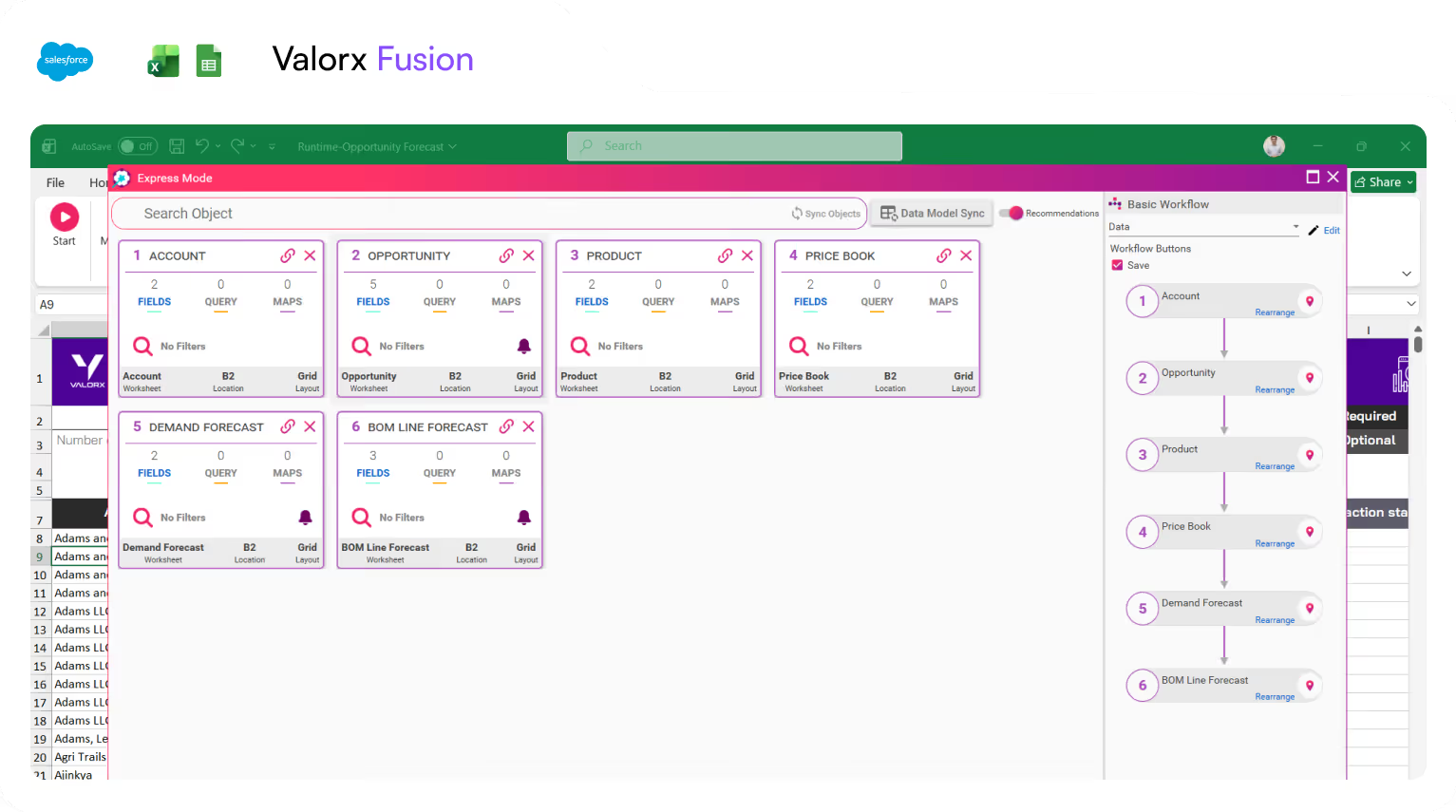
Fusion brings related objects into one workbook. You can analyze across them without stitching files together with lookups on record IDs.
5. Forecast and model scenarios on live numbers
Forecast models are where Excel is strongest and where stale data hurts most. With a connected workbook, the model starts from current pipeline and bookings. Adjust a scenario, compare it with the committed number, and write the approved forecast back to Salesforce.
This also answers the common objection to spreadsheet forecasting. The real cost of forecasting in Excel comes from disconnected files and version sprawl, not from Excel itself. Connect the workbook and those costs fall away. See how teams run Salesforce forecasting this way.
6. Fix what you find, then save it back
Analysis always surfaces bad data: a missing close date, a wrong stage, a duplicate. On an export, each fix is a ticket or a second trip into Salesforce.
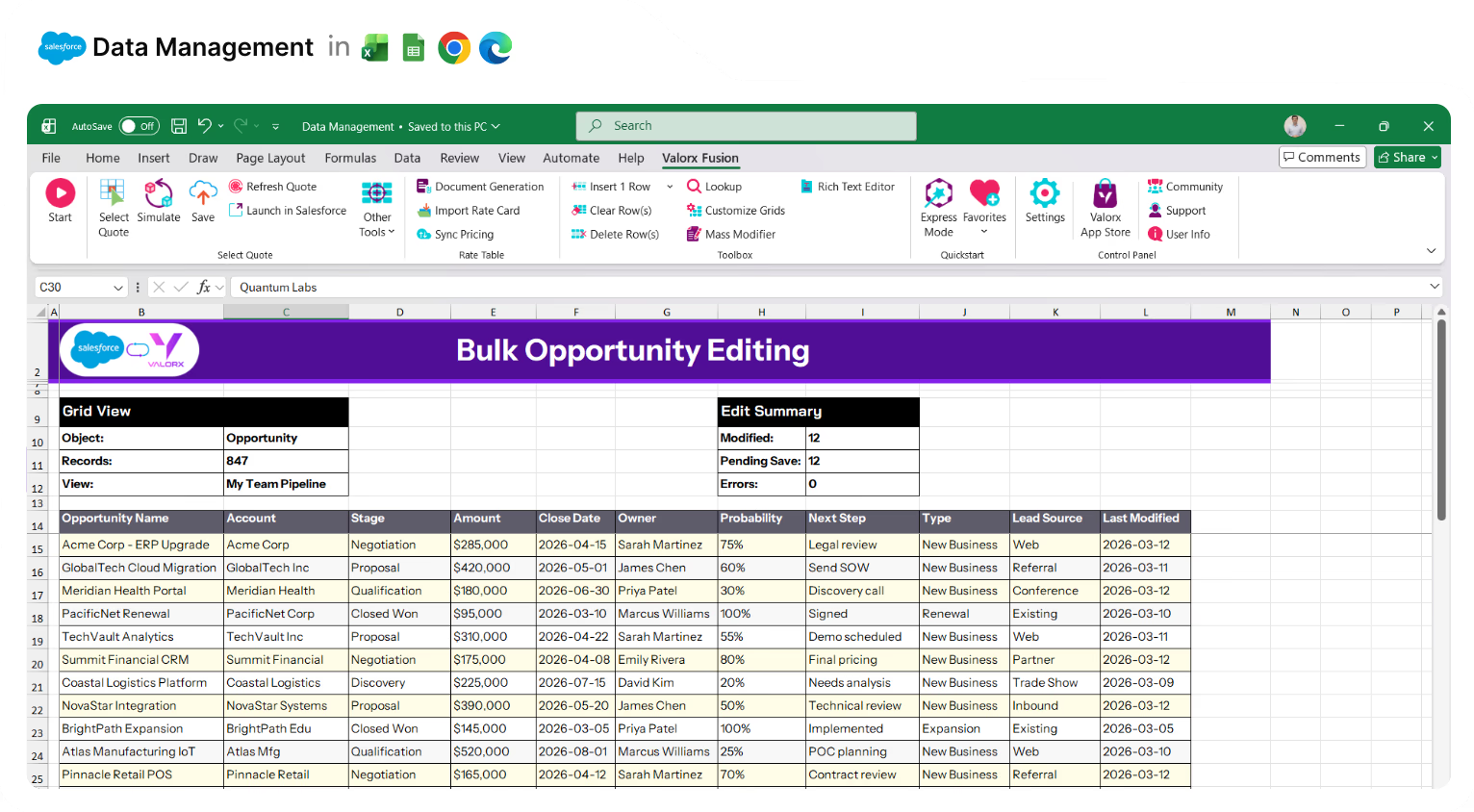
On a connected workbook, correct the cells with copy and paste, drag-fill, or filters, then save. Hundreds or thousands of records update in one step, and Salesforce validation rules still apply. It is the same approach teams use for wider Salesforce data management.
Example: a weekly pipeline review without the export
Here is what a sales operations lead's Monday looks like on a connected workbook. The scenario is illustrative.
- Open the same workbook as last week. Refresh it. Open Opportunities for the quarter load with current stage, amount, and close date.
- Read the pivot. Pipeline by rep and close month updates on refresh. No rebuild.
- Scan the exceptions. Conditional formatting flags deals with a close date in the past and deals in an early stage with a close date this month.
- Fix them in the sheet. Filter to the flagged rows, correct close dates after a quick check with each rep, and move dead deals to Closed Lost.
- Save to Salesforce. The changes write back in one step, with Salesforce validation rules applied.
- Run the meeting from Salesforce or the workbook. Both now show the same numbers.
The export version of this routine has the same steps plus a download, a rebuild, and a re-import, repeated every week.
What teams see after they stop exporting
The time saved shows up in the recurring work, the reports and forecasts that used to be assembled by hand.
| Customer | Workflow moved to connected Excel | Result |
|---|---|---|
| Adobe | Reporting across three Salesforce orgs | 40+ hours of manual reporting cut to minutes |
| Teladoc Health | Quote data across three Salesforce CPQ orgs | 70% less data management time and zero manual re-entry errors |
| Western Digital | Time-phased forecasting with Salesforce and ERP actuals in one view | Days of manual data assembly eliminated |
Swipe the table to see all columns
Does live data in Excel weaken Salesforce security?
No. Fusion authenticates through Salesforce, so each person sees and edits only what their Salesforce user is allowed to. Object permissions and field-level security carry into the workbook.
Compare that with an export. Once a report is downloaded, the file can be forwarded, copied, and stored anywhere, and Salesforce has no control over it. A connected workbook reduces the number of unmanaged copies because the data is fetched on demand, not handed out as files.
Excel or inside Salesforce: which should you use?
Use Excel when the work needs formulas and models. Stay inside Salesforce when the work is fast editing of many records.
| If you need to | Use |
|---|---|
| Build forecasts, models, or pivot analysis | Valorx Fusion (Excel or Google Sheets) |
| Connect a workbook your team already relies on | Valorx Fusion |
| Bulk edit pipeline, cases, or quote lines without leaving Salesforce | Valorx Wave |
| Give teams a spreadsheet-style grid inside Salesforce Lightning | Valorx Wave |
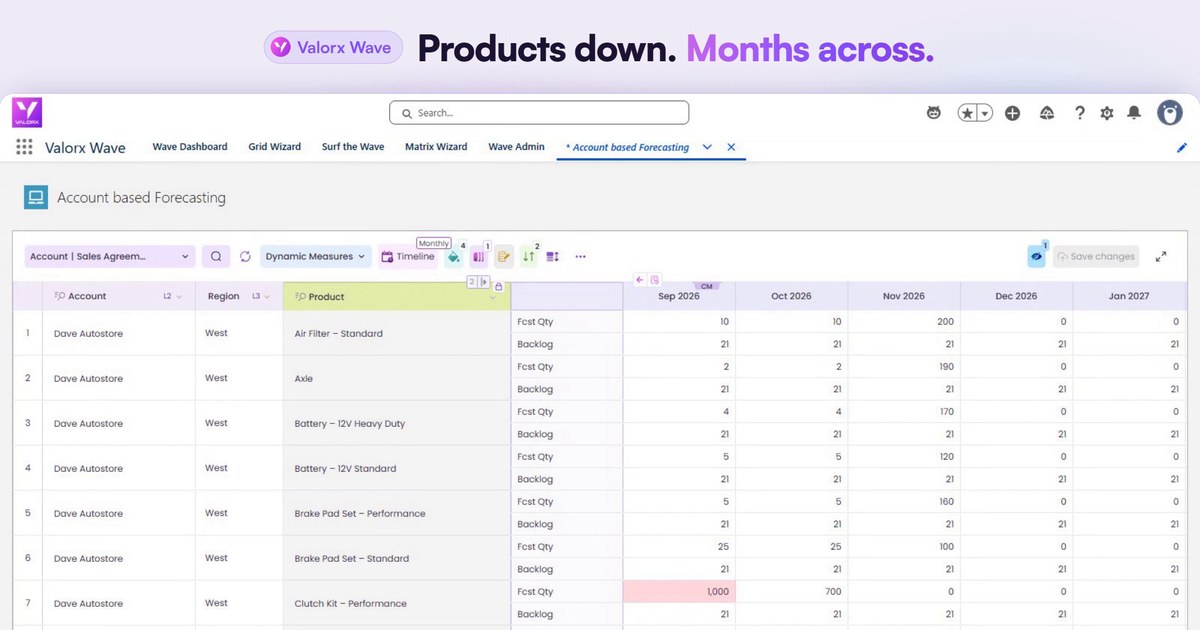
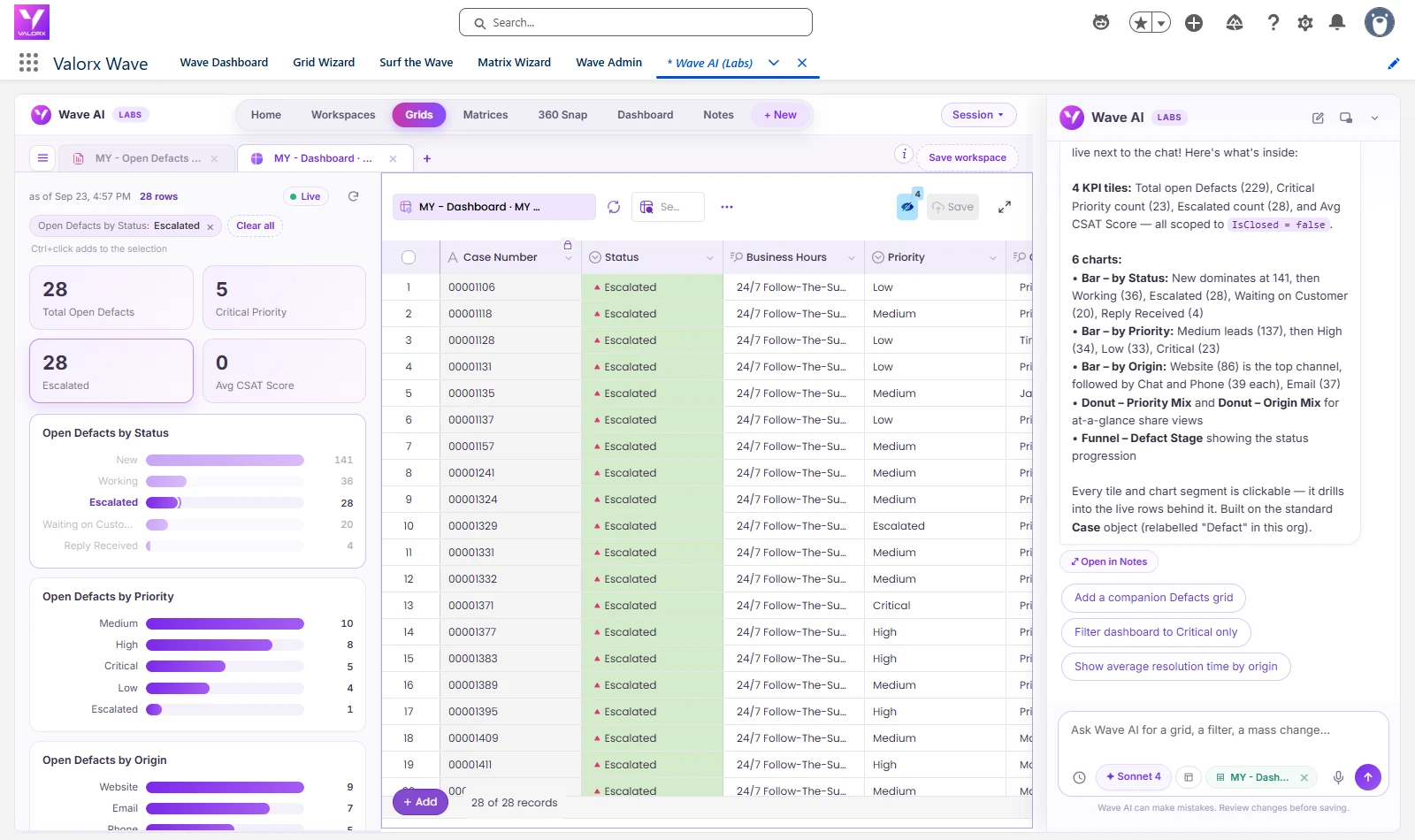
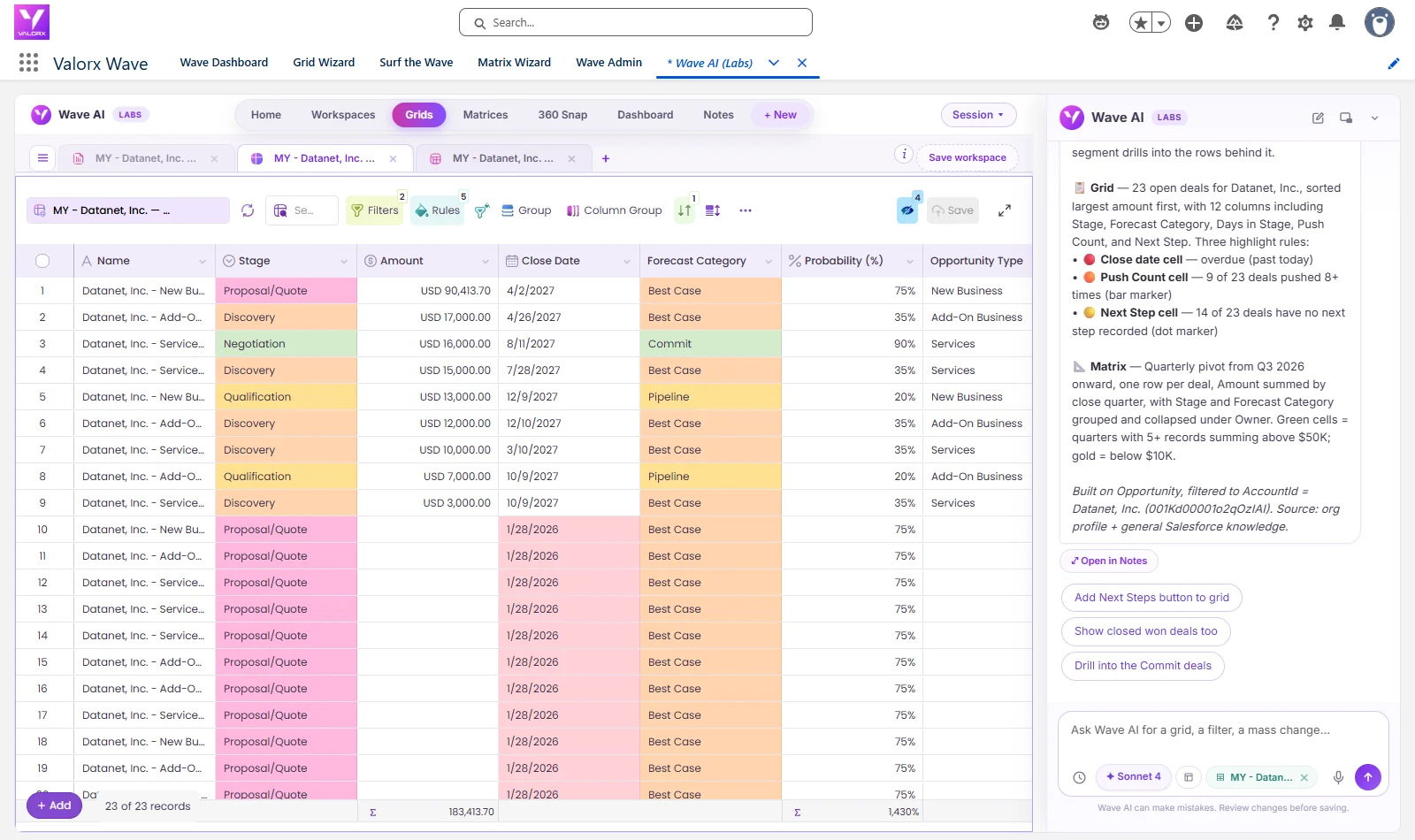
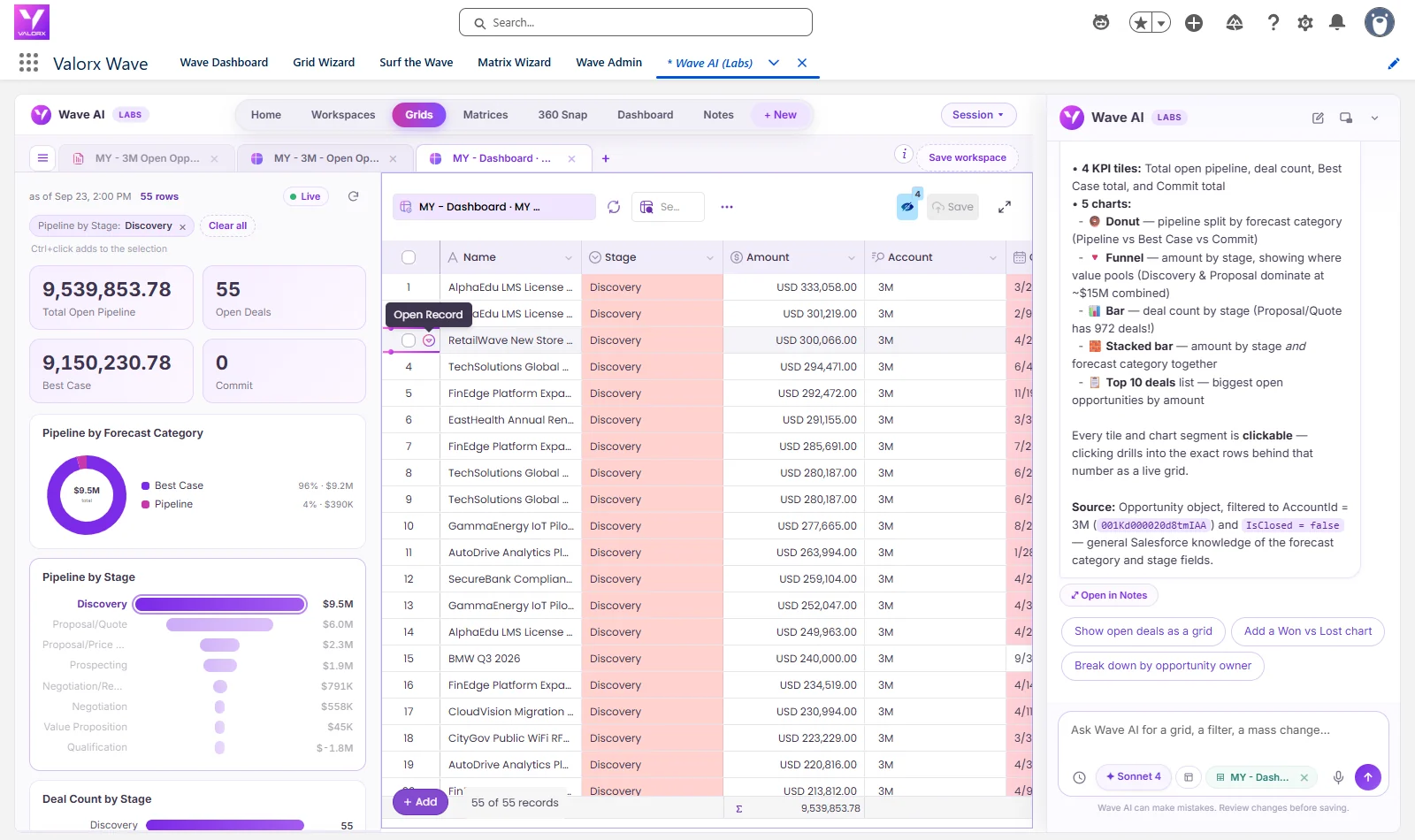
Many teams use both: Fusion for analysis and planning, Wave for day-to-day updates. Wave AI, now in private beta, goes a step further and builds a grid from a plain-language request such as "show pipeline per rep".
How to get started
Connecting a workbook takes three steps.
- Connect. Add the Fusion add-in to Excel or Google Sheets and sign in with your Salesforce credentials.
- Build. Choose the objects and fields you need, or point an existing workbook at Salesforce.
- Work. Analyze, edit, and save. One click writes your changes back to Salesforce.
Frequently asked questions
How do I get real-time Salesforce data in Excel?
Connect the workbook to Salesforce with a connector such as Valorx Fusion. You sign in with Salesforce, pick objects and fields, and the records load into the sheet. Refresh whenever you need current values.
How do I analyze Salesforce data in Excel without exporting?
Use a connected workbook instead of a report export. Formulas and pivot tables run on live Salesforce data, and any edits you make save back to Salesforce from the same sheet.
What is wrong with export-based analysis?
Three things. The data is stale as soon as it downloads, corrections need an error-prone re-import, and each file is a copy of Salesforce data outside your access controls.
Can edits I make during analysis update Salesforce?
Yes. With Fusion, you can edit connected records in Excel and save permitted inserts, updates, and deletes back to Salesforce. Validation rules still apply.
Can I connect a workbook I already use?
Yes. Fusion is designed to work with existing Excel workbooks, so current layouts, formulas, pivots, and macros keep working once the data is connected.
Do Salesforce permissions apply in Excel?
Yes. Fusion authenticates through Salesforce, so object permissions and field-level security control what each user can view and update.
Does this work in Google Sheets?
Yes. Fusion is available for Microsoft Excel on Windows and Mac and for Google Sheets.




Choose the workflow you need:
Try Wave in browser Extension

Try Wave in Salesforce

Try Fusion In Excel

Enhancing Salesforce for industry leaders