How to choose a Salesforce Excel connector: 7 things to evaluate

You have already decided you need a Salesforce Excel connector. Your team exports reports every week, edits them in a spreadsheet, and someone loads the changes back by hand. The open question is which connector to pick.
That choice is harder than it looks, because the term covers very different products. Some only pull data out. Some sync on a schedule. Some turn the spreadsheet into a working screen for Salesforce. They can look identical in a demo and behave very differently in month three.
This guide gives you seven questions to ask every vendor, a comparison you can scan, and a scorecard you can fill in. We make one of these connectors, Valorx Fusion, and we say clearly where it fits and where a free tool will do.
Key takeaways
- A Salesforce Excel connector links a spreadsheet to your Salesforce org so users can read, and in some tools edit, CRM records from Excel.
- Connectors fall into three groups: export tools, load and sync tools, and live spreadsheet interfaces that work directly against Salesforce.
- Evaluate seven things: data direction, live editing at volume, permissions and validation rules, where the data lives, workflow depth, spreadsheet environment, and total cost including rollout.
- A free export tool is enough for one-off reporting. Recurring bulk edits, forecasting and quoting need a two-way connector that respects Salesforce security.
- Valorx Fusion is built for that last group: live, two-way work in Excel for Windows, Excel for Mac and Google Sheets.
The three types of Salesforce Excel connector
Most tools belong to one of three groups. Knowing the group tells you most of what a tool can and cannot do.
| Type | What it does | Examples | Good for |
|---|---|---|---|
| Export tools | Pull a report or object out of Salesforce into a file. Changes do not flow back. | Salesforce report export, Data Export Service | One-off analysis, sharing a snapshot |
| Load and sync tools | Pull data into a sheet, refresh it on demand or on a schedule, and push edits back in batches. | Salesforce Data Loader, Dataloader.io, XL-Connector, Coefficient | Admin data loads, recurring reports, bulk updates |
| Live spreadsheet interfaces | The spreadsheet becomes a front end to Salesforce for a business process, with related objects, logic and saves handled together. | Valorx Fusion, Conga X-Author | Forecasting, quoting and planning done by business users |
Swipe the table to see all columns
7 things to evaluate in a Salesforce Excel connector
1. Do you need one-way or two-way integration?
Start here, because it removes half the market. One-way tools bring Salesforce data into Excel for analysis. Two-way tools also write your edits back to Salesforce.
If your team only builds reports, one-way is enough and usually free. If anyone edits the spreadsheet and then updates Salesforce by hand, you need two-way. Otherwise the spreadsheet becomes a second source of truth, a problem we cover in exports are so 1999.
Ask the vendor: can users create, update and delete records from the sheet, or only read them?
2. Is the data live, and can users edit it in bulk?
"Live" means different things. For some tools it means a scheduled refresh every hour. For others it means the sheet reads and writes to Salesforce at the moment the user works.
Volume matters as much as freshness. Updating 50 records is easy for any tool. Updating 20,000 quote lines or a multi-year forecast is where tools slow down, time out or hit API limits.
Ask the vendor:
- How fresh is the data when a user opens the sheet, and what triggers a refresh?
- How many records can one user save in a single action?
- What happens when two people edit the same record?
- Which Salesforce API does it use for large saves, and how does it handle API limits?
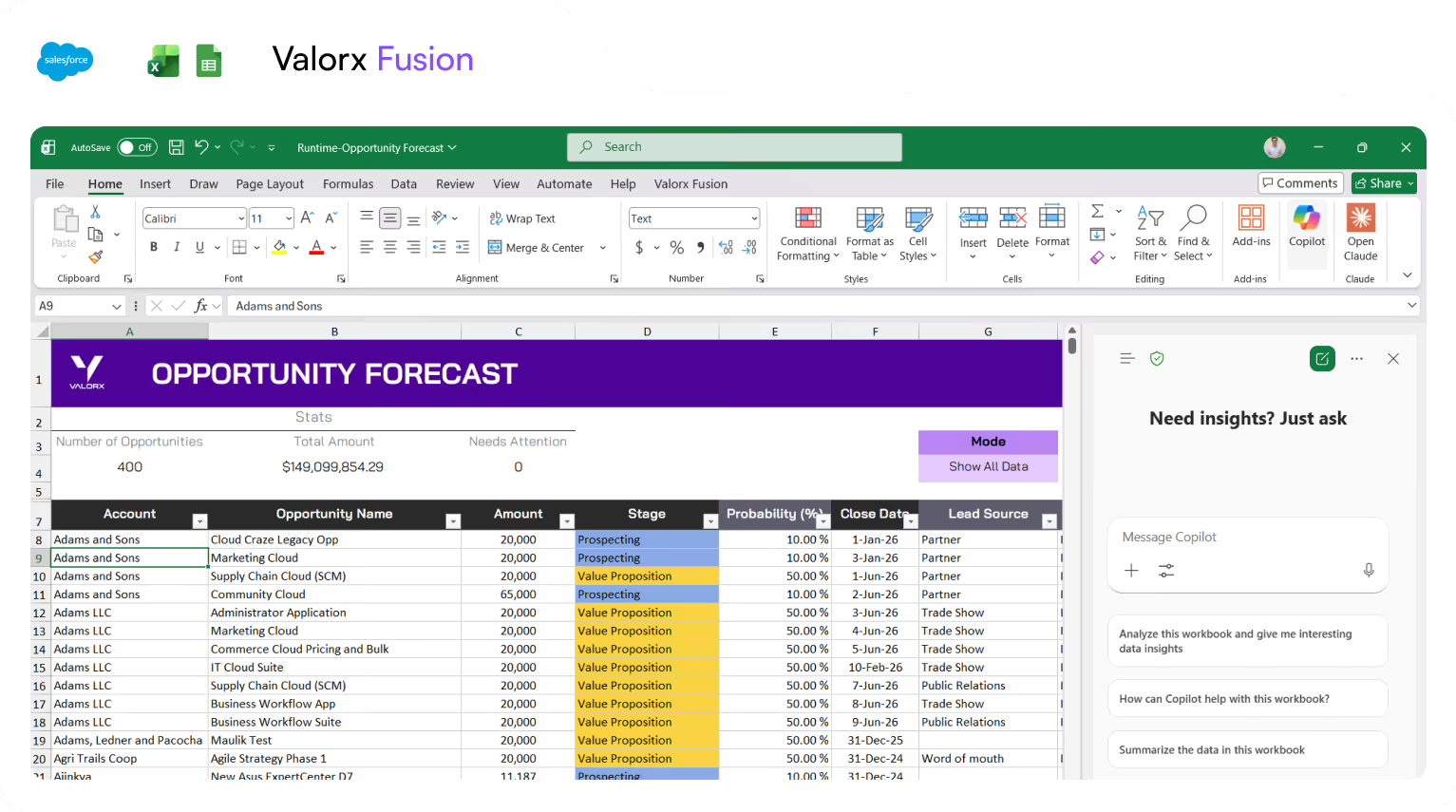
3. Does it preserve Salesforce permissions and validation rules?
A connector should never be a way around your security model. Every read and write should run as the logged-in user, with their profile, permission sets, field-level security and sharing rules applied.
The same goes for data quality. Validation rules, required fields, triggers and flows should fire on saves from Excel exactly as they do in Salesforce. Errors should come back to the user row by row, in plain language, so they can fix and resave.
Ask the vendor:
- Does each user sign in with their own Salesforce credentials, or does the tool use a shared integration user?
- Do validation rules, triggers and flows run on every save?
- How are failed rows reported, and can the user fix them in place?
4. Where does the data actually live?
This is the question most buyers skip, and the one your security team will ask first. Once Salesforce data lands in a spreadsheet, it can be saved, emailed and forgotten. A connector can reduce that risk or multiply it.
There are three places your data can end up:
- In Salesforce only. The sheet shows data for the session and writes changes straight back.
- In the workbook. A copy stays in the file after it is saved and shared.
- On the vendor's servers. Some tools pass or store data in their own cloud to run schedules, snapshots or blending.
None of these is wrong for every case. A scheduled dashboard needs a stored copy. A forecast with customer pricing probably should not have one on a third-party server. It is also why IT teams tend to care more about this answer than any feature.
Ask the vendor:
- Does Salesforce data pass through or rest on your servers? For how long?
- What stays in the workbook when it is saved or shared with someone who has no Salesforce access?
- Which certifications do you hold, and have you passed Salesforce AppExchange security review?
- Can an admin control which objects, fields and templates users can reach?
5. Does it support complex workflows such as forecasting or CPQ?
Editing one flat object is a solved problem. Real processes are not flat. A forecast spans accounts, products and time periods. A quote has a header, lines, price rules and approvals.
A connector that only handles one object at a time pushes the hard part back to the user: several sheets, several saves, and lookups stitched together by hand.
Ask the vendor:
- Can one sheet read and save parent and child records together, in one action?
- Can I keep my own Excel formulas, pricing logic and layouts, and map them to Salesforce fields?
- Does it work with Salesforce CPQ, Revenue Cloud and custom objects?
- Can admins build a template once and publish it to every user?
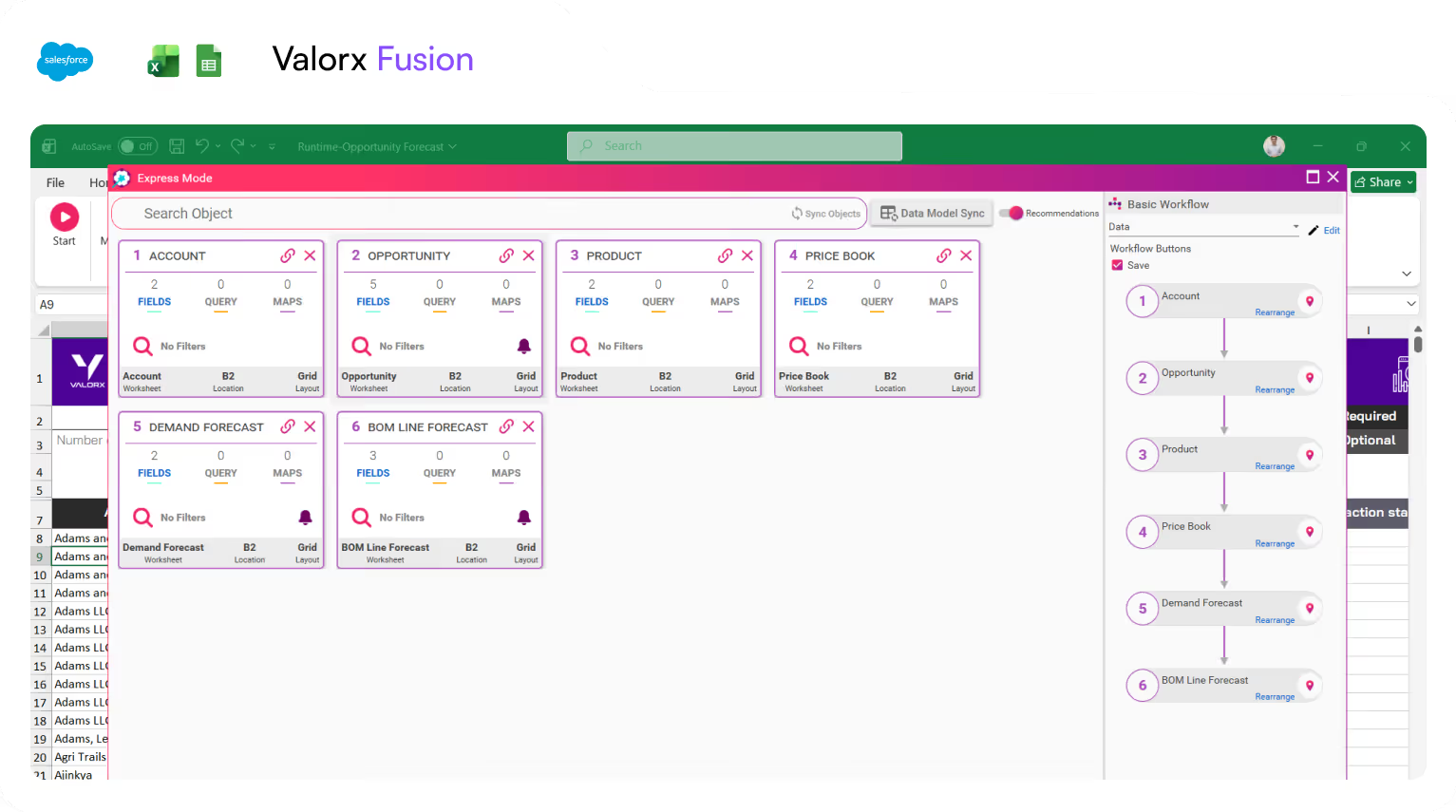
Here is what that looks like for quoting. BP runs multi-dimensional quotes for Salesforce CPQ in Excel:
For more on this pattern, see how teams run the quote line editor in Excel.
6. Does it work with your spreadsheet environment?
Check what your users actually open, not what IT assumes. Many connectors were built as Windows-only Excel add-ins and offer a reduced version, or nothing, elsewhere.
List every environment in use: Excel for Windows, Excel for Mac, Excel on the web, and Google Sheets. Then check feature parity, because "supported" can mean a subset. If part of your team lives in Sheets, see how to connect Salesforce to Google Sheets.
Ask the vendor:
- Which platforms are supported, and which features are missing on each?
- Is it a locally installed add-in or a store add-in that IT can deploy centrally?
- Does it support more than one Salesforce org, including sandboxes?
7. What is the total cost, including implementation?
License price is the visible part. Total cost includes setup, template building, training, admin time and the cost of anything the tool cannot do.
A free tool that needs an admin for every load is not free. A premium tool that needs consultants to build each template costs more than its price. Estimate cost per process, not per seat.
Ask the vendor:
- Is there a free tier or trial that lets us test with our own org and data?
- How long does a typical first use case take to go live, and who builds it?
- Which features sit behind higher tiers, especially write-back and automation?
- Is pricing per user, per org or by usage?
Salesforce Excel connector comparison
Here is how the most common options line up against the criteria above. Vendors change plans and features often, so confirm the details on each vendor's site before you decide.
| Connector | Direction | How data stays current | Multi-object workflows | Environments | Entry cost |
|---|---|---|---|---|---|
| Valorx Fusion | Two-way | Live read and write from the sheet | Yes, including CPQ quotes and forecasts | Excel for Windows, Excel for Mac, Google Sheets | Free tier, paid plans above it |
| XL-Connector | Two-way | On-demand refresh, plus automated flows | Built around object and report pulls | Excel for Windows; Mac and Excel Online through XL-Connector 365 | Free version, paid editions |
| Coefficient | Two-way, with write-back on paid plans | Scheduled or on-demand refresh | Blends Salesforce with other data sources | Excel and Google Sheets | Free tier, paid per user |
| Conga X-Author | Two-way | App-driven retrieve and save | Yes, through admin-built apps | Excel for Windows only | Paid per user |
| Salesforce Data Loader and Dataloader.io | Two-way, through CSV files | Manual or scheduled loads | One object per load | Not a spreadsheet add-in | Free, with paid tiers for Dataloader.io |
| Salesforce report export | One-way | Snapshot at export time | No | Any, as a file | Included with Salesforce |
Swipe the table to see all columns
Security behavior and data location are not in this table on purpose. They depend on your configuration and plan, so get each vendor's answer to questions 3 and 4 in writing.
For deeper head-to-heads, read our Conga X-Author vs Fusion comparison and our look at XL-Connector alternatives.
Salesforce Excel connector evaluation checklist
Score your shortlist right here. Rename the three vendors, star the criteria that matter most to your team (they count double), then tap each cell to mark Yes, Partial or No. Copy the result into your own spreadsheet when you are done.
Yes scores 2, Partial scores 1, No scores 0. Starred criteria count double. Nothing you enter here is saved or sent.
Which type of connector fits your need?
Match the tool to the job, not to the longest feature list.
- You pull a report into Excel once in a while. Use Salesforce report export. It is free and already there, and a connector adds nothing.
- You run admin data loads and migrations. Use Salesforce Data Loader or Dataloader.io. They are built for moving large files in and out.
- You refresh recurring reports and dashboards in a spreadsheet. Use a sync tool such as Coefficient or XL-Connector. Scheduled refresh and report pulls are their core strength.
- Admins and power users bulk-update records from Excel. Use a two-way connector such as XL-Connector or Valorx Fusion, and choose on platform, volume and security answers. Here is how that compares with the native options for mass updating records in Salesforce.
- You run forecasting, quoting or planning in Excel against live Salesforce data. Use a live spreadsheet interface such as Valorx Fusion: multi-object saves, your own Excel logic, and Salesforce rules enforced on every save.
If you are in one of the first three groups, you may not need us. If your spreadsheet is where the business process actually happens, read on.
Where Valorx Fusion fits
Fusion turns an Excel workbook or Google Sheet into a live, two-way interface to Salesforce. There is no export and no import. Users open the sheet, work the way they already do, and save straight to Salesforce.
Here is how Fusion answers the seven questions:
- Direction: two-way. Create, update and delete records from the sheet.
- Live editing at volume: pull current records, edit in bulk with normal Excel actions, and save thousands of rows back in one pass.
- Permissions and validation: Fusion signs in through Salesforce, so each user's object permissions and field-level access apply to every read and every save.
- Data location: Salesforce stays the system of record. Edits save back to Salesforce, so there is no second copy to reconcile.
- Workflow depth: works with standard and custom objects, including Salesforce CPQ. Your existing formulas and layouts keep working, so you can use your existing spreadsheets with Salesforce.
- Environment: Excel for Windows, Excel for Mac and Google Sheets.
- Cost: a free tier to test with your own org, and paid plans as usage grows. See pricing.
Watch Fusion connect Excel to Salesforce:
Teams use it where spreadsheets and Salesforce have to meet:
- Forecasting. Western Digital manages multi-year, multi-product forecasts in one spreadsheet view, saved to Salesforce. More in our forecasting overview.
- Complex quoting. BP scaled multi-dimensional quoting for Salesforce CPQ in Excel.
- End-to-end process management. Adobe connected three Salesforce orgs to one workbook and cut cross-org report compilation from more than 40 hours to minutes.
Put your shortlist to the test.
Run the checklist on your own org and data. Both products work on live Salesforce records. The difference is whether you would rather stay in your spreadsheet or stay in Salesforce.
Frequently asked questions
What is a Salesforce Excel connector?
A Salesforce Excel connector is an add-in or app that links a spreadsheet to a Salesforce org. It lets users pull Salesforce records into Excel and, in two-way tools, save edits back to Salesforce without exporting and importing files.
Does Salesforce have a built-in Excel connector?
Salesforce lets you export reports to Excel and offers Data Loader for bulk file loads. Both are free, and both work with files, not a live sheet. For live, two-way editing inside Excel you need a third-party connector.
Can I edit Salesforce records directly from Excel?
Yes, with a two-way connector. You edit cells in the sheet and save, and the connector writes the changes to Salesforce through its API. Check that validation rules and user permissions apply to those saves.
Is it safe to connect Salesforce to Excel?
It is safe when the connector runs as each signed-in user, respects field-level security and sharing rules, and is clear about where data is stored. Ask every vendor whether data rests on their servers and what stays in a saved workbook.
Do Salesforce Excel connectors work on Mac and Google Sheets?
Some do. Several connectors are Windows-only or offer fewer features on Mac and Excel on the web. Valorx Fusion supports Excel for Windows, Excel for Mac and Google Sheets.
How much does a Salesforce Excel connector cost?
Native export and Data Loader are free. Third-party connectors usually charge per user per month, often with a free tier and with write-back or automation on higher plans. Include setup and admin time when you compare.
What is the best Salesforce Excel connector?
It depends on the job. For one-off reports, use native export. For recurring reports, use a sync tool. For forecasting, quoting and bulk edits by business users, choose a live two-way connector that enforces Salesforce security, such as Valorx Fusion.

.svg)

.png)
Choose the workflow you need:
Try Wave in browser Extension

Try Wave in Salesforce

Try Fusion In Excel

Enhancing Salesforce for industry leaders