connect excel to live salesforce data
Salesforce Excel Connector
Valorx Fusion is a Salesforce Excel connector that lets you refresh, edit, analyze, and update CRM data without repeated exports and imports.
Enhancing Salesforce for industry leaders












WHY CONNECT EXCEL & SALESFORCE?
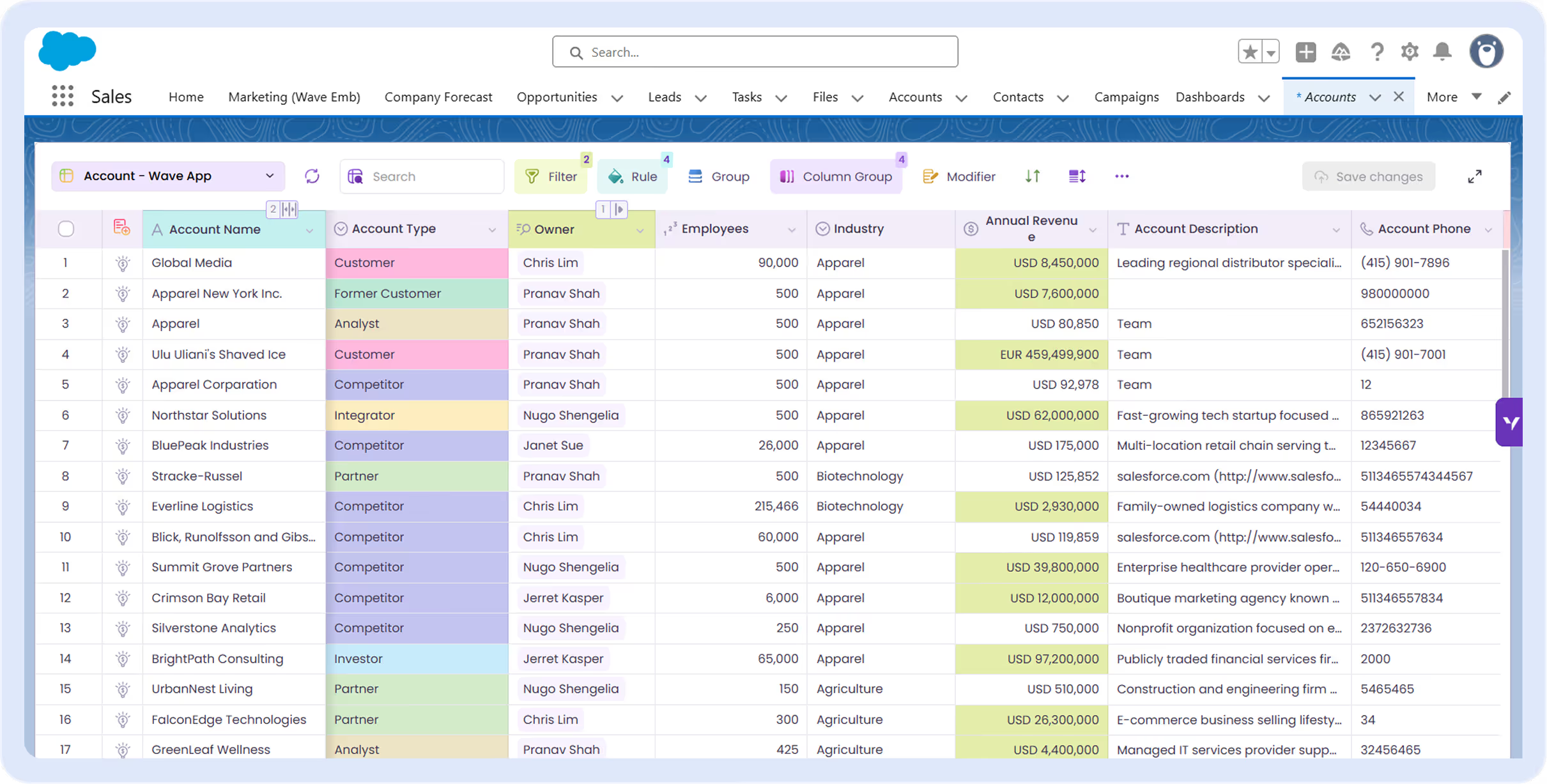
Work with Salesforce data directly in Excel
Connect Excel to Salesforce so teams can view, edit, refresh, and update CRM data
without repeated exports and imports.
without repeated exports and imports.
Bulk edit Salesforce records
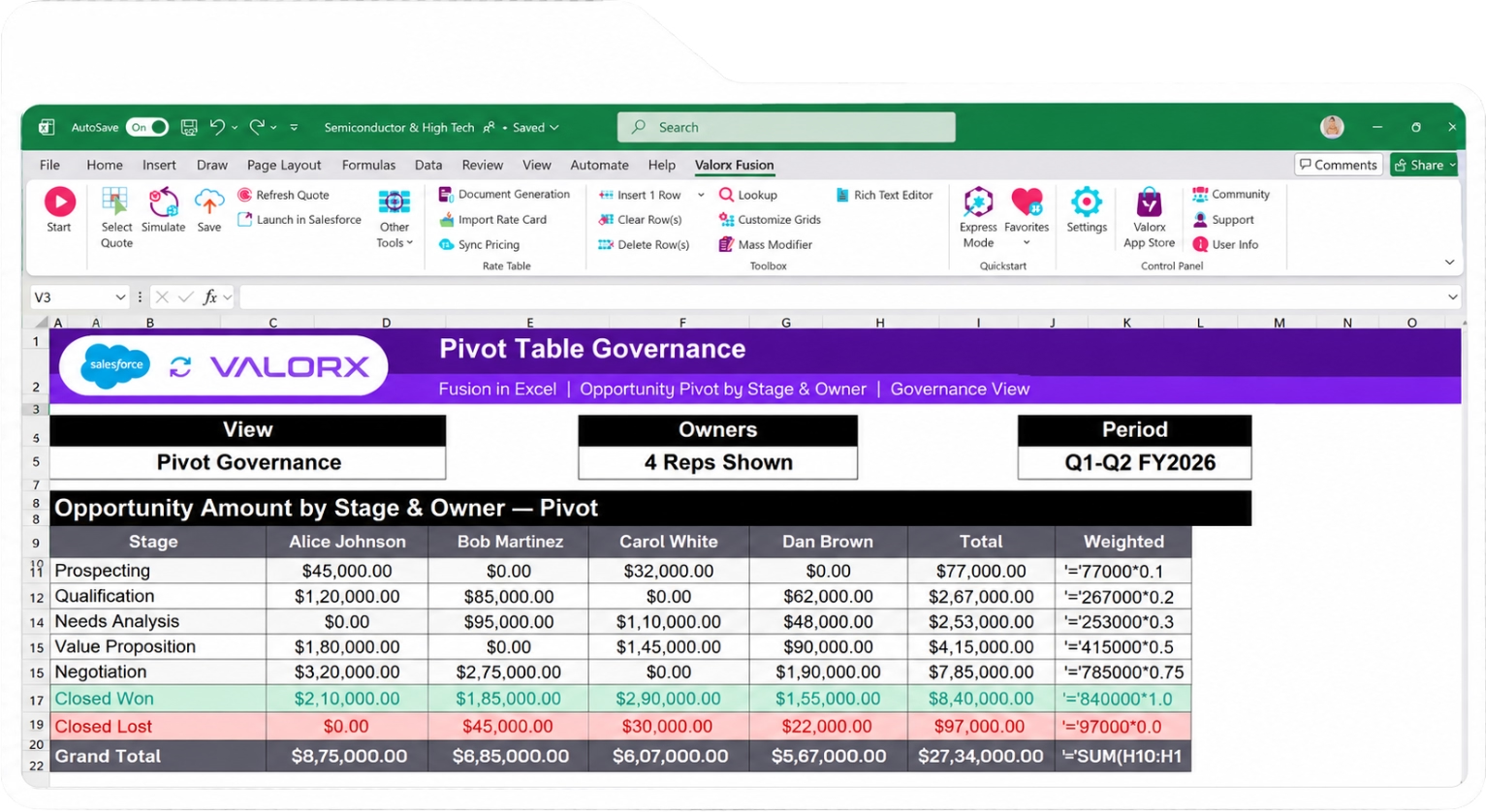
Update hundreds or thousands of Salesforce records using copy/paste, drag-fill, filters, and other familiar Excel actions — then save your changes back to Salesforce.
Learn more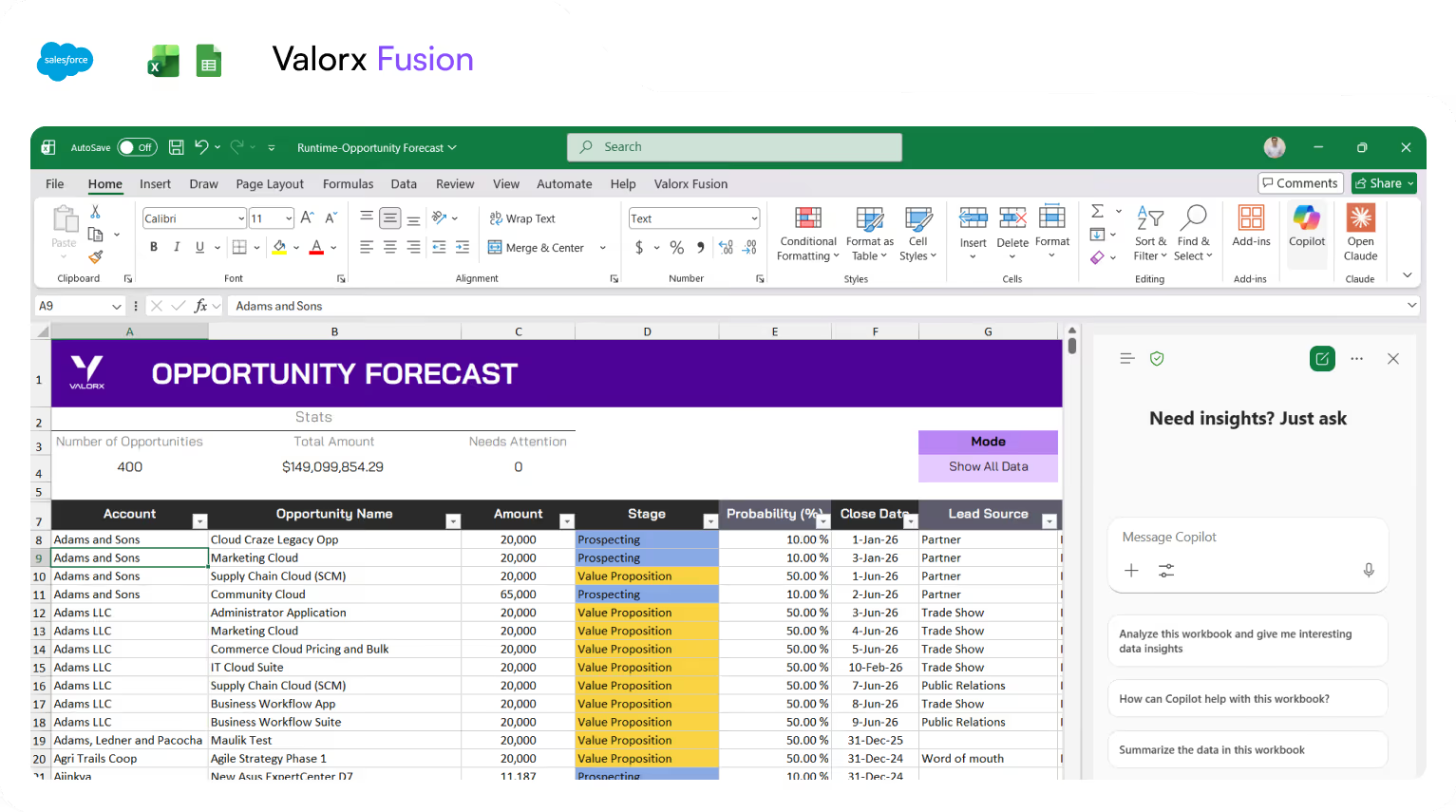
Excel capabilities
for Salesforce
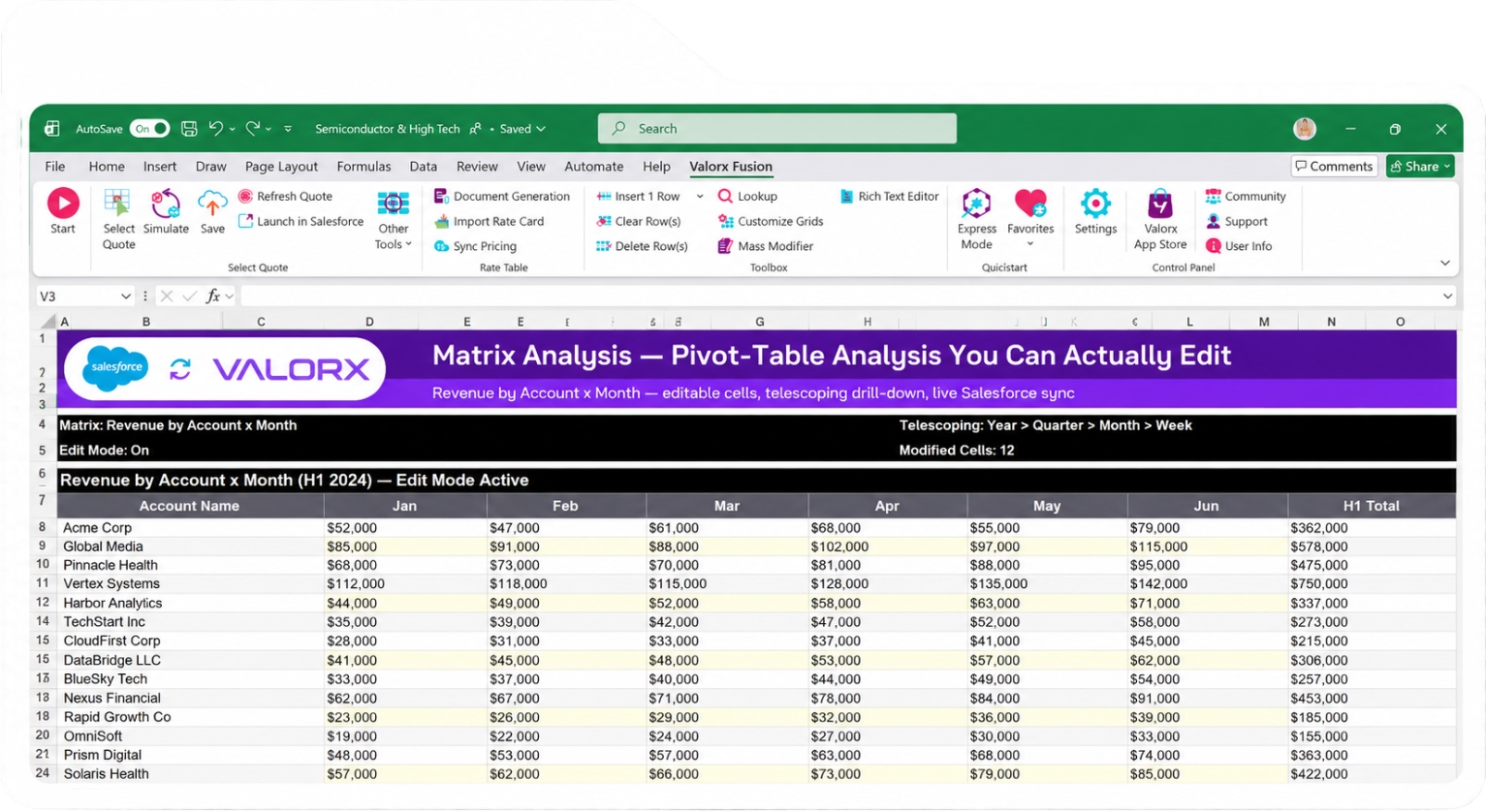
Use formulas, pivots, macros, conditional formatting, charts, and existing workbook logic while keeping the underlying data connected to Salesforce.
Learn more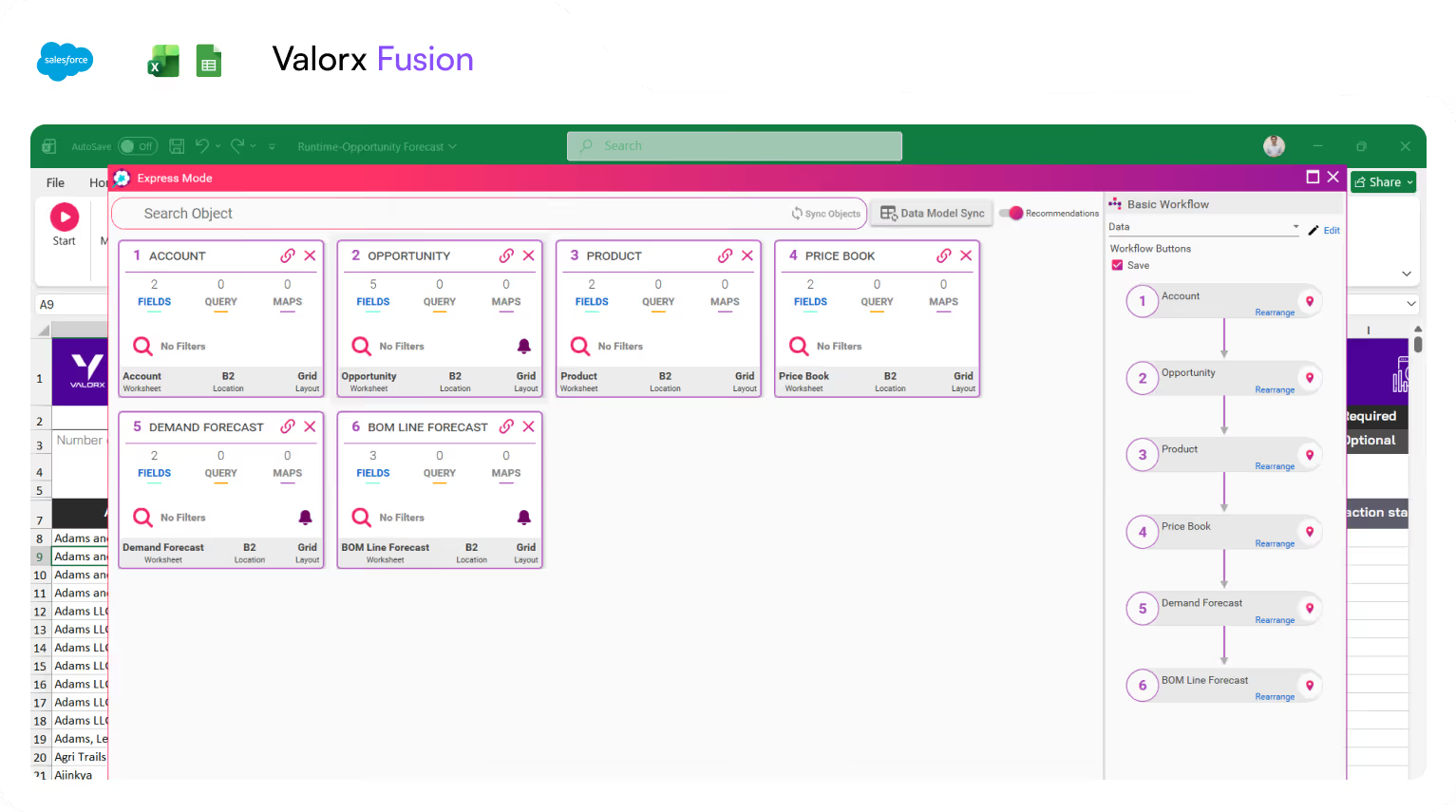
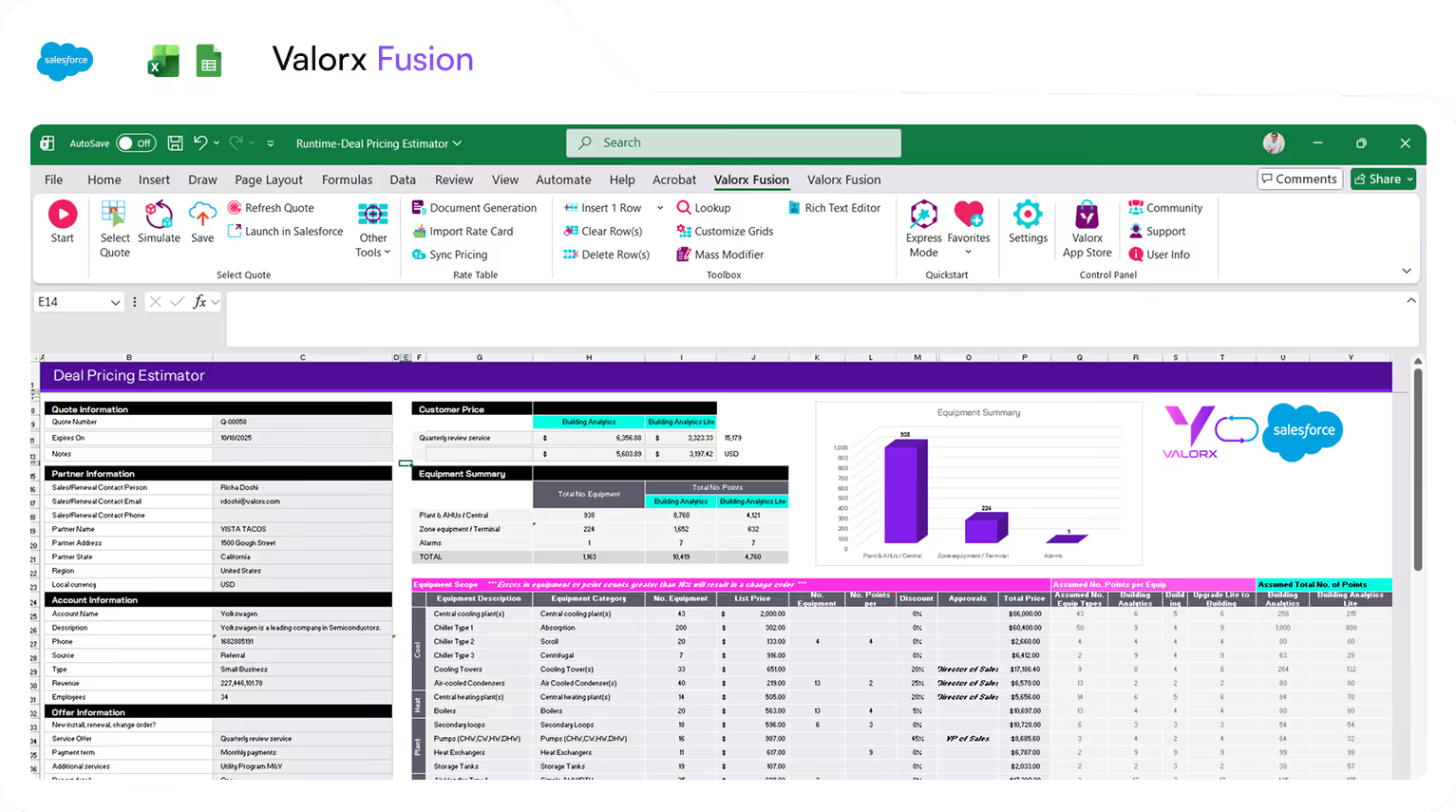
Multiple Salesforce objects in one view
Bring Accounts, Opportunities, Quotes, Products, custom objects, and other related Salesforce data into one workbook instead of moving between records and tabs.
Learn more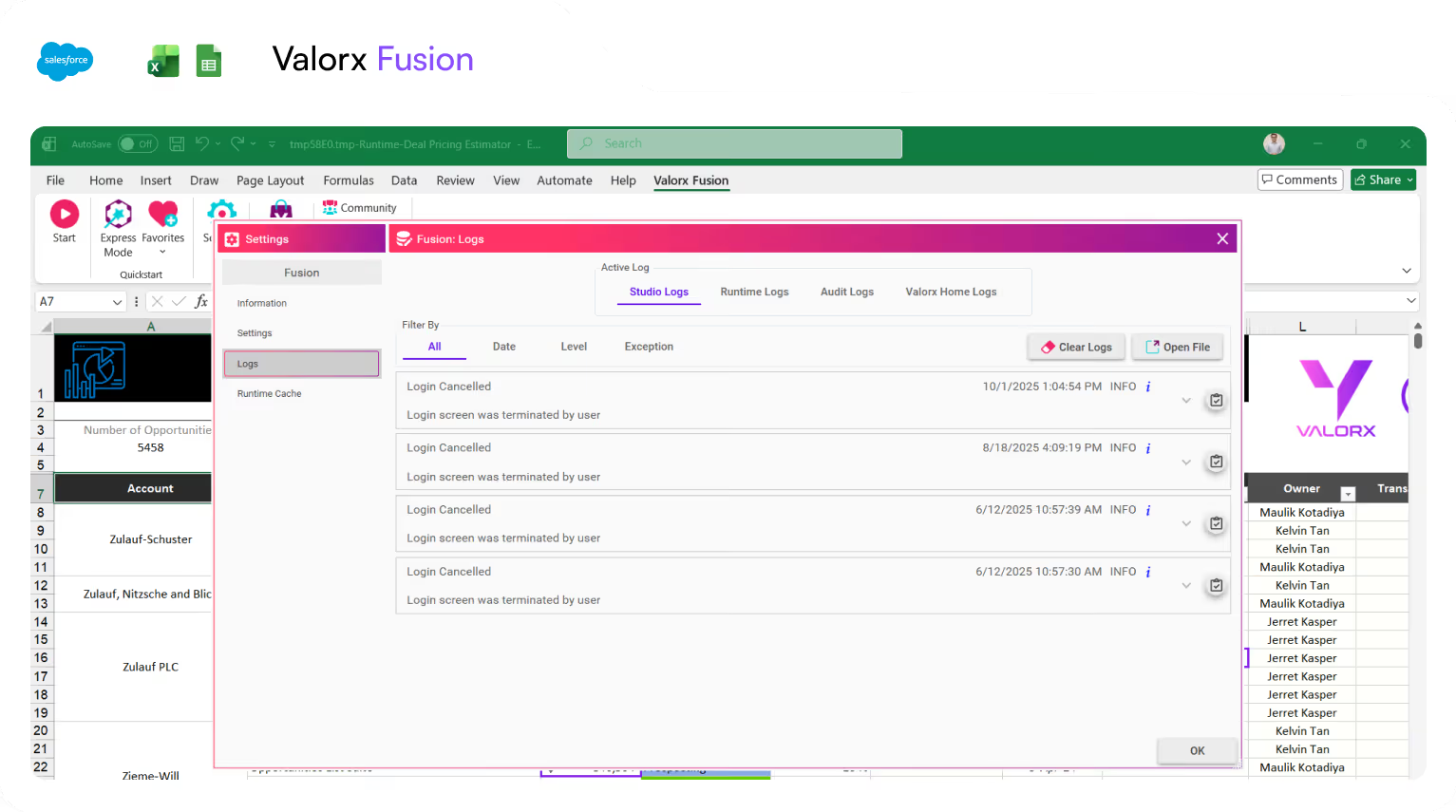
Maintain Salesforce data access controls
Fusion authenticates through Salesforce, so existing object permissions and field-level access continue to control what each user can view and update.
Learn more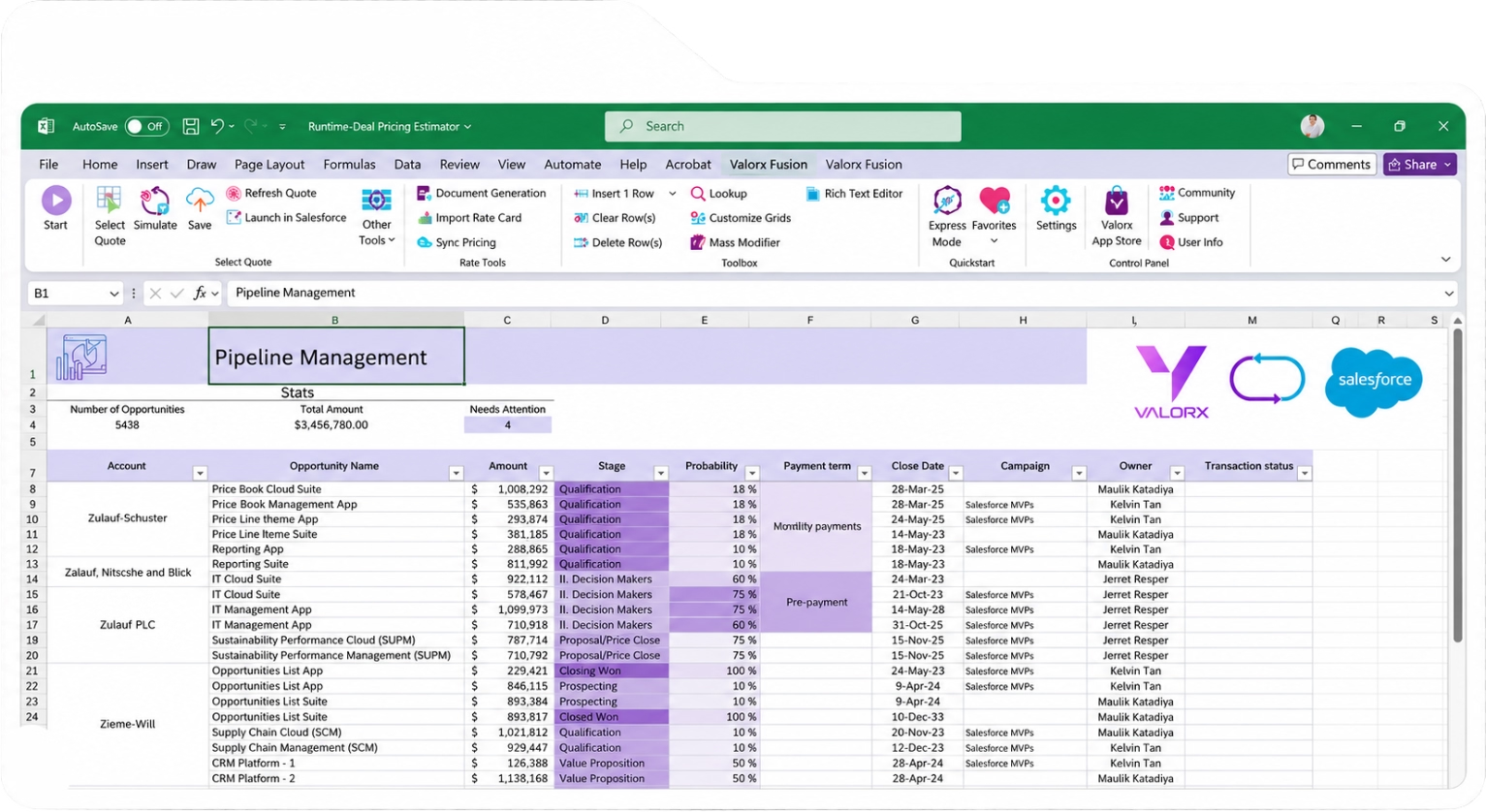
three simple steps
How Valorx Fusion Connects Excel and Salesforce


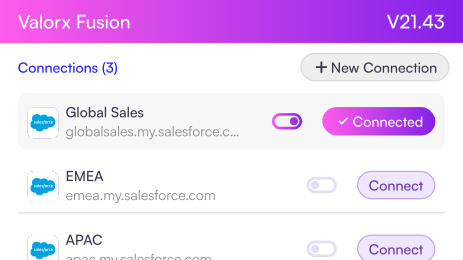
Connect
Add the Excel or Sheets add-in. Sign in with Salesforce
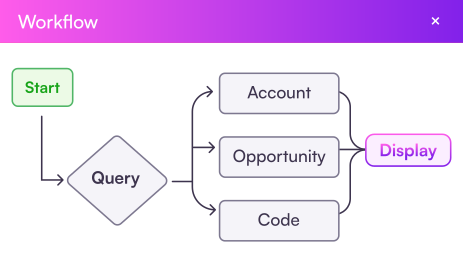

Build
Connect spreadsheets to Salesforce. Build AI workflows to mimic your processes

Work
One click writes every change back to Salesforce, securely
EXCEL + SALESFORCE, WITHOUT THE BACK-AND-FORTH
Stop exporting Salesforce just to work in Excel
Without a Salesforce Excel Connector

Export Salesforce records into Excel or CSV
Work with a static copy of CRM data
Lose visibility into Salesforce changes
Prepare files again before importing
Map fields and resolve upload errors
Repeat the process every time the data changes
With Valorx Fusion

Work with live Salesforce data in Excel
Refresh records when you need current CRM values
Make bulk edits using familiar spreadsheet tools
Keep formulas, macros, pivots, and workbook logic
Work across multiple Salesforce objects
Save permitted updates directly back to Salesforce

BUILT FOR REAL SALESFORCE WORKFLOWS
One Salesforce Excel connector.
Multiple workflows.
Salesforce Data Management
Clean, update, migrate, and manage Salesforce data at spreadsheet speed.
Explore Salesforce Data Management


Forecasting & Demand Planning
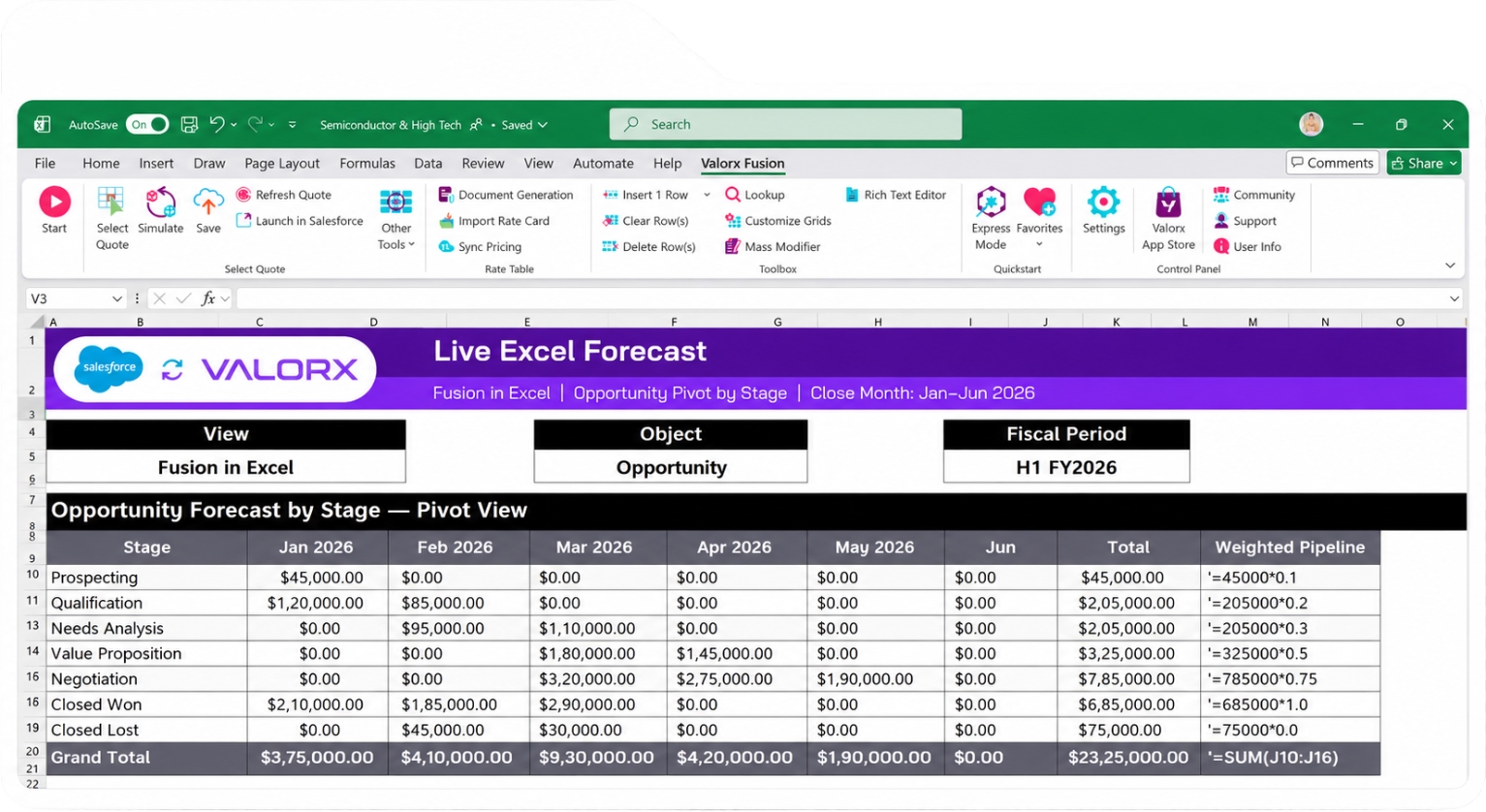
Model forecasts, adjust scenarios, and update Salesforce data from Excel.
Explore Forecasting


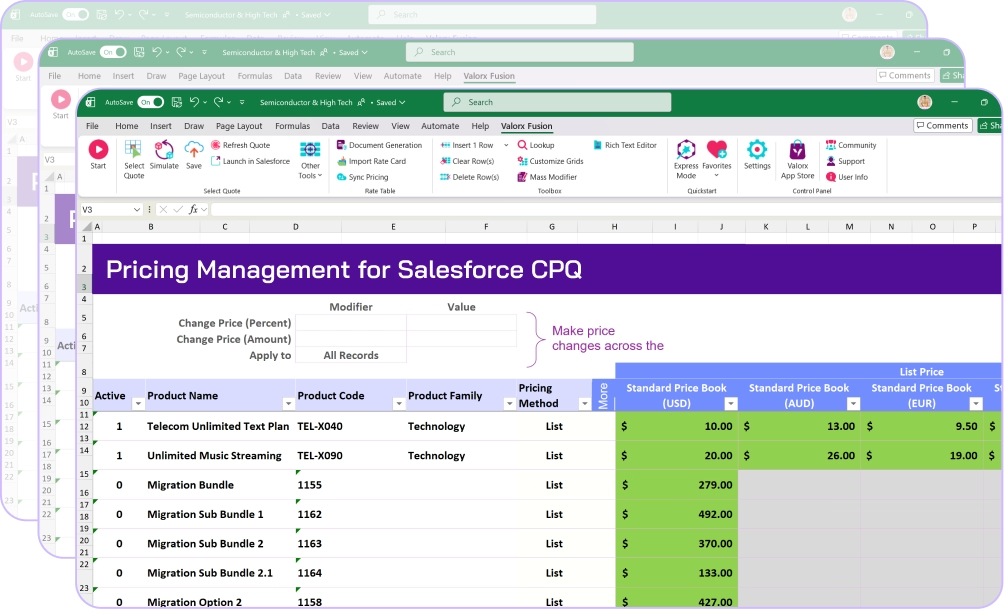
Complex Quoting & Pricing
Manage large quotes, pricing, and product data with Excel speed.
Explore Complex Quoting

Real results with Valorx
Show your customers what's possible when they combine Salesforce with spreadsheet-native workflows.


Salesforce Excel Connector FAQs
Everything you need to know about connecting Salesforce with Excel
What is a Salesforce Excel connector?
A Salesforce Excel connector links Excel with your Salesforce org so users can pull CRM records into a spreadsheet, work with the data, and save permitted changes back to Salesforce without relying on repeated exports and imports.
How does Valorx Fusion’s Salesforce & Excel connector work?
Valorx Fusion connects an Excel workbook to your Salesforce org. Users can select Salesforce objects and fields, bring records into Excel, refresh the data when needed, work with it using familiar Excel capabilities, and save permitted changes back to Salesforce.
Can I pull Salesforce data into Excel?
Yes. Valorx Fusion lets you bring Salesforce records into Excel using the objects and fields available to your Salesforce user. You can then refresh the connected data when you need the latest values from Salesforce.
Can I update Salesforce records directly from Excel?
Yes. With Fusion, users can edit connected Salesforce records in Excel and save supported inserts, updates, and deletes back to Salesforce.
Can I connect an existing Excel workbook to Salesforce?
Yes. Fusion is designed to work with existing Excel workflows. Teams can continue using their workbook layouts, formulas, pivot tables, charts, macros, and other spreadsheet logic while connecting the underlying data to Salesforce.
What Salesforce objects can I connect to Excel?
Fusion supports standard and custom Salesforce objects that the authenticated Salesforce user has permission to access.
Can I work with multiple Salesforce objects in Excel?
Yes. Fusion can support spreadsheet workflows that use data from multiple related Salesforce objects, helping teams work with connected business data without moving between individual Salesforce records and screens.
How is Valorx Fusion different from Salesforce Data Loader?
Salesforce Data Loader is primarily designed for file-based import and export jobs. Fusion provides a connected spreadsheet experience where teams can pull Salesforce data into Excel, refresh it, edit or analyze it, and save permitted changes back to Salesforce.
Can Fusion handle large Salesforce data updates?
Fusion is designed for high-volume spreadsheet workflows, allowing teams to work with large sets of Salesforce records and make bulk changes without editing records one at a time.
Does Fusion respect Salesforce permissions and security?
Yes. Fusion authenticates through Salesforce and works with the permissions and access controls configured for each Salesforce user, including object and field access.













Choose the workflow you need:
Try Wave in browser Extension
Connect Wave directly with your browser

Try Wave in Salesforce
Integrate Wave in Salesforce

Try Fusion In Excel
Easily use Fusion within Excel

Excel
Salesforce
Browser