Salesforce Excel integration for revenue teams: 5 high-impact use cases

Quick answer: Revenue teams get the most from a Salesforce Excel integration in five workflows: forecasting, complex quoting, pipeline management, data management and sales reporting. In each one, a live two-way connection such as Valorx Fusion replaces the export and re-import, so edits made in Excel save back to Salesforce with validation rules and permissions enforced.
- A Salesforce Excel integration pays off most in five revenue workflows: forecasting, complex quoting, pipeline management, data management and sales reporting.
- Each one starts the same way. Someone exports Salesforce data to a spreadsheet because the work is faster there. Then the spreadsheet and Salesforce drift apart.
- A live, two-way integration keeps the spreadsheet and removes the export. Edits save back to Salesforce with validation rules and permissions enforced.
- Valorx Fusion connects Excel and Google Sheets to any Salesforce object, standard or custom. Micron cut CPQ quoting time from 3.5 hours to under 10 minutes with it.
- Start with the workflow where your team exports most often. That is where the time goes.
Your revenue team already runs on Excel. Salesforce just doesn't know it.
Ask a sales ops lead where the real forecast lives. Ask a deal desk analyst where the 800-line quote was built. Ask a RevOps manager how last quarter's territory change was done. The honest answer is usually a spreadsheet.
That is not a discipline problem. Spreadsheets are faster for the work revenue teams do most: changing many rows at once, running formulas across them, and seeing everything on one screen. Salesforce is the system of record, but it was not built for that kind of editing.
The cost shows up later. Exports go stale within hours. Edits never make it back. Leaders make calls on numbers that no longer match Salesforce.
A Salesforce Excel integration fixes the gap without taking the spreadsheet away. If you want the mechanics, our Salesforce Excel connector guide covers setup step by step. This article covers what to do with it once it is connected.
Here are the five use cases where we see revenue teams get the most back.
| Use case | Who owns it | What they work on | What changes |
|---|---|---|---|
| Forecasting | Sales leaders, finance, demand planners | Forecast numbers by rep, account, product and period | The model and the forecast of record become the same file |
| Complex quoting | Deal desk, sales reps, CPQ admins | Quotes and quote lines | Large quotes get built in minutes, inside CPQ rules |
| Pipeline management | Sales managers, reps | Open opportunities | Deal updates happen in bulk, before the pipeline call |
| Data management | Salesforce admins, RevOps | Accounts, contacts, products, price books, custom objects | Mass changes ship without Data Loader or CSV files |
| Sales reporting | Sales ops, analysts | Recurring report packs | Weekly and quarterly reports refresh instead of being rebuilt |
1. Forecasting: stop running two forecasts
The export problem. Most teams keep two forecasts. One sits in Salesforce and gets updated under protest. The other is the Excel model finance actually trusts, with the weighting, seasonality and overrides built in. Every week someone exports, pastes and reconciles the two. By the time the number reaches leadership, it is already a few days old.
With a live integration. The Excel model stays. It just reads from and writes to Salesforce directly.
- Pull opportunities, account forecasts, product schedules and custom forecast objects into one workbook, across objects.
- Keep your own formulas. Weighted pipeline, run-rate and coverage ratios calculate on live Salesforce data.
- Run what-if scenarios next to the base case: conservative, base and upside. Save back only the version that gets approved.
- View several time frames in one sheet, such as months rolling up to quarters and quarters to the year.
- Reps and regional leads submit their numbers in the same template, so the roll-up is automatic.
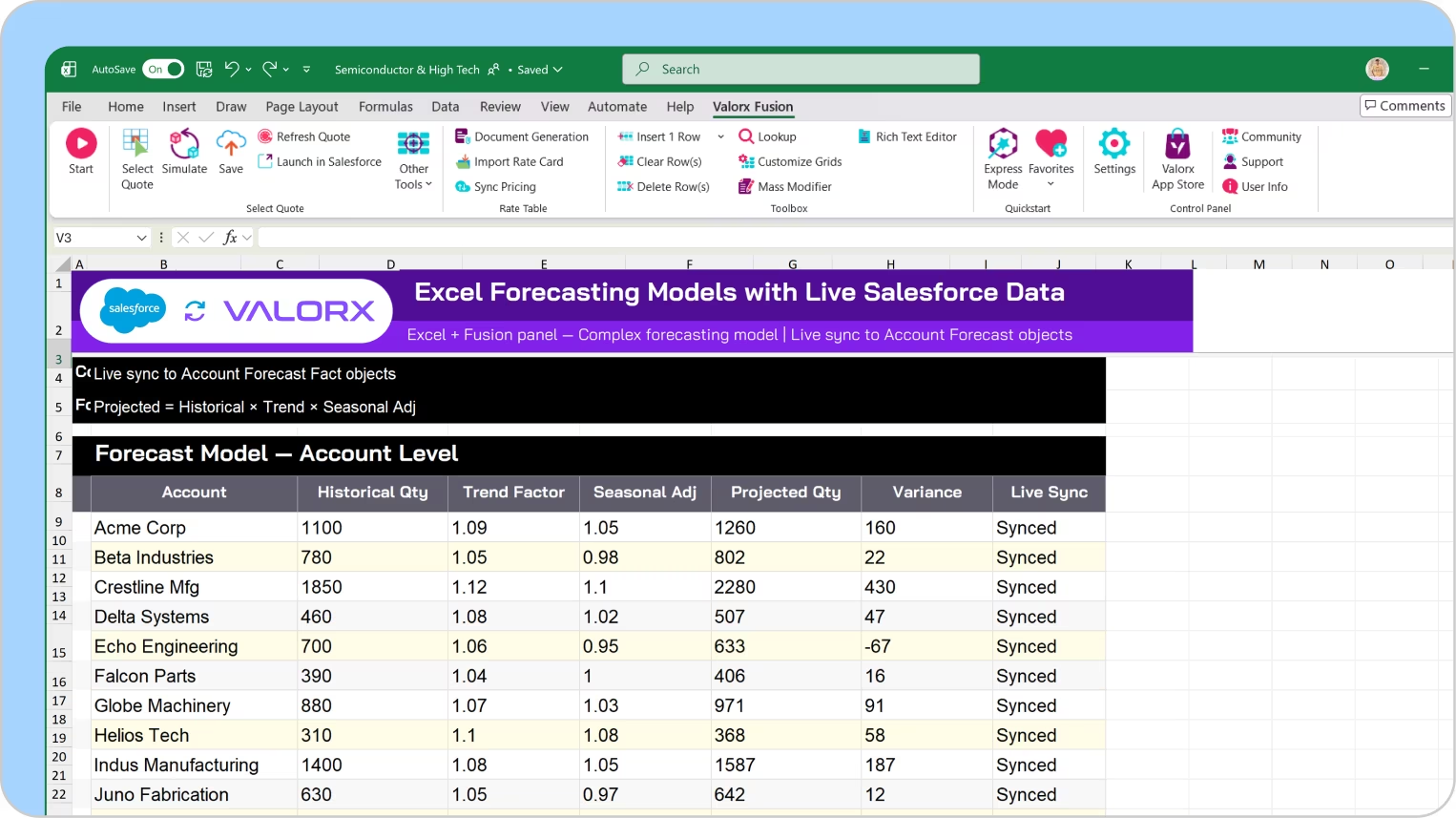
What it looks like. A demand planner opens Monday's workbook, hits refresh, and sees every account forecast for the next four quarters. She adjusts 40 rows with a fill-down, checks the variance column, and saves. Salesforce is updated before the 9 a.m. call.
Go deeper: forecasting with Valorx and how to run what-if forecasting scenarios in Salesforce.
2. Complex quoting: build the 1,000-line quote without the spinning wheel
The export problem. Salesforce CPQ handles a 20-line quote well. At a few hundred lines, the Quote Line Editor slows down and every change means another page load. So reps build the quote in Excel and re-key it into CPQ at the end. That is where pricing errors, missed discounts and approval rework come from.
With a live integration. The quote is built in Excel and lives in CPQ the whole time.
- Load thousands of quote lines into a sheet and edit them inline.
- Copy, paste and fill down across products, quantities and discounts instead of clicking line by line.
- Keep CPQ in charge. Price rules, product rules and approvals still run when the quote saves.
- See margin in a formula column before the quote goes for approval.
- Swap 50 SKUs an hour before the customer call without starting over.

What it looks like. Micron's quoting teams went from 3.5 hours per quote to under 10 minutes. The CPQ configuration did not change. The interface did.
Interactive demo: complex quoting in Salesforce CPQ from Excel with Fusion.
Go deeper: Valorx for Salesforce CPQ and simplifying complex quoting in Salesforce CPQ.
3. Pipeline management: update 60 deals before the pipeline call, not during it
The export problem. Updating an opportunity in Salesforce means opening the record, editing, saving and going back to the list. Do that for 60 deals and Friday afternoon is gone. So reps skip it. Close dates slide past today, stages stop matching reality, and next steps go blank. Managers then spend the pipeline call collecting updates instead of coaching.
This is different from forecasting. Forecasting is about the number. Pipeline management is about whether each deal behind the number is current.
With a live integration. A rep's whole pipeline fits on one sheet, and every cell is editable.
- Pull all open opportunities with the fields that matter: stage, amount, close date, next step, forecast category.
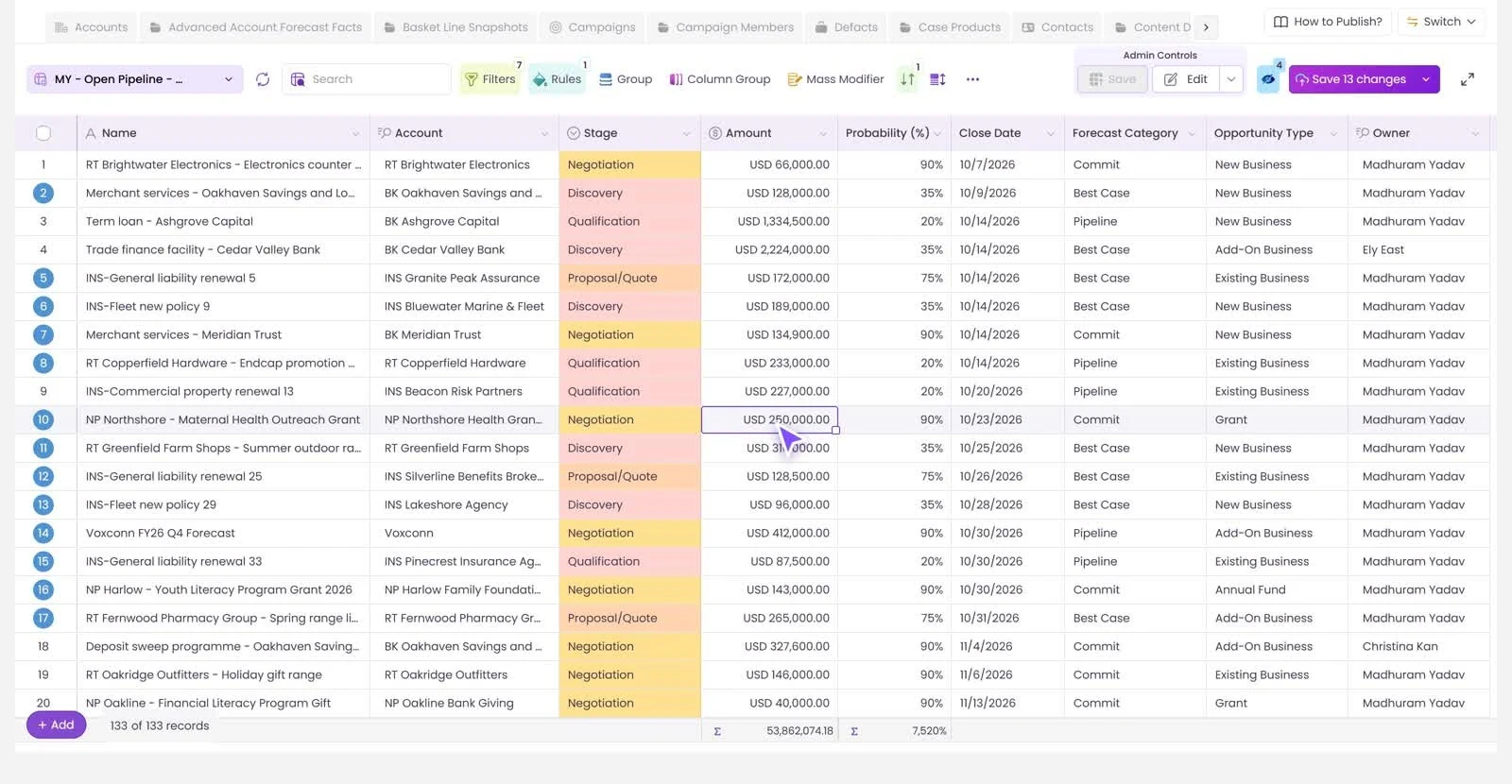
- Update dozens of deals with fill-down and paste, then save once.
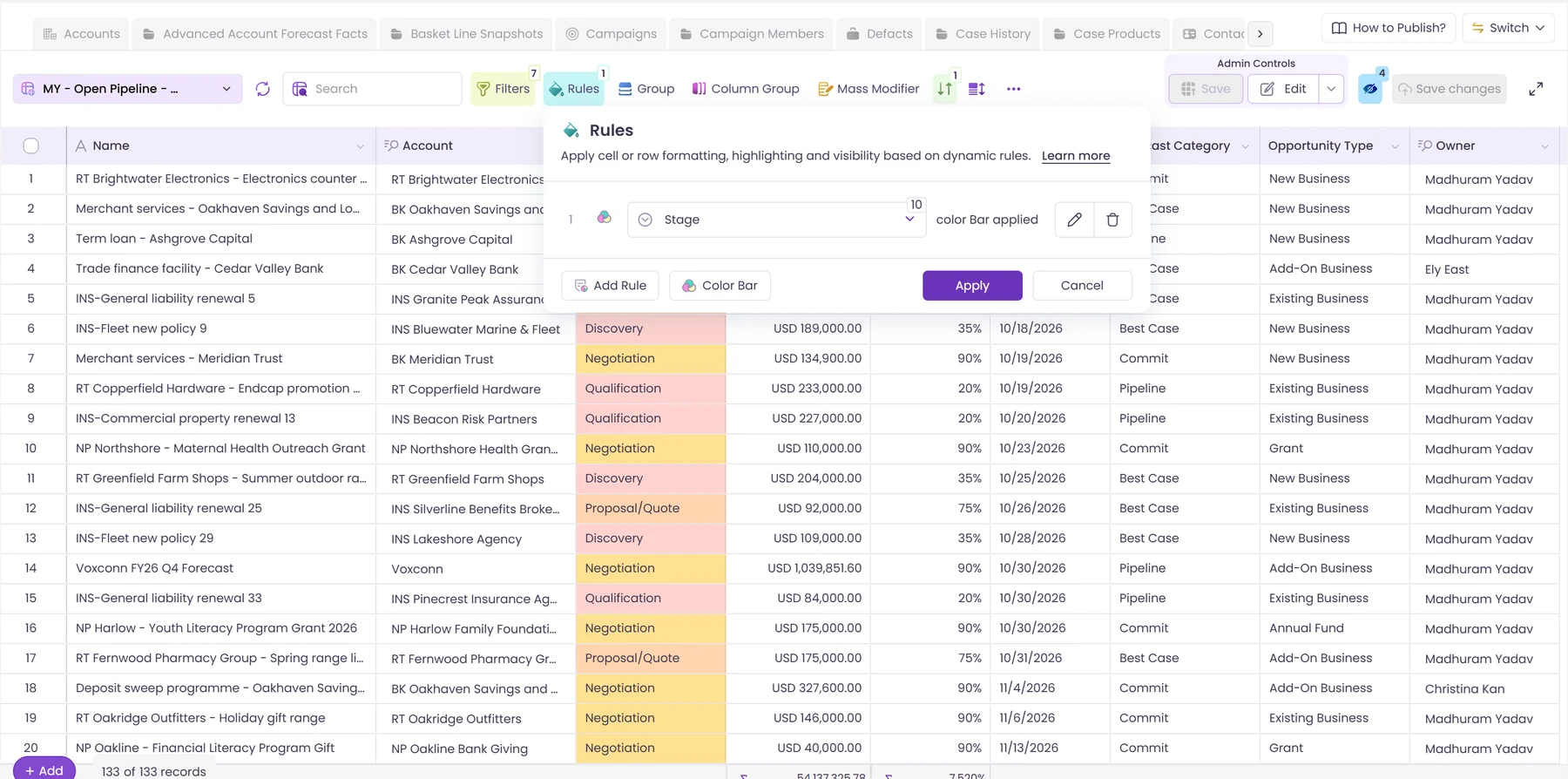
- Use conditional formatting to flag past-due close dates, missing next steps and deals with no activity in 30 days.
- Sort by amount or age to see where attention should go first.
- Managers open the same view across the team and fix what is stale in one pass.

What it looks like. A manager with eight reps refreshes one workbook on Thursday. Red cells show 23 deals with close dates in the past. She messages the owners, they update their rows, and Friday's call starts with clean data.
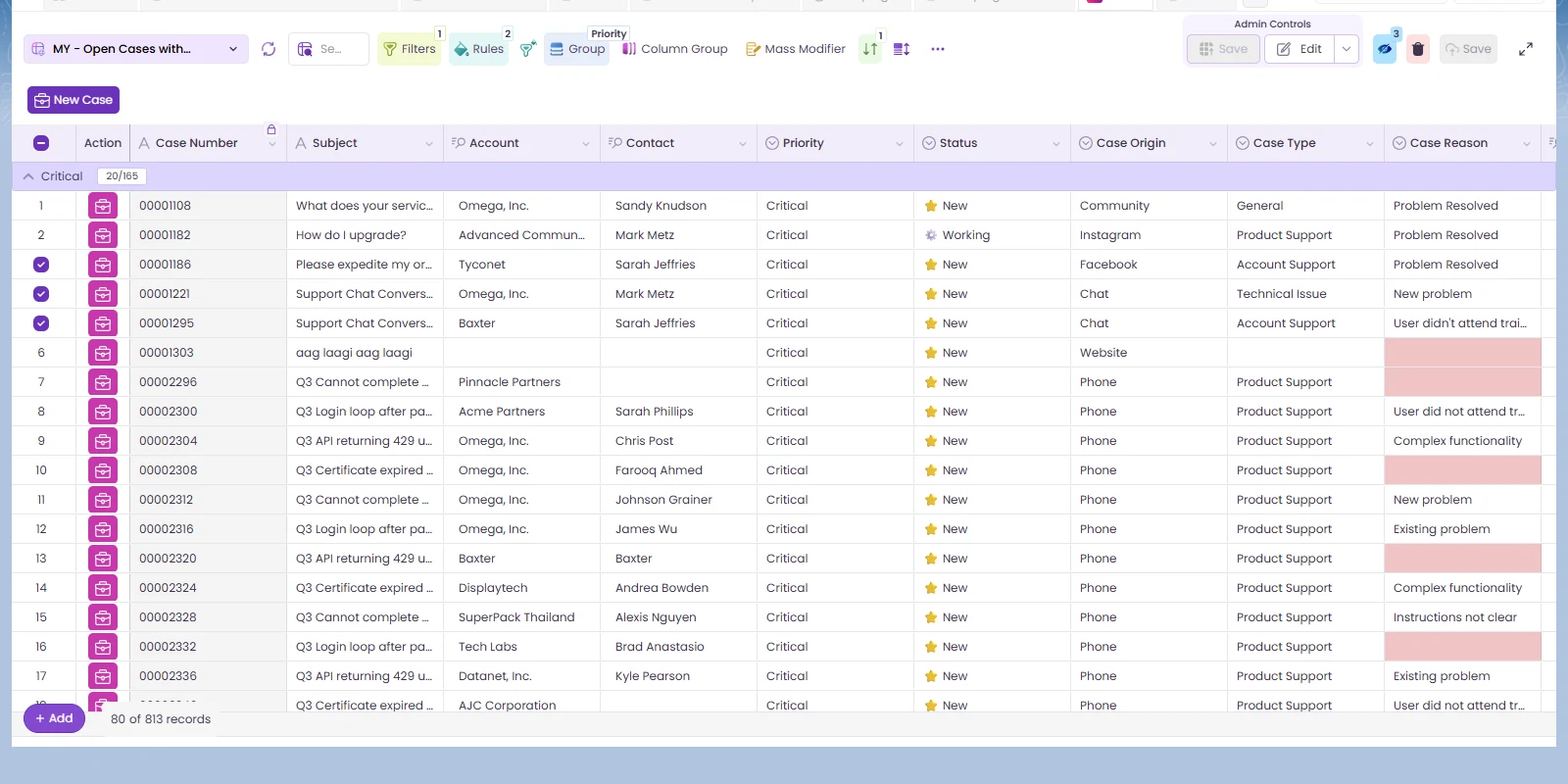
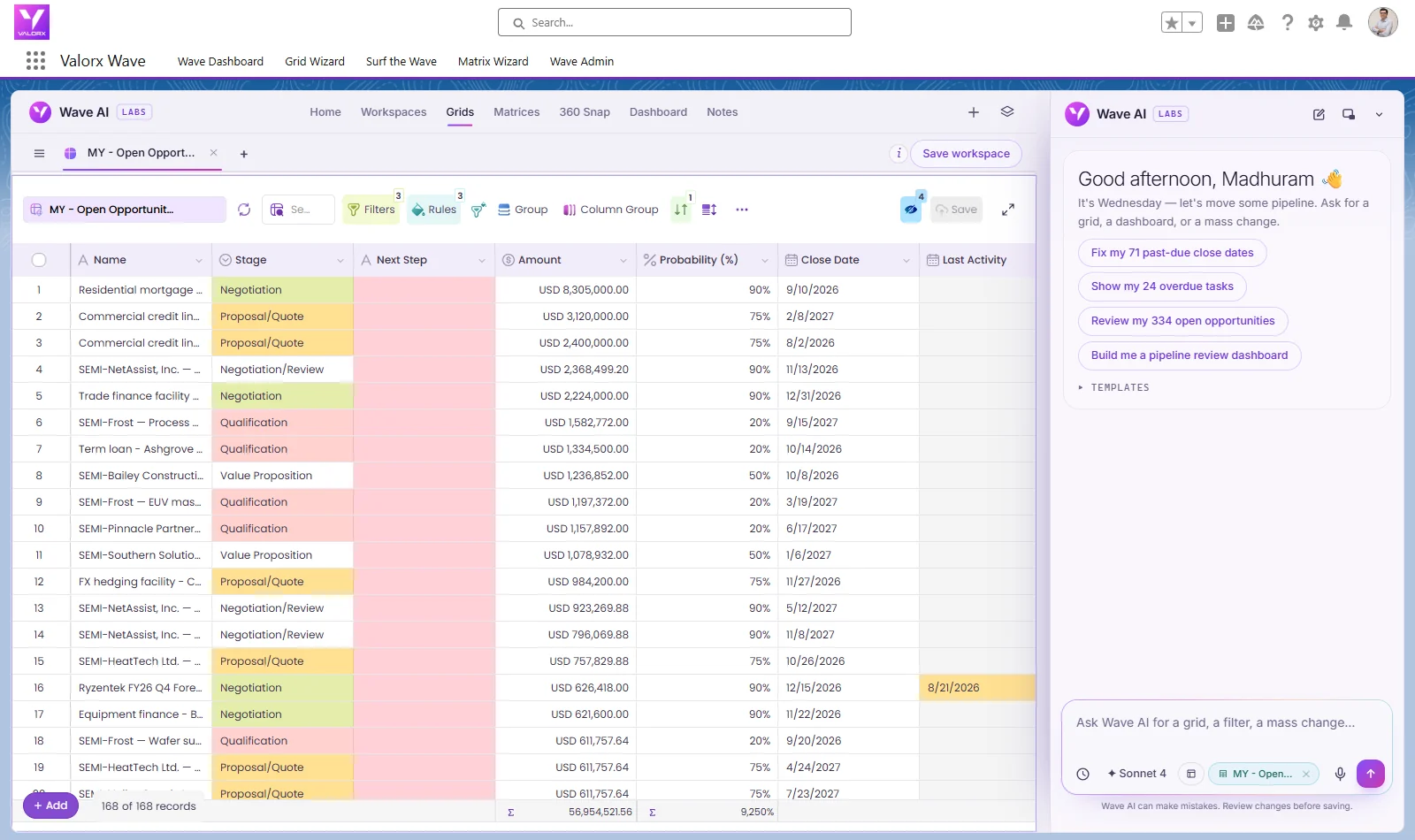
If your reps would rather stay inside Salesforce, the same bulk editing is available in a grid on the opportunity list with Valorx Wave.
Go deeper: pipeline management with Valorx and why pipeline visibility breaks down in Salesforce.
4. Salesforce data management: retire the CSV round trip
The export problem. Every revenue team has mass changes that are not deals. Territory realignment moves 3,000 accounts to new owners. A price increase touches every price book entry. A list of contacts needs cleanup before a campaign. The standard route is export to CSV, edit in Excel, map columns in Data Loader, import, read the error file, and repeat. It works, but only admins can do it, and each cycle takes hours.
With a live integration. The edit and the load are the same step.
- Query any standard or custom object into a sheet with filters, so you only pull the records you need.
- Use the Excel tools you already know for cleanup: find and replace, TRIM, XLOOKUP against a reference list, remove duplicates.
- Create, update and delete records in bulk from the sheet.
- See validation errors row by row at save time, fix them in place, and save again.
- Let RevOps make the change themselves. Profiles, permission sets and field-level security still decide what each person can read and write.
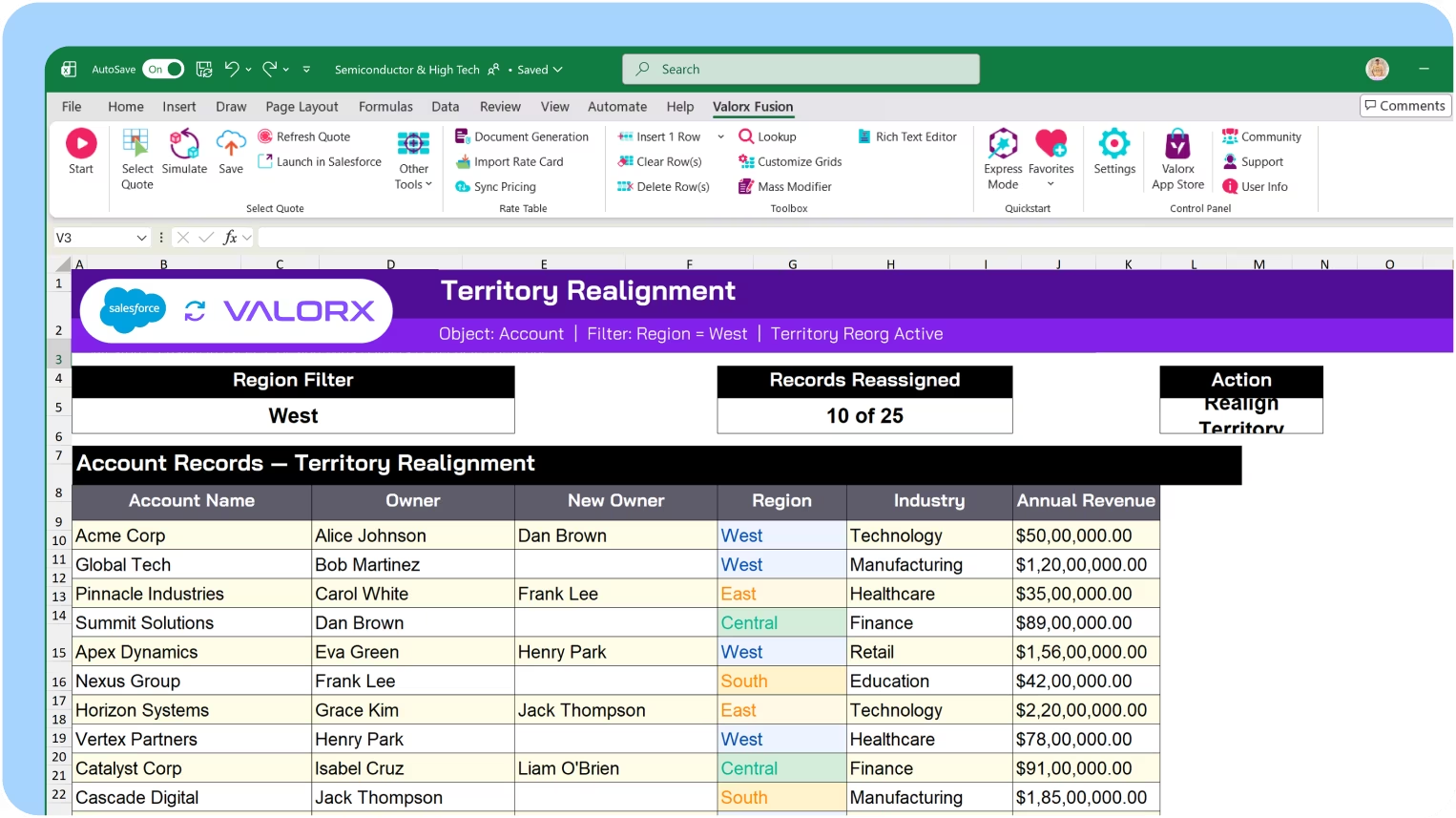
What it looks like. RevOps gets the new territory map on Tuesday. They pull the affected accounts, XLOOKUP the new owner from the planning tab, review the diff, and save. No CSV files, no column mapping, no ticket to the admin team.
Go deeper: how to cleanse Salesforce data using Excel and Salesforce data management with Valorx.
5. Sales reporting: build the report pack once, refresh it forever
The export problem. The weekly pipeline review, the monthly bookings summary, the QBR deck. Each one is rebuilt by hand on a schedule: export three Salesforce reports, paste them into the template, fix the pivot ranges, re-check the totals. An analyst can lose a day a week to it, and the numbers are a snapshot from the moment of export.
With a live integration. The report pack becomes a template that refreshes.
- Connect each data tab to its Salesforce query once.
- Pivot tables, charts and summary formulas point at those tabs and update on refresh.
- Combine objects that native report types make awkward, such as opportunities with products and account attributes.
- Add the columns Salesforce reports cannot calculate easily: quarter-over-quarter change, attainment against quota, rep rank.
- Refresh minutes before the meeting, so everyone looks at current numbers.
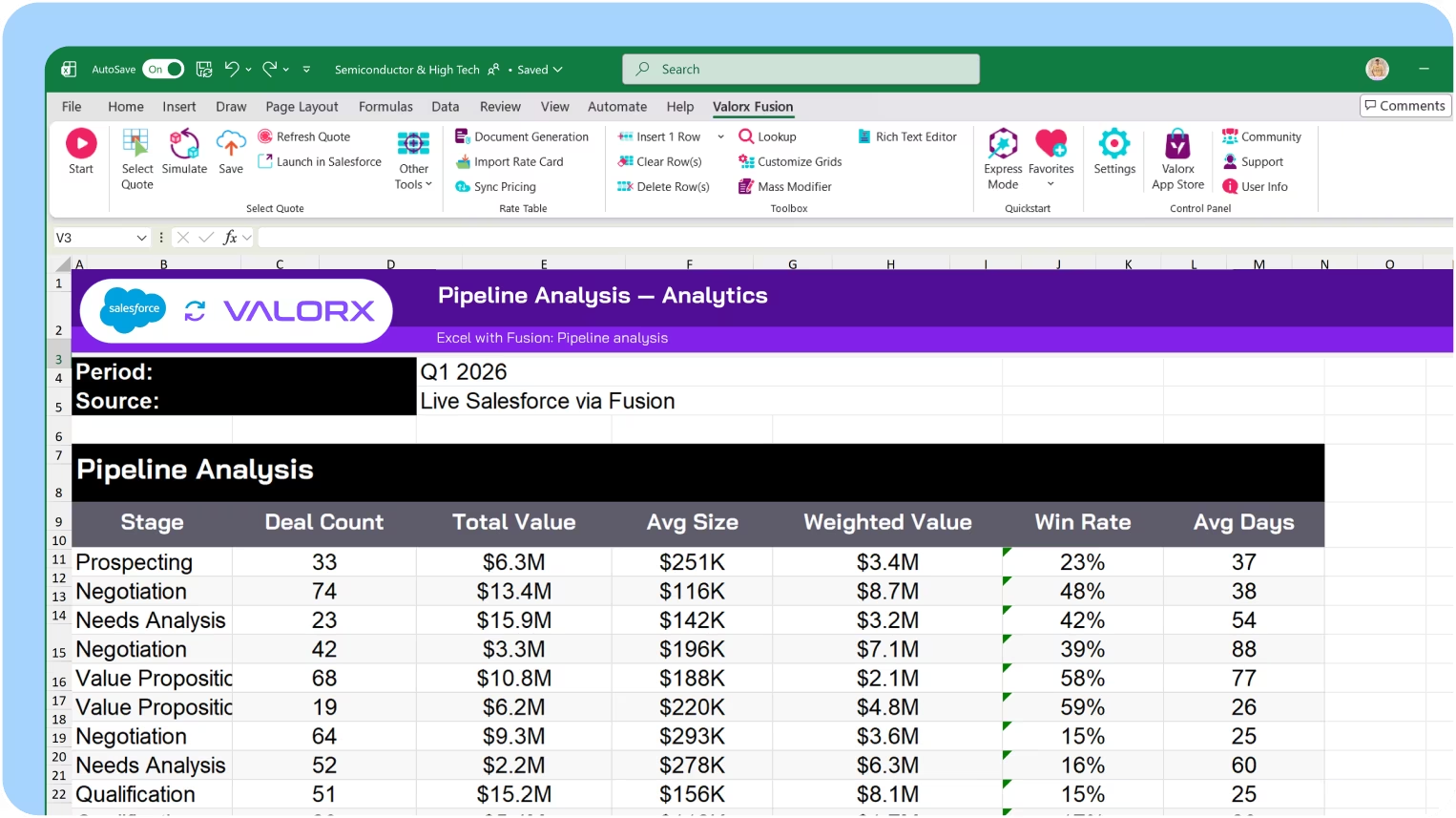
What it looks like. Monday's pipeline pack used to take four hours to assemble. Now the analyst opens the workbook, refreshes, scans for anything odd, and sends it.
The recurring report pack is one part of reporting. For custom KPI reports and risk monitoring on live Salesforce data, read our guide to Salesforce Excel integration for sales reporting.
Which use case should you start with?
Start where your team exports most often. A quick way to find it:
- Ask each team which Salesforce report they export every week.
- Ask what they do with it in Excel.
- Ask how the result gets back into Salesforce, if it does at all.
The workflow with the longest answer to question three is your first use case. For most teams we work with, that is forecasting or quoting. Pipeline and data management tend to follow once people see edits save back.
Interactive demo: working with Salesforce records in a spreadsheet through Fusion.
What stays the same: Salesforce security
All five use cases run on the same rule. Fusion does not bypass Salesforce. Each user signs in with their own Salesforce credentials. Profiles, permission sets, field-level security and validation rules apply to every read and every save. If someone cannot edit a field in Salesforce, they cannot edit it from Excel. Read more on how Valorx keeps your Salesforce data secure.
See your own workflow in Excel
Pick the use case that costs your team the most hours and we will show it to you on live Salesforce data.
Get a Fusion demoFrequently asked questions on Salesforce Excel integration use cases
What do revenue teams use a Salesforce Excel integration for?
The five most common uses are forecasting, complex quoting, pipeline management, bulk data management and recurring sales reporting. Each one replaces a manual export and re-import with a live, two-way connection.
Which teams benefit most?
Sales operations, revenue operations, finance, deal desk and sales managers. These are the teams that already export Salesforce data to Excel every week.
Can I use my existing Excel forecast model?
Yes. With Valorx Fusion you map your existing workbook to Salesforce fields. Your formulas, layout and tabs stay as they are.
Does it work with Salesforce CPQ and custom objects?
Yes. Fusion works with standard objects, custom objects, and Salesforce CPQ quotes and quote lines. CPQ price rules and approvals still run on save.
Is this different from exporting a Salesforce report to Excel?
Yes. An export is a one-way snapshot that goes stale. An integration is two-way: refresh pulls current records, and save writes your edits back to Salesforce.
Do edits made in Excel respect Salesforce validation rules?
Yes. Validation rules, profiles, permission sets and field-level security apply to every save. Rows that fail validation are flagged so you can fix them in the sheet.
Does it work with Google Sheets?
Yes. Fusion is available for Excel on Windows and Mac, and for Google Sheets.
What does Valorx Fusion cost?
Fusion has a free tier with up to 2,000 record updates per month. Fusion Pro is $60 per user per month, billed annually.



.svg)

Choose the workflow you need:
Try Wave in browser Extension

Try Wave in Salesforce

Try Fusion In Excel

Enhancing Salesforce for industry leaders