How to cleanse Salesforce data using Excel
Quick answer: To cleanse Salesforce data using Excel, run a Salesforce report that isolates the problem records and includes each Record ID, export it, and fix duplicates, formatting, blanks and picklist values with Excel formulas such as TRIM, LOWER, COUNTIF and VLOOKUP. Then validate a small test batch and load the changes back with Data Loader using the Update operation. A live connector such as Valorx Fusion removes the export and re-import steps.
Key takeaways
- Salesforce data cleansing means finding and correcting duplicate, incomplete, inconsistent or outdated records so reports and forecasts can be trusted.
- Excel is still the fastest place to fix hundreds or thousands of records at once. The risk sits in the export and re-import around it.
- The workflow has five steps: scope the records, prepare the export, fix each problem type with formulas, validate and load back, then prevent future decay.
- Always carry the Salesforce Record ID, use Update for existing records, and merge duplicates inside Salesforce instead of deleting rows in Excel.
- Valorx Fusion connects Excel and Google Sheets to live Salesforce data, so the same cleanup runs without CSV files.
What is Salesforce data cleansing?
Salesforce data cleansing is the process of identifying and correcting inaccurate, incomplete, duplicate or outdated records in Salesforce so that reports, forecasts and automation reflect reality.
Most teams assume their Salesforce data is reliable until reporting starts breaking down. Data quality degrades through manual entry errors, partial imports, integrations that write inconsistent values, and records that go stale as contacts change jobs or deals stall. Dashboards still look right, but the decisions made from them turn out wrong. That is why we treat cleansing as an operational routine and not a one-time project.
What are the most common Salesforce data quality problems?
In most Salesforce orgs, data quality issues fall into five categories. Knowing which one you are dealing with decides which Excel technique to use.
How do you cleanse Salesforce data using Excel?
Follow these five steps: identify the records, prepare the export, fix each problem type, validate and load back, then prevent future decay.
Step 1: Identify which records need cleansing
Before pulling anything into Excel, build a targeted list of what to fix. A blind export of every Account or Contact gives you tens of thousands of rows and no clear starting point. Use Salesforce reports to surface the problem records:
- Contacts with no email: filter Contacts where Email is blank.
- Accounts with no real owner: filter where Owner is a default or system user.
- Stale opportunities: Stage is not Closed and Last Modified Date is older than 90 days.
- Potential duplicates: use Salesforce Duplicate Management, or sort a report by Account Name or Email and scan for near matches.
- Picklist violations: run a summary report grouped by the field to spot values outside your active picklist.
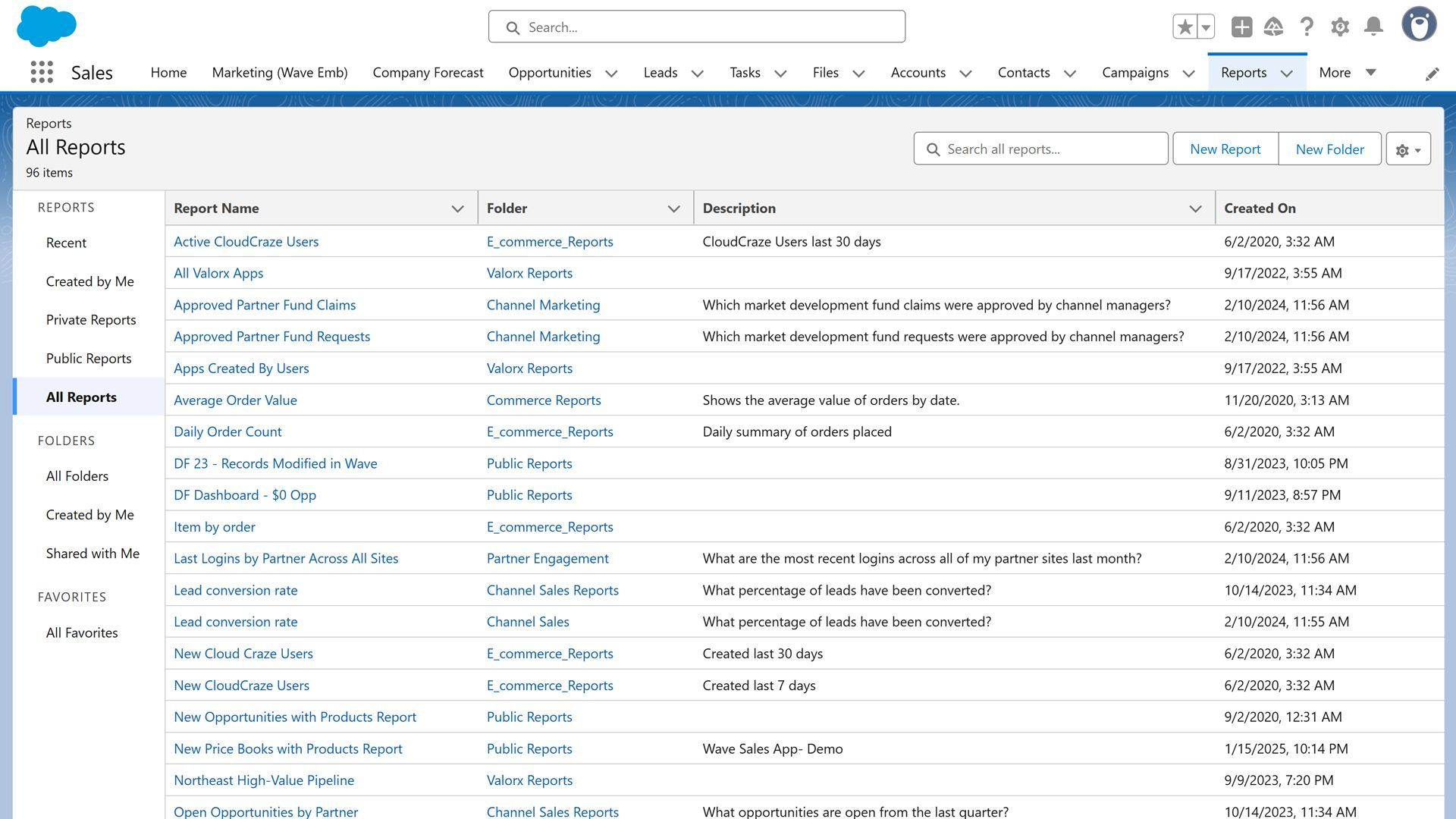
Always export the Record ID. The Record ID is what maps each cleaned row back to the right record. Without it, loading the file creates new records instead of updating existing ones. Reports do not include it by default, so add it as a column.
Salesforce reports typically show the 15-character, case-sensitive version of the ID. Excel lookups ignore case, so two different records can look identical. To be safe, add a formula field that uses CASESAFEID(Id) and include it in the report, or export through Data Loader, which returns 18-character IDs.
Step 2: Export and prepare the data in Excel
Export the report as a CSV. Before changing anything, do four things:
- Save a backup copy. Name it with the date and the word original, for example contacts-2026-10-original.csv, and do not touch it again.
- Import the file instead of double-clicking it. Use Data, then From Text/CSV, and set every column to Text. Excel will otherwise strip leading zeros from ZIP codes, rewrite phone numbers and reformat dates.
- Freeze the header row (View, then Freeze Panes) so column labels stay visible as you scroll.
- Mark the Record ID column as read-only. Apply a fill color so it is obvious the column must never be edited or sorted on its own.
Step 3: Fix each problem type with Excel formulas
Work in helper columns. Once a formula is confirmed correct, paste the results back over the original column as values.
Finding duplicates
Exact duplicates are easy to find. Near matches such as Acme Corp and Acme Corporation need a normalized helper column first:
- =TRIM(SUBSTITUTE(SUBSTITUTE(SUBSTITUTE(LOWER(A2)," corporation","")," corp","")," inc","")) lowercases the name and strips common suffixes. Add more SUBSTITUTE layers for LLC, Ltd, periods and commas.
- =COUNTIF(C:C,C2) on that helper column counts how many rows share the same normalized value. Anything above 1 is a candidate duplicate.
Flag duplicates, but do not delete rows in Excel. Decide which record to keep, usually the oldest or the most complete, then merge inside Salesforce with Merge Accounts or Merge Contacts. Merging preserves the Opportunities, Activities and Cases attached to the record being removed. If you want more ways to use this function, see our guide to COUNTIF on live Salesforce data.
Fixing inconsistent formatting
- Email addresses: =LOWER(TRIM(B2)) lowercases the value and removes leading and trailing spaces that break matching.
- Phone numbers: use Find and Replace to remove dashes, parentheses, dots and spaces. For US numbers, ="+1"&RIGHT(C2,10) then produces one consistent format.
- State names: =VLOOKUP(D2,StateRefTable,2,FALSE) maps full state names to two-letter codes using a reference table on a separate sheet.
- Company names: =PROPER(TRIM(A2)) fixes all-caps entries, but it also turns IBM into Ibm and McDonald into Mcdonald. Review the results before pasting them back.
Filling in missing fields
Use Conditional Formatting, then Highlight Cell Rules, to show blanks across the whole sheet. For picklist fields such as Industry, Region or Lead Source, apply Data Validation with a list so nobody introduces a new variation while filling gaps. For values that can be derived, such as Country from Region, use IF or SWITCH in a helper column and review the output before pasting as values.
Fixing picklist violations
Picklist problems behave differently depending on the field. A restricted picklist rejects any value that is not on the list, so the row fails on import. An unrestricted picklist accepts the bad value, which quietly adds one more inconsistent entry to your reports. Fix both before loading:
- List every valid value for the field on a reference sheet.
- Use =COUNTIF(ValidValues,B2). Any row that returns 0 is a violation.
- Correct the values in bulk with Find and Replace or a VLOOKUP mapping table.
Archiving stale records
Use AutoFilter to isolate records past a threshold, for example Opportunities with no activity in 12 months. Update a status field or move them to a closed or inactive stage instead of deleting them, so the audit trail is preserved. For contacts, cross-check your email bounce and unsubscribe data before deciding what to archive.
Step 4: Validate and load clean data back into Salesforce
This is where most of the risk sits. Loads usually fail for one of four reasons:
- Record IDs were edited or sorted out of alignment, so rows no longer map to the right records.
- Column headers do not map cleanly to Salesforce fields.
- Values do not match a restricted picklist.
- Dates are not in a format Salesforce accepts. Use YYYY-MM-DD.
Before you run the full file through Data Loader:
- Test with 10 to 20 rows first.
- Use Update when your file has Record IDs. Use Upsert only when you are matching on an external ID field. Never use Insert for existing records.
- Read the success and error files after every run. They list exactly which rows failed and why.
- Spot-check 5 to 10 records in Salesforce to confirm the data landed correctly.
Step 5: Prevent future data decay
Cleaning data once does not keep it clean. Build these habits into your admin routine:
- Add validation rules that enforce required fields and formats at the point of entry.
- Turn on Duplicate Rules to block or flag likely duplicates when a record is created.
- Run the scoping reports from Step 1 every quarter and track completeness over time.
- Build a data health dashboard that shows field completeness and stale record counts for your key objects.
What are the limits of export-and-import data cleansing?
Excel is the right tool for the cleanup. The export and re-import around it is where things go wrong, and the problems grow with volume:
- Exports are static snapshots. If colleagues edit records while you are cleaning, your load can overwrite their changes.
- Re-imports depend on careful field mapping. A mapping error can overwrite good data or fail on validation rules.
- Version control breaks down once several spreadsheets circulate across a team.
This is a common pattern. At Dreamforce 2025, more than 1,000 Salesforce admins told us they still export data to spreadsheets to get work done.
How does Valorx Fusion remove the export-import cycle?
Valorx Fusion connects Excel and Google Sheets directly to live Salesforce data. Admins and operations teams keep every technique in this guide and drop the CSV files:
- Edit thousands of live Salesforce records with familiar formulas such as VLOOKUP and TRIM.
- See validation errors in the sheet when you save, not hours later in an import log.
- Apply bulk updates with a single sync, with no export and no re-import.
- Keep Salesforce security, validation rules and field permissions in force throughout.
Interactive demo: edit live Salesforce records in Excel, apply formulas and sync the changes back with Fusion.
Fusion is most valuable for recurring data administration, such as territory reassignments, bulk owner changes, forecast updates and scheduled cleansing cycles, where the export and import would otherwise run again and again. For broader record hygiene, see how teams handle Salesforce data management with Valorx, or read our comparison of Fusion and Conga X-Author.
Interactive demo: how Fusion connects Salesforce with Excel.
Ready to cleanse Salesforce data without the export-import cycle? Book a Fusion demo.
Frequently asked questions on Salesforce data cleansing
What is Salesforce data cleansing?
It is the process of finding and fixing duplicate, outdated, incomplete or inconsistent records in Salesforce. That means merging duplicates, standardizing formats, filling gaps and archiving dead records so reports and forecasts stay trustworthy.
Why do teams use Excel to clean Salesforce data?
Excel offers formulas, duplicate detection and bulk editing that make it far faster to analyze and correct large datasets than editing records one at a time in Salesforce.
Can Excel update Salesforce records directly?
Not on its own. The traditional workflow exports data, cleans it in Excel and loads it back with Data Loader or the Data Import Wizard. Connectors such as Valorx Fusion let you update live Salesforce records from Excel without CSV files.
How do I remove duplicates in Salesforce using Excel?
Export the records with their Record IDs, build a normalized helper column with LOWER, TRIM and SUBSTITUTE, and use COUNTIF to flag values that appear more than once. Then merge the flagged records inside Salesforce so related Opportunities, Activities and Cases are preserved.
Should I use Data Loader or the Data Import Wizard?
Use the Data Import Wizard for up to 50,000 records on Accounts, Contacts, Leads and custom objects. Use Data Loader for larger volumes and for objects the wizard does not cover, such as Opportunities.
How often should Salesforce data be cleansed?
Quarterly at a minimum. High-volume orgs benefit from a monthly pass on Leads, Contacts and Accounts, backed by validation rules that run continuously.
What causes dirty data in Salesforce?
Duplicate entry across teams, inconsistent field formats, stale records nobody owns, and offline spreadsheet edits that never make it back into Salesforce. The last one is the most preventable.

.svg)

.png)




Choose the workflow you need:
Try Wave in browser Extension

Try Wave in Salesforce

Try Fusion In Excel

Enhancing Salesforce for industry leaders