Beyond the Record Page: Related Lists Beside Your Salesforce Grid
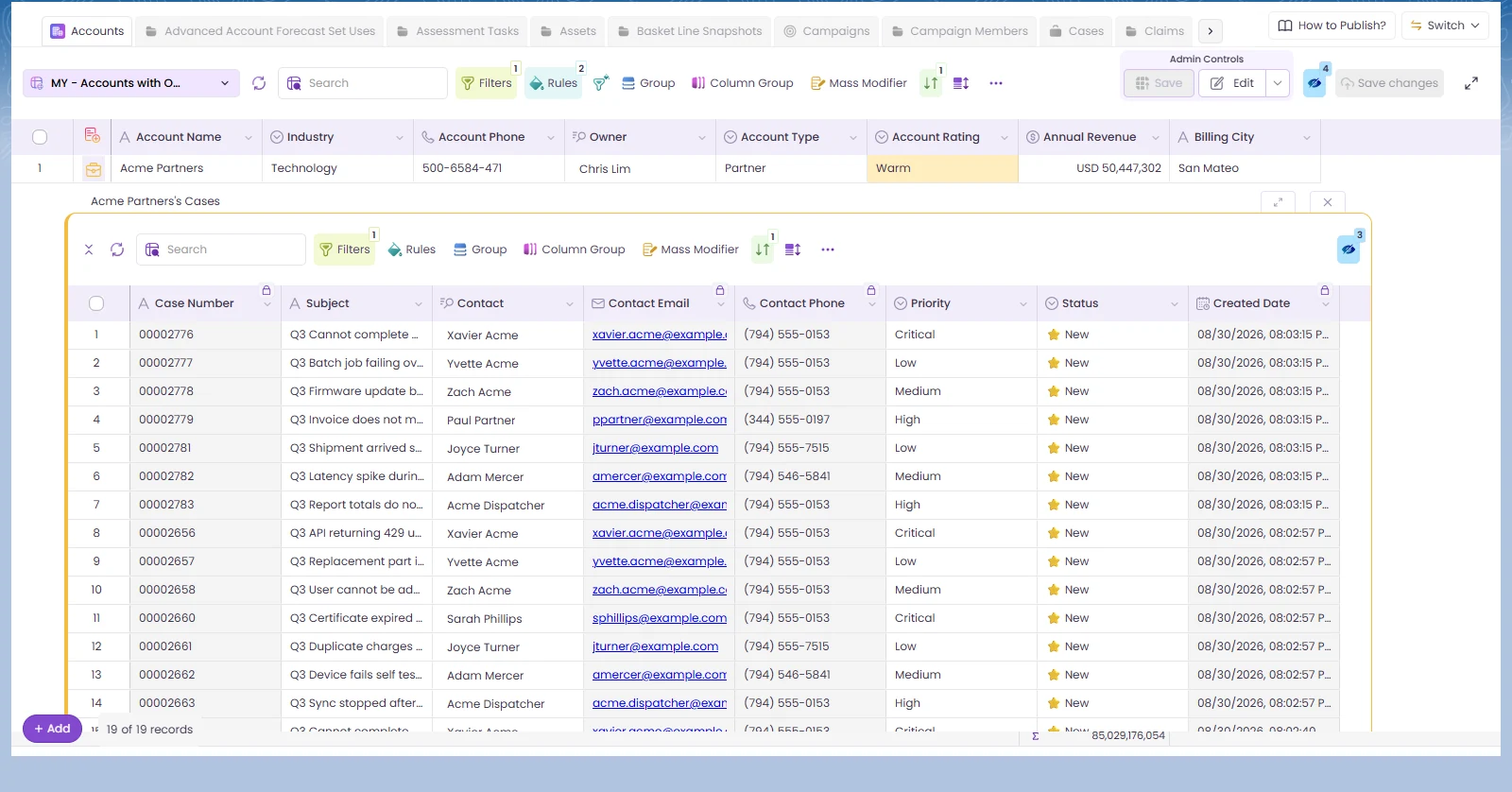
Checking the line items on ten opportunities usually means ten record pages. Open one, scroll to the related list, go back, open the next. A Valorx Wave grid brings the related records to the row you're already on. There are two ways to do it.
1. Related records under the row
Add a related list to the grid and each row can open to show its child records underneath: an account's cases, an opportunity's line items. The list that opens is a grid too, with its own filters, rules and Mass Modifier.
In the Grid Wizard, choose where a related list sits: under the row as a hierarchy, or in a panel on the right. A grid can carry up to six related lists.
2. The full record in a side panel: 360 Snap
360 Snap opens one record in a panel over the grid. Details shows the fields. Related Lists shows each related list as a tab, and each tab is a working grid.
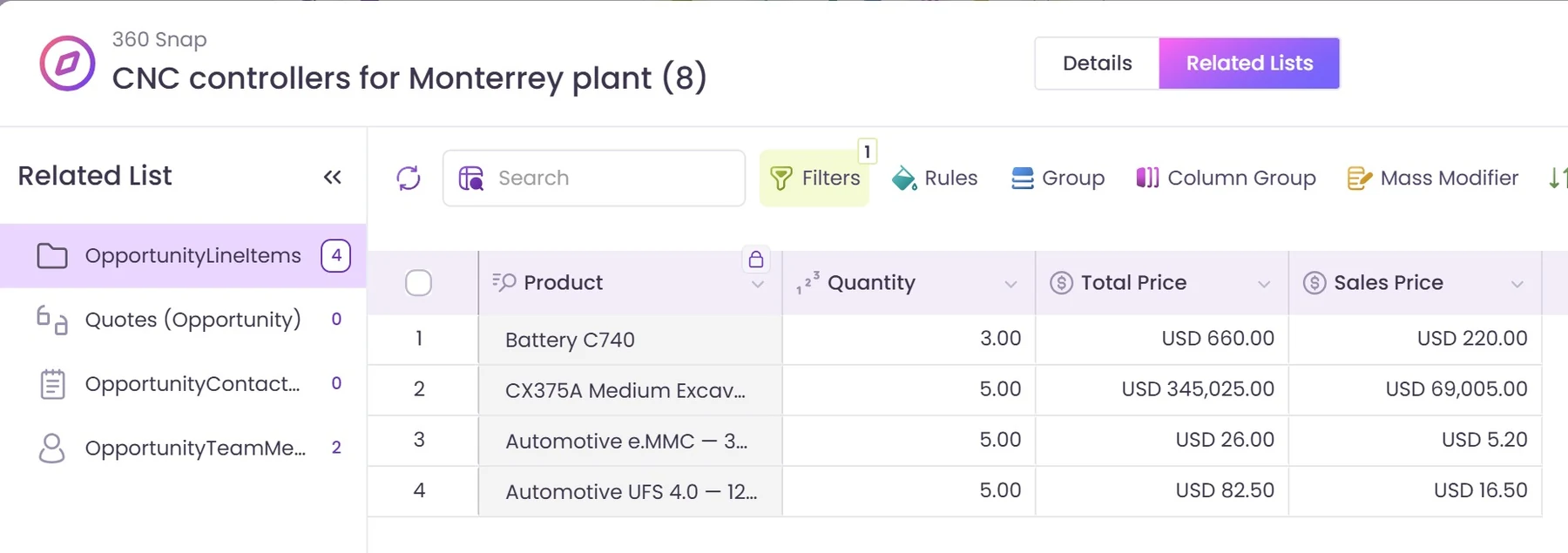
- See the whole record. The fields your team needs, laid out in one place.
- Work the related lists. Line items, quotes, contact roles and team members, each one a tab.
- Edit in the panel. Change a quantity or a price and save, if your designer has allowed editing.
- Open it from a lookup too. In a Contacts grid, click the Account name and that account opens in the panel.
Set it up once per object
A designer sets up a Snap in Wave Admin > 360 Snap: pick the object, choose the fields, add the related lists. The fields can come straight from a Salesforce page layout or a list view, so you're not starting from nothing.
A Snap belongs to the object, not to one grid. Set up the Account Snap once and every grid with an Account lookup can use it.
Which one to use
- Under the row when you're scanning many parents and their children together, such as every account with its open cases.
- 360 Snap when you want everything about one record without losing your place in the list.
Want to see it on your own objects? Book a demo and we'll build the first grid with you on the call.





.svg)




Choose the workflow you need:
Try Wave in browser Extension

Try Wave in Salesforce

Try Fusion In Excel

Enhancing Salesforce for industry leaders