Salesforce Excel Connector: Step-by-Step Guide
Quick answer: A Salesforce Excel connector links Microsoft Excel to live Salesforce data, so you can read and edit CRM records in a spreadsheet and write changes back — no CSV exports, no Data Loader round-trips. Valorx Fusion is a native connector with true two-way sync: pull any object into Excel or Google Sheets, bulk edit thousands of records, and commit them back with all Salesforce permissions enforced. Setup takes minutes; the step-by-step guide is below.
A Salesforce Excel connector links a spreadsheet directly to your Salesforce org so you can pull live records into Excel, edit them, and push changes back — without exporting a CSV or running Data Loader. Salesforce Excel connectors matter because Salesforce is meant to be the single source of truth for leads, pipeline, potential deals, customer data, revenue, finances and so much more. It empowers businesses to think and plan strategically and make data-driven decisions that drive revenue.
Most teams go looking for one for the same reason: as record volumes grow, updating them in the Salesforce UI gets slow, the work drifts into offline spreadsheets, and the CRM stops matching reality.
There are five common ways to do it, and they differ mostly on one thing: whether changes flow both ways.
This guide compares all five, then walks through setting up a live two-way connection step by step.
What does a Salesforce Excel connector do?
A connector authenticates to your Salesforce org, queries records live, and displays them as rows in a spreadsheet. Field-level security, sharing rules, and validation rules all still apply — you only see and edit what your profile allows. A true connector is bidirectional: edits made in the spreadsheet commit back to Salesforce as record updates, not as a file import.
That last part is the dividing line. Most "Excel integrations" only read.
What Are the Five Ways to Connect Excel to Salesforce?
There are several ways to move data between Salesforce and Excel. The right option depends on whether you need a one-time transfer, refreshable reporting or a recurring workflow where users can edit Salesforce data directly from Excel.
| Method | Two-way? | Setup effort | Best for | The catch |
|---|---|---|---|---|
| Salesforce report export | No | None | One-time offline analysis | Data is stale the second it lands. No path back into Salesforce without a re-import. |
| Data Import Wizard | Via CSV | Low | Small, occasional imports | One-way into Salesforce. It can't pull records out, and it works from a CSV you've already built. |
| Salesforce Data Loader | Via CSV | Admin-level | Admin-led bulk updates and migrations | CSV-based, with error files to decode. Not a business-user tool, and not live. |
| Microsoft Power Query | No | Moderate | Refreshable reporting and analysis | Read-only. It refreshes the numbers, but it can't write a single edit back. |
| Live two-way connectorLiveValorx Fusion, XL-Connector, Coefficient | Yes — live | 10–15 min | Recurring Salesforce workflows inside Excel | Requires install and, in most orgs, admin approval of a managed package. |
Where Fusion fits: Native tools work well for occasional imports, exports, and administrative operations. Valorx Fusion is built for recurring workflows — loading Salesforce records into Excel, working with them using familiar spreadsheet functions, and saving approved changes back to Salesforce.
Which to pick:
- Reading data once for a slide? Export the report. Don't overthink it.
- Loading 50,000 rows you already have as a file? Data Loader is the right tool.
- Building a dashboard that refreshes? Power Query handles it, as long as you never need to write back.
- Living in a spreadsheet all week and needing the numbers to be current and to save back? A live connector.
Valorx is the best fusion of speed and functionality I have come across. In searching for an Excel add-in tool to query and update SFDC data directly in SFDC, I demoed several competitors and Valorx was the best hands down." Jared Dugger, Senior Manager, Sales Operations — Adobe
What Should You Look for in a Salesforce Excel Connector?
Six things separate a connector you'll still be using in six months from one you'll uninstall:
- Two-way sync. Can you write back, or only read? Ask specifically whether it writes as record updates or as a bulk import job.
- Where the data sits. Some tools stage your records on a vendor server between Salesforce and your spreadsheet. Ask. If security has to approve it, this is the question they'll ask first.
- Whether Salesforce rules survive. Validation rules, field-level security, sharing rules, required fields, approval processes. A connector that bypasses them creates a data problem bigger than the one it solved.
- Volume ceiling. A tool that handles 200 rows and one that handles 20,000 are different products.
- Where you can run it. Excel on Windows, Excel on Mac, Excel for the web, Google Sheets — support varies a lot.
- Custom objects and CPQ. Standard objects are table stakes. Quote lines, price books, and custom objects are where most tools stop.
How Do You Connect Excel to Salesforce with Valorx Fusion?
Fusion installs as a Salesforce managed package plus an Excel add-in. Setup takes about ten minutes and needs no custom code.
You can visit the AppExchange and download/install the managed package. You can follow the instructions and dive right into the product. Alternatively, you can connect with our Professional Services team who will setup Valorx Fusion for you. In many cases, Salesforce users have highly complex, interconnected spreadsheets and simply do not have the time or resources to configure their Salesforce Excel connector to work exactly as needed. Our team can do that for you. We’ve never seen a spreadsheet we could not connect to Salesforce.
Salesforce Excel Connector Setup (Self-Serve)
Step 1: Install Valorx Fusion
Install the managed package from the Valorx Fusion AppExchange listing, then download the Excel add-in for your platform. Most orgs need a Salesforce admin to approve the package install — worth lining that up before you start.
Open Excel. If you see the Valorx Fusion tab in the ribbon, you're installed.

Step 2: Connect Excel to Salesforce
In Excel, navigate to the Valorx Fusion add-in. Click Connect in the Fusion ribbon and sign in with your Salesforce credentials. Fusion authenticates over OAuth, so your password never touches the add-in — and you can revoke access from Salesforce Setup at any time. Pick production or sandbox at this step.

Step 3: Connect live Salesforce Data to Excel
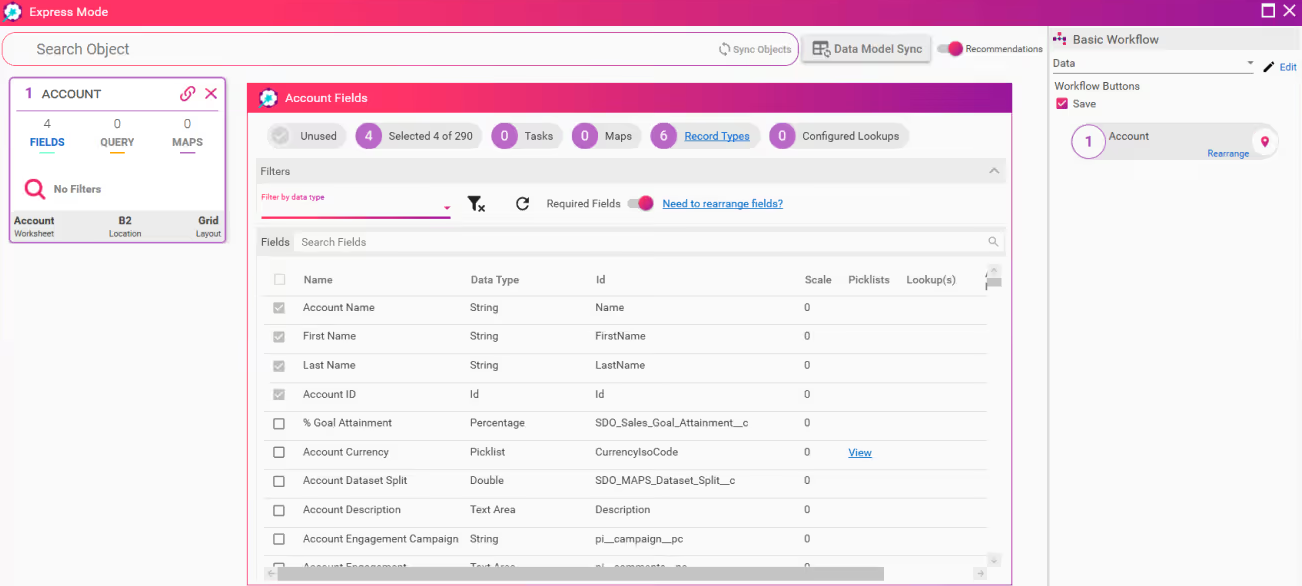
Choose the object you want — Opportunity, Account, Quote Line, or any custom object — then select fields and add filters. Fusion queries Salesforce live and writes the results into your worksheet.
You only see fields your profile grants access to. Fusion loads the selected Salesforce records into the workbook without requiring an intermediate CSV export.
Step 4: Edit like it's a spreadsheet, because it is
Bulk-edit, drag-fill, paste a column, apply formulas, build a pivot, use conditional formatting. Everything Excel does, it still does — the rows just happen to be live Salesforce records
Point Fusion at an existing model and the Salesforce fields become inputs to the formulas you already have. Nothing to rebuild.
Your edits stay local until you save. Nothing reaches Salesforce until Step 5, so you can restructure, experiment, and undo freely before anything commits.

Step 5: Save back (sync) to Salesforce
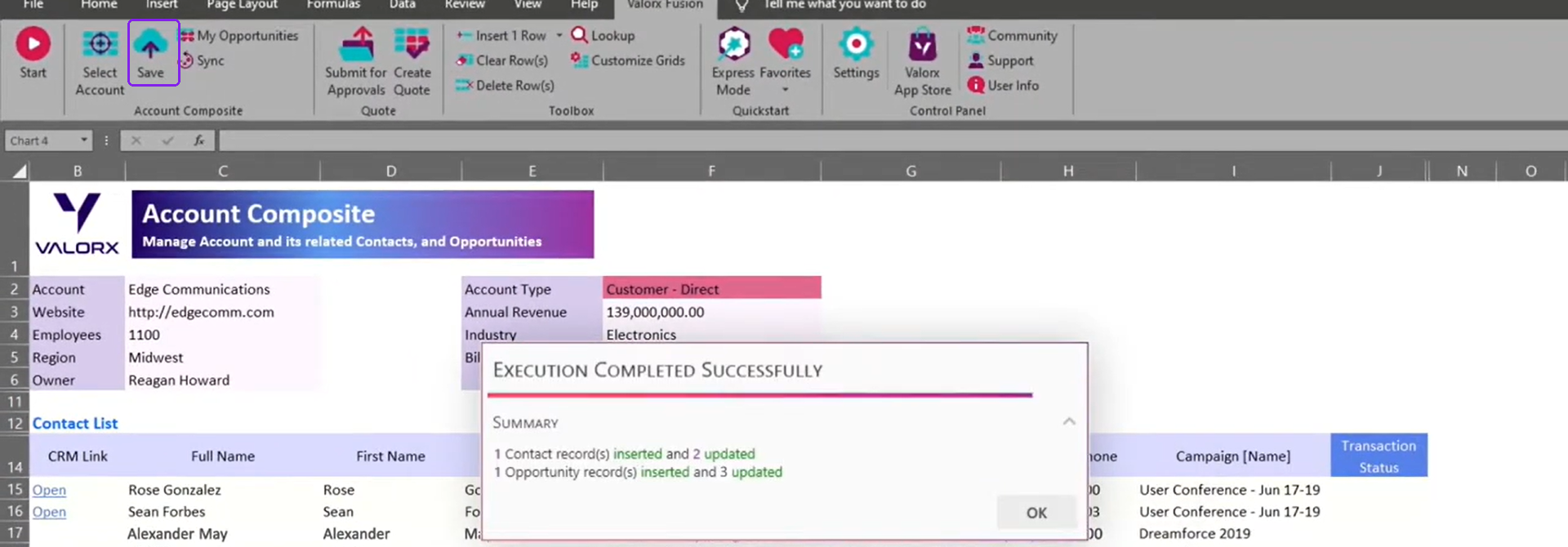
Hit Save.
Users can make changes in Excel and save the approved updates back to Salesforce directly from the workbook. Fusion sends the changed records back to Salesforce. Any updates rejected by Salesforce are identified in the workbook with the corresponding error message.
Fusion commits every changed cell back as a record update in one transaction. Validation rules, required fields, and approval processes all fire exactly as they would in the Salesforce UI. Anything Salesforce rejects comes back flagged in the sheet with the reason, so you fix it in place and save again.
See it running: A guided tour to Valorx Fusion
Valorx Fusion at a glance
| Install | Salesforce managed package (AppExchange) + Excel add-in |
|---|---|
| Authentication | OAuth 2.0 — revocable from Salesforce Setup |
| Data storage | Queried live from Salesforce through Salesforce's own APIs and permission model. No copy downloaded to a file. Note: during the 15-day trial period before the managed package is installed, apps are hosted in Valorx infrastructure. |
| Direction | Bidirectional — read and write |
| Supported objects | Any queryable standard or custom object, including CPQ quote lines and price books |
| Salesforce security | Profiles, sharing rules, and field-level security enforced |
| Validation rules | Enforced on save; failures returned inline in the sheet |
| Platforms | Excel for Windows (full, incl. Design Studio) · Excel for Mac (runtime + Express Mode) · Excel for the web · Google Sheets (browser runtime, real-time collaboration) |
| Offline mode | Windows only — not available on Mac or Google Sheets runtimes |
| Sandbox support | Yes — build in sandbox, then promote and provision to users |
| Load performance | 1,000 records under 5 sec · 10,000 under 30 sec · 50,000 under 2 min · 100,000+ under 5 min |
| Save performance | 1,000 records under 10 sec · 10,000 under 2 min · 50,000 under 8 min · 100,000+ under 15 min |
| Automatic refresh | Configurable. Apps can pull the latest Salesforce data automatically when the app opens (Run at App Launch), or on demand. Time-based scheduling is not available. |
| Licensing | Read-only and read-write licenses available |
| Admin install required | Yes — managed package approval. After that, no IT involvement to pull or save data. |
| Release cadence | Monthly / Quarterly |
| Auto-update policy | From v18.4, stable updates apply automatically if not installed manually within 30 days; can be disabled on request |
| Support | Direct support team |
What Are Common Problems with Salesforce Excel Connectors?
Most connector issues aren't the connector. Here's what actually trips people up.
A save fails on some rows but not others. A validation rule or required field rejected those records. Fusion returns the Salesforce error text per row — read it, fix the cell, save again. This is Salesforce doing its job.
A field you need isn't in the picker. Field-level security on your profile. An admin has to grant read or edit access. The connector can't show you what your profile can't see.
A column won't accept edits. Formula fields, roll-up summaries, and system fields are read-only in Salesforce, so they're read-only here too.
You connected to the wrong org. Easy to do when sandbox and production credentials look alike. Check the org indicator in the Fusion panel before you save.
Large pulls run slowly. Filter before you query. Pulling every Opportunity and then filtering in Excel is slower than filtering in the query — and easier on your API limits.
The Mac experience differs slightly. Few features arent supported, check here.
What Do Teams Use a Salesforce Excel Connector For?
High-volume quoting
Micron's quotes ran to hundreds of lines and 90+ columns across multiple roles. Moving quote line editing into Excel cut customer quote delivery from 3.5 hours to under 10 minutes, with 70% time savings across quote creation.
Complex quoting at scale
BP's commercial team runs 15,000+ quotes a year across 200 account managers, with 150–300 line items per quote. 40% of the work had drifted into disconnected spreadsheets. Fusion brought it back into Salesforce and cut quote cycles from 4 days to 4 hours — global rollout in 8 months, zero custom code. Read the BP case study →
Forecasting and demand planning
NVIDIA needed forecasting that could keep up with rapid demand shifts without disrupting the team's existing workflow. Live Salesforce data inside their existing Excel models improved forecast accuracy without a rebuild. Read the NVIDIA case study →
Salesforce adoption
This is the argument that gets budget approved. When the interface is slow, people leave — and the work moves into spreadsheets nobody can see. At BP, 40% of quoting had drifted out of Salesforce despite heavy CPQ training. The problem wasn't adoption effort; it was the interface. Give people a spreadsheet that writes back to Salesforce and the work comes home, which is when Salesforce actually becomes the system of record you're paying for.
Do you need Excel, or a grid inside Salesforce?
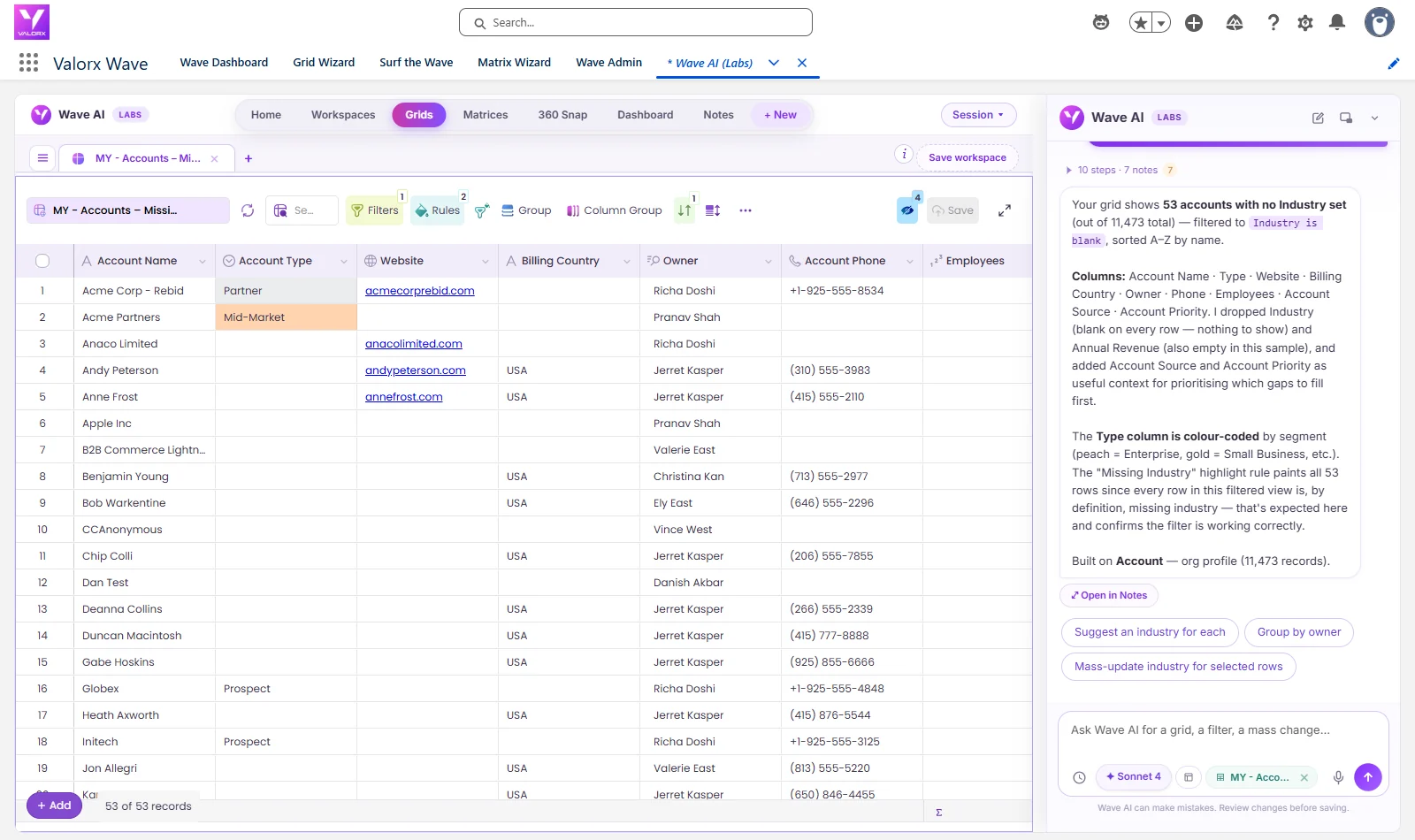
Not everyone who wants spreadsheet-speed editing needs Excel. If the goal is bulk-updating records and you don't need formulas, editing inside Salesforce is faster than round-tripping through a spreadsheet.
| If you… | Use |
|---|---|
| Have Excel models and formulas you don't want to rebuild | Fusion |
| Need pivot tables and Excel-native analysis | Fusion |
| Just need to bulk-edit records fast | Wave |
| Don't want anything installed on your machine | Wave |
| Are cleaning up pipeline, territories, or a case queue | Wave |
| Are building a forecast or commission model | Fusion |
Plenty of teams run both — Wave for operational updates, Fusion for modelling.
Frequently asked questions
Is there an official Salesforce Excel connector?
Not for general record editing. Salesforce ships the CRM Analytics Connector for Excel, but it's read-only and limited to CRM Analytics datasets. For live two-way editing of standard and custom objects you need a third-party add-in from the AppExchange.
Can I edit Salesforce data directly in Excel?
Yes, with a bidirectional connector. Edits commit back as record updates, with validation rules and field-level security enforced. Read-only tools and plain CSV exports can't do this.
How is Valorx Fusion different from Salesforce Data Loader?
Data Loader is a one-way, CSV-based batch tool, typically used by admins for migrations and bulk loads. Fusion is built for day-to-day work: live two-way sync, Excel-native editing with formulas and pivot tables, and no CSV export or import step in between.
Can I bulk-edit thousands of Salesforce records at once in Excel?
Yes. Fusion is built for high-volume editing — customers have used it to manage over 10,000 quote lines in a single workflow without exporting data out of Salesforce.
Does a Salesforce Excel connector work on Mac?
Fusion runs on Excel for Windows, Excel for Mac, Excel for the web, and Google Sheets. A small number of features aren't yet available on Mac — see the platform support docs for the current list. Support varies a lot across vendors, so it's worth confirming before you buy.
Is my Salesforce data stored outside Salesforce?
No. Fusion queries records live through Salesforce's own APIs and permission model, and writes changes straight back. Nothing is staged on a Valorx server and no copy is downloaded to a file — which removes the security and data-hygiene exposure that comes with manual export and re-import.
Does Fusion work with Salesforce CPQ, Revenue Cloud, and custom objects?
Yes. Quote lines, price books, and any queryable custom object are supported, and CPQ pricing and product rules are honoured on save.
Do I need a Salesforce admin to set up Fusion?
An admin approves the managed package install — self-serve if you already have the right permissions. After that, users install the Excel add-in themselves and no IT involvement is needed to pull or save data. For complex or heavily customised spreadsheets, Valorx's Professional Services team can handle setup directly.
What happens if two people edit the same Salesforce record in Excel at the same time?
Valorx Fusion can detect concurrent changes and prevent one user from accidentally overwriting another's work. When Concurrency Detection is enabled in the app's Save Options, the first user's changes are saved, while a later save based on older data is stopped — the second user gets a warning that the record was modified, along with details of who changed it. They can then refresh the record, review the latest values, and apply their changes again. Detection is at record level: if the record changed since you loaded it, your save of that record is rejected rather than merged. Without Concurrency Detection enabled, standard Salesforce behaviour applies and the later save wins.
A related option, Partial Commit, lets the rest of a batch save successfully even when individual records fail.
What is a Salesforce Excel connector?
It is an add-in or integration that creates a live link between Excel and Salesforce, letting you pull CRM records into a spreadsheet, edit them with normal Excel operations, and sync changes back to Salesforce — replacing the export-edit-reimport cycle.
Does Salesforce have a native Excel connector?
Salesforce offers report exports and CSV-based import tools natively, but no built-in live, two-way Excel editing experience. That gap is filled by third-party connectors such as Valorx Fusion and XL-Connector.
Is a Salesforce Excel connector secure?
A well-built connector enforces your Salesforce security model. Valorx Fusion is a Salesforce-managed package: profiles, permission sets, and field-level security all apply, and records are not stored outside Salesforce.
How much does a Salesforce Excel connector cost?
Valorx Fusion has a free tier (up to 2,000 record updates/month) and a Pro plan at $60/user/month billed annually. Competing tools are typically licensed per user or per org with varying limits.


.svg)

.png)
Choose the workflow you need:
Try Wave in browser Extension

Try Wave in Salesforce

Try Fusion In Excel

Enhancing Salesforce for industry leaders