Run a Flow From Your Grid: Row Buttons and Grid Actions in Salesforce
Put your team's next step on the grid as a button: start a Flow for the rows you ticked, create a record, or open a link.
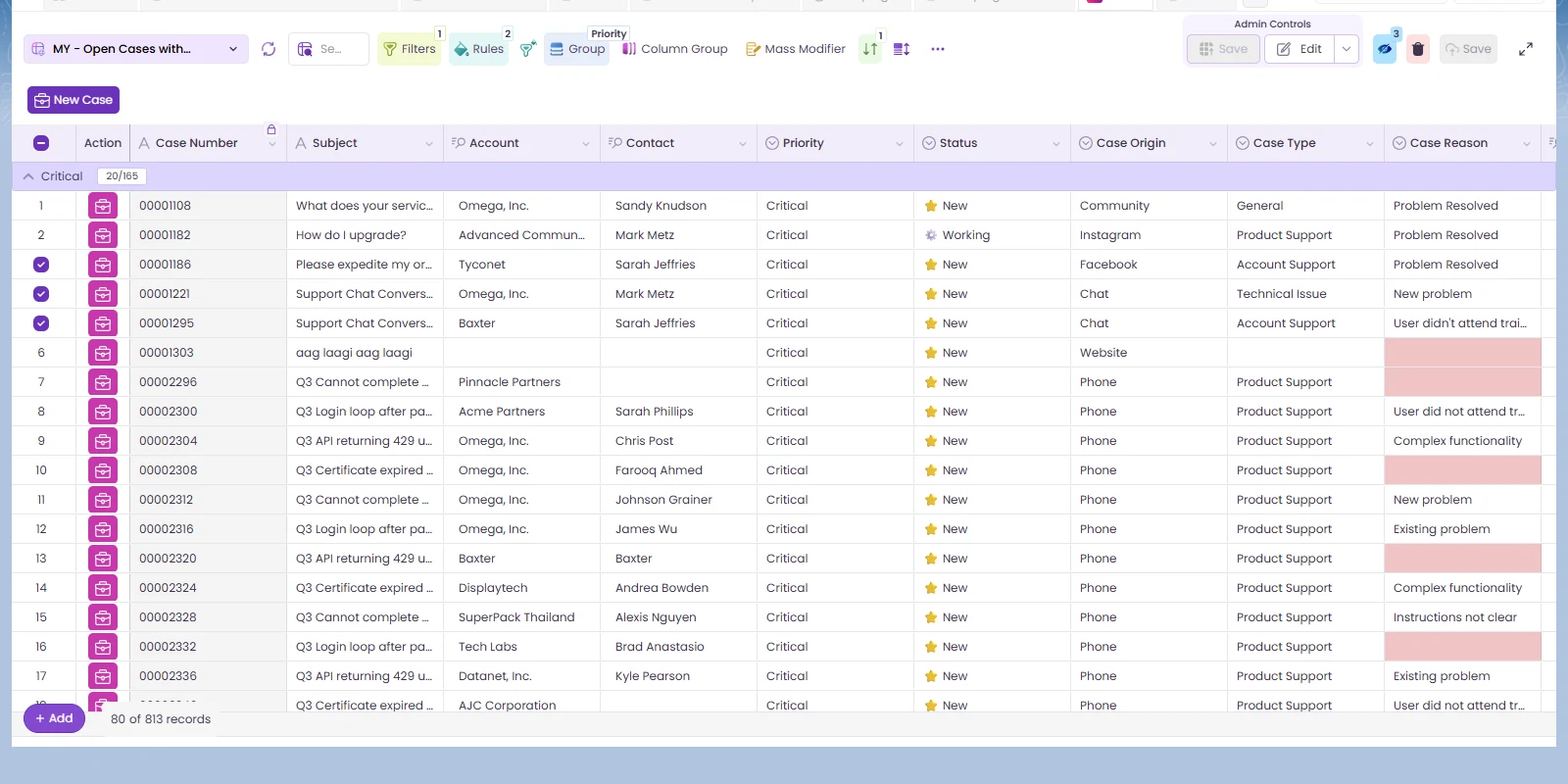
A grid is where people find the records that need something done. The next step shouldn't be somewhere else. In Valorx Wave, a designer adds buttons to the grid, and each button does one job for the rows you've ticked.
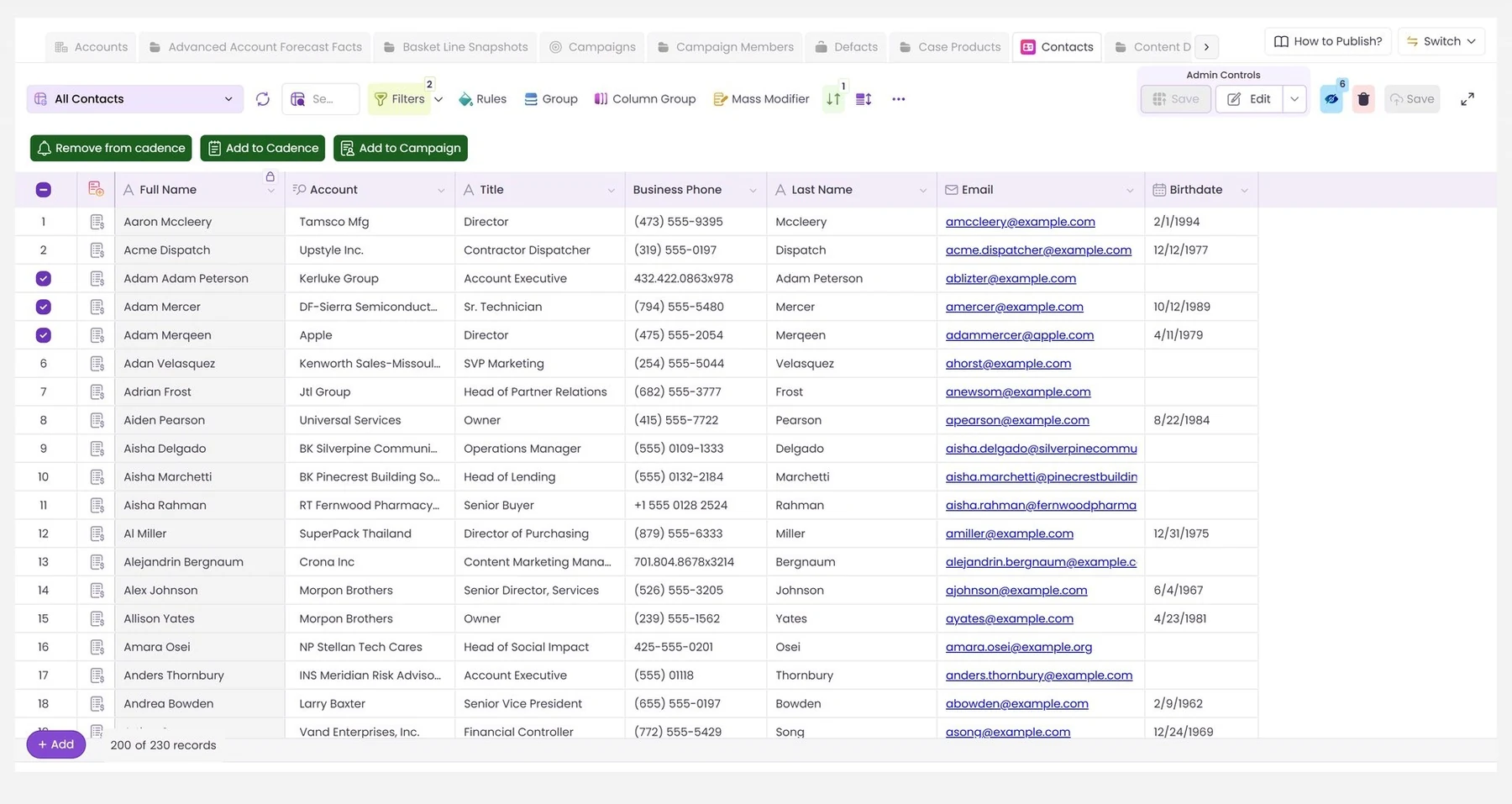
What a button can do
- Start a Flow. The one most teams want. Tick the rows, click the button, and your Flow runs for those records.
- Create a record. On the same object, on a related object, or a task.
- Edit a record in the standard Salesforce edit window.
- Open a link, with values from the row placed in the address.
- Run your own component, a Lightning Web Component or an Aura component.
Add a button
- In the Grid Wizard, open the Action tab and click + Grid Action.
- Choose how it looks: a button or a link, with an icon, a label, a colour and a tooltip.
- Click Next and choose the action type. For a Flow, pick the Flow.
- Choose what the grid does afterwards: refresh the row, refresh the whole grid, or leave it alone. Add a success message if you want one.
- Click Next to set the variables. For a Flow, Wave reads the Flow and lists the variables it expects, such as the record id.
- Click Finish.
Small settings that matter
- Always Enable keeps a button active even when no row is ticked. Use it for actions that don't need a record, such as "New account".
- A rule can hide a button. Hide "Send renewal email" on rows that have already renewed.
- Refresh on success means people see the result of the Flow in the grid, without reloading the page.
A grid inside a Flow
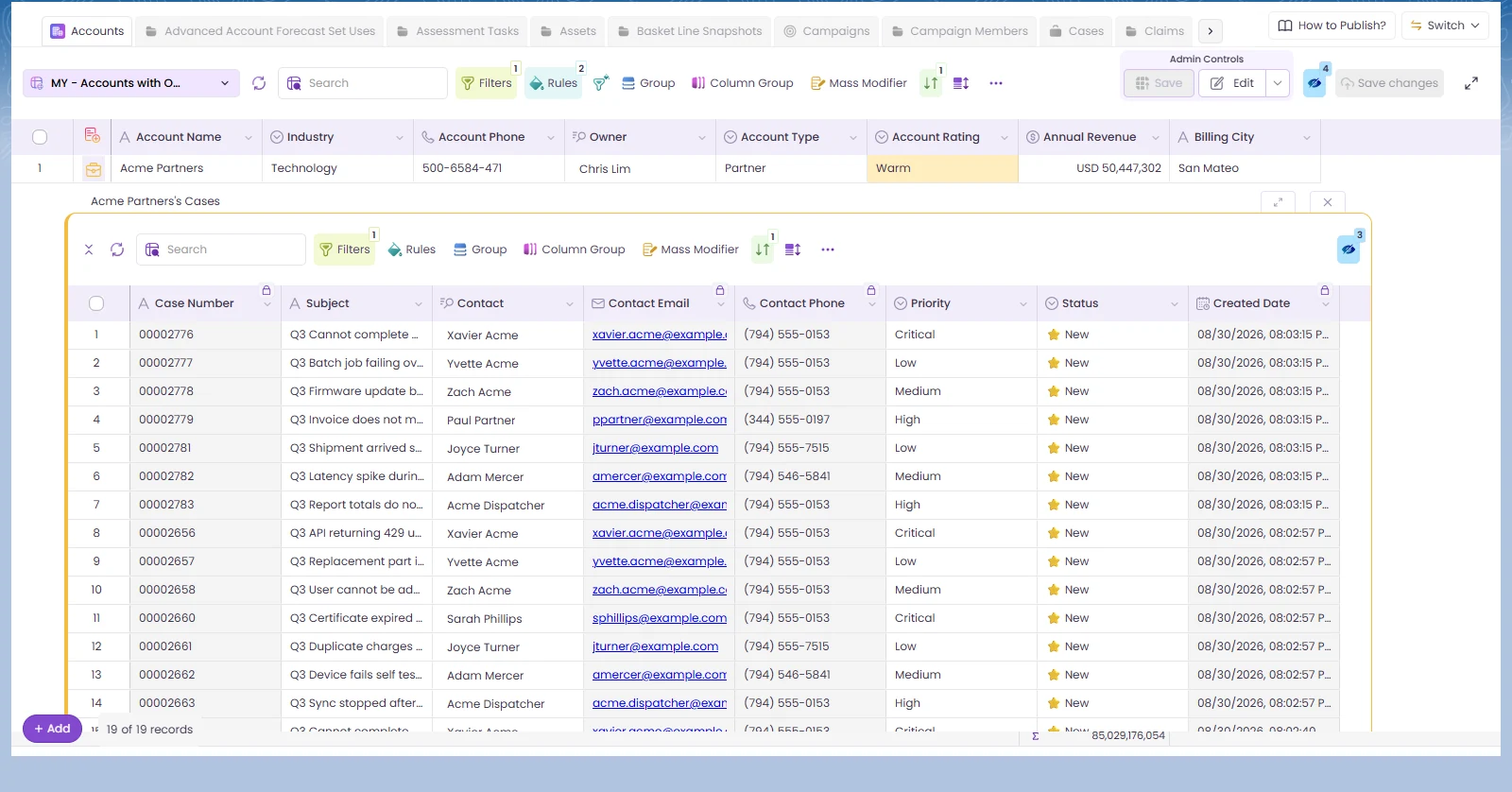
It works the other way round as well. A Wave grid can sit inside a Screen Flow, so one step of a guided process can be a full editable grid.
All of this runs inside Salesforce, as the person who clicked, under their own permissions.
Want to see it on your own objects? Book a demo and we'll build the first grid with you on the call.
Industry
use case
Productivity
Last updated
October 9, 2026




.svg)




Choose the workflow you need:
Try Wave in browser Extension
Connect Wave directly with your browser

Try Wave in Salesforce
Integrate Wave in Salesforce

Try Fusion In Excel
Easily use Fusion within Excel

Excel
Salesforce
Browser
Enhancing Salesforce for industry leaders