Formulas in a Salesforce Grid: Calculate Without a New Field
In Excel, a new calculation is a new column. You type a formula and it's there. In Salesforce, the same thing usually starts with a request to an admin for a formula field, and a wait.
A Valorx Wave grid gives you the spreadsheet way back. You add a formula column to the grid itself. It calculates from the fields already on the row, and it stays with that grid.
Add a formula column
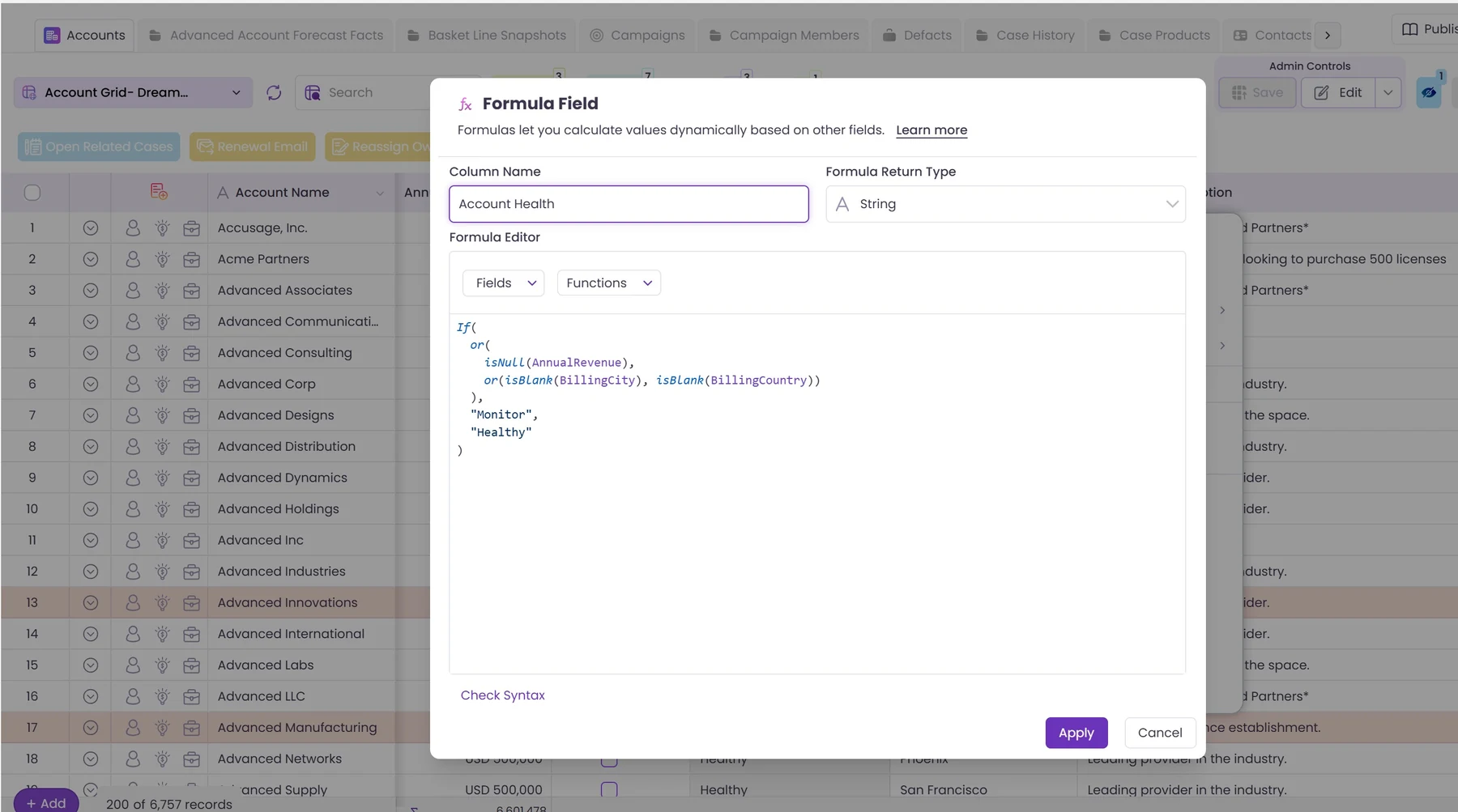
- Open the Field Selector on your grid and choose Formula Field.
- Give it a Column Name, such as Account Health.
- Pick what it returns: String, Number, Boolean or Currency.
- Write the formula. The Fields and Functions lists in the editor insert names for you, so you don't have to remember them.
- Click Check Syntax, then Apply, then Update Fields.
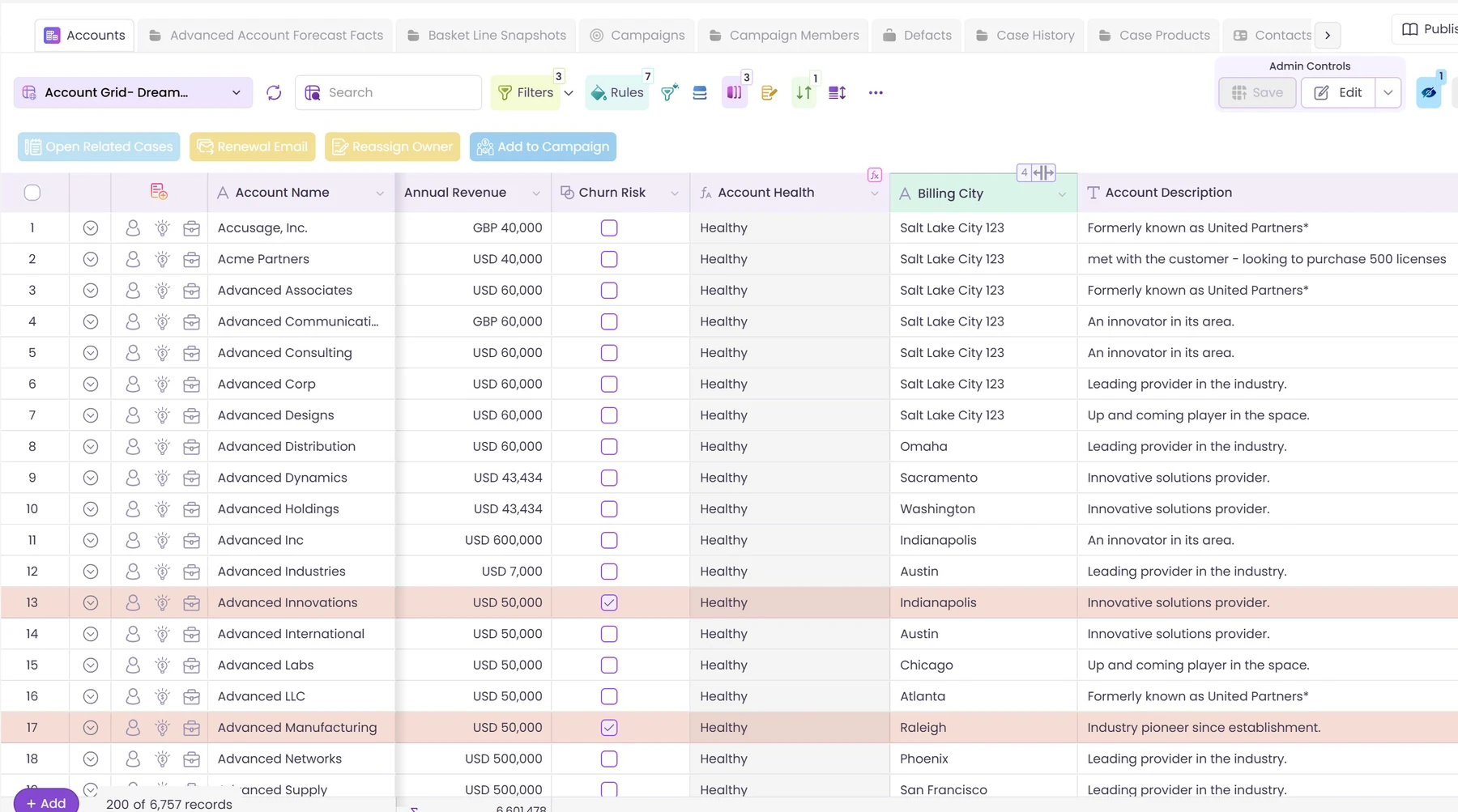
The column appears in the grid beside your Salesforce fields, with a small formula mark on its header.
Formulas you can copy
These are the patterns people ask for most. Swap in your own field names.
- Price after discount:
Amount - (Amount * Discount__c / 100) - Full name from two fields:
CONCAT(FirstName, " ", LastName) - Weeks a deal has been open:
FLOOR(DaysOpen__c / 7) - Flag a deal at risk:
if(and(Amount > 50000, DaysOpen__c > 90), "At Risk", "On Track") - A date 30 days after the start:
dateAdd(StartDate__c, 30, "days")
What you can use
The functions will look familiar: if, and, or, isBlank, isNull, round, floor, ceil, abs, min, max, sum, concat, left, substring, upper, lower, trim, replace, contains, beginsWith, endsWith, dateAdd, dateDiff, year, month, day and now.
Two things to know
- A formula column is for reading. It doesn't write a value back to Salesforce. If the number has to live on the record, that's still a Salesforce field.
- To test whether two values are equal, type two equals signs.
Stage == "Closed Won"compares. A single equals sign doesn't.
Once the column is there, treat it like any other. Filter on it, sort by it, or point a colour rule at it so the rows that need attention stand out.
Want to see it on your own objects? Book a demo and we'll build the first grid with you on the call.




Choose the workflow you need:
Try Wave in browser Extension

Try Wave in Salesforce

Try Fusion In Excel

Enhancing Salesforce for industry leaders