Salesforce sales reporting in Excel: live data, no exports

Most sales reports are built twice. Once in Salesforce, where the data lives, and again in Excel, where the report actually gets finished. Every week someone exports the pipeline, pastes it into last week's workbook, fixes the formulas and sends it round. By the time it lands, the numbers have already moved.
The answer is not to give up Excel. It is to stop exporting. A Salesforce Excel connector keeps the workbook tied to live CRM data, so the report you built once refreshes itself and the fixes you make save back to Salesforce.
Key takeaways
- Sales teams report in Excel because it handles custom layouts, cross-object math and scenario modeling that native Salesforce reports make hard.
- The export is the weak point. It is stale the moment it is saved, it has to be rebuilt every cycle, and it creates more than one version of the numbers.
- A connected workbook keeps the Excel report and removes the export: refresh for current data, edit in place, save back to Salesforce.
- Five reports pay off first on live data: pipeline by stage and owner, forecast against quota, win rate and cycle length, week-over-week pipeline movement, and revenue by product or territory.
- Adobe cut cross-org report compilation from more than 40 hours to minutes with Valorx Fusion.
Why sales reporting ends up in Excel
Salesforce reports and dashboards are good at standard questions: open pipeline by stage, closed won this quarter, activities by rep. They get harder as soon as the question is specific to how your business runs.
- Layout. Leadership wants the report in a set format, with their groupings and their commentary. Native report formats are fixed.
- Math across objects. Weighted pipeline against quota, margin by product line, coverage by territory. These need data from several objects and formulas between them.
- What-if questions. "What happens to the quarter if these six deals slip?" is a modeling question, and modeling is what spreadsheets are for.
- Volume. The report page in Salesforce shows up to 2,000 rows. Anything bigger means an export anyway.
So the report moves to Excel. That part is reasonable. The trouble starts with how the data gets there, which we covered in exports are so 1999.
What the weekly export costs you
- Stale numbers. An export is a snapshot. Reps keep updating deals after it is taken, so the report and Salesforce disagree by the time anyone reads it.
- Rebuild time. Export, paste, re-point the formulas, refresh the pivots, check the totals. The same hour or more of work, every cycle.
- More than one truth. Each team keeps its own copy with its own adjustments. Sales, finance and operations arrive at the forecast call with different versions of the truth.
- Fixes that never get back. You spot a wrong close date or a missing amount in the spreadsheet. Correcting it in Salesforce is a separate job, so it often does not happen.
Three ways to report on Salesforce sales data
| What you need | Native reports | Export to Excel | Connected workbook |
|---|---|---|---|
| Current data | Yes | No, a snapshot | Yes, on refresh |
| Your own layout and formulas | Limited | Yes | Yes |
| Several objects in one report | Needs report types | Manual merge | Yes, in one workbook |
| Scenario modeling | No | Yes, on old data | Yes, on live data |
| Fix a record from the report | Inline edit, field by field | No | Yes, saves back |
| Effort each cycle | Low | Rebuild every time | Refresh |
Swipe the table to see all columns
Native reports are still the right tool for standard dashboards. For everything that ends up in a spreadsheet anyway, the connected workbook gives you the Excel report without the export. This is how we approach Salesforce reporting across the product.
Five sales reports worth building on live data
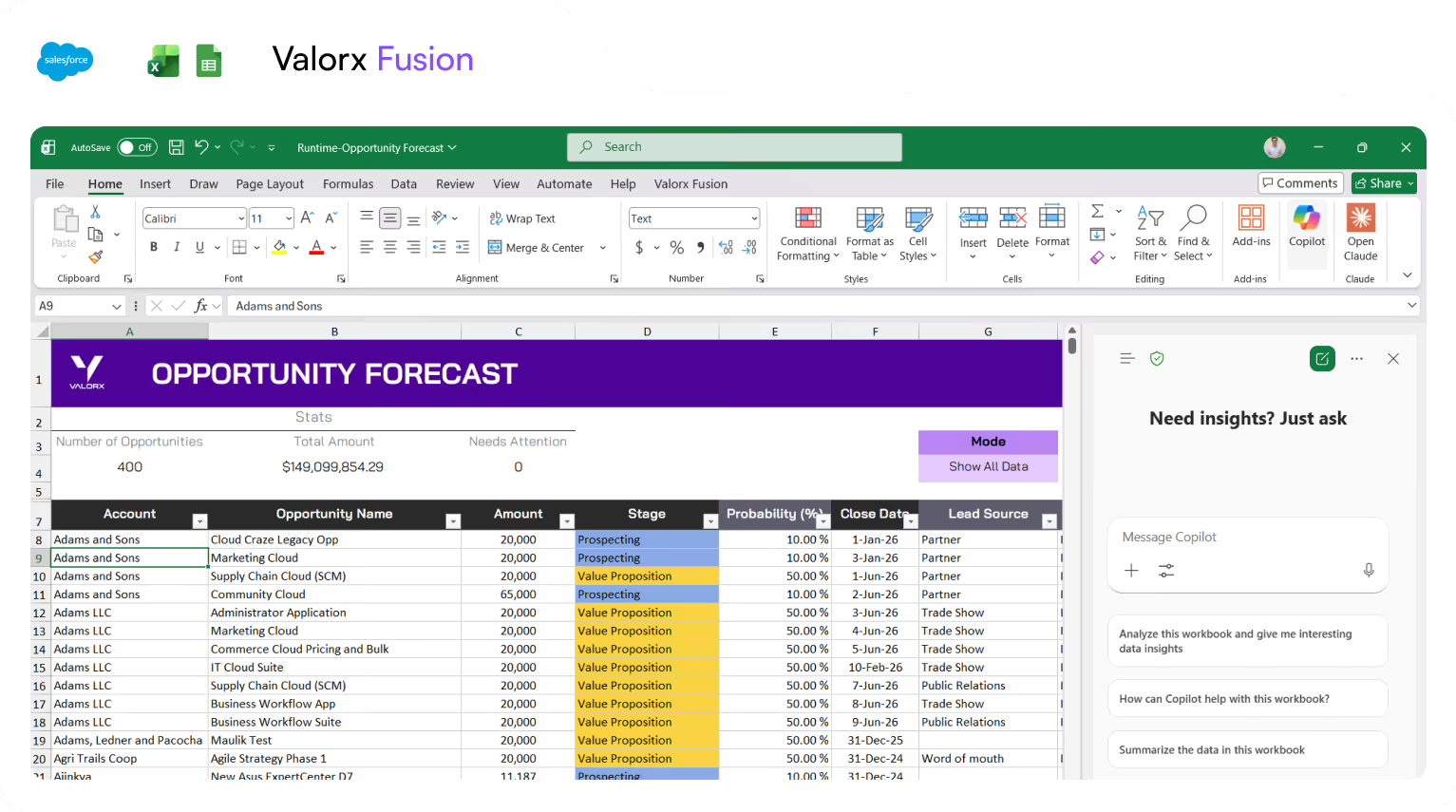
1. Pipeline by stage and owner
Pull open opportunities with owner, stage, amount and close date. A pivot table gives you pipeline by stage and rep in seconds, and it stays current on refresh. Here is how to build pivot tables on Salesforce data. If the report shows a deal in the wrong stage, change it in the sheet and save. That turns the report into a pipeline management tool, not just a readout.

2. Forecast against quota
Combine opportunities with a quota table and calculate weighted pipeline, coverage and gap to target per rep. Finance and sales work from the same sheet, so the forecast call starts from one number. More on this in our forecasting overview.
3. Win rate and sales cycle length
Closed won against closed lost by segment, source or rep, plus days from created to closed. A few formulas do it. COUNTIFS and AVERAGEIFS cover most of the work, and we list more in advanced Excel formulas for Salesforce data.
4. Week-over-week pipeline movement
Keep a dated copy of the pipeline tab each week alongside the live one. Comparing the two shows which deals moved stage, slipped a close date or changed amount. It is the report managers ask for most and the hardest one to get from native reporting.
5. Revenue by product or territory
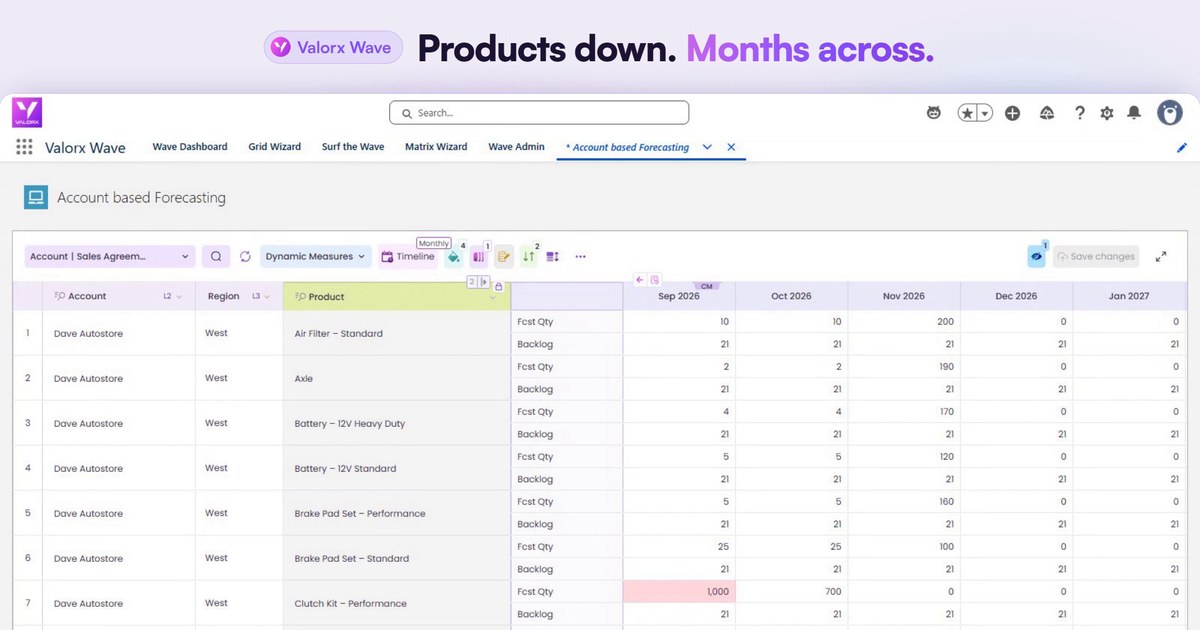
Bring opportunities, opportunity products and accounts into one workbook. You can see revenue mix by product line, region or industry without building a custom report type for each view.
How to build a live sales report in Excel
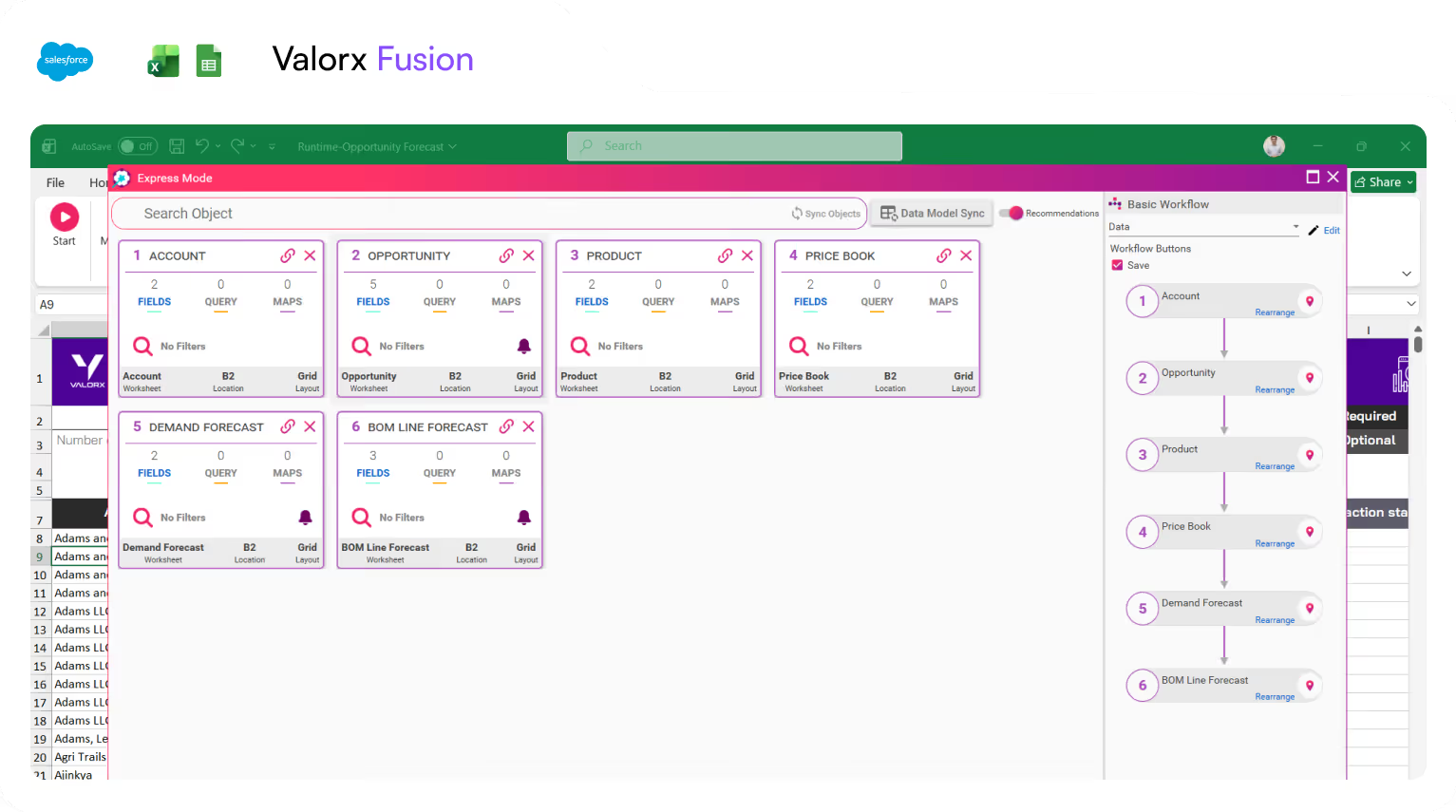
- Connect. Add the Valorx Fusion add-in to Excel and sign in with your Salesforce credentials. Your existing permissions decide what you can see and change.
- Pull the data. Choose the objects and fields the report needs: opportunities, accounts, products, custom objects.
- Build the report once. Add your formulas, pivots, charts and layout. An existing workbook works too, so there is nothing to rebuild.
- Refresh, don't re-export. Next week, refresh the data. The pivots and formulas update with it.
- Fix what you find. Correct stages, dates and amounts in the sheet and save them back to Salesforce. The same Excel shortcuts you already use work on the live records.

Watch Fusion connect Excel to Salesforce:
What this looks like in practice
Adobe ran three separate Salesforce orgs, and compiling cross-org reports took more than 40 hours of exporting and merging. With Fusion, an analyst connected all three orgs to one Excel workbook and assembled the same reports in minutes. Read the Adobe case study.
Frequently asked questions
Why report on Salesforce data in Excel?
Excel handles custom layouts, math across objects and scenario modeling that native reports make difficult, and finance and operations teams already work in it. The risk is the export, not the spreadsheet.
How do I keep an Excel sales report up to date with Salesforce?
Use a live connection in place of the export. With a Salesforce Excel connector such as Valorx Fusion, a refresh pulls current records into the workbook, so pivots and formulas update without rebuilding the report.
Can one Excel report combine several Salesforce objects?
Yes. A connected workbook can hold opportunities, products, accounts and custom objects side by side, so you can report across them without creating a custom report type for each view.
Can I update Salesforce from the report?
Yes. With Fusion, corrections made in the sheet save back to Salesforce, within each user's existing object and field permissions.
Is this a replacement for Salesforce dashboards?
No. Dashboards are still the simplest option for standard, shared views. A connected workbook covers the reports that would otherwise be exported: custom formats, forecasts, models and anything that needs data cleaned up along the way. For the wider picture, see what happens when reports multiply faster than anyone can use them.
Does it work with Google Sheets?
Yes. Fusion connects Google Sheets to Salesforce as well as Excel.




Choose the workflow you need:
Try Wave in browser Extension

Try Wave in Salesforce

Try Fusion In Excel

Enhancing Salesforce for industry leaders