How to connect Salesforce to Google Sheets (And keep your data live)
Connect Salesforce to Google Sheets with live, bi-directional sync using Valorx Fusion. Pull data into Sheets, make bulk edits, and sync changes back — no exports or re-uploads needed.
Quick answer: To connect Salesforce to Google Sheets with a live, two-way link: install the Valorx Fusion add-in for Google Sheets, sign in to your Salesforce org, pull the objects you need into the sheet, edit in bulk, and sync changes back — no CSV exports or re-uploads. Fusion enforces your Salesforce permissions on every read and write, and the free tier covers up to 2,000 record updates a month. Full setup steps below.
From Excel to Google Sheets to Salesforce: Keeping spreadsheet workflows live
Spreadsheets have always been part of Salesforce workflows.
For years, that meant Excel—downloaded reports, offline analysis, bulk edits, re-uploads. Even today, many Salesforce teams still rely on Excel to do the real work faster than clicks and forms allow.
85% of sales reps reportedly run their entire book of business from spreadsheets, not their CRM — with only 5% using CRM as their main tool. - LinkedIn (Tech Sales Accelerator)
But as teams became more distributed, workflows shifted.
Excel didn’t disappear. It evolved.
Google Sheets became the collaborative version of the spreadsheet—real-time sharing, instant visibility, and faster iteration. Naturally, Salesforce data followed.
The challenge wasn't the spreadsheet. It was that Salesforce data stopped being live once it entered the spreadsheet.
This guide covers the common ways to connect Salesforce to Google Sheets, why most approaches fall short, and how to maintain a live, bi-directional connection using Valorx Fusion.
Why Do Spreadsheet-Based Salesforce Workflows Persist?
Salesforce has more than 150,000 customers and serves 90% of the Fortune 500. - Salesforce Research
Despite improvements in Salesforce UI and reporting, spreadsheet-style workflows persist -for practical reasons.
Salesforce's own State of Sales report (2024) found that reps spend only 30% of their time actually selling. The remaining 70% goes to administrative tasks, data entry, and internal meetings. And separately, 43% of CRM users report using less than half of their CRM's features.
Excel handled this offline.
Google Sheets brought it online.
What neither solved was live connection back to Salesforce.
When the CRM doesn't match how teams actually work — reviewing pipelines, making bulk changes, running analyses — they open a spreadsheet. Not because it's better than Salesforce. Because it's faster for the work they need to do right now.
This pattern shows up most often for:
Sales operations teams cleaning pipelines, ownership, and stages — often under deadline pressure before QBRs
RevOps teams validating forecasts before leadership reviews, where a single misaligned field means bad projections
Sales managers reviewing large deal lists quickly, comparing 50+ records side by side instead of clicking into each one
Finance teams reconciling Salesforce data with planning models in Excel or Sheets, where formulas do the heavy lifting
Admins supporting non-technical users who avoid complex Salesforce UI paths — people who just need to update 200 records and move on
Reps partner most often with sales operations (48%) — more than with other sellers or marketing — and 72% of sellers report needing multiple screens or windows open to coordinate a single sales process. - Salesforce
That's the environment spreadsheets thrive in.
If your team already exports Salesforce data “just to get work done,” this workflow will feel familiar.
What Is the Problem with Export-First Workflows?
Whether teams use Excel or Google Sheets, the breaking point is the same:
Across enterprise sales teams, CRM accuracy is collapsing. The numbers below are why your forecasts feel uncertain — and why your reps quietly maintain spreadsheets on the side.
80%
Average CRM data accuracy
That means 1 in 5 records your reps touch is wrong.
2.5 hrs
Lost per rep, per day
Chasing down corrections instead of closing deals.
35%
Sales pros who trust their data
The other 65% are building spreadsheets.
$12.9M
Average annual cost of poor data quality
And that's just the beginning.
The pattern is clear: when reps don't trust CRM data, they build their own systems. The fix isn't more training. It's making CRM updates fast enough that reps actually do them.
By the time the CSV is re-uploaded, a dozen deals may have already changed stage. At that point, Salesforce becomes a system of record—but not a system of action. This is why Salesforce-to-spreadsheet integrations exist in the first place.
Why Did Google Sheets Become the Next Step?
Google Sheets didn’t replace Excel because it was more powerful. It replaced it in many workflows because it was collaborative by default. For Salesforce teams, this mattered:
The spreadsheet reality
What Are the Five Most Common Use Cases?
Where reps and managers quietly bypass Salesforce — and why they keep doing it.
01
Pipeline management
Each sales rep maintains their own "working" pipeline in Google Sheets, tracking:
Prospect names and contact info
Deal stages and next actions
Personal notes and relationship details
Follow-up dates and reminders
Then they update the "official" CRM periodically — often before forecast calls or end-of-week.
Each rep updates their weekly or monthly projections
The entire team can see real-time changes
Formulas automatically calculate team totals
Historical data sits alongside current forecasts
03
Lead list management
Marketing provides lead lists in CSV format, and sales teams:
Import directly into Google Sheets
Add qualification notes and scoring
Assign leads to reps
Track outreach attempts and outcomes
04
Territory planning
Account segmentation and territory assignments:
Account lists with revenue potential
Geographic territories with account assignments
Coverage models and capacity planning
Target account lists for strategic selling
05
Commission calculations
Many reps track their own commission in Google Sheets because:
They understand their own formulas
They can model "what-if" scenarios
They don't trust the company's commission reporting
They want instant visibility into earnings
The takeaway: Collaboration alone isn't enough if the data isn't current. That's where live Google Sheets-to-Salesforce connectivity becomes critical.
While Google Sheets is flexible, sales teams lose critical Salesforce capabilities:
No single source of truth: Data lives outside Salesforce, creating silos, duplicate records, and inconsistent pipeline views for leadership.
Minimal automation: No native lead assignment rules, validation rules, approval processes, or Flow-driven automation.
Incomplete customer context: Activities, emails, and touchpoints aren’t automatically captured on Leads, Contacts, or Opportunities—resulting in lost account history.
Scalability constraints: Large datasets hit performance limits, schemas drift, and manual updates break as pipelines and teams grow.
Security & compliance gaps: Lacks role hierarchy, profile- and field-level security, audit trails, and enterprise-grade governance.
Limited reporting & forecasting: No real-time dashboards, pipeline coverage, forecast rollups, or attribution reporting across the funnel.
That’s why connecting Salesforce with Google Sheets through a bi-directional sync is critical—so teams get spreadsheet-level speed without sacrificing Salesforce data integrity, automation, or reporting.
What Are the Common Ways to Connect Salesforce to Google Sheets?
Quick comparison
Connecting Salesforce to Google Sheets
Four common approaches — and what they're best (and not best) for.
Google's native Data Connector
Free add-on
Supports report imports, SOQL queries, basic CRUD, and scheduled refresh for simple pulls.
✓Good for: simple imports
✕Weak at: multi-object / large data
!Risk: refresh reliability
Manual CSV exports
One-time
Fine for a quick export, but data goes stale immediately and versions multiply fast.
✓Good for: one-off tasks
✕Creates: stale data + versions
✕No: sync back to Salesforce
iPaaS tools (Zapier, Make)
Automations
Great for record-level triggers (new lead → add a row), but not built for bulk work.
✓Good for: simple triggers
✕Not for: bulk edits
✕Not for: bi-directional sync
Valorx Fusion
Recommended
A purpose-built Google Sheets ↔ Salesforce connector that keeps data live.
✓Best for: live editing
✓Best for: bulk updates
↔Includes: real-time sync back
Each approach connects Salesforce and Sheets — Valorx Fusion is built for scale, supporting teams that rely on continuous operational alignment.
Why Choose Valorx Fusion Over Other Salesforce Data Connectors?
Valorx Fusion distinguishes itself from other data connectors by offering a suite of robust features designed to enhance your data integration experience.
Watch how a live Google Sheets ↔ Salesforce connection works in practice with Valorx Fusion — no exports, no re-uploads, no reconciliation.
Here’s why Valorx Fusion is the better choice for connecting Salesforce to Google Sheets:
1. Real-time data synchronization
Immediate Updates: Valorx Fusion ensures your Google Sheets always reflect the latest data from Salesforce. No more waiting for manual updates or risking outdated information.
Seamless Integration: Continuous synchronization means that any changes made in Salesforce are instantly visible in Google Sheets, facilitating real-time collaboration and decision-making.
2. User-friendly interface
Familiar Environment: Leveraging the familiar Google Sheets interface, Valorx Fusion minimizes the learning curve, making it accessible to users of all technical levels.
Ease of Use: The intuitive design and straightforward setup process allow users to quickly connect Salesforce data without extensive training or technical knowledge.
3. Advanced Salesforce data management tools
Powerful Editing Capabilities: Perform bulk data edits, apply conditional formatting, and create pivot tables directly within Google Sheets. These advanced tools streamline data analysis and manipulation, saving you time and effort.
Enhanced Productivity: Use Google Sheets’ comprehensive features to manage complex datasets, automate repetitive tasks, and generate insightful reports, all while working with live Salesforce data.
4. Secure data handling
Adherence to Standards: Valorx Fusion adheres to Salesforce’s stringent security standards, ensuring that your data is handled with the highest level of security and compliance.
Data Protection: Maintain the integrity and confidentiality of your data with built-in security measures that prevent unauthorized access and ensure compliance with data governance policies.
Comparison with other Salesforce data connectors
While other Salesforce connector extension tools offer basic functionality, Valorx Fusion provides a comprehensive, feature-rich solution that sets it apart:
Comprehensive Integration: Unlike other connectors that might require additional software or technical expertise for complex tasks, Valorx Fusion integrates seamlessly into Google Sheets, allowing for complex data manipulations directly within the spreadsheet.
Superior Functionality: Valorx Fusion’s advanced features, such as real-time data synchronization and robust data management tools, surpass the basic capabilities of other connectors, providing a more efficient and effective integration experience.
Enhanced Usability: The user-friendly interface and familiar environment of Google Sheets reduce the learning curve and make data management accessible to all users, regardless of their technical background.
By choosing Valorx Fusion, you leverage the best of both worlds—Salesforce’s powerful CRM capabilities and Google Sheets’ flexible data management tools. This integration not only enhances productivity and collaboration but also ensures that your data remains secure and up-to-date.
ROI Calculator: Google Sheets to Salesforce connector
What ultimately drives the switch to Valorx is the hidden cost most teams underestimate: post-meeting Salesforce updates.
Pipeline meetings rarely end when the calendar invite does. Once the discussion ends, someone exports data, applies edits in Google Sheets outside Salesforce, reconciles comments, and re-uploads changes back into the CRM. That secondary workflow compounds quietly across teams and weeks.
After workflow Discussion → live edits synced to Salesforce → immediate Salesforce accuracy
Use the calculator below to quantify the time and fully-loaded cost eliminated when pipeline changes are captured during the meeting instead of after.
Fusion ROI
ROI calculator: Sheets ↔ Salesforce sync
Drag the sliders to estimate the impact of doing pipeline updates during the meeting instead of after.
1Your numbers
2/wk
How often the team runs pipeline reviews.
60 min
Meeting still happens — this is context only.
8 ppl
People who update pipeline after the meeting.
20 min
Time each person spends updating Salesforce after.
$60/hr
Blended cost per person (salary + benefits + overhead).
Assumption: 8 attendees each spend ~20 min after every meeting updating Salesforce. Live updates during the meeting reduce that to ~0.
2Your savings
Hours saved / week
5.3
Follow-up updates eliminated
Hours saved / year
277.3
52 weeks
Annual cost saved
$16,640
$2,080 saved per rep/year
Context: Your pipeline meetings already consume ~16 person-hours/week. Fusion + Wave shifts follow-up work into that existing time — no extra meetings needed.
How Do You Connect Salesforce to Google Sheets with Valorx Fusion?
Valorx Fusion was built for teams that operate in Google Sheets but need Salesforce to remain the source of truth. Fusion connects Salesforce directly to Google Sheets, allowing teams to pull live data, work with it like any spreadsheet, make structured bulk updates, and sync changes back in real time.
The workflow feels like Google Sheets. The data behaves like Salesforce.
What you'll need
A Salesforce account with API access
A Google Workspace account
Admin approval for the Fusion add-in (standard Google Workspace add-on permissions)
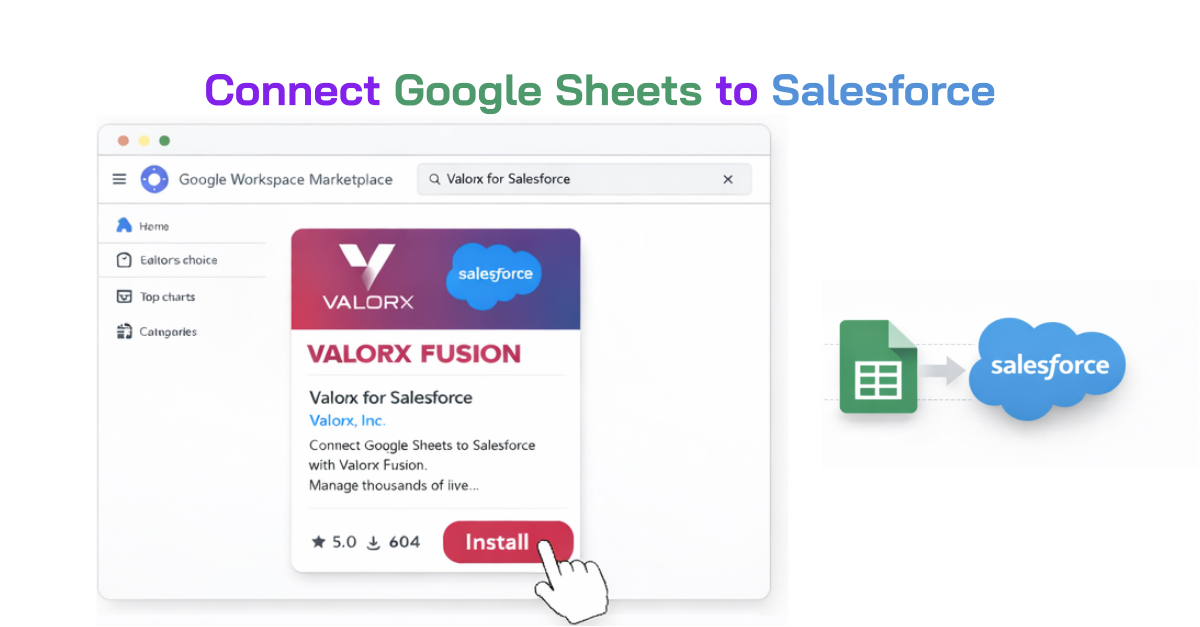
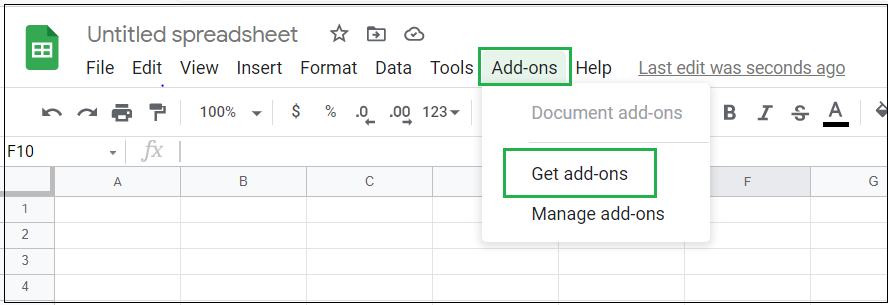
Step 1: Install the Valorx Fusion add-in via the Fusion Express Installation Link
Open Fusion from the Extensions menu in Google Sheets
Log in using Salesforce credentials
Grant access to required objects
Once connected, Salesforce data becomes live inside Google Sheets. You'll see the Fusion sidebar with options to query objects, pull reports, and configure sync settings.
Watch how you can step by step connect your Google Sheets with Salesforce using Valorx Fusion.
That's it. No code, no SOQL, no API configuration. Your Salesforce data is now live in Google Sheets.
What Changes When Your Integration Stays Live?
Once teams stop exporting and start working on live data, behaviors change. Bulk updates happen with confidence, errors drop because re-uploads disappear, collaboration improves because everyone sees the same data, and Salesforce adoption increases — without enforcement.
This matters more than it might seem. Research shows that CRM adoption can shorten sales cycles by 8–14% and improve forecast accuracy by up to 42%. The problem is that adoption often breaks down at the data entry layer — 32% of reps cite manual data entry as the primary barrier to CRM usage. When teams can work in their preferred spreadsheet and have changes sync back automatically, the adoption friction disappears.
For many teams, Google Sheets becomes a live operational surface, not a side tool.
Spreadsheet workflows
Same data, different operating model
Before
Disconnected spreadsheets
Pipeline review happens on a CSV exported yesterday
Changes are tracked in comments or separate columns
One person re-uploads updates later
Salesforce accuracy depends on follow-up discipline
After
Live spreadsheets with Fusion
Pipeline is reviewed directly in Google Sheets
Updates happen during the meeting
Changes sync back to Salesforce immediately
No reconciliation required later
Once connected, Salesforce data becomes live inside Google Sheets. You'll see the Fusion sidebar with options to query objects, pull reports, and configure sync settings.
When spreadsheet workflows come back into Salesforce
As teams grow more comfortable with spreadsheet-style interaction, a natural next question appears:
“Can we do this inside Salesforce itself?”
That’s where Valorx Wave fits—naturally, not abruptly.
Wave brings the same grid-based, spreadsheet-style experience directly into Salesforce, removing the need to step outside the platform at all.
For some teams, spreadsheets are a stepping stone. Once processes stabilize, questions shift from “How do we work faster?” to “How do we keep this entirely inside Salesforce?”
That’s where teams like Swoop adopted Valorx Wave — not to change how users think, but to remove the need to leave Salesforce once speed and structure mattered more than collaboration outside the CRM.
Case study · Swoop
Connecting Salesforce to Google Sheets shouldn't mean exporting data
Swoop originally connected Salesforce to Google Sheets the traditional way — export, edit, re-upload, repeat. It worked technically, but adoption suffered.
In 3 weeks, they flipped the model by bringing the Google Sheets experience inside Salesforce using Valorx Wave:
Live, spreadsheet-style editing on Salesforce data
Mass updates completed 5–10× faster
No sync delays, re-uploads, or IT overhead
The result: teams stopped living in Google Sheets — without being forced out of it.
This isn’t a fork in strategy.
It’s a progression in how live your Salesforce data is.
Approach
How it works
Data freshness
Disconnected spreadsheets
Excel or Google Sheets with exports and re-uploads
Stale on download
Live spreadsheets
Fusion
Real-time Salesforce data in Google Sheets
Live, bi-directional
Inside Salesforce
Wave
Spreadsheet-style grid without leaving Salesforce
Native, instant
Same way of working. Increasing levels of data continuity.
How Do You Choose the Right Google Sheets Connector?
Some teams will always prefer Google Sheets for collaboration. Others want everything contained within Salesforce.
What matters is continuity—not forcing teams to abandon the way they work.
Wave or Fusion?
Which product fits your team?
Scenario / requirementRecommended
Team lives in Google Sheets and needs live Salesforce data
Many teams use both — Fusion for analysis and collaboration in spreadsheets, Wave for operational data management inside Salesforce.
Keep Salesforce data live — Wherever work happens
If your team collaborates in Google Sheets, Fusion keeps Salesforce data live while they work. If your team prefers Excel, Fusion supports that too. If your team wants spreadsheet speed inside Salesforce, Wave makes that possible.
Frequently asked questions
Can you connect Salesforce directly to Google Sheets?
Yes. There are several ways to connect Salesforce to Google Sheets, including Google's native Salesforce Data Connector, third-party tools like Valorx Fusion, and custom API integrations. Valorx Fusion provides a live, bi-directional connection that keeps Google Sheets and Salesforce in sync without manual exports or re-uploads.
What is the best Salesforce to Google Sheets connector?
It depends on your needs. For basic one-way data pulls, Google's free native connector works. For live, bi-directional sync — especially when making bulk updates that need to write back to Salesforce — Valorx Fusion is purpose-built for that workflow.
Does Valorx Fusion support bi-directional sync with Salesforce?
Yes. Fusion supports both pulling Salesforce data into Google Sheets and pushing changes from Sheets back to Salesforce. Changes sync in real time, so Salesforce always reflects the latest edits made in your spreadsheet.
Can I use Google Sheets formulas with live Salesforce data?
Yes. Because Fusion delivers Salesforce data into native Google Sheets cells, you can use all standard Sheets functions — VLOOKUP, pivot tables, conditional formatting, charts, and custom formulas — on live Salesforce data.
Is Salesforce data secure when connected to Google Sheets via Fusion?
Valorx Fusion authenticates via Salesforce OAuth and respects all existing Salesforce security settings, including profiles, sharing rules, and field-level security. Data is queried live and not stored on intermediate servers.
How is Valorx Fusion different from Google's native Salesforce connector?
Google's native connector supports basic imports, SOQL queries, and scheduled refreshes. Fusion goes further with true bi-directional sync, structured bulk editing capabilities, real-time data refresh, and a purpose-built interface for managing large Salesforce datasets in Sheets. Teams that need to edit and push data back to Salesforce — not just read it — typically choose Fusion.
Can I also work with Salesforce data inside Salesforce instead of Google Sheets?
Yes. Valorx Wave provides a spreadsheet-style grid interface embedded directly inside Salesforce Lightning. If your team wants the speed of a spreadsheet without leaving Salesforce, Wave is the complement to Fusion. Learn more about Wave →
Does this work with Salesforce Lightning?
Yes. Fusion works with both Salesforce Classic and Lightning.
Can I push changes from Google Sheets back to Salesforce?
Yes—that's the point. Fusion supports true bidirectional sync. Edit in Sheets, and those changes write back to Salesforce.
What Salesforce objects can I work with?
Standard objects (Accounts, Contacts, Opportunities, etc.) and custom objects are all supported.
Is there a limit on how many records I can sync?
Fusion is built for bulk operations. You can work with large datasets—the kind that would be painful to manage record-by-record in Salesforce.
What if two people edit the same record?
Fusion handles this with Salesforce's standard conflict resolution. The most recent save wins, same as in Salesforce itself.
Is there a free way to connect Salesforce to Google Sheets?
Valorx Fusion's free tier includes up to 2,000 record updates per month, which covers most individual workflows. Beyond that, Pro is $60/user/month billed annually.
Industry
Financial Services
use case
Productivity
Last updated
May 1, 2026
Related articles
Transform complex forecasting data into actionable insights.



.png)