How to mass update records in Salesforce
Quick answer: There are seven main ways to mass update records in Salesforce: list-view inline editing (capped at 200 records), the Data Import Wizard (up to 50,000 records), Data Loader (up to 5 million), Flow, Apex, reports with inline editing, and spreadsheet grids like Valorx Wave or Fusion that bulk-edit live data with no export. For large everyday updates, a spreadsheet grid is the fastest no-code option; the comparison of all seven methods is below.
The short answer
Salesforce gives you five native ways to mass update records: inline editing in a list view (up to 200 records), a mass quick action from a list view, inline editing in a report, the Data Import Wizard (up to 50,000 records, limited objects), and Data Loader (built for jobs from 50,000 records into the millions). Flow and Apex handle recurring or conditional updates. If you need to update hundreds of records regularly without CSVs or code, a spreadsheet-grid tool inside Salesforce is the faster path.
Which method should you use to mass update records in Salesforce?
Match the job to the tool before you start. Most failed mass updates are the right data run through the wrong method.
| Your situation | Use this | Ceiling | Skills needed |
|---|---|---|---|
| Under 200 records, one field, same value | List view inline edit | 200 selected records | None |
| Under 200 records, several fields at once | Mass quick action | List view page | Admin sets it up once |
| You're already looking at the data in a report | Report inline edit | Report page | None |
| Up to 50,000 records on Accounts, Contacts, Leads, Campaign Members, or custom objects | Data Import Wizard | 50,000 per import | Comfortable with CSV |
| Tens of thousands to millions; any object, including Opportunities, Cases, and Quote Lines | Data Loader | Millions per job | Admin-level |
| The same update needs to happen every week, or on a trigger | Flow | Governor limits | Flow building |
| Logic too complex for Flow | Apex | Governor limits | Developer |
| Hundreds of records, multiple fields, every week, by business users | Valorx Wave or Fusion | Thousands per session | None |
Swipe the table to see all columns →
The honest version: if you do this once a quarter, native tools are fine. If your team does it every Monday, the CSV round-trip is the cost — not the update.
Method 1: Inline edit in a list view
Best for: one field, one value, under 200 records. The fastest thing you can do without leaving Salesforce.
- Go to Setup → User Interface and confirm Enable Inline Editing and Enable Enhanced Lists are checked.
- Open the object tab and select or create a filtered list view that isolates the records you want.
- Select the records. The top checkbox selects everything visible — list views support inline editing for up to 200 records per page.
- Double-click the field you want to change, enter the new value, and Salesforce will offer to apply it to all selected records.
- Click Save. Failures are reported per record; the successful rows still commit.
Where it stops:
- For larger datasets, you'll need to page through results or switch to Data Import Wizard or Data Loader.
- Some standard fields don't support inline editing — Case Status, Opportunity Stage, Opportunity Amount, Opportunity Quantity, and Lead Status can only be edited from a record's edit page.
- If your org uses record types, inline editing in lists only works when every record in the list shares the same record type.
That last one is why so many admins hit a wall on a clean-looking list view.
Method 2: Mass quick action from a list view
Best for: changing several fields at once across a batch — the thing inline edit can't do.
An admin creates an Update Record quick action on the object, adds the fields to its layout, and adds the action to the list view's search layout. Users then select records in the list view and run the action once.
It's out-of-the-box functionality that Salesforce doesn't document well — which is exactly why most teams don't know it exists. With a quick action you can mass update multiple fields, including fields that aren't in the list view itself.
Where it stops: same one-value-for-everyone constraint. Every selected record gets the same values. If row 3 needs a different amount than row 4, this isn't your tool.
Method 3: Inline edit in a report
Best for: when you're already analyzing the data and spot the fix.
Inline editing is available in both list views and reports, and lets you change a field value without navigating to an individual record. Run your report, click the cell, change it, save. No export, no re-import.
Where it stops: field-level and object-level restrictions still apply, and you're editing record by record rather than applying one value to a selection.
Method 4: Data Import Wizard
Best for: mid-size updates on supported objects when you don't want to install anything.
Per Salesforce, you can use the Data Import Wizard to import accounts, contacts, leads, solutions, campaign members, person accounts, and custom objects, up to 50,000 records at a time.
- Export the records you're updating, including the Record ID column. Without IDs you'll create duplicates instead of updating.
- Edit the values in your CSV.
- Setup → Data Import Wizard → Launch Wizard.
- Choose the object, choose Update existing records, match on Record ID, map your fields.
- Run it and check the results email.
Where it stops: the object list. Objects with complex relationships, such as Opportunities, Cases, and Campaigns, aren't supported through the Wizard — and upsert based on an external ID is only available in Data Loader, not the Import Wizard. Check the supported-object list before you build the file, not after.
Method 5: Data Loader
Best for: high volume, any object, one-time migrations and cleanups.
Data Loader is the standard answer past the wizard's ceiling. Salesforce positions it for loads of 50,000 records and up, and it can be operated through the user interface or the command line — which makes it possible to automate loads via configuration files and API calls. Data Loader uses the SOAP API by default; you can configure it to use the Bulk API instead, which is optimized to load a large number of records simultaneously and is faster thanks to parallel processing and fewer network round-trips.
- Export current values with the Record ID (Data Loader's own Export, a report, or Workbench).
- Edit the CSV.
- Run Update (or Upsert if you're matching on an external ID).
- Map
Idto the Salesforce Id field, map your changed columns. - Review the success and error CSVs it writes out. Always.
Where it stops: it's a desktop install, it's CSV-based, and it's an admin tool. It requires a desktop installation and is not available in-browser. Business users who need to change 300 quote lines on a Thursday afternoon are not going to file a ticket, wait for an export, edit a CSV, and wait for a reload. They'll do it by hand, or not at all.
Method 6: Flow and Apex
Best for: updates that should keep happening without anyone remembering to run them.
- Scheduled Flow — run nightly or weekly against a filtered set. Good for "mark leads stale after 90 days" or "reassign accounts when the owner deactivates."
- Record-Triggered Flow — fire on save. Good for "when Stage changes to Closed Won, stamp these four fields."
- Apex — when the logic exceeds what Flow can express, or you need bulk-safe custom processing.
Where it stops: these are automation, not editing. They're the right answer to a recurring rule and the wrong answer to "sales ops needs to adjust 400 close dates today, using judgment on each one."
Method 7: Spreadsheet grids inside Salesforce (Valorx Wave and Fusion)
Best for: business users doing frequent, multi-field, judgment-based bulk edits — the gap every method above leaves open.
Salesforce's native experience offers limited editing capabilities and encounters difficulties managing high volumes of data. However, tools like Valorx Wave and Valorx Fusion (both available on the AppExchange) allow various methods of mass updating — granting Salesforce users the efficiency they need.
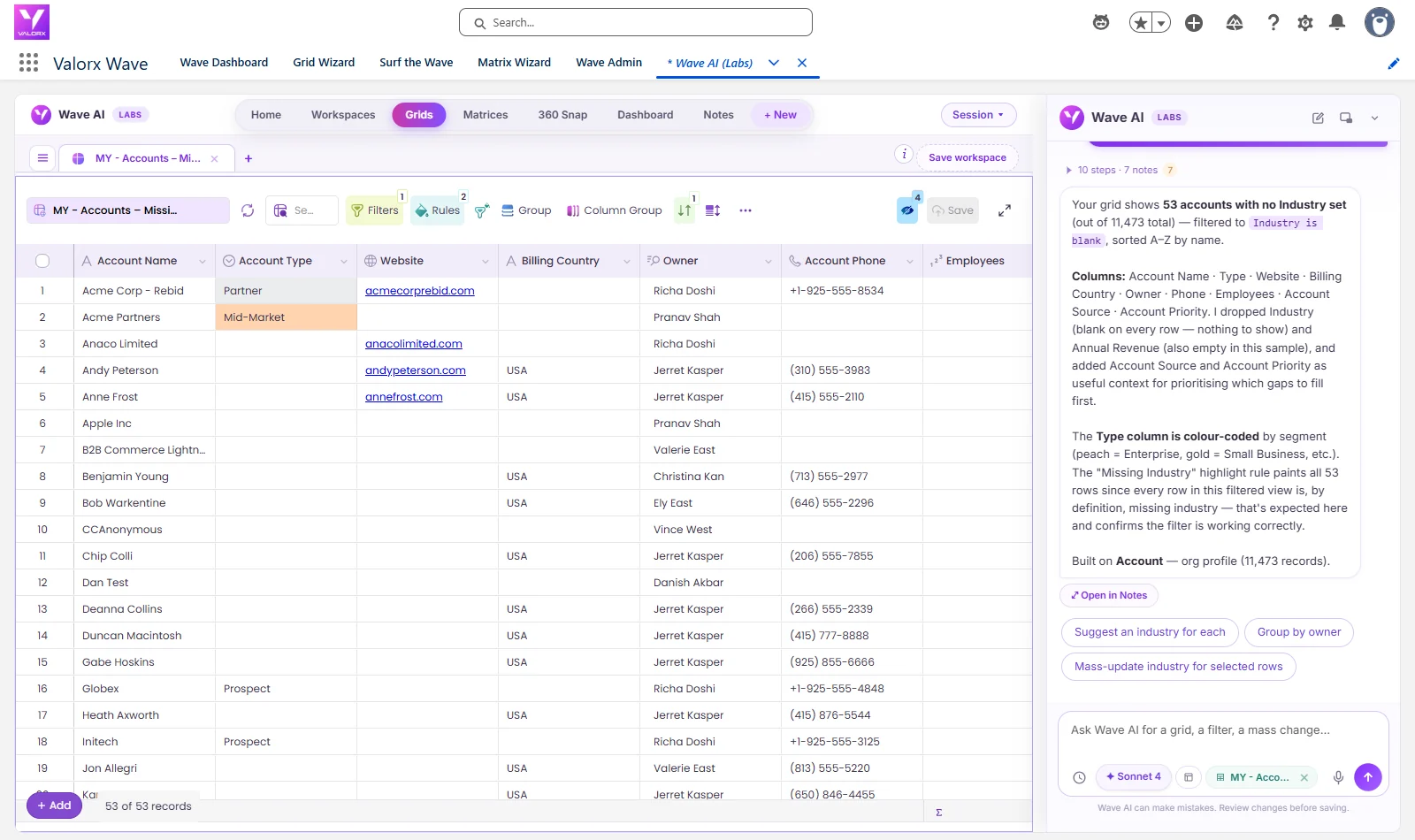
Wave puts a spreadsheet-style grid inside Salesforce Lightning. Filter, sort, edit hundreds of records across multiple fields, apply Mass Modifier to change one field across every filtered row, and trigger flows or approvals from the grid. No export, no CSV, no leaving Salesforce.
Fusion connects Excel or Google Sheets directly to Salesforce with live, two-way sync. You keep your existing formulas, pivot tables, and models, and push changes back.
Both respect Salesforce profiles, sharing rules, field-level security, and validation rules. Users only touch data they already have permission to touch.
How Does Fusion Work?
Fusion connects spreadsheets to Salesforce, providing users a familiar Excel interface to manage and update Salesforce records in bulk. This combination of Salesforce's robust data management and Excel's powerful editing capabilities makes Fusion an excellent tool for those who regularly manage high volumes of records.
How Do You Mass Update Salesforce Records with Fusion?
Mass updating records in Salesforce using Fusion is a straightforward process that significantly enhances efficiency and accuracy.
1. Connect Excel to Salesforce
With Fusion, you can connect your Excel directly to Salesforce, enabling you to work with live data from your spreadsheet. This ensures that any updates made are immediately reflected in your Salesforce system. Fusion users will connect their spreadsheets using their Salesforce credentials.
Select the records to update
Use Excel's powerful filtering and sorting capabilities to select the specific records that need updating. This could be based on any criteria, such as opportunities in a particular stage or accounts in a specific region. You can also use Mass Modifier, which lets you set detailed parameters for the types of records you want to update and what you want to update them to.
Perform the update
Once the records are selected, you can use Excel's familiar tools — drag-down, copy-paste — to make the necessary changes. You can also apply Mass Modifier once you've set your parameters. Fusion ensures that all updates adhere to Salesforce's data validation rules and user permission settings. This means users can only interact with data they already have permission to view and manage as per their Salesforce settings.
Sync changes to Salesforce
After making your updates, a simple sync pushes the changes back into Salesforce, ensuring that your CRM data is always up to date.
This method not only saves time but also reduces the risk of errors that can occur when performing updates directly within Salesforce's native interface.
Watch Fusion in action:
What Are the Benefits of Using Fusion for Mass Updates?
When it comes to mass updates in Salesforce, the tools and methods you use can make a significant difference in terms of efficiency and accuracy.
Salesforce's native features like inline editing and list views offer basic mass update capabilities, and are cumbersome, particularly for large data sets. Apex and Flow provide more advanced capabilities but require coding skills and can be complex to set up and navigate.
By contrast, Fusion uses the simplicity and familiarity of Excel, allowing users to perform complex updates with ease and without the need for advanced technical skills.
Key benefits of using Fusion
- Efficiency: Update thousands of records in minutes using Excel's bulk editing features.
- Accuracy: Excel's robust data validation tools, combined with Salesforce's real-time data syncing, minimize the risk of errors.
- Flexibility: Handle complex updates involving multiple objects and custom fields without leaving the Excel interface.
Why Do Mass Record Updates Matter in Salesforce?
Mass updates are vital to consistent and efficient data management in Salesforce, particularly as organizations scale operations. Maintaining accurate and up-to-date records ensures that business operations run smoothly and that decision-makers have access to reliable data.
Here are some common scenarios that require mass updates:
- High-volume quoting: For complex quotes involving thousands of line items, Fusion excels where Salesforce's native CPQ interface can struggle. It enables bulk editing and management of large datasets directly in Excel, avoiding the performance slowdowns or timeouts often encountered within Salesforce.
- Multi-object editing and reporting: When dealing with complex data models that involve multiple custom objects, such as pricebooks and discount structures, Fusion simplifies the process by allowing users to update and report on these objects simultaneously within a single interface. This reduces the need to switch between different screens or applications, streamlining workflow and improving efficiency.
- Professional services quoting: Teams that manage highly specific data, such as availability schedules or travel expenses, benefit from Fusion's ability to use Excel's advanced features like pivot tables and conditional formatting. This allows for accurate, efficient data management while keeping Salesforce data live and up to date.
- Pipeline and territory cleanup: Reassigning owners, updating close dates, or realigning territories after a planning cycle — hundreds of records, multiple fields, judgment on each row.
- Case queue processing: Triaging and updating status, priority, and owner across a service backlog in one pass.
What Are the Data Editing Limitations in Salesforce?
Mass record updates in Salesforce can be challenging and often limited due to the complexity and inefficiencies of the available methods.
Native Salesforce capabilities include inline editing and list views in Lightning, which are time-consuming, repetitive, and error-prone when working with large volumes of data. More advanced methods, such as using Apex or Salesforce Flow, require a deep understanding of development and can be complex and time-consuming to set up. Tools like Data Loader and Bulk Update APIs are powerful but require technical expertise, making them inaccessible for many users. These limitations make it difficult to efficiently perform hundreds (or thousands) of updates at once in Salesforce, leading to the need for alternatives like Valorx Fusion and Valorx Wave.
What breaks a mass update (and how to avoid it)
Five things account for most failed bulk updates. All five apply to every method above.
- Missing or wrong Record IDs. Without the Id column, an "update" becomes an insert. You get duplicates, not corrections. Always export IDs first.
- Validation rules. A rule that's fine for one-at-a-time entry will reject a batch. Test with 5–10 records before you run 5,000.
- Automation firing at scale. Flows, triggers, workflow rules, and roll-up summaries all fire on bulk updates. A 10,000-record job can cascade well beyond the records you touched. Know what's downstream before you run it.
- Field-level security and record types. Users can't update fields they can't edit, and mixed record types block list view inline editing entirely.
- No rollback. Salesforce has no undo for a bulk update. Export the current values before you change them — that export is your rollback file.
The rule: test on a small batch, in a sandbox where the change is risky, and keep the "before" export until you've verified the result.
Frequently asked questions
How many records can I mass update in Salesforce at once?
It depends on the method. List views support inline editing for up to 200 records per page. The Data Import Wizard handles up to 50,000 records at a time. Data Loader is built for loads of 50,000 records and up, into the millions. A spreadsheet grid like Valorx Wave handles thousands per session inside Salesforce.
Can I mass update records in Salesforce without Data Loader?
Yes. For under 200 records, use list view inline editing or a mass quick action. For up to 50,000 on supported objects, use the Data Import Wizard. For recurring rules, use Flow. For frequent, multi-field edits by business users, use a spreadsheet grid inside Salesforce.
How do I mass update Opportunities?
Not with the Data Import Wizard — Opportunities aren't supported through the Wizard. And Opportunity Stage, Amount, and Quantity can't be edited inline from a list view. That leaves Data Loader, Flow, or a grid tool that supports the object directly.
Why can't I inline edit in my list view?
Three usual causes: Enhanced Lists or Inline Editing isn't enabled in Setup; the field doesn't support inline editing; or your list contains multiple record types, which disables inline editing in lists.
Do validation rules apply to mass updates?
Yes, on every native method and on Valorx Wave and Fusion. Records that fail a rule are rejected individually while the rest commit — so always read the error file.
Will mass updates trigger my flows and automation?
Yes. Bulk updates fire triggers, flows, workflow rules, and roll-up recalculations the same way manual edits do. Review downstream automation before running a large job.
Can I undo a mass update in Salesforce?
There's no native undo. Export the current field values before you run the update — that file is your only path back.
What's the difference between Valorx Wave and Valorx Fusion?Wave is a spreadsheet-style grid that runs inside Salesforce. Fusion connects Excel or Google Sheets to Salesforce with live two-way sync. Wave for editing without leaving Salesforce; Fusion for analysis in Excel with sync-back.
Is bulk editing safe for my Salesforce data?
It's as safe as your preparation. Both Wave and Fusion enforce Salesforce profiles, sharing rules, field-level security, and validation rules — users can only change what they already have permission to change.
Update Salesforce records at spreadsheet speed
Mass record update capabilities in Salesforce have grown increasingly more important as the volume of data the typical Salesforce user deals with has grown significantly. Whether you're handling opportunities, accounts, or any other type of record, Valorx provides a powerful, flexible, and user-friendly way to perform mass updates accurately and swiftly.
Wave brings the grid into Salesforce. Fusion brings Salesforce into Excel. Both keep your CRM as the single source of truth, and both work without CSVs, code, or an admin ticket.
See it on your own data.
How do I mass update records in Salesforce?
Pick the method that matches your volume and permissions: list-view inline editing for up to 200 records, Data Import Wizard for up to 50,000, Data Loader for up to 5 million, Flow or Apex for automated updates, or a spreadsheet grid like Valorx Wave for fast manual bulk edits on live data at any of those volumes.
What is the limit for editing records in a Salesforce list view?
List views display and mass-edit up to 200 records at a time, and inline editing fails on long-text fields, formula fields, and some picklist configurations — the most common reason teams look beyond native editing.
What is the difference between Data Loader and the Data Import Wizard?
The Data Import Wizard is browser-based, handles up to 50,000 records, and covers common objects. Data Loader is a desktop tool for up to 5 million records with all objects supported — but both work on exported CSV files, not live data.
Can I mass update Salesforce records from Excel?
Yes — with a connector like Valorx Fusion you edit live Salesforce records in Excel and commit changes back in bulk, skipping the CSV export-import cycle entirely. Valorx Wave does the same in a browser grid.
Do mass updates respect validation rules?
Yes — all seven methods run your org's validation rules on save. Tools with pre-save validation (like Wave's error highlighting) surface failures before you commit, instead of returning an error file afterwards.


.svg)

.png)


Choose the workflow you need:
Try Wave in browser Extension

Try Wave in Salesforce

Try Fusion In Excel

Enhancing Salesforce for industry leaders