Manufacturing

Valorx Fusion V14: Enhanced Salesforce Productivity with New Excel Integration Features

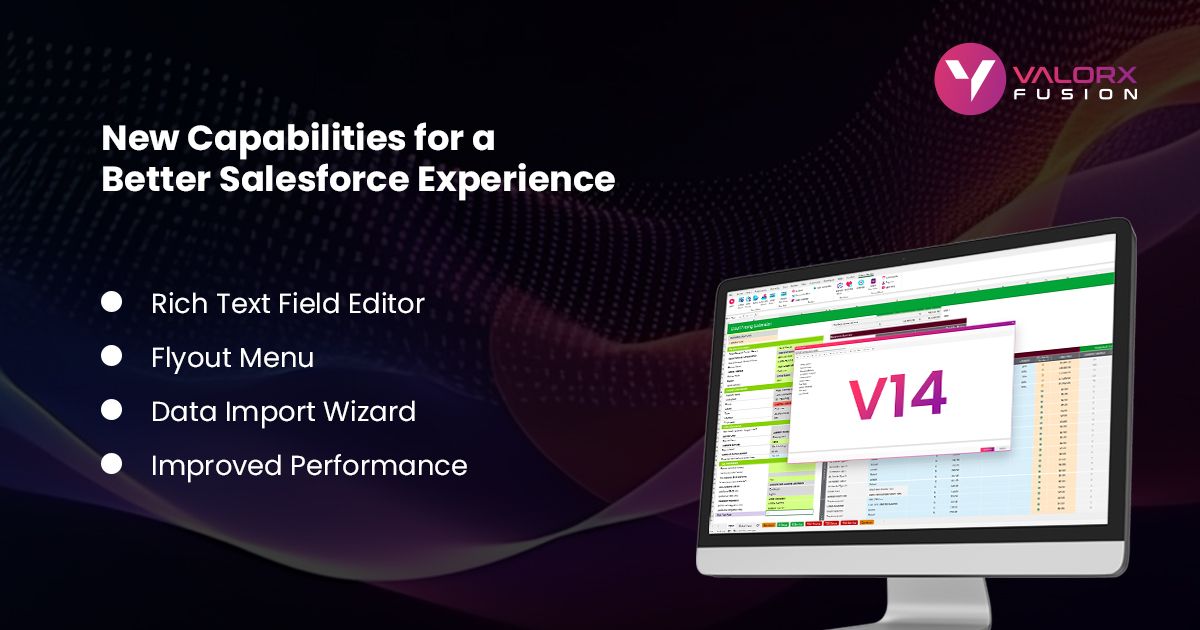
Fusion V14 introduces Rich Text Editor support, advanced data import capabilities, and 20x faster performance for seamless Salesforce-Excel integration.
Rich Text Editor Integration
Edit Salesforce rich text fields directly in Excel with full formatting capabilities and WYSIWYG support.
Advanced Data Import Tool
Import data with live two-way sync, reusable field mappings, and real-time error detection capabilities.
20x Performance Improvement
Lightning-fast loading and execution for large datasets and complex Salesforce operations in Excel.

What's New in Valorx Fusion V14: Major Performance and Feature Updates

I'm Maulik, one of the co-founders here at Valorx. Since the first iteration of our software, I've been leading the Product team at Valorx, and today, I'm excited to announce Valorx Fusion V14. At Valorx, our mission is to build simple but powerful products that enhance the software already used by millions of business professionals. Fusion V14 is the next step in our journey toward making people more productive with the tools they already use.

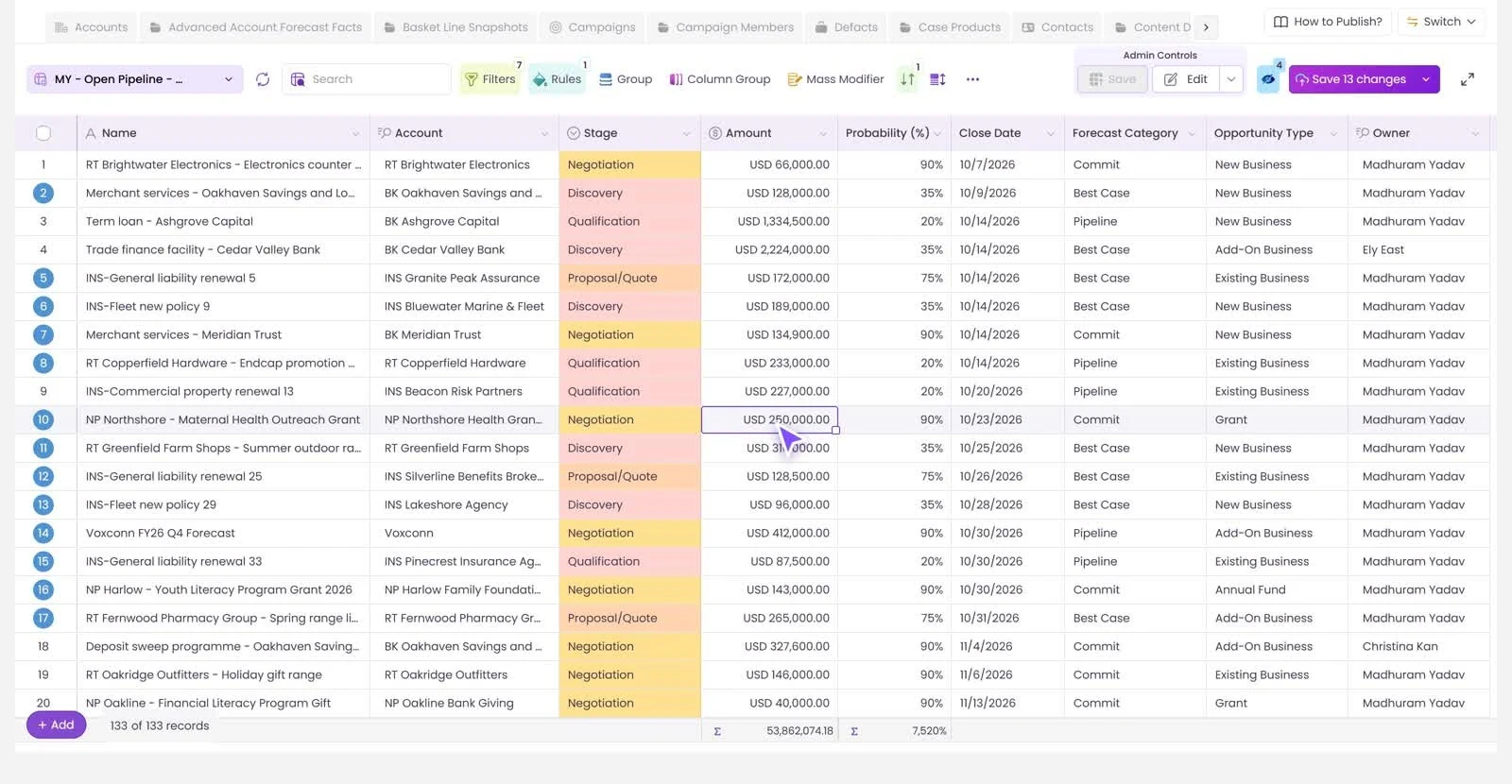
By turning your spreadsheets into the interface for Salesforce, Fusion enables users to accelerate complex quoting, manufacturing forecasting, bulk data editing, and more. Fusion eliminates the need for offline work outside of Salesforce and makes users more productive in managing their business-critical CRM data.

The Fusion V14 update includes features and enhancements that further leverage the strengths of Salesforce and Microsoft Excel/Google Sheets. Through close collaboration with our customers, we've identified and prioritized impactful improvements to the Fusion user experience. The Valorx team has been hard at work getting V14 ready, so I'm excited to share what's new and what it means for you.

How Fusion V14 Transforms Your Salesforce Workflow

Before diving into the specific features, it's important to understand how Fusion V14 addresses the daily challenges Salesforce users face. Traditional Salesforce workflows often require users to switch between multiple interfaces, export data for offline editing, and then re-import changes through complex mapping processes.

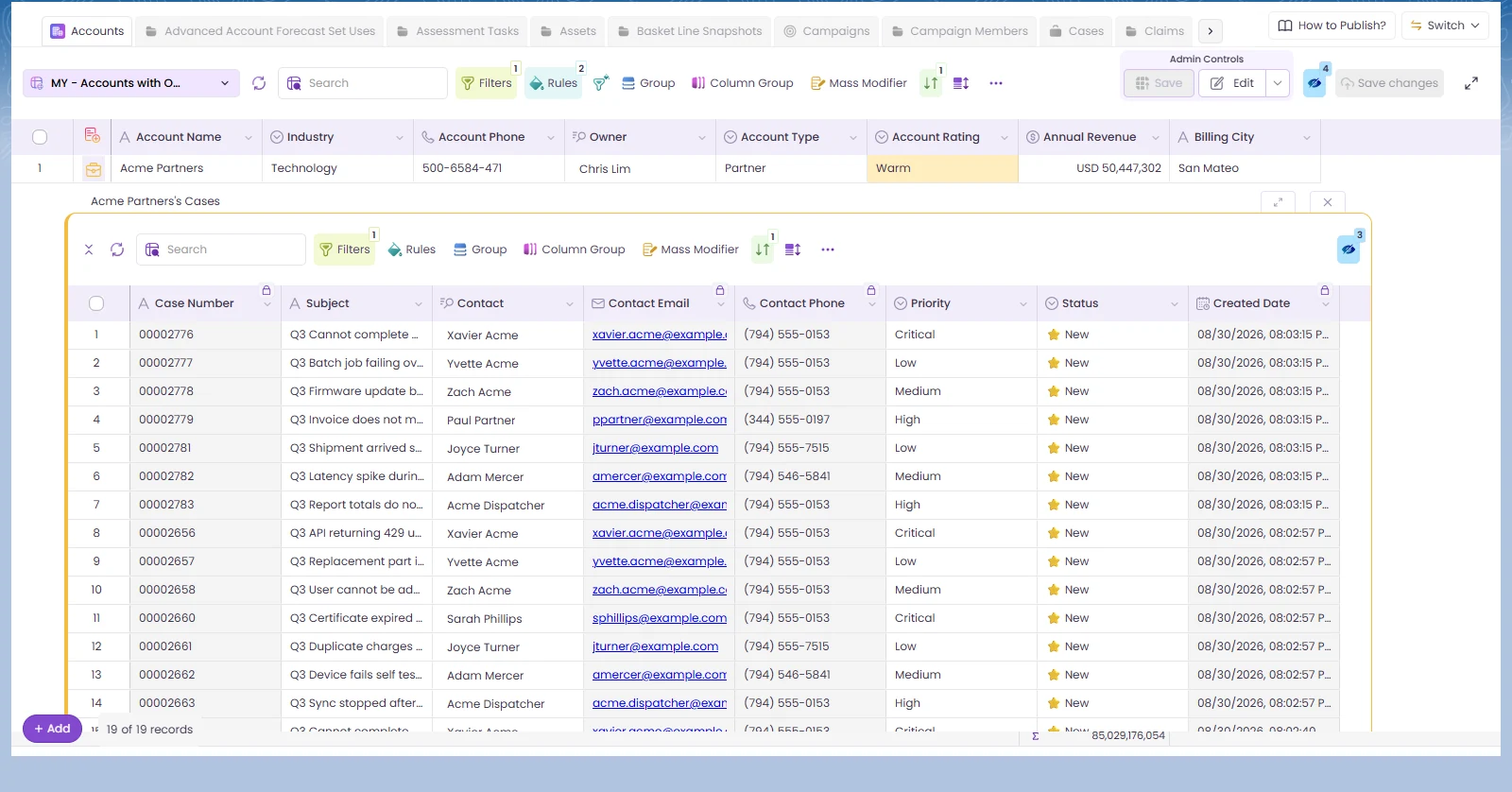
Fusion V14 eliminates these friction points by creating a native Excel experience for Salesforce data. This means your sales teams can work with Opportunity records, Quote Line Items, Product catalogs, and Price Book entries directly in Excel while maintaining real-time synchronization with Salesforce. The result is faster quote generation, more accurate data entry, and reduced training time for new users.

New Features in Fusion V14

Rich Text Editor: Native Salesforce Formatting in Excel

rtf editor

The Rich Text Editor (RTE) is a powerful tool in Salesforce that helps you create visually appealing and organized content within fields. Its what-you-see-is-what-you-get (WYSIWYG) interface makes it easy to apply formatting styles to your text, with features like bold, italics, underlining, and strikethrough. You can also create bulleted and numbered lists, adjust paragraph indentation, insert hyperlinks and images, and easily remove formatting.

With Fusion V14, you can now work with rich text fields right in your spreadsheet, and Fusion will save it back to Salesforce. RTE is a popular Salesforce feature because it enhances readability, draws attention to important information, and enables customization and personalization for customer-facing work like generating quotes.

How Rich Text Editor Works in Your Salesforce Workflow:

  • Edit Opportunity descriptions with full formatting directly in Excel
  • Create formatted Quote descriptions without switching to Salesforce
  • Update Product descriptions with bullet points, links, and emphasis
  • Maintain consistent formatting across all customer-facing documents
  • Bulk edit rich text fields across multiple records simultaneously

For Salesforce admins, this feature is particularly valuable when managing large-scale data updates. Instead of opening each Opportunity or Quote record individually to update descriptions, you can now handle hundreds of records in a single Excel session. The rich text formatting is preserved when syncing back to Salesforce, ensuring data integrity across your entire org.

Sales teams benefit from being able to create compelling, formatted descriptions for quotes and proposals without leaving their familiar Excel environment. This is especially useful for Manufacturing Cloud users who need to include detailed product specifications with proper formatting in their quotes.

Advanced Data Import: Streamlined Bulk Operations

new data import

When you need to make bulk changes to Salesforce data, the most common method is to modify the data in a spreadsheet and then import files using a multi-step process. We learned from our customers that, while they were getting a lot of their work done in spreadsheets using Fusion (including bulk editing), they also wanted the ability to import new data using our tools.

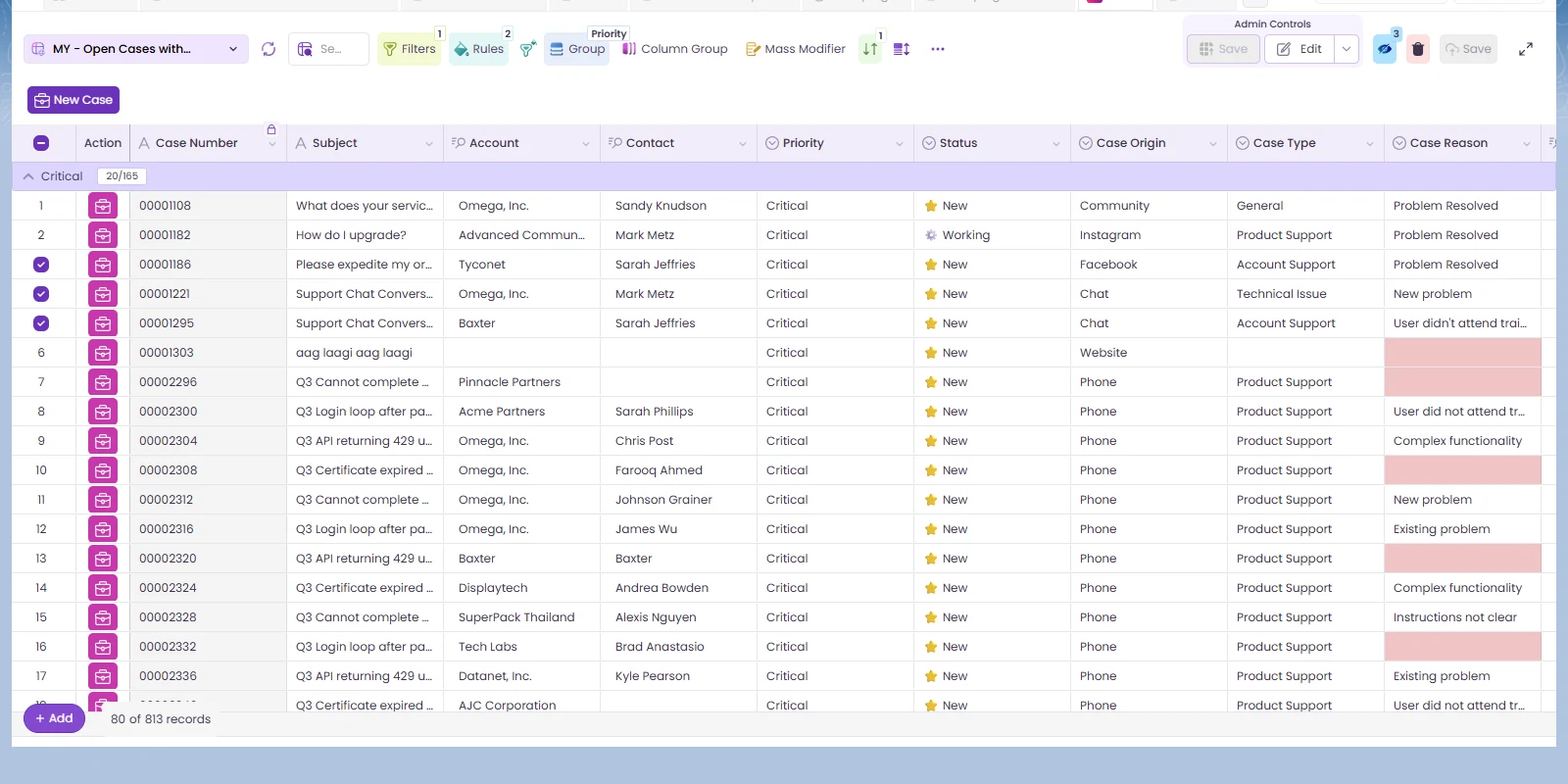
With our new data import tool, bulk editing and imports are easier than ever. Importing your data with Fusion gives you a live, two-way connection between your spreadsheet and Salesforce. You can make quick edits, spot and fix errors in real-time, and ensure data accuracy without having to re-map and re-import each time.

Real-World Data Import Scenarios:

  • New Product Catalog Integration: Import hundreds of products with Price Book entries, maintaining parent-child relationships
  • Quote Line Item Migration: Transfer complex quotes from external systems with proper Opportunity associations
  • Account Plan Updates: Bulk import strategic account data with related contacts and opportunities
  • Manufacturing Forecasts: Import production schedules directly into Manufacturing Cloud objects

Data import allows you to store field mappings once created and re-use them next time without any configurations. Plus, it allows conditional imports to cater to complex use cases. Its task-based implementation provides flexibility to handle import needs around multiple objects under a single Fusion App, along with standard spreadsheet functionalities like formulas and complex calculations you can do before saving data back to Salesforce.

This feature isn't just for bulk data editing. If you've been creating quotes outside of Salesforce, you can now easily import them without manually recreating them in Salesforce. Once your quote is imported via Fusion, it is fully integrated with Salesforce, allowing you to make updates and modifications in real time.

For Salesforce Admins: The data import tool includes validation rules that check against your Salesforce org's requirements before import. This prevents data quality issues and reduces the need for cleanup operations. You can also set up automated workflows that trigger after successful imports, ensuring proper notifications and follow-up processes are maintained.

Flyout Menu: Customizable Interface Organization

Flyout Menu

Our third new feature in V14 is the flyout menu. The flyout menu is an Excel feature that allows you to organize buttons in groups and create dropdowns in the top ribbon to control your data and workflows. You can quickly navigate through different menus to quickly access the functions you need. In Excel, the default flyout menus are in the ribbon, grouped under headings like Home, Insert, Formulas, and Data.

With the new flyout menu for Fusion, you can now consolidate related buttons into dropdown menus on top of existing groups, save screen space, and organize the interface however you prefer. You can pair it with the Refresh Ribbon feature to control the visibility of buttons and groups, personalizing your experience based on the features you use most.

There are no limitations on the number of buttons that can be added under a menu, allowing you to effortlessly organize and access a wide range of functionalities.

Customization Examples for Different User Types:

  • Sales Teams: Group quote generation, price book updates, and opportunity management functions
  • RevOps Teams: Organize data validation, bulk editing, and reporting tools in dedicated menus
  • Manufacturing Users: Create custom menus for production planning, inventory management, and forecast updates
  • Admins: Group system configuration, user management, and data governance tools

The flyout menu feature is particularly valuable for organizations with complex Salesforce implementations. Instead of cluttering the Excel ribbon with dozens of buttons, teams can create logical groupings that match their specific workflows. This reduces training time for new users and increases productivity for experienced teams.

Lightning-Fast Performance: 20x Speed Improvement

On top of new features, our team has also made Fusion faster. Whether you launch Fusion directly from Excel/Sheets or from Salesforce, you'll experience a noticeable performance improvement. We have optimized it to load 20x faster, enabling you to start working immediately. This 20x performance improvement can be noticed both when launching and using Fusion.

You'll see tasks and operations within Fusion executing faster. Whether you work with large datasets, perform complex calculations, or interact with CRM data, the improved runtime performance ensures a smoother and more responsive experience.

Performance Improvements Impact Real Work:

  • Large Dataset Handling: Process thousands of Opportunity records without performance degradation
  • Complex Formula Calculations: Excel formulas that reference Salesforce data execute instantaneously
  • Multi-Object Operations: Work with related Account, Opportunity, and Quote data simultaneously
  • Real-Time Sync: Changes appear in Salesforce immediately without waiting periods

For Manufacturing Cloud users working with large production datasets, this performance improvement is game-changing. Previously time-consuming operations like updating thousands of forecast records or recalculating complex pricing formulas now complete in seconds rather than minutes.

The performance optimization also benefits organizations with large user bases. Multiple team members can work with Fusion simultaneously without experiencing slowdowns, making it ideal for enterprises with distributed sales teams or global operations.

Salesforce Integration Best Practices with Fusion V14

To maximize the value of Fusion V14, consider these implementation strategies that align with Salesforce best practices:

Data Governance and Security

Fusion V14 respects all Salesforce security settings, including field-level security, object permissions, and sharing rules. When planning your deployment, ensure that:

  • User permissions in Salesforce match their intended Fusion access levels
  • Sensitive fields are protected through field-level security settings
  • Record sharing rules are properly configured for team-based access
  • Regular audits track data modifications made through Fusion

Change Management Strategy

Rolling out Fusion V14 successfully requires proper change management:

  • Start with Power Users: Identify Excel-savvy team members to become Fusion champions
  • Create Use-Case-Specific Training: Develop training materials for quotes, forecasts, and bulk editing scenarios
  • Establish Data Standards: Define consistent formatting and validation rules across all spreadsheet workflows
  • Monitor Usage Patterns: Use Salesforce reports to track adoption and identify optimization opportunities

Advanced Use Cases for Fusion V14

Complex Quote Management

Fusion V14 transforms how sales teams handle complex quotes with multiple product lines:

  • Create quotes in Excel using familiar formulas and formatting
  • Apply volume discounts and special pricing using Excel calculations
  • Generate professional quote documents with rich text descriptions
  • Import completed quotes directly into Salesforce with all relationships intact

Manufacturing Forecast Optimization

Manufacturing Cloud users can leverage Fusion V14 for sophisticated production planning:

  • Import production schedules from external manufacturing systems
  • Use Excel's advanced analytics to model different forecast scenarios
  • Update Manufacturing Cloud objects in bulk based on production changes
  • Maintain real-time synchronization between planning systems and Salesforce

Frequently Asked Questions

How does Fusion V14 handle Salesforce validation rules during data import?

Fusion V14 validates data against all active Salesforce validation rules before import. If a record fails validation, the error is displayed in Excel with specific details about what needs to be corrected. You can fix the issues directly in Excel and re-attempt the import without losing your work.

Can I use Excel formulas with Salesforce data in Fusion V14?

Yes, Fusion V14 fully supports Excel formulas that reference Salesforce data. You can create complex calculations using Opportunity amounts, Product prices, or any other Salesforce field. The formulas update automatically when underlying Salesforce data changes, ensuring accuracy.

Is there a limit to how many records I can work with in Fusion V14?

Fusion V14 can handle datasets limited only by Excel's row limits (over 1 million rows). However, for optimal performance, we recommend working with datasets under 100,000 records. Larger datasets can be processed using filtering and batch operations.

How does the Rich Text Editor integration work with Salesforce field character limits?

Fusion V14 respects all Salesforce field character limits. If your rich text content exceeds the field limit, you'll receive a warning in Excel before attempting to save. The rich text formatting is preserved within Salesforce's character constraints.

Can Salesforce admins control which Fusion V14 features are available to different user profiles?

Yes, Fusion V14 integrates with Salesforce's permission system. Admins can control access to specific features like data import, rich text editing, or certain objects through standard Salesforce permission sets and profiles. Custom permissions can also be configured for granular control.

Other Improvements

Fusion V14 also brings a number of bug fixes and enhancements. Find the complete list here.

Getting Started with Fusion V14

Upgrading to Fusion V14 is seamless for existing users. The new features are automatically available after the update, and your existing configurations and customizations are preserved. New users can get started immediately with our comprehensive setup guides and video tutorials.

For organizations considering Fusion V14, we recommend starting with a pilot program focused on your most Excel-intensive Salesforce workflows. This approach allows you to demonstrate value quickly while building expertise that can scale across your entire organization.

Conclusion

I'm proud of the hard work our team has put into Fusion V14. We're driven to make your Salesforce experience easier and more productive. This latest release is a testament to the commitment of our team, and to the generous collaboration of our customers in this process.

Fusion V14 represents our continued commitment to eliminating the barriers between Excel and Salesforce. By bringing Rich Text Editor support, advanced data import capabilities, and significant performance improvements to your fingertips, we're helping teams accomplish more with the tools they already know and love.

Keep an eye out for more exciting updates and announcements from Valorx as we execute our vision to help people around the world better leverage their business-critical CRM data.