Share a Salesforce Grid With Your Team: One View, Personal Copies
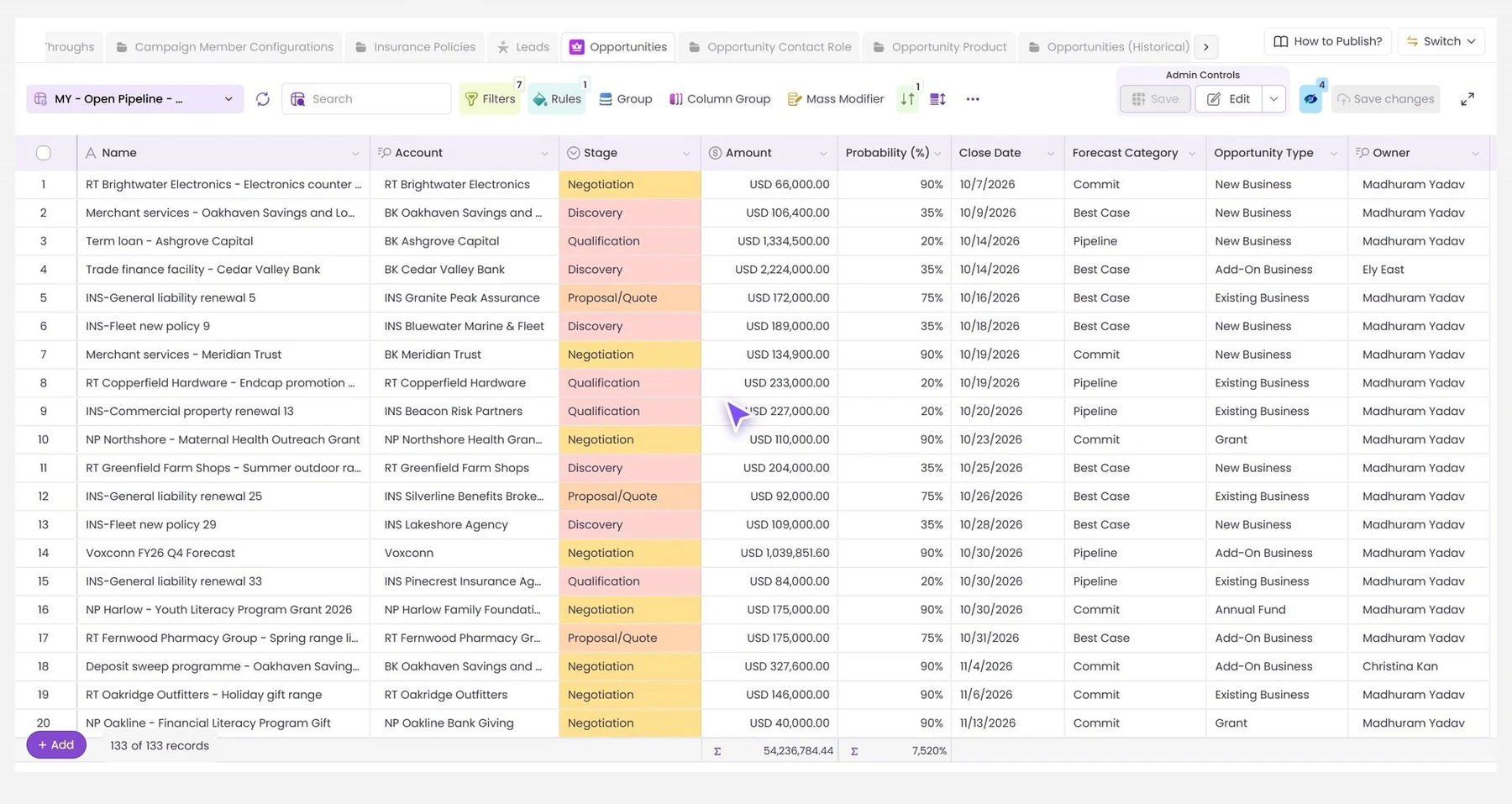
Two things go wrong when a team shares a view. Either everyone builds their own and no two people are looking at the same list, or everyone shares one and somebody's filter changes it for the rest. Valorx Wave handles both.
One grid for the team
When a designer or admin builds a grid in the Grid Wizard, it's shared from the start. Wave calls this a Global Grid: the team's main copy, with its columns, filters, rules and buttons.
- By default it's shared with all users.
- Or the designer switches to Custom and picks who can open it: by user, by permission set or by profile.

A personal copy for each person
If the designer allows it, the first time someone changes the team grid, Wave makes a personal copy for them. The original stays exactly as it was.
A copy is made when a person changes:
- a filter, a rule, a group or the sort order
- the layout
- the fields or related lists
- the columns: hiding, moving, resizing or freezing them
They can keep the name Wave suggests or type their own. There's no limit on how many a person keeps.
What the designer controls
Open the grid's Permissions step (Edit, then Edit Permissions) and go to the Grid Controls tab. Under Grid Personalization:
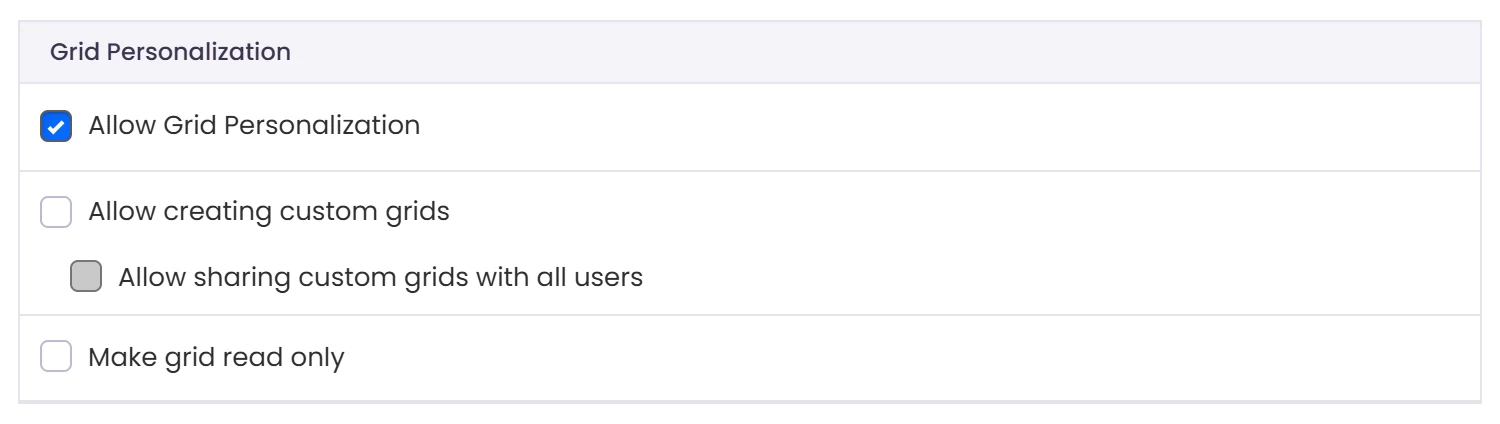
- Allow Creating Custom Grids. Whether people can keep personal copies at all.
- Allow Sharing Custom Grids with All Users. Whether someone can share a copy they've made with colleagues.
- Make Grid Read-Only. People can open and read the grid, and nothing can be changed.
The same tab decides what people may change at all: filters, rules, sorting, fields, and whether they can add or delete records.
What sharing doesn't change
Sharing a grid shares the view, not the data. Each person still sees only the records and fields their Salesforce permissions allow. Two people can open the same grid and see different rows, and that's how it should be.
A good way to roll it out
- Build one grid per job: open pipeline, renewals this quarter, cases waiting on us.
- Share each with the team that does that job.
- Switch on personal copies, so people can adjust without asking you.
- Keep the reporting grids read-only.
Want to see it on your own objects? Book a demo and we'll build the first grid with you on the call.
.png)


Choose the workflow you need:
Try Wave in browser Extension

Try Wave in Salesforce

Try Fusion In Excel

Enhancing Salesforce for industry leaders