How to mass reassign Account owners in Salesforce
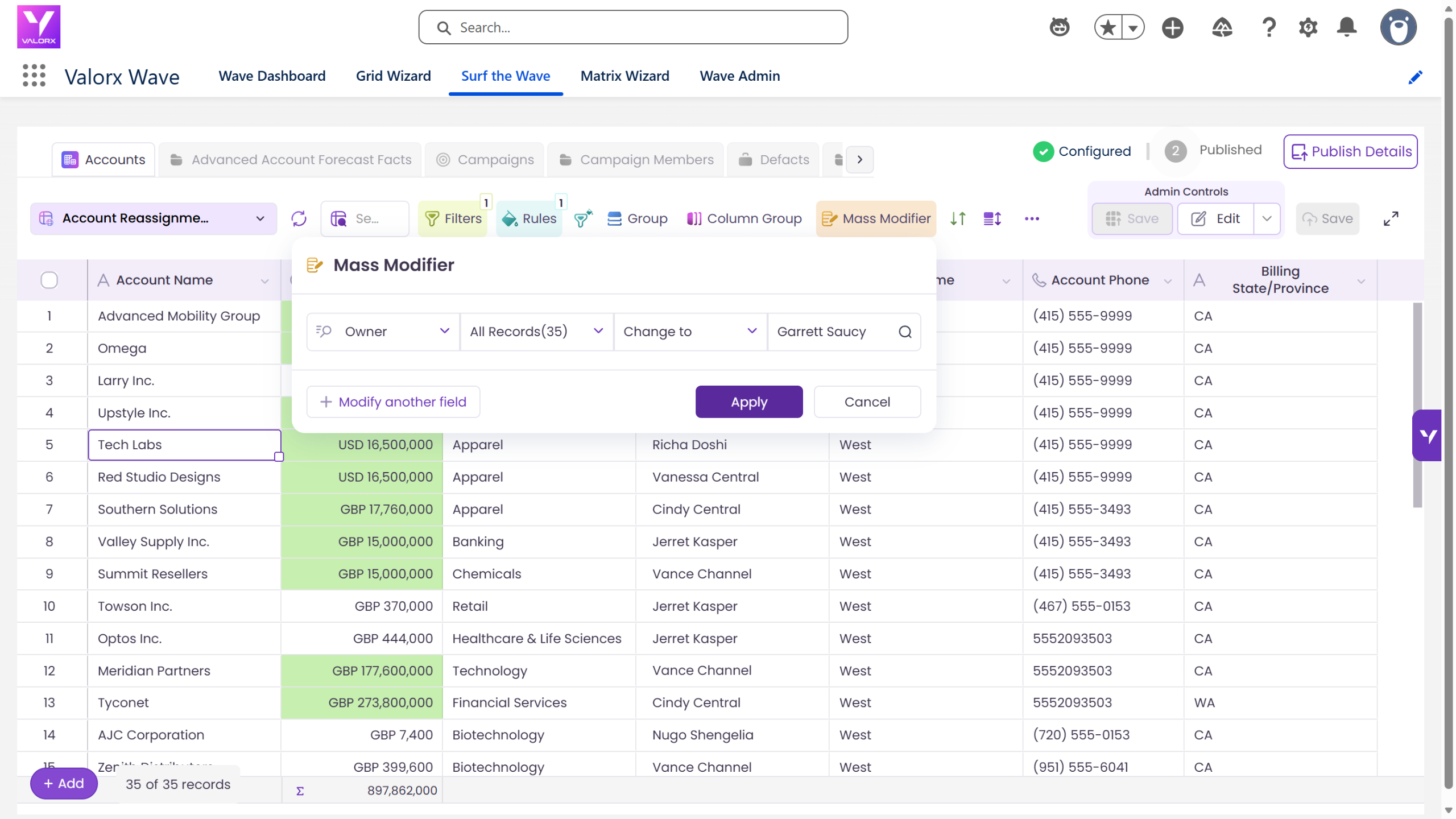
Here’s what you’re building
To mass change account owners in Salesforce, open a Valorx Wave grid on the Account object, filter to the accounts you want to move (by territory, region, industry, or current owner), select the rows, and use Mass Modifier to set the Owner field to the new rep. Save, and the change writes back to Salesforce. Reassigning afull territory takes about five minutes and needs no Data Loader, no CSV export, and no record-by-record editing.
Before the steps, here’s the finished product — a grid that lets you select accounts and reassign owners in bulk.
The Mass Modifier panel set to the Owner field across all 35 records, with the user picker open. This is the moment the whole guide builds to.
Interactive demo: the walkthrough below is also available as a click-through demo showing the filter, the row selection, the Mass Modifier panel, and the save confirmation.
Want this? Follow the 6 steps below.
Time: ~10 minutes | Role: Designer or Admin | Object: Account
Prerequisites
- Valorx Wave installed (browser extension or embedded)
- A Designer or Admin role in Wave
- Know which accounts need reassignment (by territory, region, segment, or other criteria)
Mass reassign Account Owners
We’ll use a territory realignment as the example — moving all West region accounts to a new owner.
Step 1: Create an Account grid in Wave
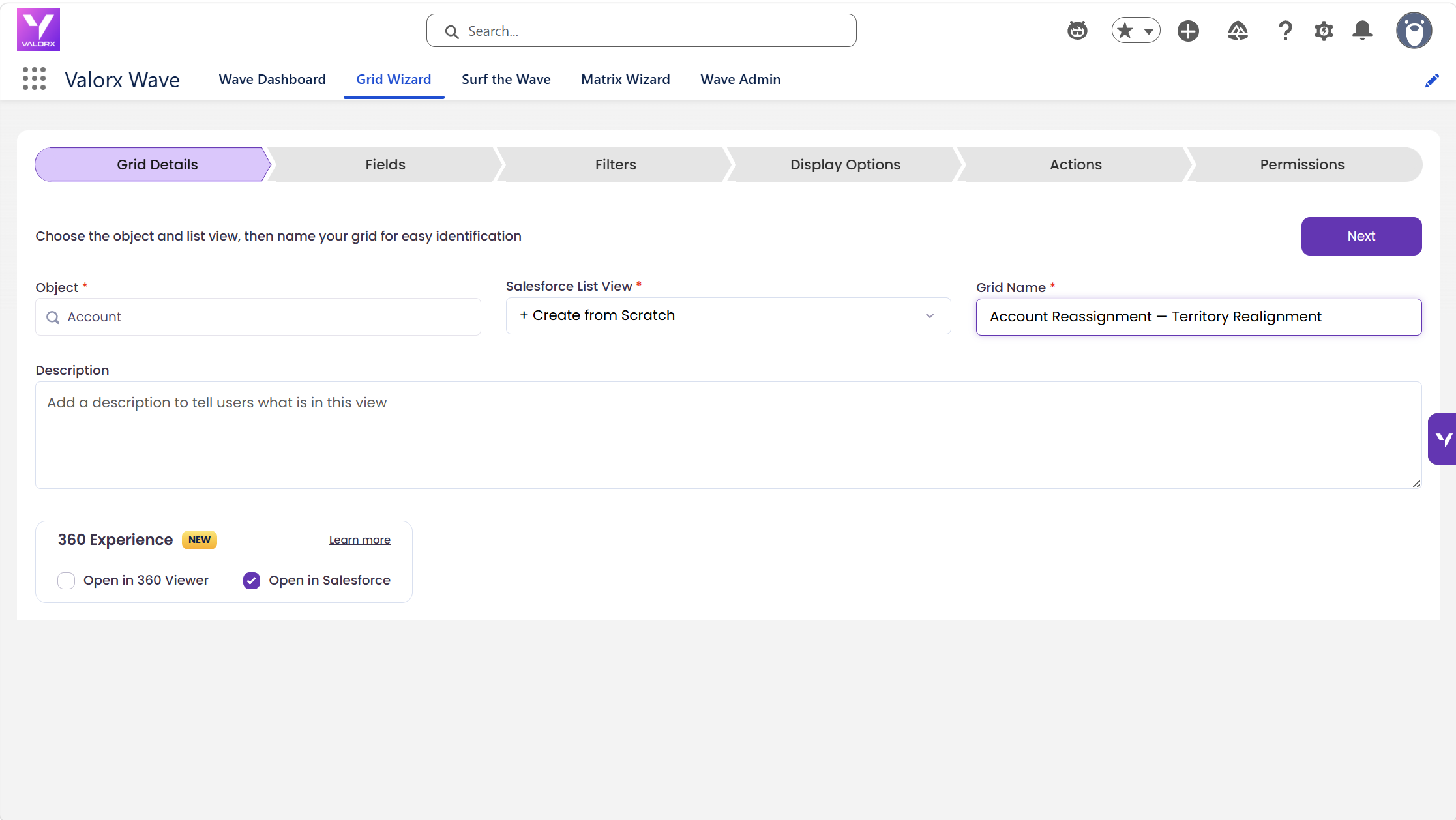
Open Wave and click Create New Grid. Select Account as the Salesforce object, then choose Createfrom Scratch. Name the grid something you can find again next quarter, for example "Account Reassignment — Territory Realignment." Click Next.
Step 2: Add ownership and segmentation fields
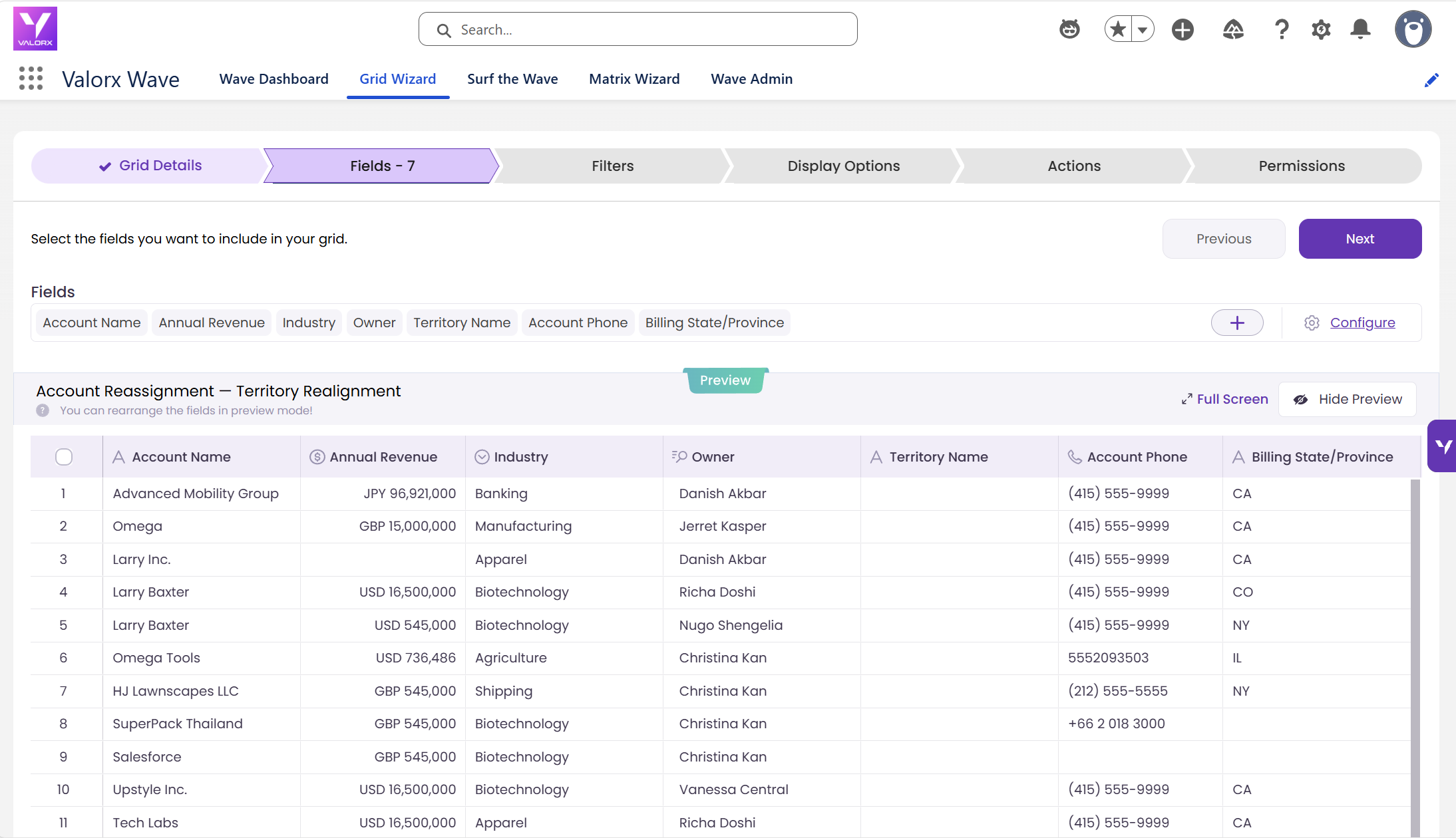
Add Account Name, Annual Revenue, Industry, Owner, Territory Name, Account Phone, and Billing State/Province. Owner is the field you will change; the rest give you enough context to filter to a segment and confirm you are reassigning the right accounts before anything is written back. The wizard shows a live preview of the grid as you add fields. Click Next.
Tip. Include Annual Revenue so you can sort high-value accounts to the top and eyeball them individually before the bulk change.
Step 3: Filter to the accounts you are reassigning
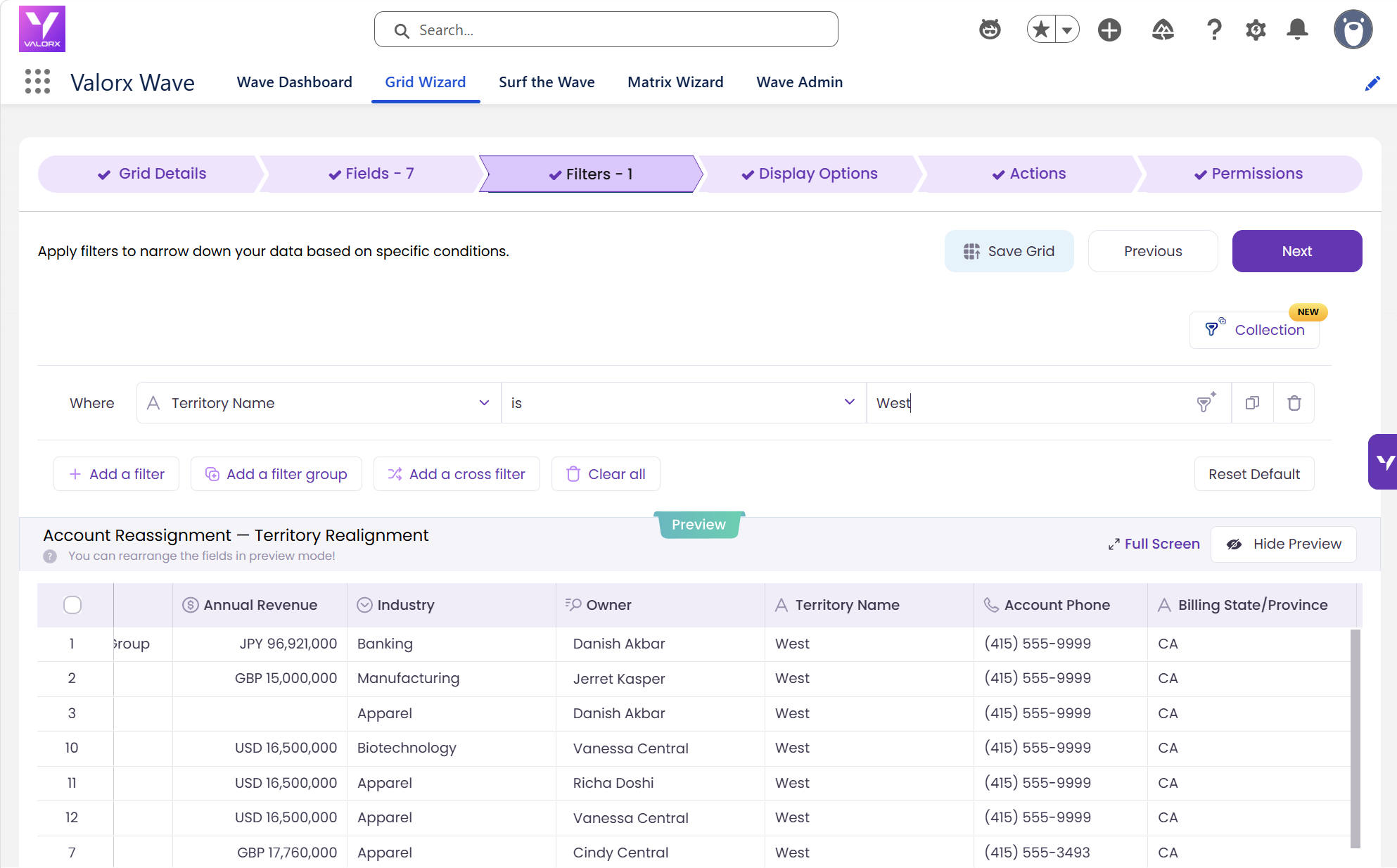
Add a filter that isolates the segment you are moving. For a territory realignment, that is Territory Name = West, which returns 35 accounts in this example. You can filter on any Account field or combination of fields, including Billing State, Industry, Annual Revenue, or Owner. Click Next.
Tip. Reassigning a departing rep’s book? Filter by Owner = their name. Every account they own appears in one view, with nothing missed.
Step 4: Flag the high-value accounts before you touch them
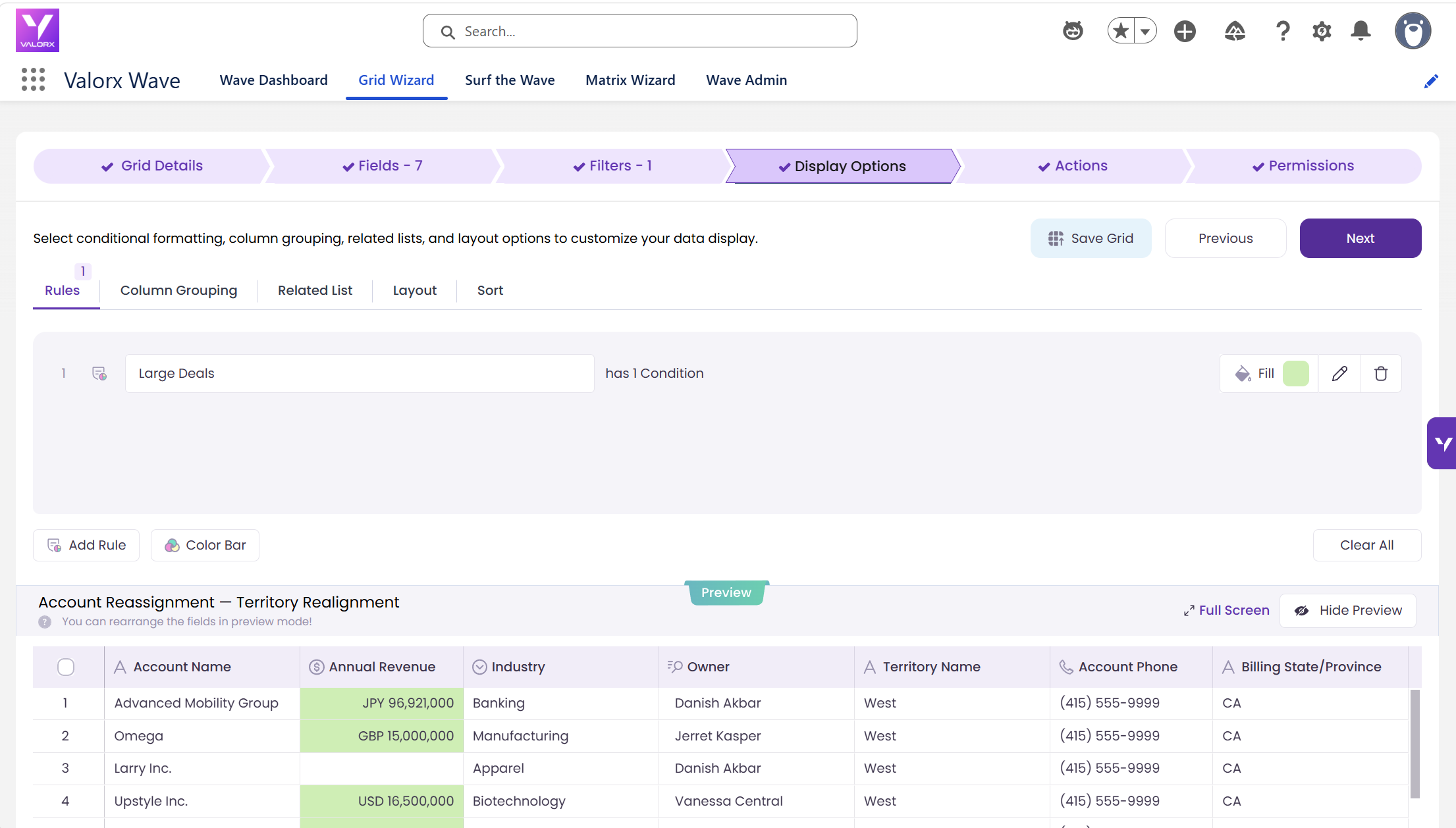
Reassigning a territory in bulk is low-risk for the long tail and high-risk for the handful of accounts that matter most. Add a formatting rule on Annual Revenue so those accounts are visually obvious in the grid: set the condition, pick a fill colour, and every qualifying row is highlighted the moment the grid loads.
You are not excluding those accounts from the bulk change. You are making sure you look at them before you commit to it, and that whoever reviews the grid after you can see at a glance which moves carry weight. Click Next.
Tip. Sorting by Annual Revenue descending pulls the same accounts to the top. The formatting rule is the more durable option: it keeps working after someone re-sorts the grid by a different column.
Step 5: Select the accounts and mass modify the Owner field
Click Save, then Surf the Wave.
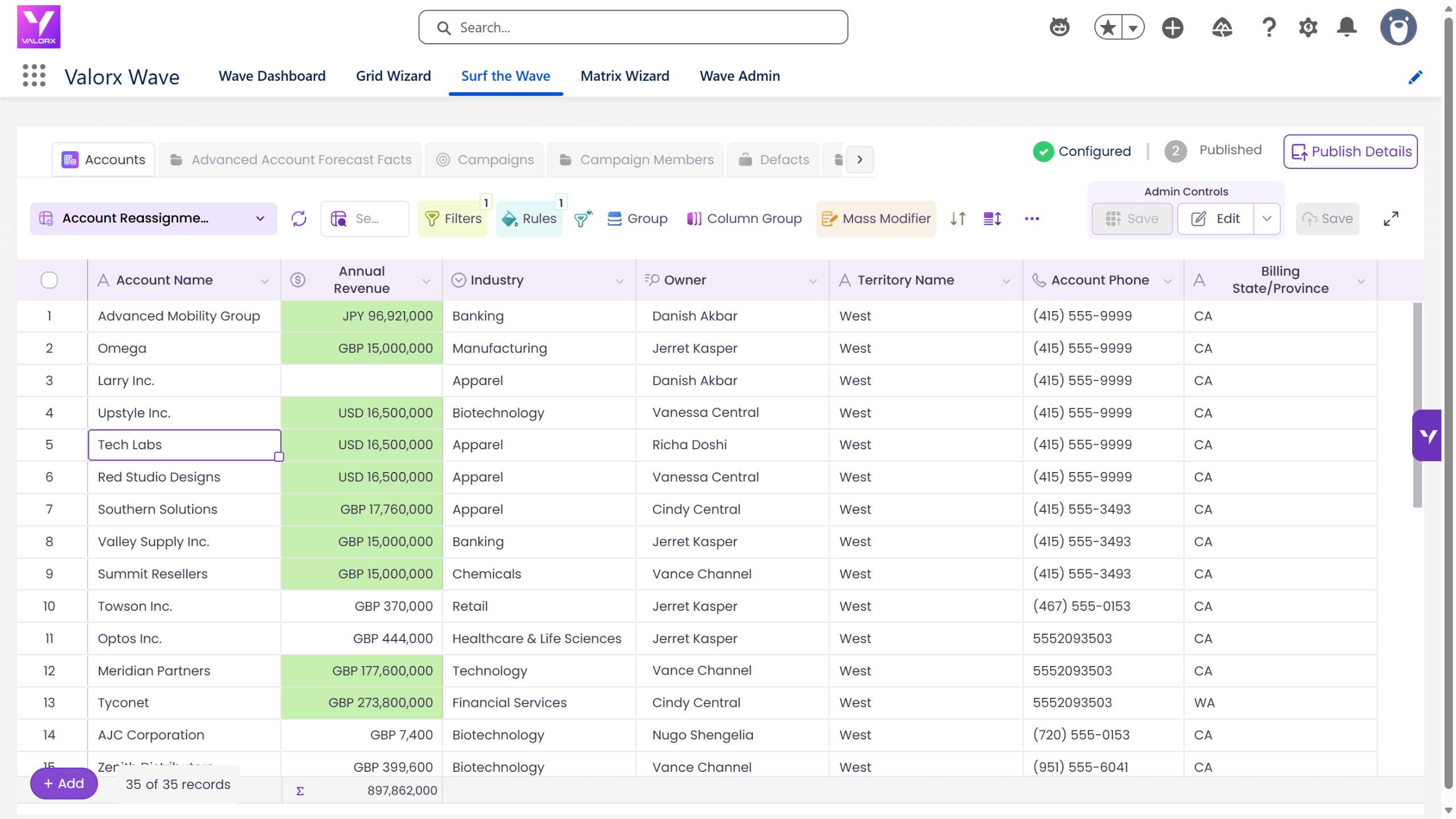
The filtered Account grid loads. Before you change anything, this is what a territory mid-realignment looks like: 35 accounts, ownership scattered across several reps.
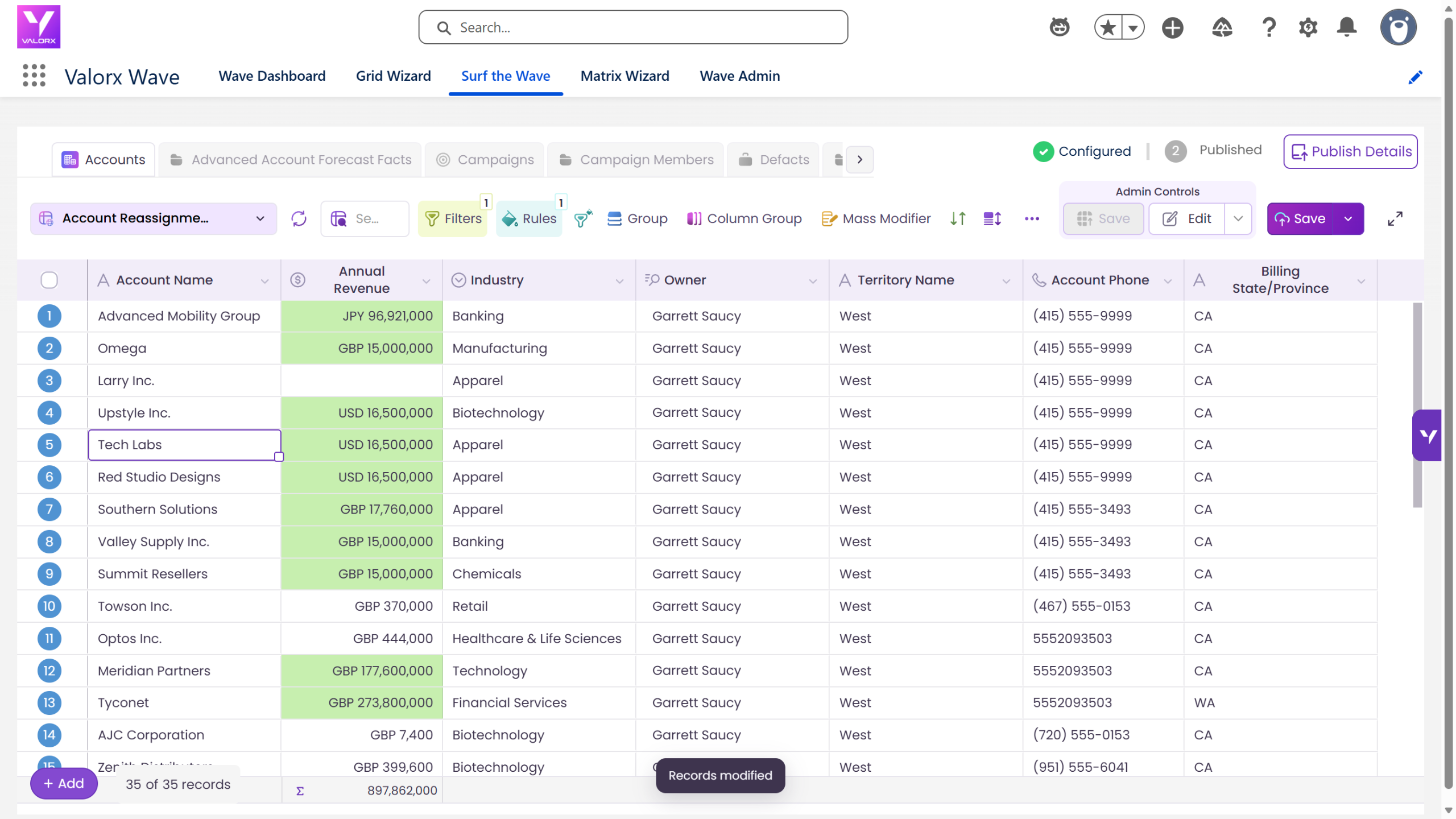
To reassign:
- Click the header checkbox to select every filtered row, or tick individual accounts.
- Click Mass Modifier in the toolbar.
- Set the field to Owner, leave the scope on All Records, and search for the new owner.
- Click Apply. The Owner value updates across all 35 rows in the grid at once.
Nothing has reached Salesforce yet. The grid holds the change so you can review it first.
Tip. If different accounts go to different owners, work in batches. Filter to a sub-segment (Industry = Healthcare within West, say), reassign, then change the filter for the next batch. The grid stays open.
Step 6: Save and verify in Salesforce
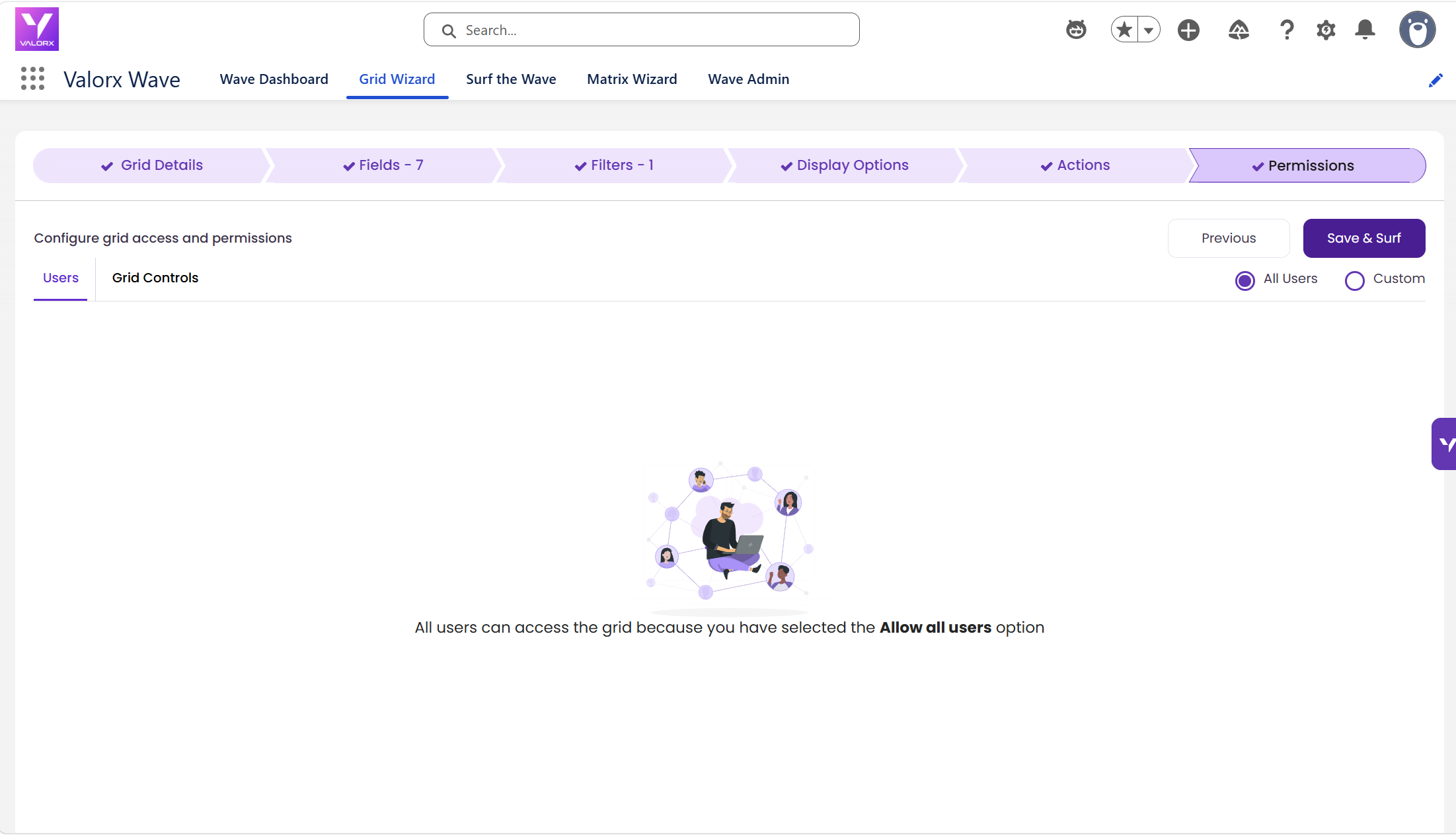
Click Save to push the ownership changes back to Salesforce. Validation errors surface inline in the grid, so you can fix them in place rather than reading an error log after the fact. Then confirm:
- Refresh the grid and check the Owner column shows the new name on every row
- Open two or three account records in Salesforce directly and confirm the change landed
- Check related Opportunities and Contacts still point at the right Account (see the FAQ below on what does and does not follow the account)
- Change the filter to the next territory or segment and repeat
Wave vs. Salesforce Mass Transfer Records vs. Data Loader
Salesforce ships a native tool for this. Mass Transfer Records, found in Setup, moves accounts, leads, service contracts, and custom objects from one user to another, and can optionally carry open opportunities with them. It works, and for a simple one-owner-to-another handoff it is often all you need. Where it gets awkward is filtering, verification, and repetition.
Frequently asked questions
Can you change the owner of multiple Salesforce accounts at once?
Yes. Salesforce’s built-in Mass Transfer Records tool in Setup reassigns accounts from one user to another, and Data Loader can update the OwnerId field in bulk from a CSV. A Valorx Wave grid does it inside Salesforce without an export: filter to the accounts, select the rows, and change the Owner field for all of them in one Mass Modifier action.
Does changing an account owner also transfer its opportunities and contacts?
Salesforce’s Mass Transfer Records tool provides specific options for transferring related records, including open Opportunities. Changing the Account Owner field itself is different: it changes ownership of the Account but does not automatically transfer every related Opportunity, Contact, Case, or Activity.
When you change Account.OwnerId using Wave Mass Modifier, Wave updates the Account Owner field in Salesforce. Related records should be reassigned separately where required.
Does mass changing account owners affect record sharing?
It can. When accounts and their related data are transferred in Salesforce, access previously granted through manual sharing, Apex managed sharing, or sharing rules is removed, and sharing rules are then reapplied based on the new owner. If specific users relied on manual sharing to see those accounts, the new owner has to re-share them. Worth checking before a large realignment in a private-sharing org.
How many account owners can you change at once?
Wave Mass Modifier lets you update multiple Account records in one action. For large territory changes, filter the grid to the accounts you want to move, review the selection, and reassign them as a batch. For Salesforce's native Mass Transfer Records tool, Salesforce limits each transfer to 250 records.
What is the easiest way to bulk change Account owners in Salesforce?
Salesforce offers three common approaches: Mass Transfer Records for straightforward transfers from one owner to another, Data Import Wizard/Data Loader for CSV-based bulk updates, and tools such as Valorx Wave when you want to filter, review, change, and save Account owners directly from a spreadsheet-style grid inside Salesforce. Salesforce's Mass Transfer Records tool supports up to 250 records per transfer.
Do you need Data Loader to bulk change account owners?
No. Data Loader is one route, and it means exporting accounts to CSV, editing the Owner column, re-importing, and resolving validation errors from a results file. Mass Transfer Records handles simpler one-to-one handoffs from Setup. A Wave grid keeps the whole operation inside Salesforce, with the filter, the review, the change, and the save in one view.
How long does a territory realignment take?
Building the grid takes about ten minutes once. After that, each territory is a filter change, a select-all, a Mass Modifier action, and a save: roughly five minutes per segment, and the grid is reusable next time territories move.

Choose the workflow you need:
Try Wave in browser Extension

Try Wave in Salesforce

Try Fusion In Excel

Enhancing Salesforce for industry leaders