How to clean your contact database in Salesforce
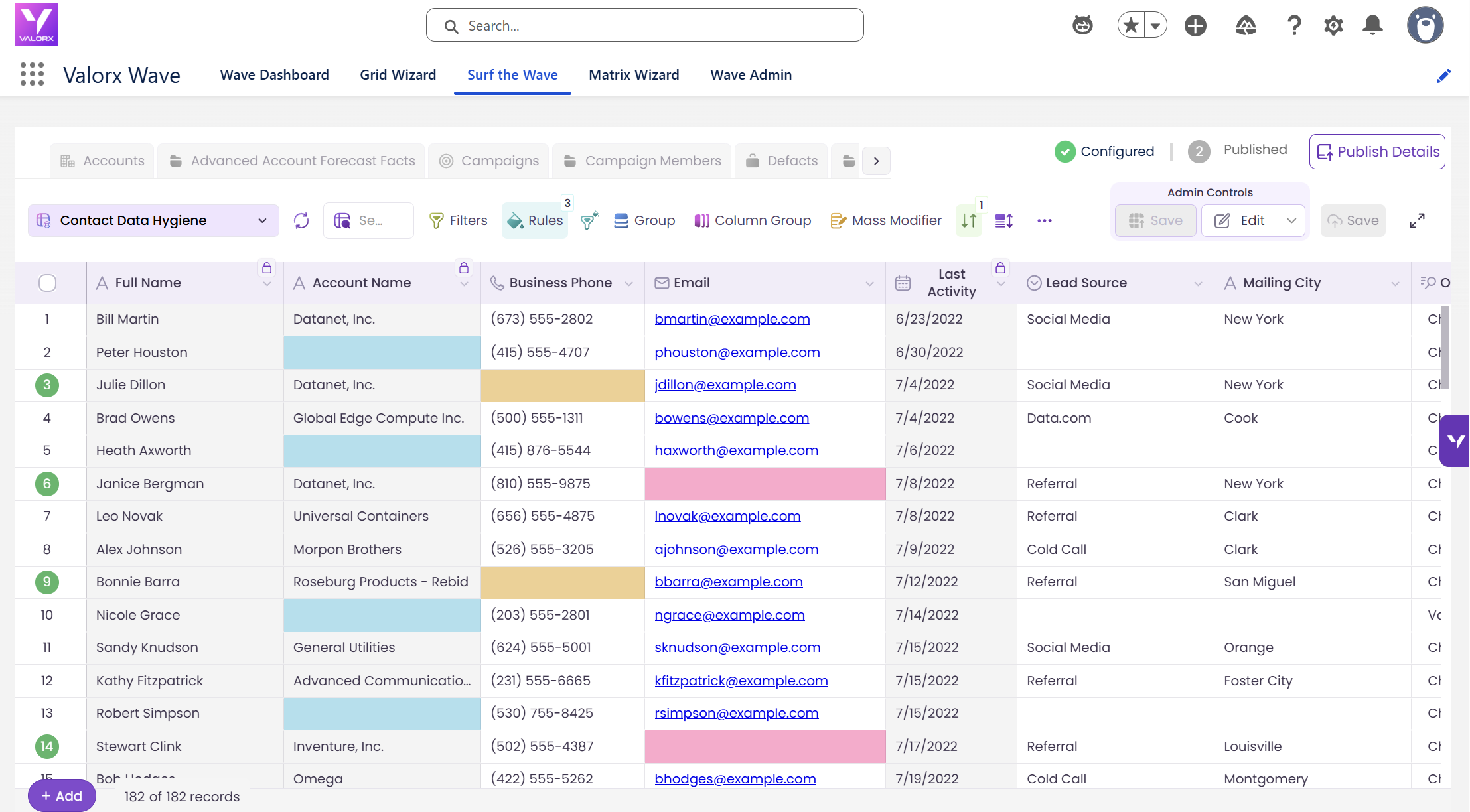
To clean a Salesforce contact database with Valorx Wave, build one Contact grid, apply conditional formatting rules that flag missing emails, missing phones, contacts with no account, and contacts with no recent activity, then fix the highlighted records inline or with Mass Modifier and save. It replaces running separate reports, exporting to Excel, and re-importing.
Here’s what you’re building
You’ll build a Salesforce contact data cleanup grid that brings important Contact fields into one spreadsheet-like view.
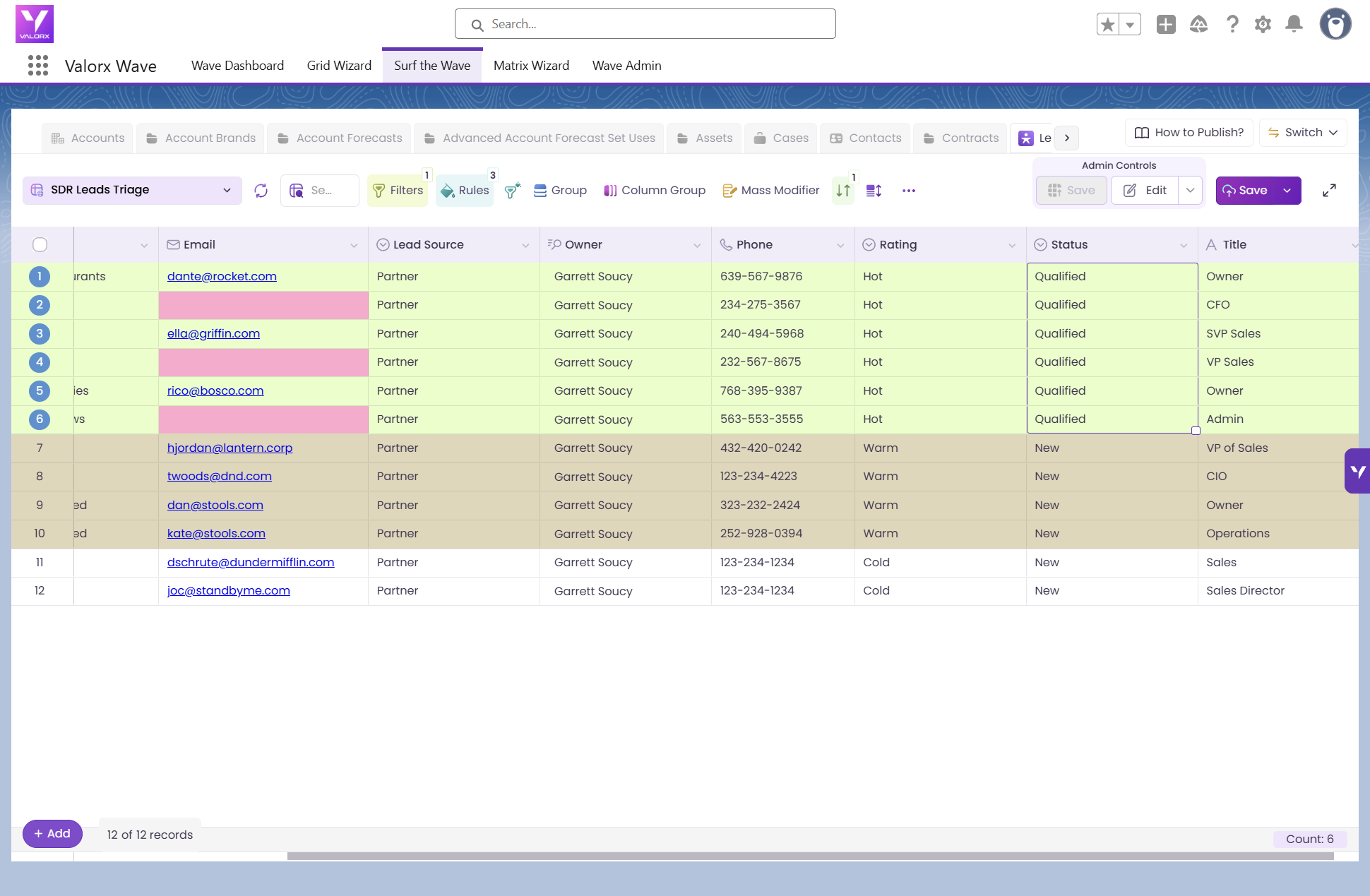
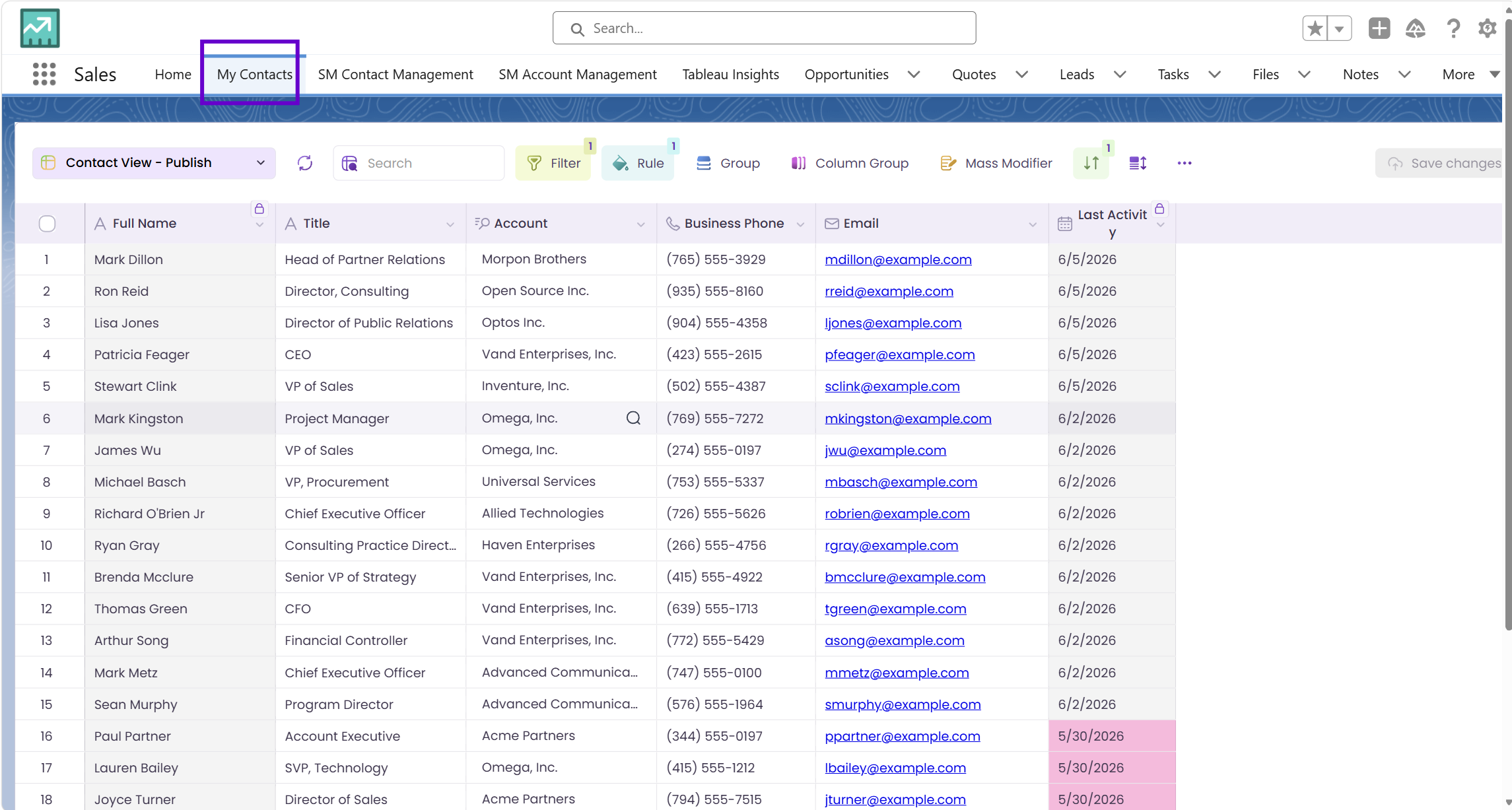
THE END RESULT: A Contact grid showing Contact Name, Email, Phone, Title, Account Name, Mailing City, Last Activity Date, Lead Source, and Owner. Conditional formatting highlights contacts with missing email, missing phone, or no Account. One Email cell is being edited inline. Toolbar includes Save, Refresh, Mass Modifier, and Filter.
Instead of running multiple reports and combining the results in Excel, the operations team opens one Wave Grid. Missing information is highlighted automatically. Users correct known values inline, paste validated contact data where available, and flag the remaining records for follow-up. The same grid can then be reused before future campaigns.
Before you start
You'll need:
- Valorx Wave installed (browser extension or embedded)
- A Designer or Admin role in Wave
- Edit access to the Contact object and to every field in the grid — Wave respects Salesforce field-level security and sharing rules, so you'll only see and edit what your profile allows
Pick your scope first. For most Salesforce orgs, cleaning the whole database in one pass isn't practical. Start with one segment — a single Lead Source, one owner's book, or contacts created this year — and repeat. Full-database scans work well under roughly 50,000 contacts.
How to build your Salesforce contact hygiene grid in 7 steps
Time: ~15 minutes to build | Role: Designer or Admin | Object: Contact
Follow these seven steps to build a reusable Contact Data Hygiene grid.
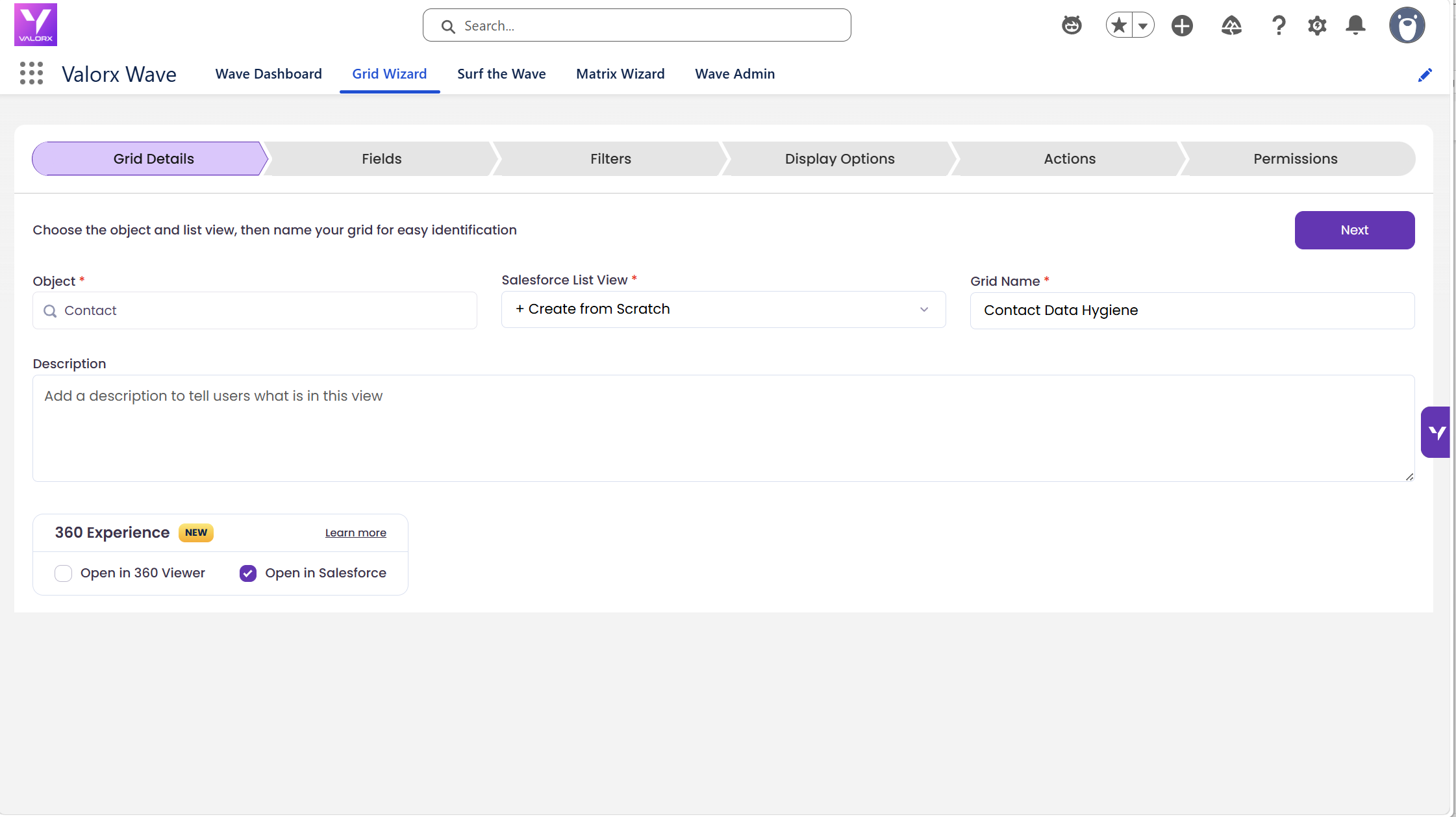
Step 1: Create a new grid for Contacts
Open the Wave Dashboard and click Add New.
Select: Grid → Contact → Create from Scratch
Name the grid: Contact Data Hygiene
Click Next.
Step 2: Add the Contact Fields you need to check
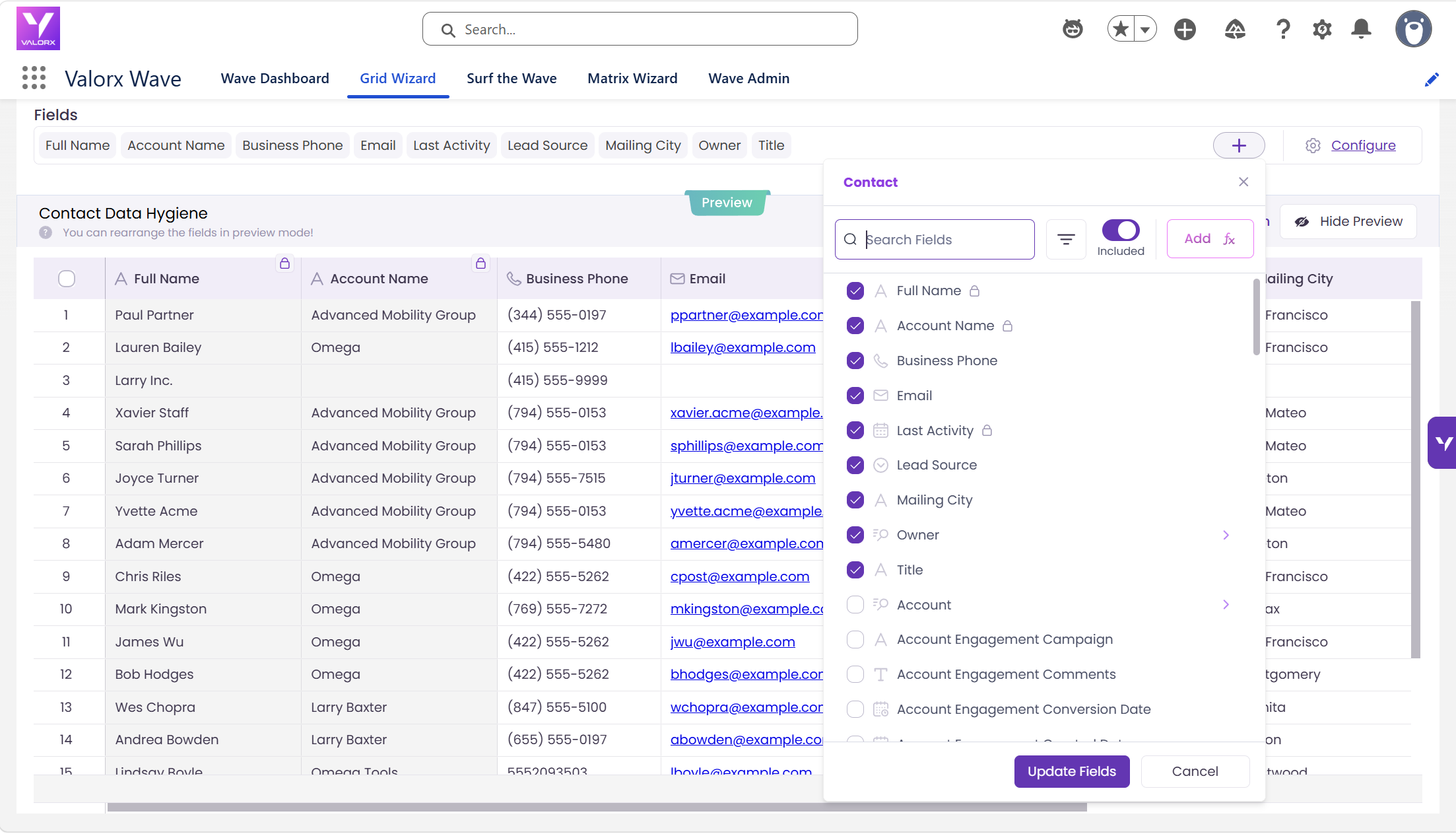
Add these fields:
- Contact Name
- Phone
- Title
- Account Name
- Mailing City
- Last Activity Date
- Lead Source
- Owner
These fields help answer the most important contact hygiene questions:
Can we reach this person?
Email and Phone show whether the contact has usable outreach information.
Is the contact associated with the right company?
Account Name helps identify contacts without an Account association.
Is the record still active or relevant?
Last Activity Date helps surface contacts that may need review.
Where did the contact originate?
Lead Source can help identify patterns in incomplete records.
Click Next.
Tip: Include Lead Source. It tells you where the bad data came from — a batch import, a web form with no validation, or manual entry — so you can fix the source instead of cleaning the same mess again next quarter.
Step 3: Show all contacts or clean one segment at a time
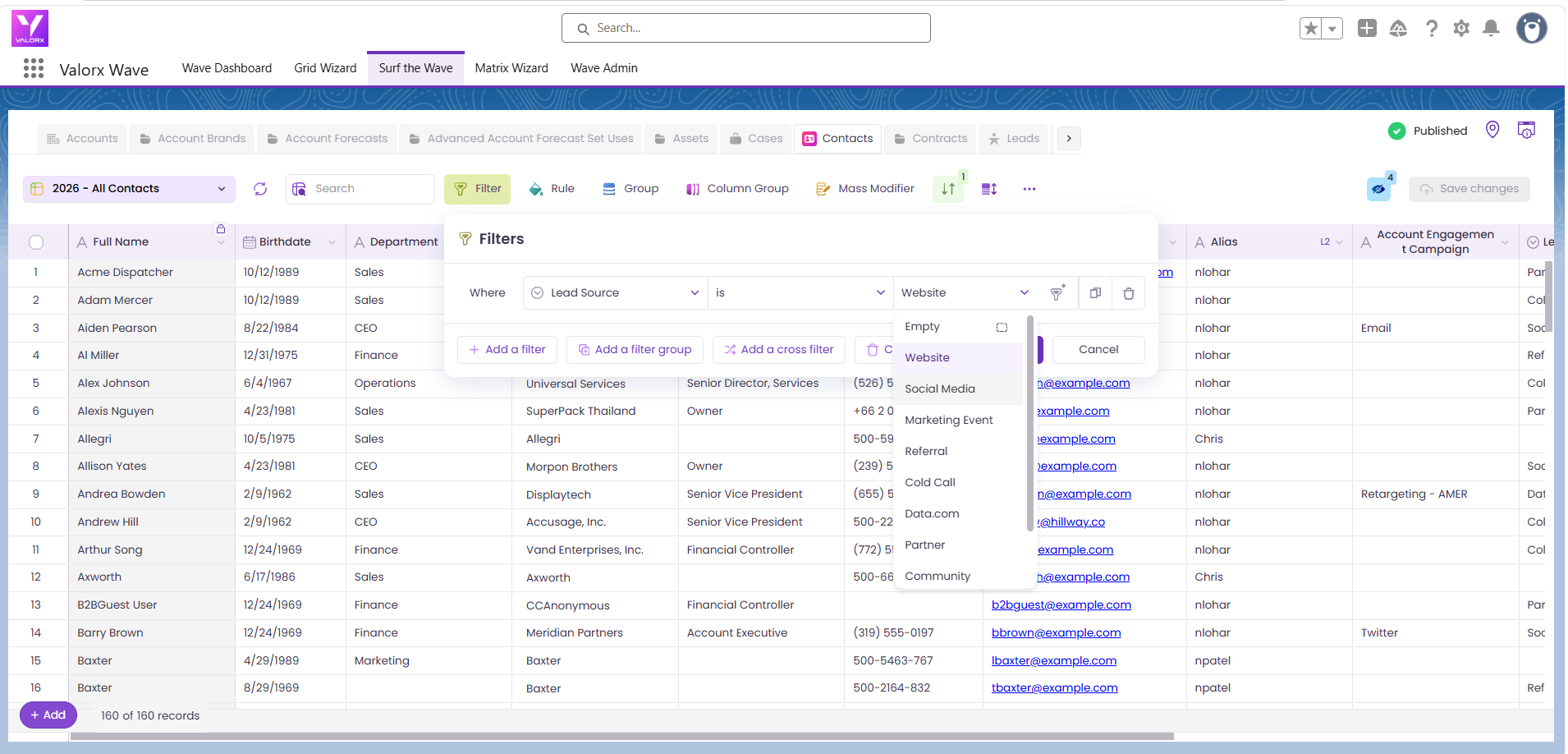
For an initial database cleanup, you can leave the filters empty and review the full Contact dataset.
This gives you a broad view of Salesforce contact data quality without excluding records that may need attention.
If your Salesforce org contains a very large number of contacts, clean one segment at a time using filters such as:
- Lead Source = Web
- Created Date = This Year
- Owner = specific sales team
- Mailing Country = specific region
Click Next.
Tip: A full review works well for the initial cleanup. For ongoing contact data hygiene, reuse the grid with filters for recently created or recently modified contacts.
Step 4: Highlight missing contact data with conditional formatting
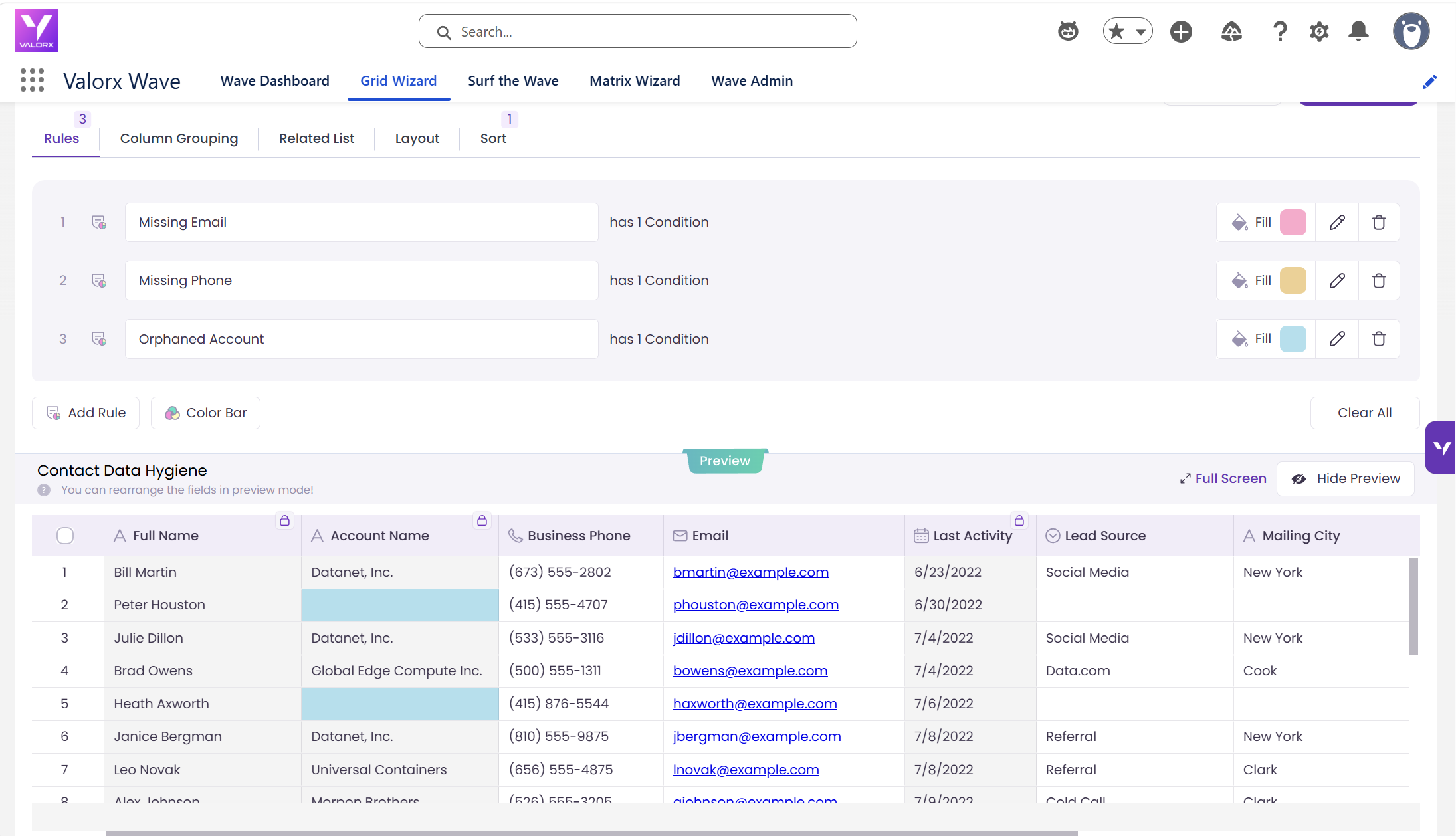
Conditional formatting makes incomplete Salesforce Contact records easier to identify.
Create these three rules.
Rule 1: Highlight contacts with missing email addresses
Condition: Email is blank
Action: Highlight the row in red
Email is often one of the most important Contact fields for marketing, customer communication, and sales outreach.
Rule 2: Highlight contacts with missing phone numbers
Condition: Phone is blank
Action: Highlight the row in amber
This surfaces contacts that may be harder for sales or customer-facing teams to reach.
Rule 3: Highlight contacts without an account
Condition: Account Name is blank
Action: Highlight the row in blue
These records may have come from incomplete imports, integrations, or other processes where the Account relationship was not populated.
Finally, sort:
Last Activity Date → Ascending
This brings older or less-active contacts toward the top of the grid for review.
Click Next.
Step 5: Open the Grid and Review Contact Data Quality
Click Save, then Surf the Wave.
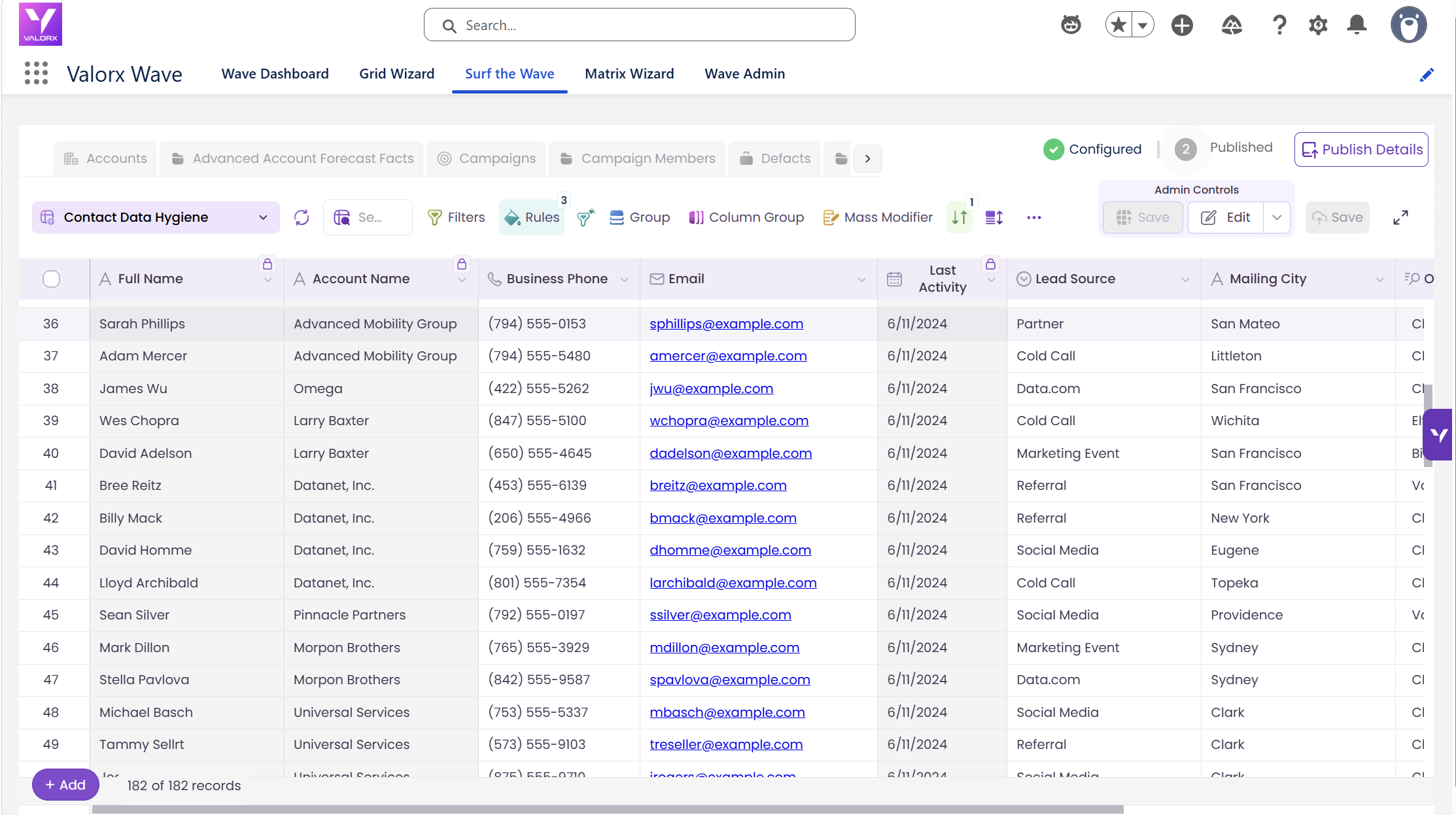
Your Contact Data Hygiene grid opens with the conditional formatting applied.
Use the colors as a visual checklist:
🔴 Red: Email is missing
🟠 Amber: Phone is missing
🔵 Blue: Account is missing
⚪ No highlight: None of these three conditions applies
You can now scan the database without opening Contact records one at a time.
Step 6: Fix Salesforce contact data Inline or in Bulk
Once you identify the records that need attention, update them directly from the grid.
Add missing emails. Click into red-highlighted Email cells and type the address. If you already have corrected emails in a spreadsheet, copy the column and paste it straight into the grid.
Add missing phones. Same process for amber rows.
Resolve contacts with no account. Blue rows need an account. Click the Account Name cell and search for the right one. Before you treat these as errors, check whether your org uses private contacts deliberately — in some setups a contact with no account is working exactly as designed.
Find duplicates. Sort the grid by Email, then by Contact Name. Identical values land next to each other, which makes duplicate pairs easy to spot. Decide which record survives, move any missing detail onto it, and flag the rest for merge. Salesforce Duplicate Rules and the standard merge tool handle the actual merge — the grid is how you find the candidates fast.
Handle true junk. For contacts with no email, no phone, no account, and no activity, set a cleanup flag with Mass Modifier and route them for review. Don't delete on the first pass. Deleting a Contact in Salesforce also removes its activity history, campaign member records, and opportunity contact roles — attribution data marketing may still need. Export first, get sign-off, then delete.
Tip: Copy-paste is the fastest bulk fix in the grid. Correct a column in your spreadsheet, copy it, and paste it into the matching column in Wave. No export-import round trip, no Data Loader.
Step 7: Save your changes and measure the impact
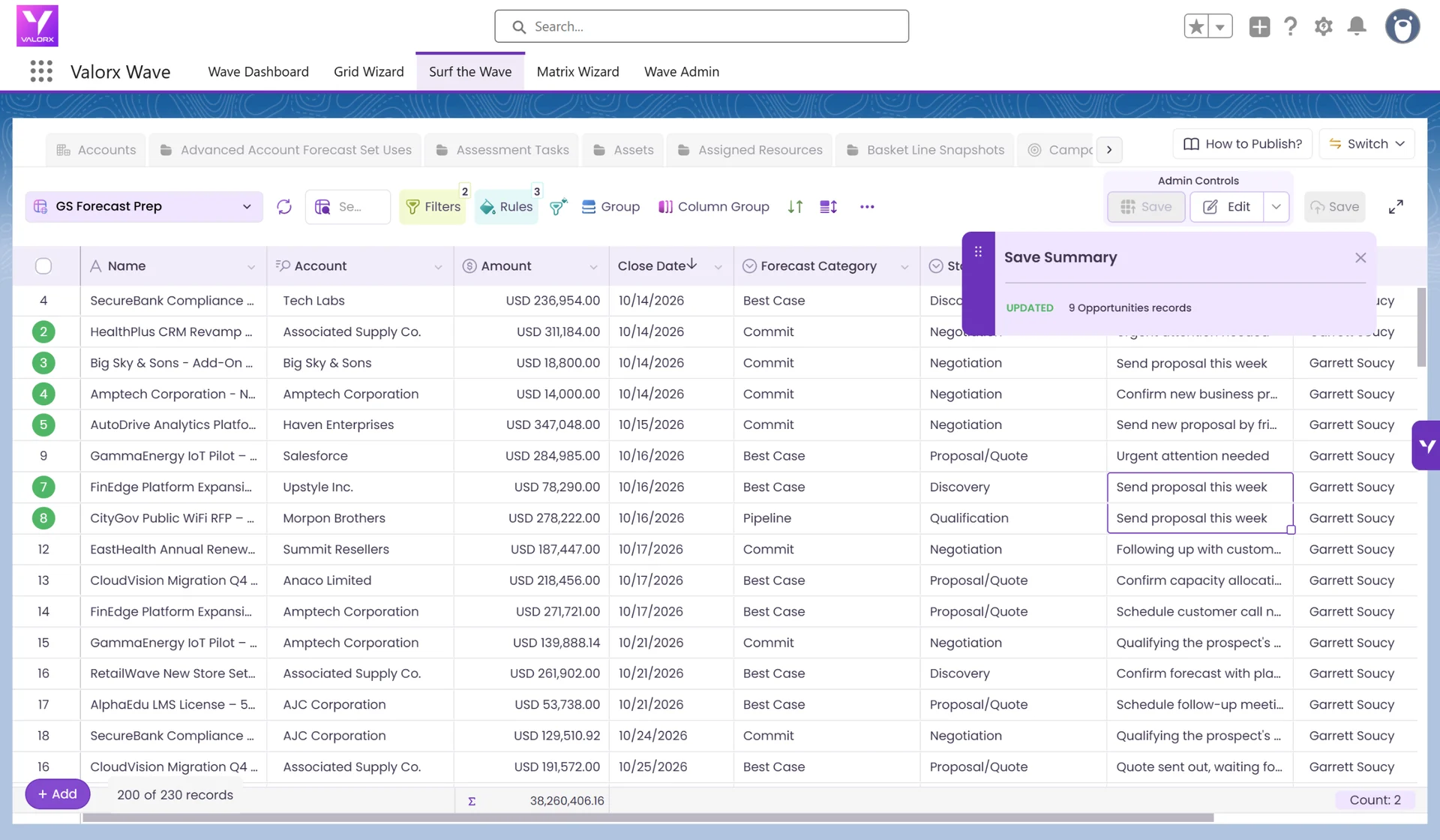
When your updates are complete, click Save.
Click Save.
- If a save fails, check the error. Bulk updates in Salesforce still respect validation rules, required fields, and duplicate rules — Wave surfaces the error on the row so you can fix it and re-save.
- Refresh the grid. The red, amber, blue, and grey counts should drop.
- Build a completeness report. In Salesforce, create a Contact report with filters for Email = blank, Phone = blank, and Account ID = blank, and save it as a baseline you can re-run after each cleanup.
- Share the grid with reps so they can clean their own contacts. Their counts will be lower than yours — they only see records their sharing settings allow.
- Schedule a monthly cleanup using the same grid with a rolling date filter.
Salesforce contact database cleanup: Before vs. After
Frequently asked questions
How do I clean up Contact data in Salesforce?
Start by identifying the Contact fields that determine whether a record is complete, such as Email, Phone, Account Name, Owner, and Last Activity Date. With Valorx Wave, you can display those fields in one Salesforce grid, highlight missing values with conditional formatting, and correct records inline or in bulk.
How can I find Salesforce contacts with missing email addresses?
Create a Contact grid containing the Email field and add a conditional formatting rule where Email is blank. This visually highlights contacts that are missing email addresses so they can be reviewed and updated.
How can I find Salesforce contacts without an Account?
Add Account Name to your Contact grid and create a rule where Account Name is blank. The resulting records can then be reviewed and associated with the correct Account where appropriate.
Can I bulk update Salesforce contacts without Data Loader?
Yes. Valorx Wave lets authorized users update Contact records from a spreadsheet-like grid inside Salesforce. Users can edit cells inline, copy and paste values, or use bulk editing capabilities such as Mass Modifier for applicable updates.
Can I copy contact data from Excel into Salesforce?
Yes. If corrected values already exist in Excel, you can copy them and paste them into the corresponding cells in a Wave Grid, then save the changes back to Salesforce.
How often should Salesforce Contact data be cleaned?
The right cadence depends on how frequently your organization creates and updates contacts. Instead of treating cleanup as a one-time project, teams can reuse the same Contact Data Hygiene grid periodically and focus on recently created or modified records.
Does this process require exporting Salesforce data?
No. The cleanup workflow described in this guide keeps the working view inside Salesforce, so users can review and update Contact records without a separate export-clean-reimport process.

Choose the workflow you need:
Try Wave in browser Extension

Try Wave in Salesforce

Try Fusion In Excel

Enhancing Salesforce for industry leaders