How to clean up your Salesforce pipeline in 15 minutes

Salesforce pipeline cleanup means removing stale, inaccurate, and incomplete opportunities so your forecast reflects reality. In Valorx Wave, you build one grid that color-codes every problem — past-due close dates, deals with no recent activity, missing next steps — then fix them in bulk and save back to Salesforce. Total time: about 15 minutes.
In this guide: the 8 opportunity fields that expose pipeline problems, 3 conditional formatting rules that surface them automatically, and a 7-step build you can reuse before every forecast call.
What is Salesforce pipeline hygiene?
Salesforce pipeline hygiene is the ongoing practice of keeping opportunity records accurate — current close dates, real amounts, active next steps, and correct stages. Poor pipeline hygiene produces forecasts that overstate revenue, because deals that died months ago are still sitting in an open stage with a close date nobody updated.
The four most common pipeline data problems are:
- Past-due close dates — the deal was supposed to close last quarter and nobody moved it.
- Stale deals — no logged activity in 30 or more days.
- Missing next steps — an open deal with no defined next action.
- Blank or zero amounts — deals that contribute nothing to a forecast because nobody entered a number.
Why manual pipeline cleanup takes so long
The standard cleanup process is three reports, an email round, and a wait. A sales ops analyst runs one report for past-due close dates, one for stale deals, and one for missing fields. Each rep gets a list. The reps open opportunity records one at a time and update them. The analyst re-runs the reports on Monday to check what actually got fixed.
The bottleneck isn't finding the problems — Salesforce reports do that fine. The bottleneck is that reports are read-only. Every fix requires leaving the report, opening a record, editing, saving, and going back.
Valorx Wave removes that gap by making the report editable. A Wave grid is a spreadsheet-style view of Salesforce records that lives inside Salesforce. You see the problems and fix them in the same view, then save every change back at once.
Here’s what you’re building
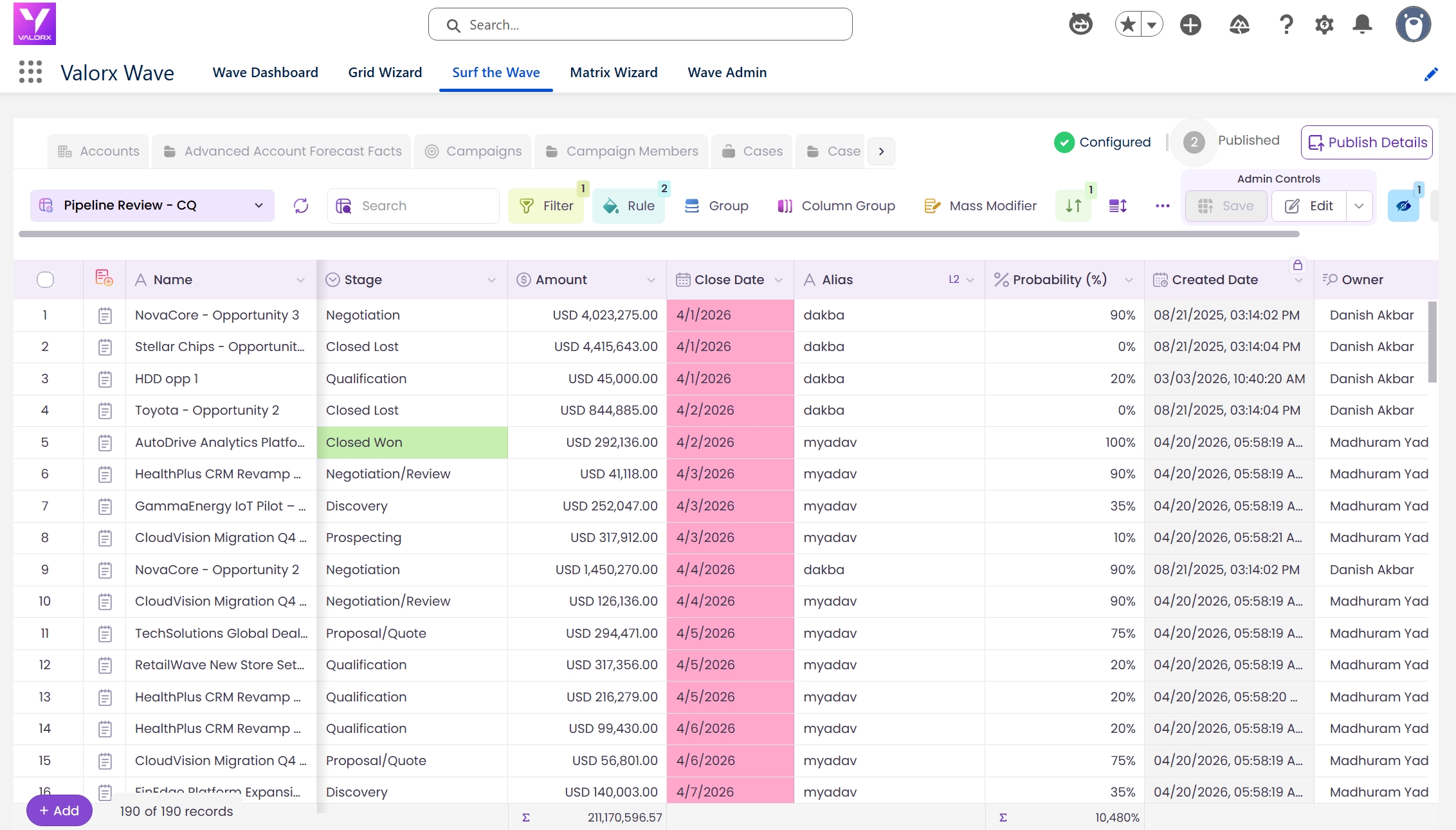
Before the steps, here’s the end result — a purpose-built pipeline cleanup grid that surfaces every problem and lets you fix them in bulk.
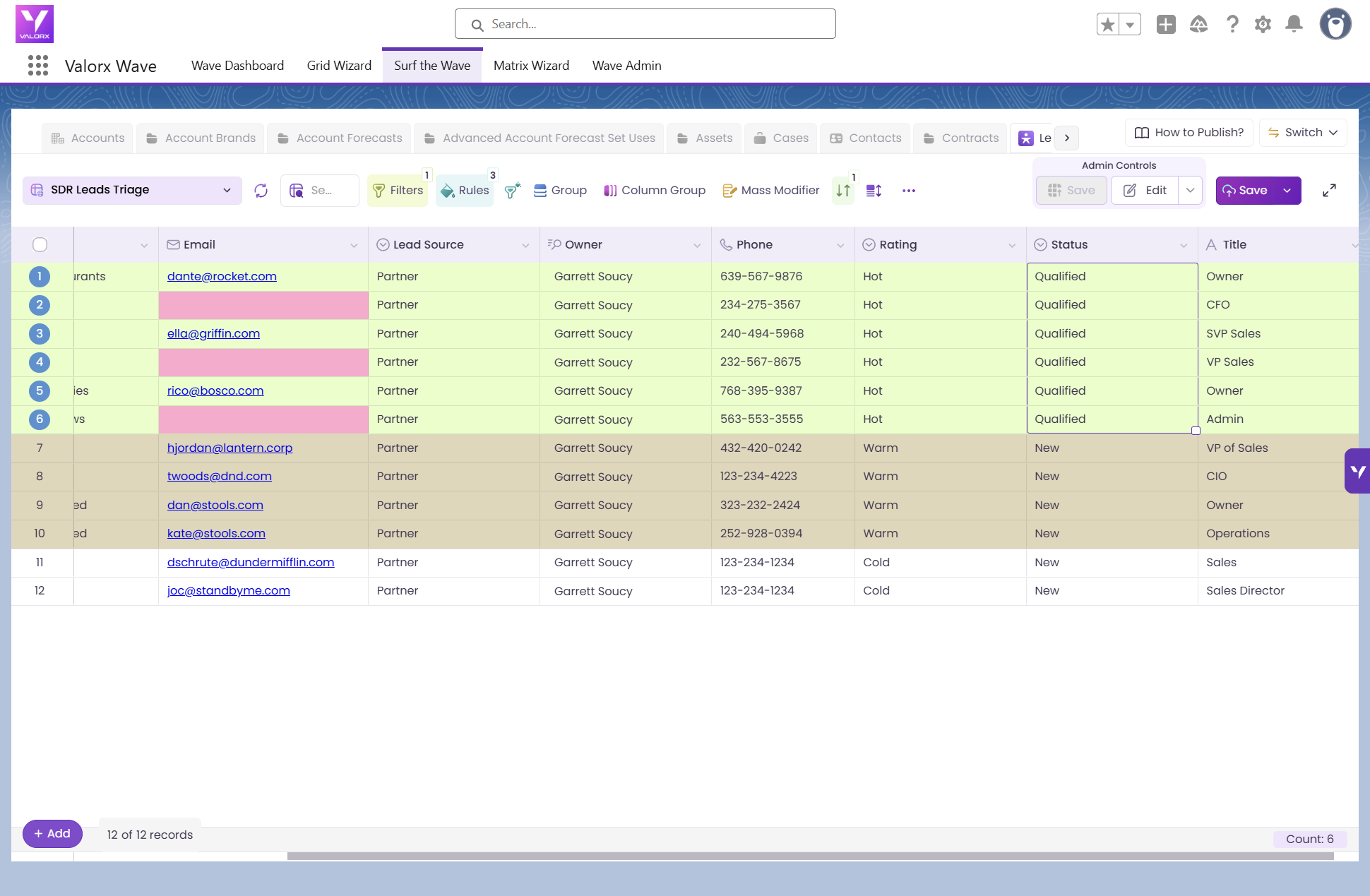
A single Wave grid showing every open opportunity in your pipeline, with conditional formatting that highlights each problem type in a different color: past-due close dates in red, stale deals in amber, missing next steps in blue. Healthy deals stay white. You select the problem rows, fix them with Mass Modifier, and save everything to Salesforce in one click.
Time: ~15 minutes to build, then reusable every cycle | Role: Designer or Admin | Object: Opportunity
Prerequisites
- Valorx Wave installed
- A Designer or Admin role in Wave
- Opportunities in Salesforce with Stage, Close Date, and Amount populated
Fields you'll add
Why Last Activity Date and Next Step matter most: together they are the most reliable stale-deal signal in Salesforce. A deal with no activity in 30 days and no next step is almost always dead, regardless of what its stage says.
Build Your Salesforce Pipeline Cleanup Grid
This grid is designed to surface problems and make them fixable in bulk. Build it once and reuse it before every forecast call.
Step 1: Create a new grid on the Opportunity object
Open Valorx Wave and click Create New Grid. Select Opportunity as the object and choose Create from Scratch so you control exactly which fields appear. Name it something you'll recognize on a recurring basis — "Pipeline Cleanup — Weekly" works. Click Next.
Step 2: Add the eight cleanup fields
Add these fields in order: Opportunity Name, Stage, Close Date, Amount, Owner, Last Activity Date, Next Step, Account Name. Click Next.
Step 3: Filter to open pipeline only
Add two filters so the grid shows only deals that still need attention:
- Filter 1: Stage does not equal Closed Won
- Filter 2: Stage does not equal Closed Lost
Optionally add Close Date = This Quarter if you only want to clean the current forecast period. Click Next.
Don't over-filter. You want every open deal visible so nothing slips through. The conditional formatting in the next step is what separates problems from healthy deals — not the filter.
Step 4: Add three conditional formatting rules
This is the step that turns a grid into a cleanup tool. Each rule maps one pipeline problem to one color.
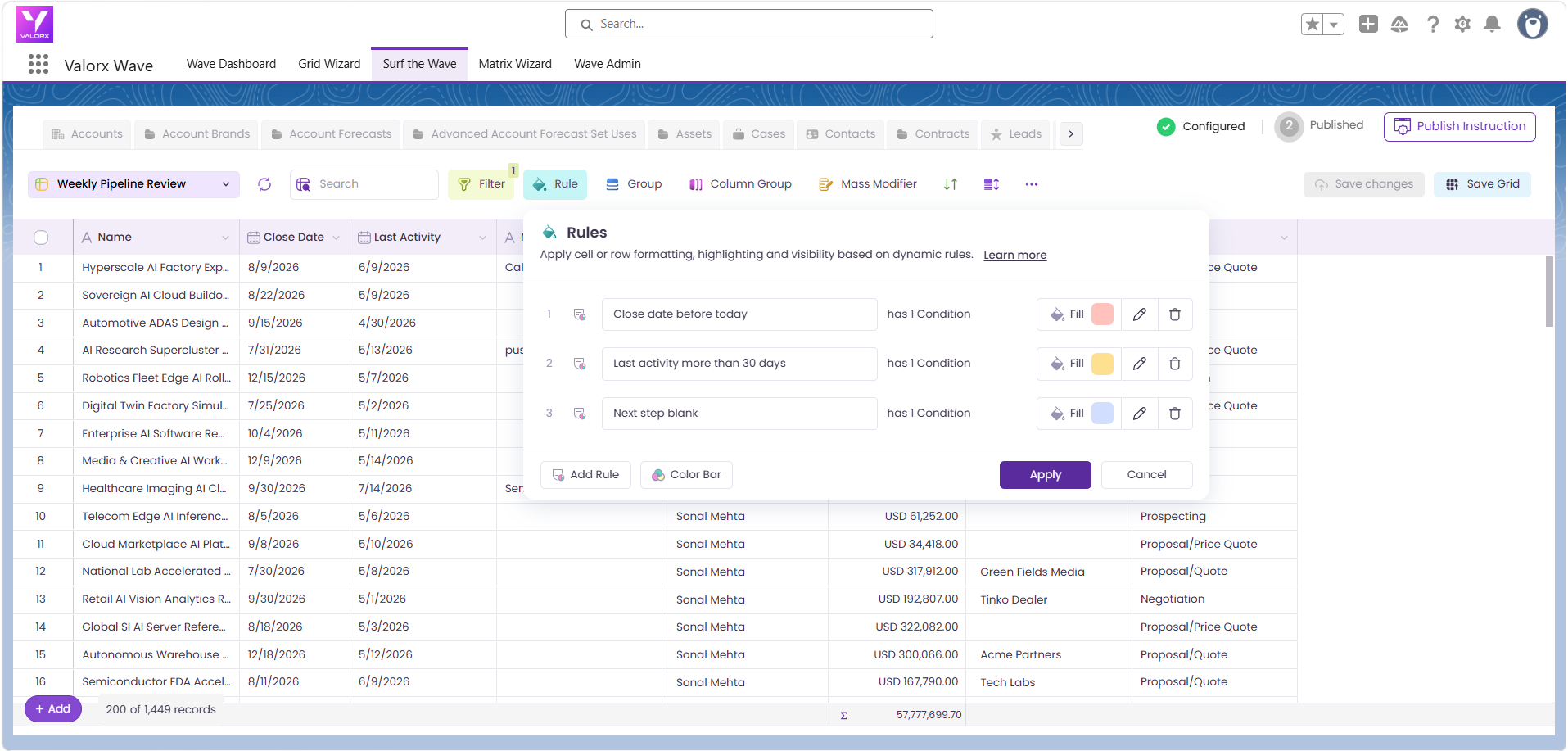
Set the default sort to Close Date ascending so the most overdue deals appear first. Click Next.
Step 5: Save and open the pipeline cleanup grid
Click Save, then Surf the Wave. The grid loads with live Salesforce data and the problems are immediately visible:
- 🔴 Red rows — past-due close dates
- 🟠 Amber rows — no activity in 30+ days
- 🔵 Blue rows — missing next steps
- ⚪ White rows — healthy deals, no action needed
Step 6: Fix problems in bulk with Mass Modifier
Work the colors in order of urgency — red, then amber, then blue.
- Fix past-due close dates (red). Select the red rows. Click Mass Modifier. For deals that are still alive, set Close Date to the end of the current quarter. For dead deals, set Stage to Closed Lost instead.
- Handle stale deals (amber). Decide whether each deal is real. If yes, add a Next Step and push the Close Date. If no, mass modify Stage to Closed Lost.
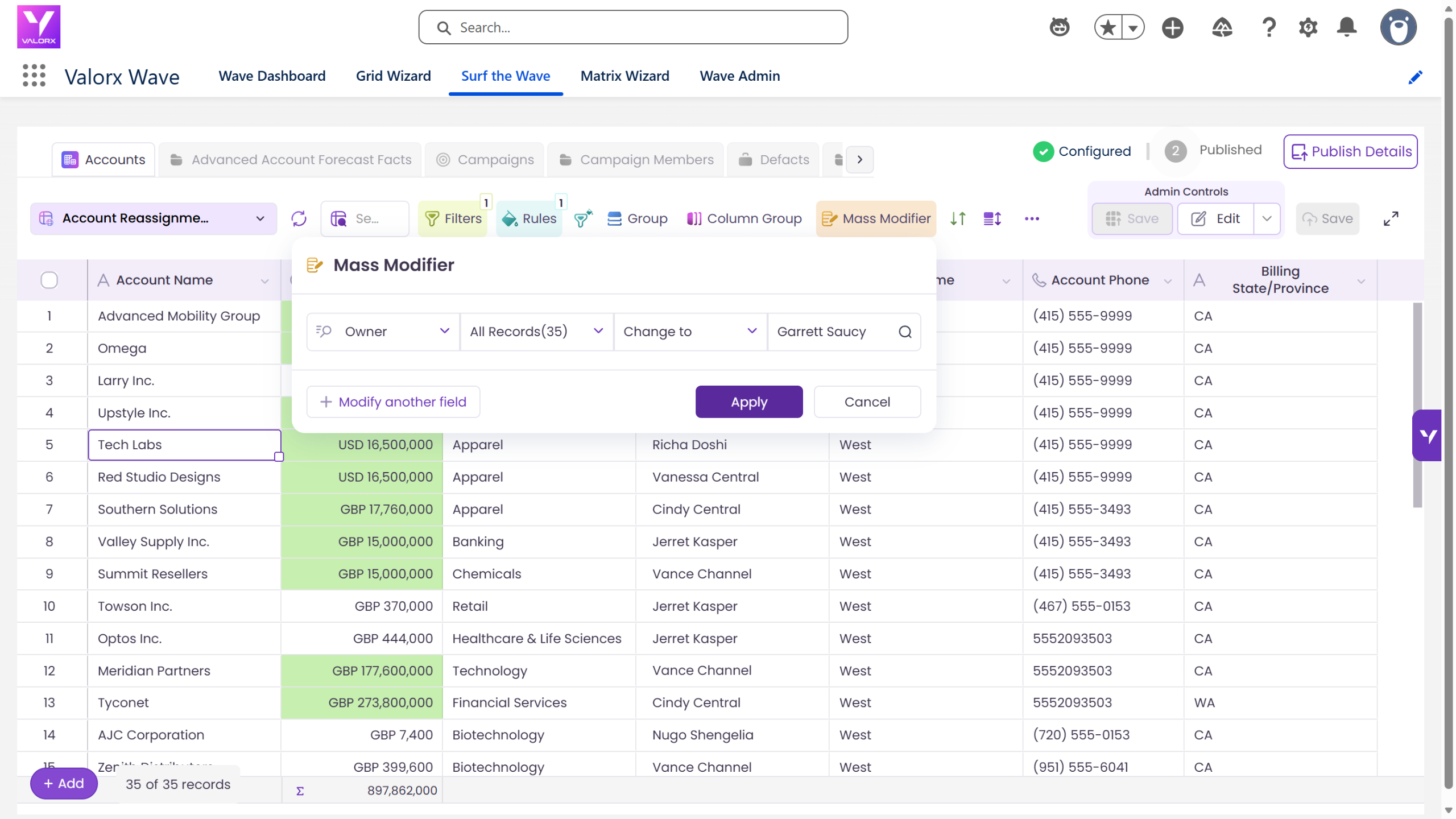
- Fill in next steps (blue). Click into each blue Next Step cell and type the next action, or select multiple rows and use Mass Modifier to set a default.
- Fix blank amounts. Filter to Amount = 0 or blank, then enter realistic numbers inline.
Work through the colors in order: red first (most urgent), then amber, then blue. This ensures the worst problems get fixed first.
Step 7: Save and verify
Click Save to push every change back to Salesforce, then confirm the cleanup landed:
- Refresh the grid — red, amber, and blue highlighting should be substantially reduced
- Check the record count — Closed Lost deals should drop out of the filtered view
- Open a Salesforce report or dashboard — pipeline totals should reflect the cleanup
- Share the grid so reps can run the same cleanup on their own deals
Make this grid a weekly habit. Open it every Thursday before the forecast call. The filters and formatting are already set — just open, clean, and save.
Salesforce pipeline cleanup checklist
Use this reference table every time you run a cleanup. Each row is a common pipeline problem with the filter to find it and how to fix it.
Pipeline cleanup day, before & after
What used to take a half-day of reports and emails now takes 15 minutes in one grid.
How to make pipeline cleanup a weekly habit
1. Run it weekly
Open the grid every Thursday before the forecast call. Filters and formatting are pre-set — just open, scan for color, fix, and save.
2. Share with reps
Toggle on Global Grid so reps can run their own cleanup. They’ll see only their deals (filter by Owner) and fix problems before you have to ask.
3. Publish to a Lightning page
Follow the “How to Publish an App in Wave” guide to embed the cleanup grid on a Home page or App page. Reps see it every time they log in.
4. Track improvement over time
Each week, note how many red/amber/blue rows remain. A clean pipeline has mostly white rows. Over time, reps learn to keep their deals current proactively.
Frequently asked questions
How long does a Salesforce pipeline cleanup take?
Building the grid takes about 15 minutes. After that, each cleanup cycle takes 10–15 minutes because the filters and conditional formatting rules are saved. Compare that to the standard process of running three reports, emailing reps, and following up days later.
How do I find stale opportunities in Salesforce?
Filter opportunities where Last Activity Date is more than 30 days ago and Stage is not Closed Won or Closed Lost. In Valorx Wave you can apply this as a conditional formatting rule so stale deals highlight automatically every time you open the grid, rather than running a report each time.
Can I bulk edit opportunities in Salesforce?
Salesforce list views allow limited inline editing, but they cap the number of records and don't support conditional formatting. Valorx Wave's Mass Modifier applies a field change across every selected record in one action — hundreds of opportunities at once — and saves them back to Salesforce together.
Does Valorx Wave respect Salesforce permissions and validation rules?
Yes. Wave runs natively inside Salesforce and honors your existing field-level security, sharing rules, and validation rules. Users only see and edit records they already have access to.
Do I need admin access to build a cleanup grid?
You need a Designer or Admin role in Wave to build a grid. Once it's built and shared as a Global Grid, any rep can open and use it with their standard Salesforce permissions.
What's the difference between Valorx Wave and Valorx Fusion for pipeline work?
Wave is a grid embedded inside Salesforce — best for bulk editing and cleanup where the work happens in Salesforce. Fusion connects Excel or Google Sheets to live Salesforce data — best for forecast modeling and analysis where you need spreadsheet formulas.
How often should I clean my Salesforce pipeline?
Weekly, before the forecast call, is the most common cadence. Monthly is the minimum for teams with long sales cycles. The more frequently you run it, the fewer problem rows appear each time.
Related guides
- Salesforce pipeline visibility — why pipeline data goes stale
- Create a new grid in Wave — full grid documentation
- How to publish an App in Wave — embed this grid on a Lightning page
Choose the workflow you need:
Try Wave in browser Extension

Try Wave in Salesforce

Try Fusion In Excel

Enhancing Salesforce for industry leaders