How to realign Salesforce territories without losing forecast accuracy

- A territory realignment does not break a Salesforce forecast by itself. The export, edit offline, reimport loop does.
- Salesforce forecasts roll up from opportunities, not accounts. Moving account coverage is only half the job.
- The safe sequence: baseline the forecast, move account coverage on live records, review before saving, then reassign open opportunities as a separate reviewed pass.
- The proof is one check. A realignment redistributes pipeline. It should never change the company total.
- Valorx Wave runs both passes in a spreadsheet grid inside Salesforce, with validation rules, field-level security, and sharing enforced on every save.
Picture moving 800 accounts across four regions in the days before a new quarter opens. The territory map can change in an afternoon. The forecast behind it can take a week to recover when the realignment is run the wrong way.
Every reorg starts the same way. Leadership redraws the coverage map, a new territory plan lands in your inbox, and hundreds or thousands of accounts have to move to new regions and new owners before the quarter opens. Reassigning the accounts is not the scary part. What the move does to your forecast is.
Most teams get the diagnosis backwards. Salesforce territory realignment does not damage forecast accuracy. The way most teams run it does. The usual loop is export to Excel, edit offline, import back. That loop is where owner fields get overwritten, close dates get reformatted, rules get switched off to push the file through, and open opportunities get left behind. By the time the file is back in Salesforce, the territory map looks right and the forecast underneath it is quietly wrong, days before your VP has to present it.
There is a safer path, and we walk it start to finish below. Run the whole realignment on live Salesforce records. Move account coverage first. Then handle open opportunities as their own reviewed pass, with validation, permissions, and sharing live the whole time.
Why Salesforce territory realignment puts forecast accuracy at risk
Territory realignment is one of the few changes in Salesforce territory management that moves customer ownership and pipeline responsibility at the same time. One ownership change ripples through account coverage, opportunity attribution, capacity planning, and the executive forecast.
The timing makes it worse. Most teams realign at a fiscal year or quarter boundary, exactly when the next forecast is under the most scrutiny and there is the least slack to fix mistakes. In that short window Sales Ops is moving territories, managers are reviewing pipeline, lead routing is changing, comp plans are taking effect, and leadership is preparing forecast reviews.
And the forecast is fragile before anyone touches it. The CSO Insights 2018-2019 Sales Performance Study put the win rate of forecasted deals at 47.3 percent, the second year running below half. Drop stale data, wrong ownership, or half-finished opportunity updates onto a number that shaky and a routine coverage change becomes a forecast no one can defend.
So the goal is not just moving accounts from one owner to another. It is keeping account coverage, opportunity attribution, and forecast rollups aligned through the transition. Success is measured less by how fast the accounts move and more by whether leadership can trust the forecast on day one of the new quarter. For the methods behind that number, read six Salesforce forecasting methods that actually work.
Three ways a territory realignment breaks the forecast
Start with the one fact that explains most of it: Salesforce forecasts do not roll up from accounts. They roll up from opportunities. In a standard Collaborative Forecast, that means opportunity owner, forecast category, amount, and close date. If you forecast by territory on Salesforce Sales Territories (formerly Enterprise Territory Management), the rollup follows the territory on each opportunity instead. Either way, your territory changes begin on the Account object and your forecast lives one object away.
Three failure points do the damage.
1. You edit a snapshot instead of live Salesforce data
The moment you export accounts to a spreadsheet, the file is a photograph of a moving target. While you edit offline, new deals are created, existing ones change stage, and owners change inside Salesforce. When you import the file back, you overwrite newer records with stale values. The territory assignments look correct, but the forecast now reflects your spreadsheet instead of your business.
2. The import strains the safeguards that protect your data
Validation rules, required fields, and automation exist to keep bad data out. A bulk import runs straight into them. Rows fail in batches, the errors land in a separate log file, and under deadline the tempting fix is to switch rules and flows off until the file goes through. Now owner assignments write through unchecked, required fields come back blank, and close dates land in the wrong format. Tracing a broken rollup to one row in a large file can take longer than the realignment itself.
3. You treat customer coverage and forecast attribution as one job
Changing the owner or region on an account changes who covers the customer. It does not settle every open deal on that account. Salesforce can carry some open opportunities along when an account changes hands, depending on how the change is made and which transfer options are set, so a default ends up deciding your forecast. Deals owned by overlay reps, deals in late stages, and deals tied to the old territory all need a deliberate call. Skip it and the account map looks right while the pipeline keeps reporting to the old territories.
Avoid all three and the realignment becomes a controlled operational change instead of a forecasting problem.
The fix is not a better export. It is never leaving Salesforce.
Look back at the three failure points. Not one was caused by Salesforce. Every one began the moment the data left it. So the fix is not a faster spreadsheet or a cleaner import template. It is running the whole realignment on live records, so validation, field-level security, and sharing never switch off.
That is what Valorx Wave does. Wave is a spreadsheet grid inside Salesforce Lightning. You filter, sort, and bulk edit thousands of records the way you would in Excel, and every save goes through Salesforce, so validation rules, field-level security, sharing rules, and automation apply exactly as they do on a manual edit. You keep the speed of a spreadsheet without disconnecting from your data.
Two newer pieces of Wave make a realignment faster still:
- Wave AI (private beta, no cost during beta). Describe the view you need, for example "accounts in the West region with owner, segment, and open pipeline." Wave AI builds the grid on live Salesforce data, you approve it, and it saves inside Salesforce. Nothing writes without your approval. Request an invite.
- Wave Matrix. An editable pivot table for Salesforce. Pivot open pipeline by owner or territory against forecast category and you have a before and after picture of the rollup. See Wave Matrix.
Try a territory reassignment yourself in this interactive demo, then follow the steps below.
Filter accounts by territory, select them, and reassign the owner in one bulk update.
A seven-step workflow for a safe Salesforce territory realignment
The safest realignments follow the same sequence every time. You baseline the number, move coverage, review every change, move the pipeline, and prove the forecast held before the quarter opens.
Step 1. Baseline the forecast before you touch anything
Record open pipeline by forecast category, in total and by owner or territory, for the periods the realignment touches. A Wave Matrix on Opportunity does this in one view. This is the number you reconcile against in Step 7. Without it, you cannot tell a real forecast change from a realignment error.
Step 2. Build a live coverage grid
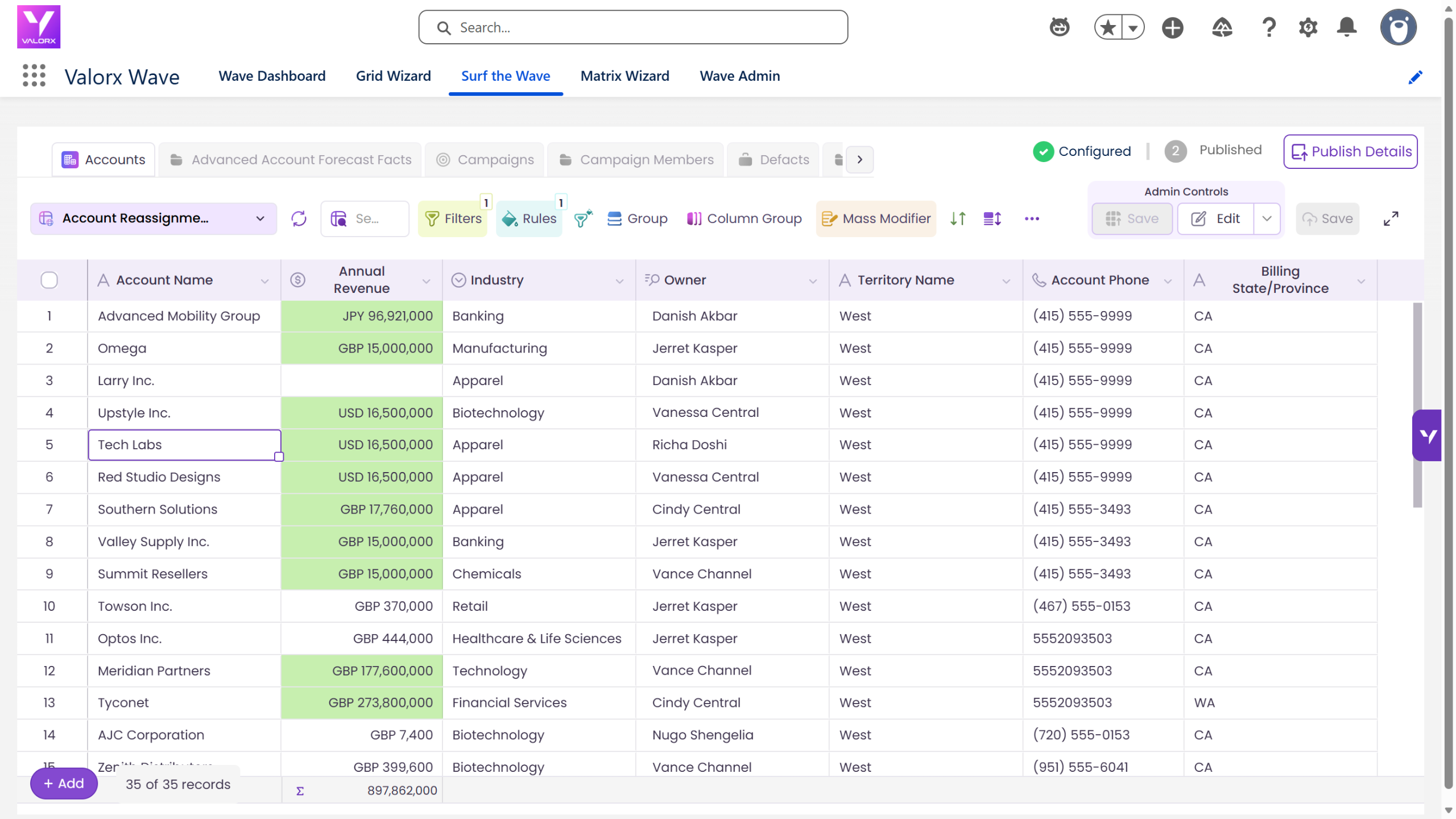
Bring every field the reorg touches into one view on the Account object: owner, region, segment, industry, account type, and the open pipeline on each account. You decide from the records as they stand today, not from a download made last week. This closes failure point one.
Step 3. Isolate exactly what moves
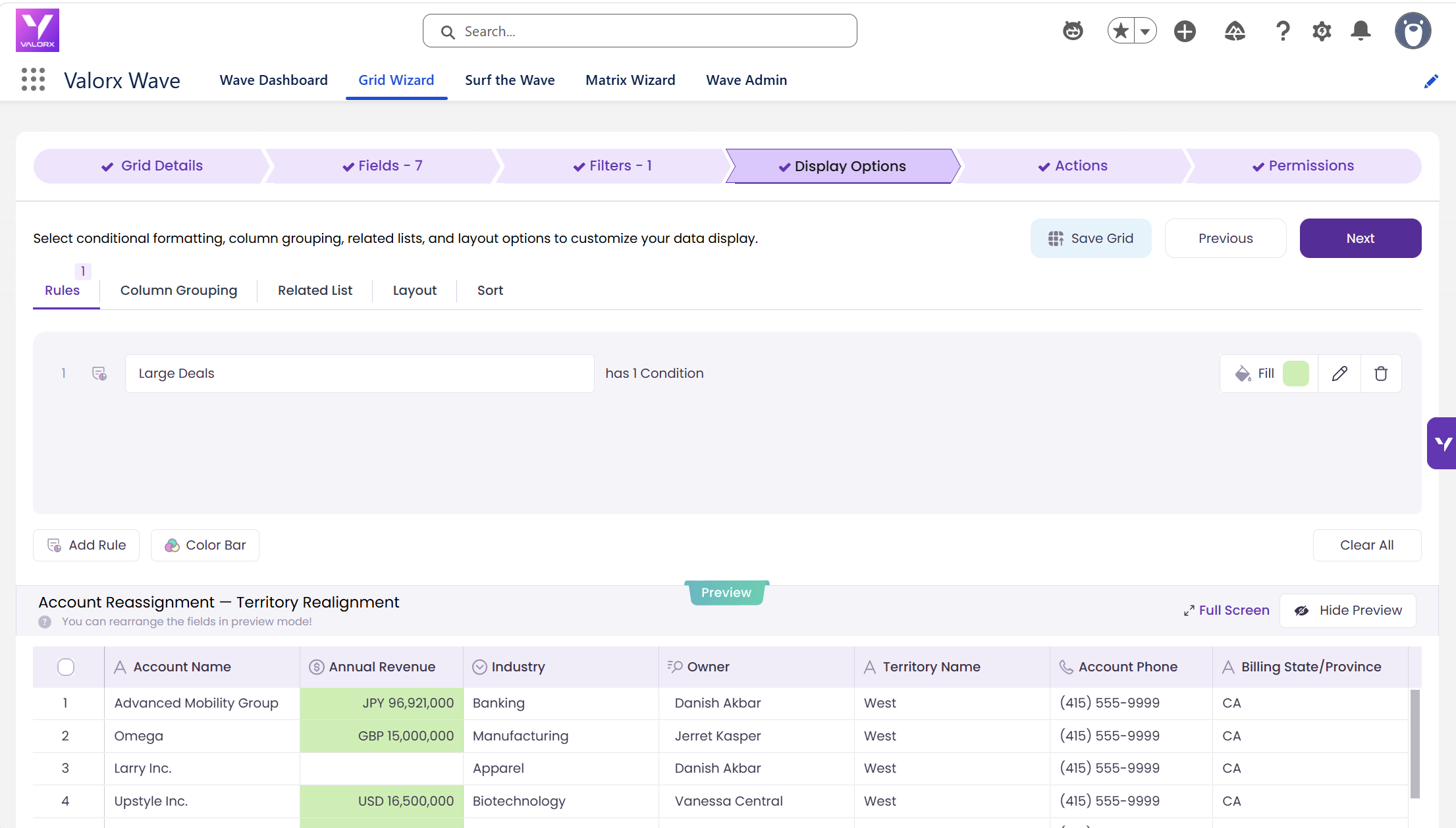
Not every account belongs in the realignment. Filter to specific territories, industries, or account types. Group by owner or region. Use conditional formatting to surface overloaded territories, accounts missing a region, and customers sitting with the wrong owner. You isolate the set that should move and, just as important, the set that should not.
Step 4. Reassign coverage in one controlled update
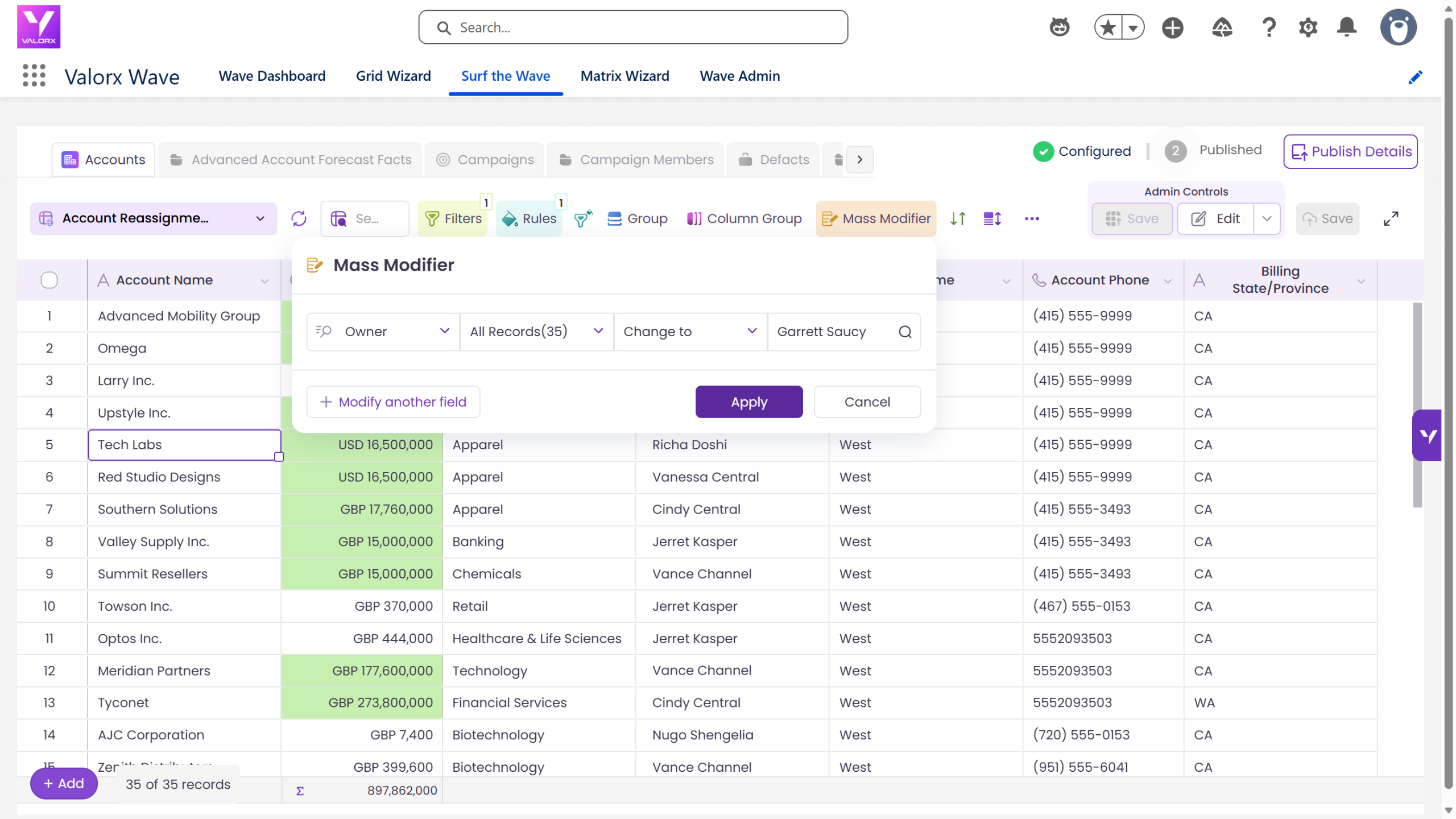
Select the accounts and set the new owner, or the region or segment field your assignment rules read, across all of them in one action with the Mass Modifier. Whether it is 200 accounts or 2,000, it is one update with no file to export, maintain, or import later. Our guide to mass reassigning account owners in Salesforce shows the clicks.
Step 5. Review every change, then save with Salesforce controls on
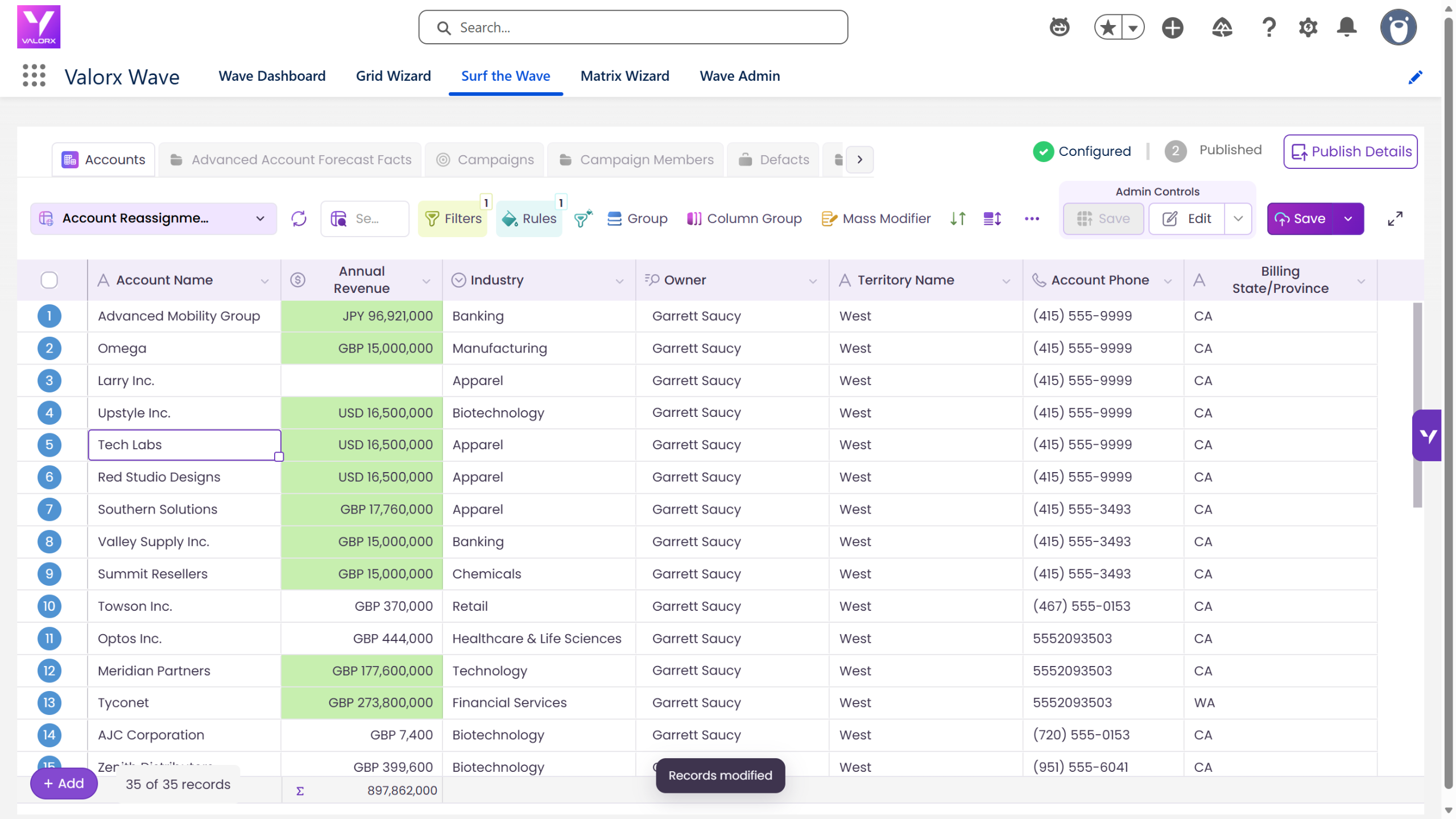
A bulk update should never be a blind commit. Before saving, Wave shows the full set of pending changes in one place. Confirm only the intended records are affected. Caught twenty accounts you did not mean to include? Revert them before they touch a record. When you save, validation rules, field-level security, sharing, and automation all apply. A record that fails a rule is not saved, so you fix it and save again. This closes failure point two.
Step 6. Reassign open opportunities as a separate, reviewed pass
This is the step that actually moves the forecast. Open a second grid on the Opportunity object, filtered to open deals on the accounts you just moved. Then make the calls on purpose:
- Early-stage deals usually move with the new territory.
- Late-stage deals often stay with the original rep through close. Agree the stage cutoff with sales leadership before you start.
- If you forecast by territory, update the territory on each opportunity so it matches the new territory on the account.
Review and save exactly as in Step 5. Two clean passes are safer than one blind bulk update. This closes failure point three.
Bulk edit open opportunities in a Wave grid inside Salesforce, then review and save.
Step 7. Reconcile the rollup against your baseline
A realignment redistributes pipeline. It does not create or destroy it. Rebuild the Step 1 view and compare. The company total by forecast category should match the baseline exactly, and the split by owner or territory should match the new plan. If the total moved, something other than the realignment changed, and you can find it the same day instead of at the QBR.
Roll up opportunity amounts by rep and period to check the forecast against your baseline.
What a clean realignment does to the number
Run this way, a reorg stops being a forecast event and becomes a coverage change. The account map and the pipeline move together, on live data, with every rule enforced. Instead of spending days validating imports and explaining discrepancies, Sales Ops finishes the realignment and starts the quarter reviewing a forecast it can defend.
| A reorg run through Excel | A reorg run in Salesforce with Wave |
|---|---|
| Accounts exported to a spreadsheet that goes stale as you edit | Coverage edited on live records, always current |
| Rules switched off or rows failing in batches on reimport | Every save passes validation, security, and sharing |
| Coverage updated while opportunities roll up the old way | Coverage and opportunities reassigned as two reviewed passes |
| No baseline, so variance has no explanation | Rollup reconciled against a baseline before the quarter opens |
| Forecast variance nobody can explain at the QBR | The rollup matches the new map on day one |
This is everyday work for the teams already running Salesforce operations in Wave. NVIDIA grew from 2 grids to 70 with zero custom code, and Western Digital runs its Salesforce forecasting in one grid. Read more: how to simplify Salesforce forecasting without changing how your team works.
See a territory realignment run inside Salesforce
Coverage and pipeline reassigned on live records, forecast intact. We will build the first grid with you on your own data. Want to try it first? Wave has a free plan.
Book a demo →Frequently asked questions
Does reassigning accounts in bulk break a Salesforce forecast?
Not by itself. Salesforce forecasts roll up from opportunities, not accounts, so changing account coverage alone does not change the number. What breaks it is the export and reimport loop, plus open opportunities left with the wrong owner or territory. Reassign on live records, then move opportunities as a separate pass.
Do open opportunities move when the account owner changes in Salesforce?
Sometimes. Salesforce can transfer some open opportunities with the account, depending on how the owner change is made and which transfer options are set. Do not rely on the default. Review open opportunities on the moved accounts and reassign them deliberately.
What if we forecast by territory instead of by opportunity owner?
Then the rollup follows the territory on each opportunity. After you update account coverage and your assignment rules run, check that open opportunities carry the new territory. The opportunity pass still applies. You are updating territory instead of, or as well as, owner.
Will a bulk update in Wave bypass our validation rules?
No. Every save goes through Salesforce, so validation rules, field-level security, and sharing apply exactly as they do on a manual edit. Wave also shows all pending changes for review before anything is saved.
Can we undo a realignment after saving?
There is no one-click undo for a saved bulk change, in Wave or in Salesforce. That is why the review step comes before the save, and why Step 1 keeps a baseline. If you need to reverse a move, run a second Mass Modifier pass back to the original owners.
Does Wave replace Salesforce Sales Territories (Enterprise Territory Management)?
No. You keep your territory model, assignment rules, and forecast hierarchy. Wave is the grid for the account and opportunity changes a realignment requires. See territory management with Valorx.








Choose the workflow you need:
Try Wave in browser Extension

Try Wave in Salesforce

Try Fusion In Excel

Enhancing Salesforce for industry leaders