How to Import and Manage Opportunities in Salesforce

Quick answer: Importing opportunities into Salesforce is harder than other objects because every opportunity must link to an account (and usually contacts and products). The reliable sequence: import accounts first, capture their IDs, then load opportunities with Data Loader or a validated spreadsheet import via Valorx Wave that resolves relationships during the load. Missing relationship IDs are the top cause of failed or orphaned opportunity imports — the full process is below.
The challenge with importing opportunities into Salesforce lies in data formatting inconsistencies and relationship mapping issues. Salesforce opportunities are often linked to multiple related objects such as accounts, contacts, and products. If the data being imported lacks these relationships or has inconsistencies (e.g., missing account IDs), the import process can fail or result in incomplete records.
Complex approval processes and custom validation rules in Salesforce also serve as hindrances, as any data that doesn’t conform to these rules may be rejected.
Getting these imports right can be meticulous and time consuming, and ultimately lead Salesforce users to avoid getting opportunities into Salesforce altogether - an even larger issue in the long term.

Why Import Opportunities into Salesforce?
Importing your opportunities into Salesforce ensures centralized visibility into the sales pipeline. It enables leadership to make data-driven decisions regarding revenue forecasting, resource allocation, and sales performance management. When all opportunities are accurately reflected in Salesforce, sales teams and stakeholders can collaborate effectively, identify potential bottlenecks, and improve win rates through better insights into the sales process.
With the right tools however, you can overcome the default import experience with Salesforce to streamline opportunity imports and ensure your CRM data is always complete.
Opportunity Imports - Simplified
Product Tour: Learn how to import opportunities into Salesforce with Valorx Wave - for free.
🔗 Embedded Content: https://app.storylane.io/demo/dwuyljw7ggse
Step-by-step guide: easily import and manage your opportunities with Valorx Wave
- Prepare Your Data:
- Gather Opportunity Details: Collect all relevant information for your Opportunities, such as Opportunity Name, Stage, Amount, Close Date, Account Name, and any custom fields you utilize.
- Format Your Data: Ensure your data is in a format compatible with Valorx Wave's import functionality (e.g., CSV or Excel). Each column should clearly represent a specific Salesforce Opportunity field.
- Access Valorx Wave:
- Navigate to your web browser and access Valorx Wave.
- Upload Your Data:
- Locate the "Smart Import" section within Valorx Wave.
- Click on the "Import Data" option and select your prepared CSV or Excel file containing the Opportunities data.
- Upload the file and wait for Valorx Wave to process it for the next steps.
- Map Your Data:
- Take advantage of Valorx Wave's intelligent mapping feature. It automatically suggests field mappings between your data columns and the corresponding Salesforce Opportunity fields.
- Review and adjust any mappings to ensure they align with your specific Salesforce configuration.
- If you plan on importing similar data frequently, consider saving your mappings for future use, saving you valuable time.
- Preview and Validate:
- Utilize Valorx Wave's preview functionality to visualize how your data will appear once imported into Salesforce. This crucial step allows you to identify and rectify any potential errors before finalizing the import.
- Valorx Wave might perform additional validation checks to guarantee data integrity and compatibility with Salesforce's constraints. Address any highlighted issues before proceeding.
- Finalize Import:
- Once you're confident with the data mapping and preview, initiate the import process.
- Valorx Wave will begin importing your Opportunities into Salesforce.
- The tool will provide real-time updates on the import progress, allowing you to monitor the success of the operation.
- Post-Import Review and Management:
- Upon completion of the import process, review the imported Opportunities within Salesforce. Verify that all data has been imported correctly and accurately reflects your information.
- You might have to add relevant columns like Region or any other value for dependent data. Please check the above demo flow for more details on how to fix the import issues if you face.
Benefits of Importing Opportunities with Valorx Wave:
- Enhanced Efficiency: Save significant time and effort compared to manual data entry.
- Improved Accuracy: Reduce the risk of errors associated with manual data input.
- Streamlined Process: Valorx Wave simplifies the Opportunity import process, allowing you to focus on closing deals.
- Scalability: Effortlessly import large datasets of Opportunities without any limitations.
Get started with Valorx Wave - for free
Valorx Wave empowers you to streamline opportunity data management, freeing you to focus on nurturing leads, closing deals, and driving sales growth. Utilize Valorx Wave's intuitive import functionality and unlock the full potential of Salesforce's Opportunity management capabilities. Get started for free today.
FAQ: Importing Opportunities
Why do opportunity imports fail?
Missing or wrong Account IDs, stage values that don't match your sales process picklist, closed-date formats, and validation rules firing on required custom fields — almost always relationship and picklist mismatches.
Can the Data Import Wizard import opportunities?
No — opportunities aren't supported by the wizard. Use Data Loader, or a spreadsheet import tool that supports any object.
How do I link imported opportunities to products?
Load Opportunity Line Items as a second pass, referencing each opportunity's ID and the price book entry ID — or use a tool that handles multi-object loads in one workflow.
How do I bulk-manage opportunities after import?
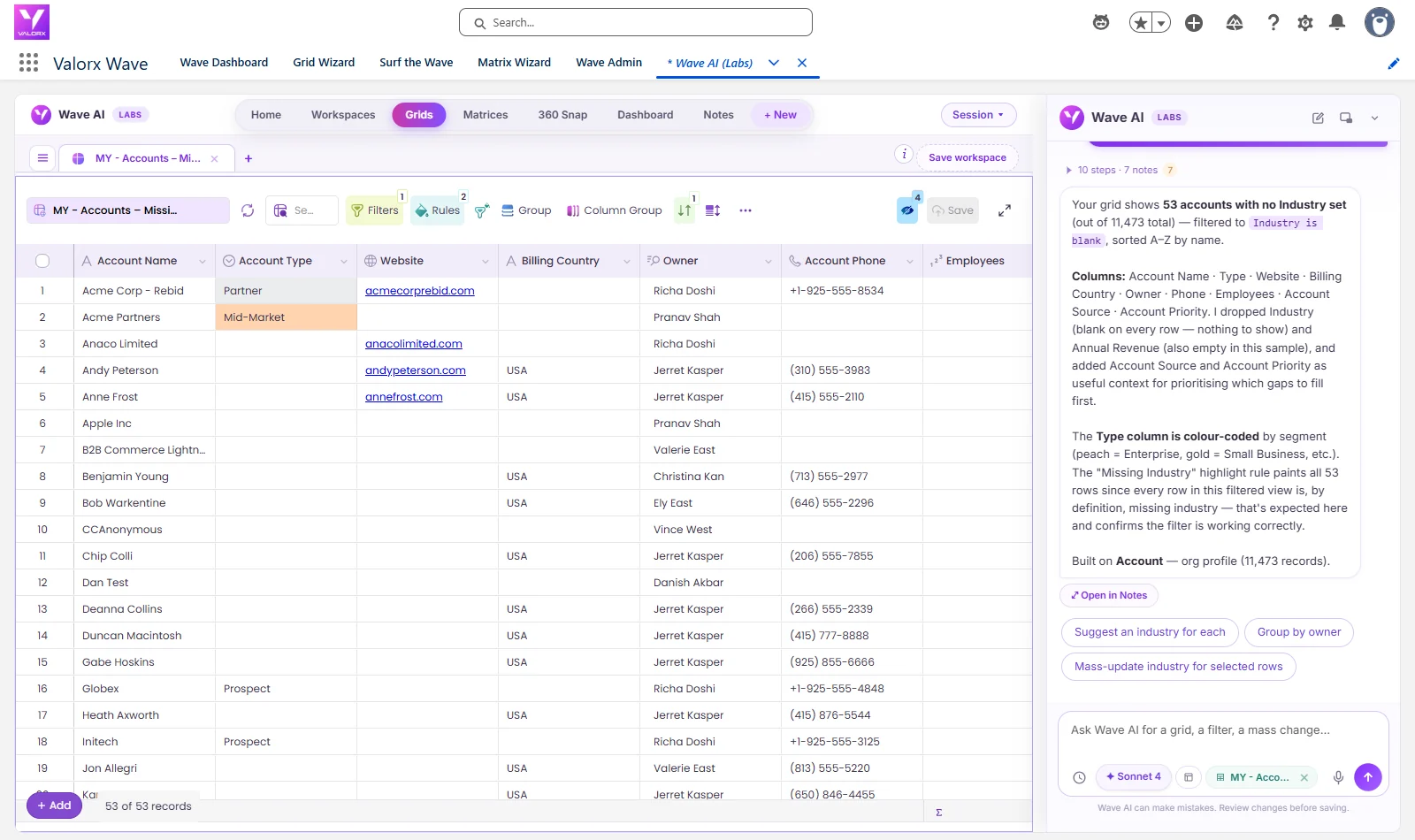
A grid view over open opportunities (filter, bulk edit stages/dates/amounts, validate, save) keeps the pipeline current without record-by-record clicking.

.svg)

.png)
Choose the workflow you need:
Try Wave in browser Extension

Try Wave in Salesforce

Try Fusion In Excel

Enhancing Salesforce for industry leaders