How to Manage Pipeline in Salesforce: Review and Mass Update Deals

To manage your pipeline in Salesforce, you need two things on the same screen: the deals that need attention, and a way to fix them. This guide follows the video. It filters to the overdue deals, flags them, and updates twelve of them in one save.
What you'll build
- One grid of your open deals, inside Salesforce
- A filter for deals past their close date
- A rule that highlights the late ones
- A mass update you check before saving
- No code and no admin ticket
- Video length: 6 minutes
The review is solved. The fixing isn't.
Most teams already have this screen: the pipeline dashboard they walk every Monday. It shows which deals are stale, stuck or past their close date.
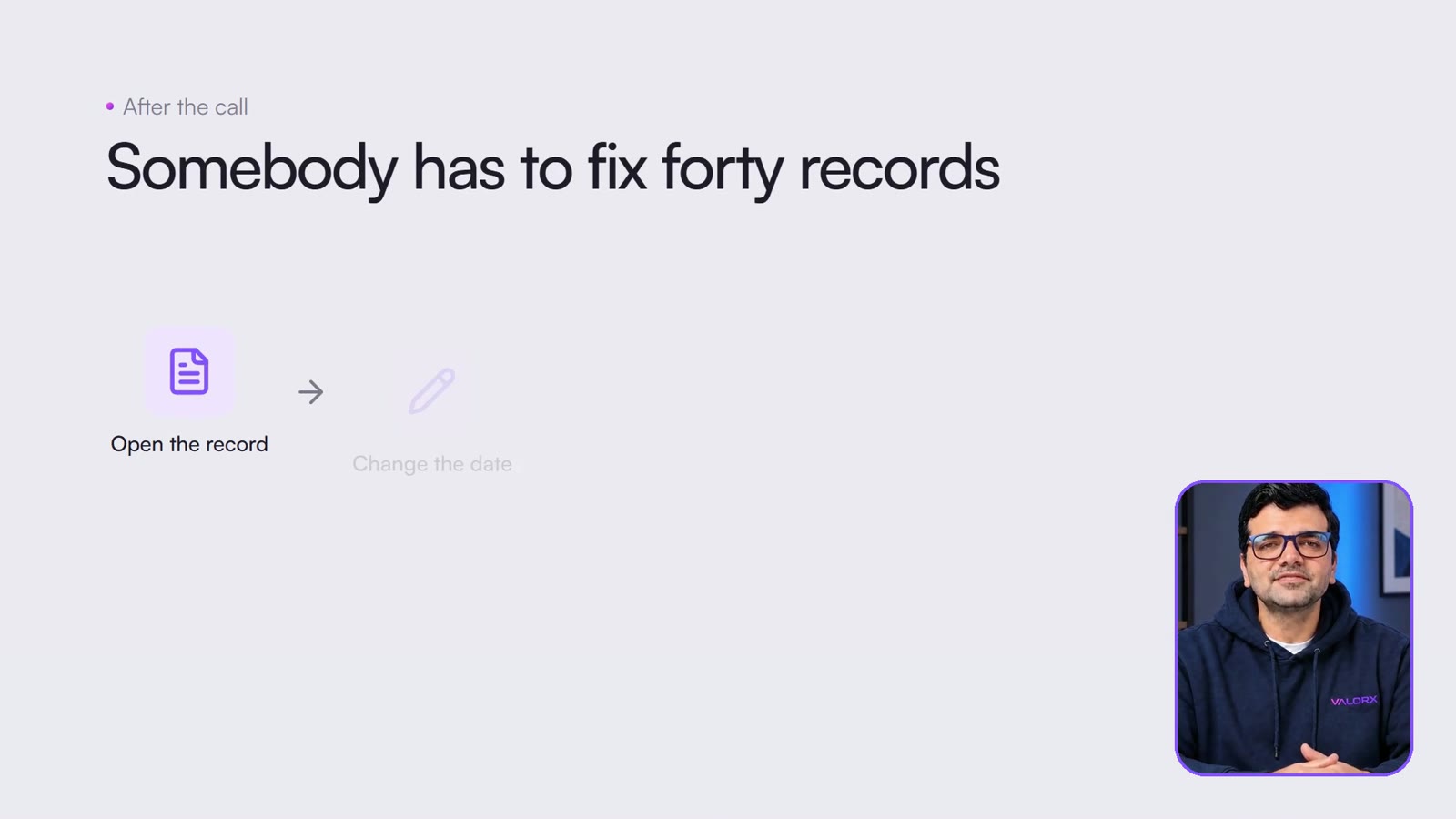
What the dashboard can't do is change a record. So after the review, somebody has to fix forty of them.
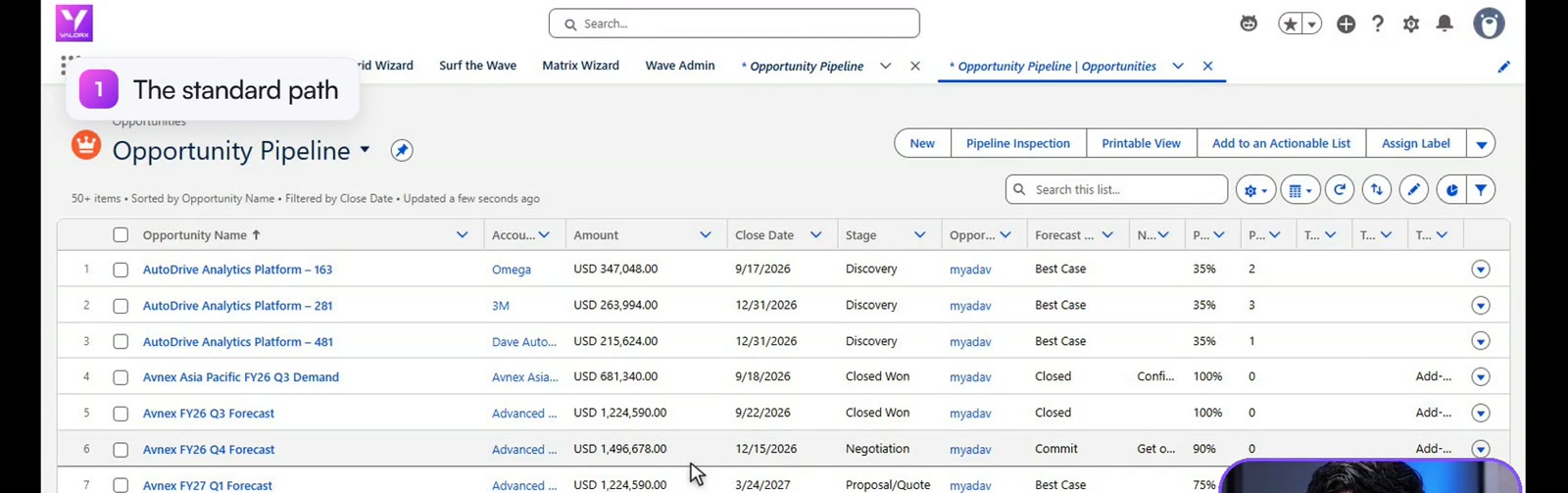
The standard path: one record at a time
To fix one close date from a list view, you open the record, find Close Date on the page, change it, save and go back. It isn't hard. It just doesn't get done when it's forty deals across six reps.
| The usual way | In a Wave grid |
|---|---|
| Open each record to change one close date | Click the cell in the grid and type |
| Collect the changes and file a ticket for a mass update | Select the rows, change the field once, check it, save |
| Reps see a list, not what the review found | A rule highlights the late deals for everyone |
| Monday's pipeline isn't Friday's forecast | The fixes are saved during the review |
Clean up the pipeline in five steps
Valorx Wave is a grid that runs inside Salesforce. Every record is a row and every field is a column, which is the one layout everybody already knows how to work.
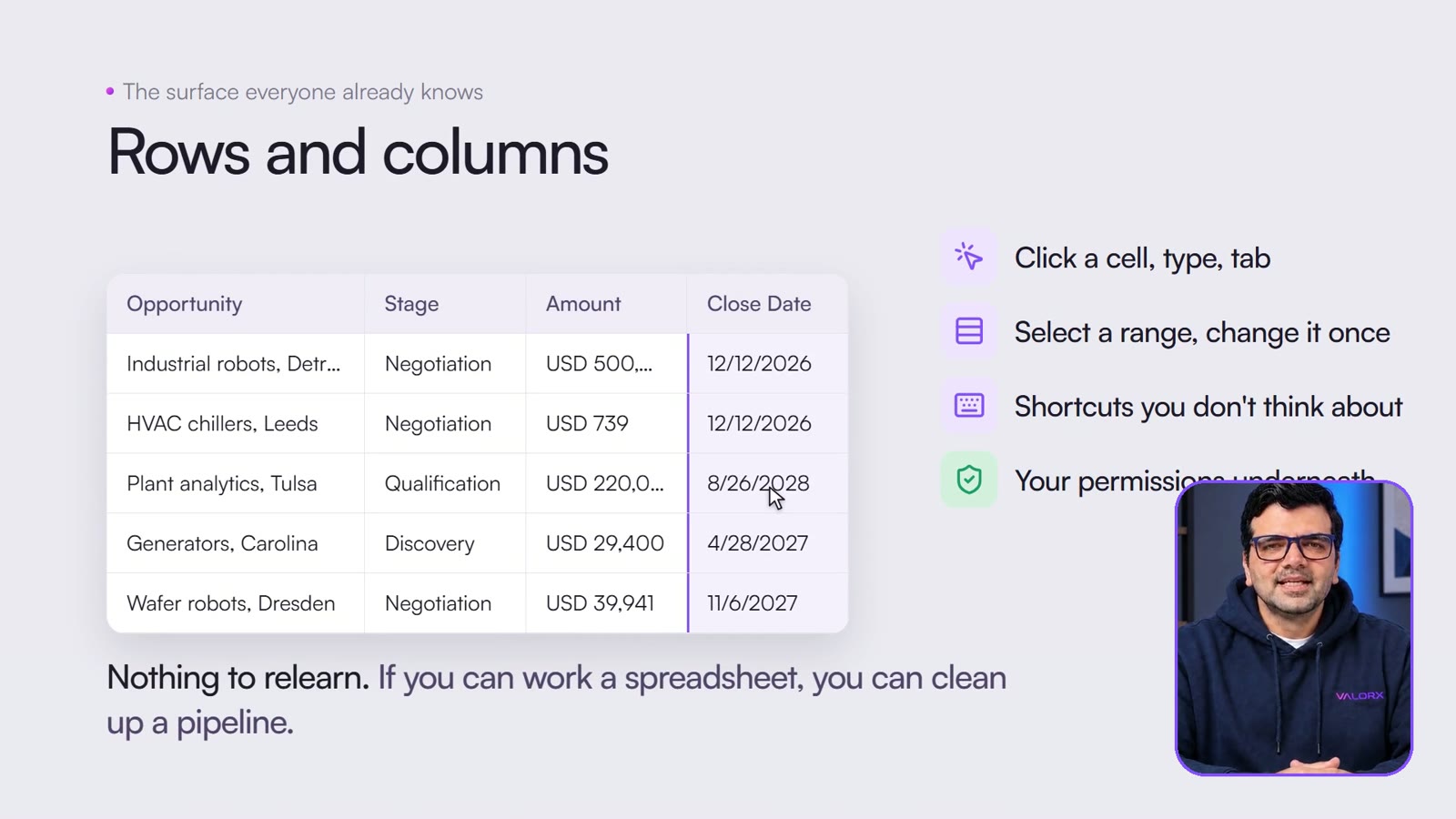
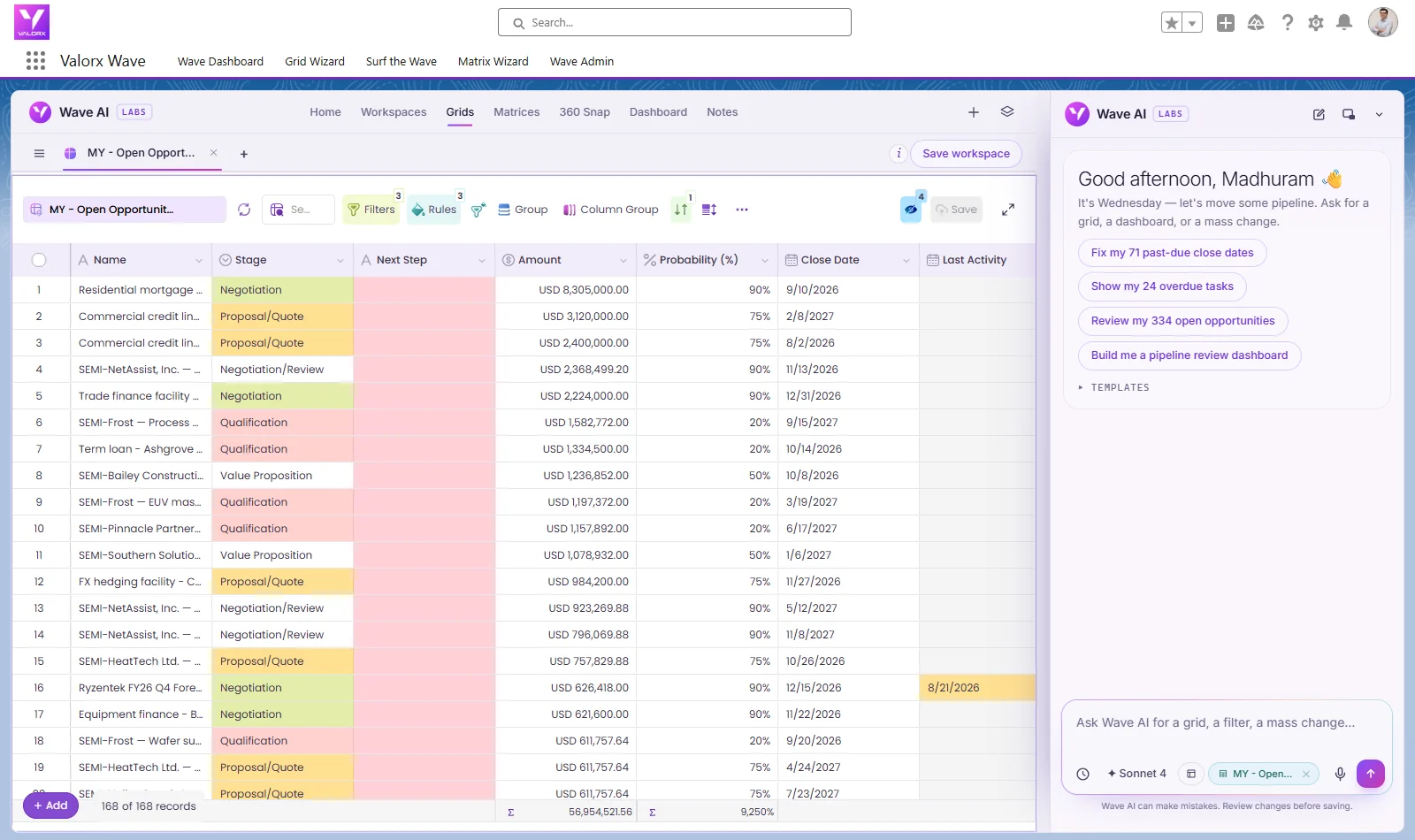
- Open the opportunities in a Wave grid. It's the same data as your list view, under your own profile, sharing rules and field-level security.
- Edit in place. Click a Close Date, pick a new date and press Enter. The cell is marked as changed but not saved. Make a few more edits and the Save button counts them.
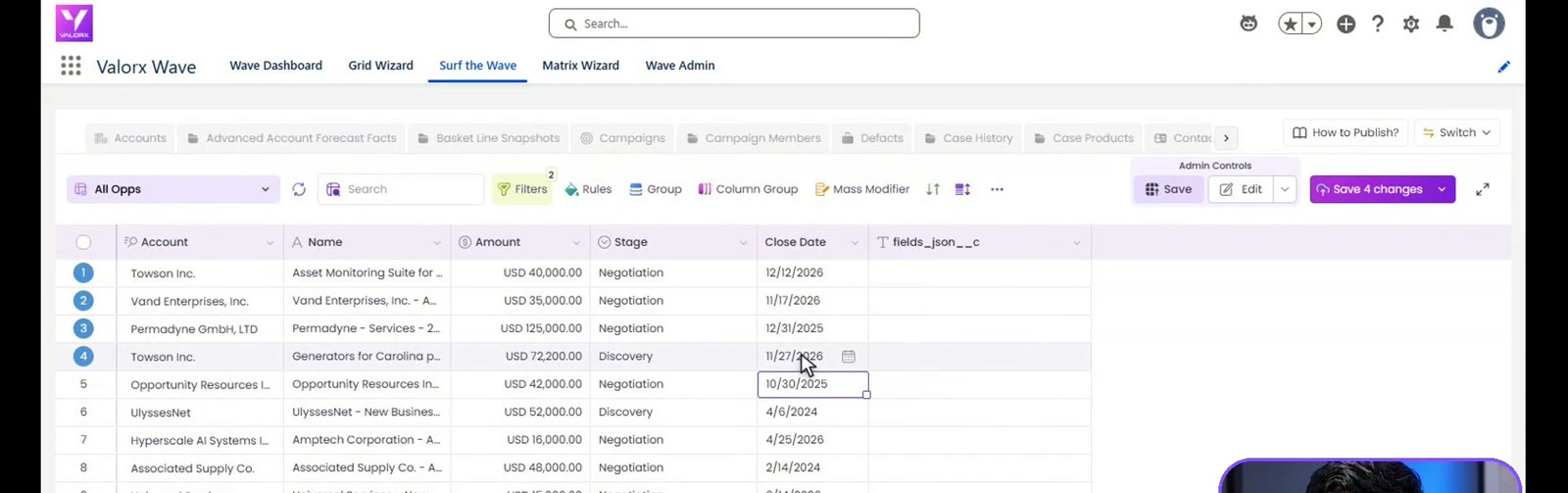
- Filter to what the review found. Open Filters and set Close Date before Today, and Stage none of Closed Won or Closed Lost.

The numbers from the video
One filter on our demo org shows how big the cleanup is.
- Add a rule so late deals stand out. In Rules, add one called Overdue: when Close Date is before today, highlight the row. The rule is saved with the view, so reps see what the review saw.
- Mass update with Mass Modifier. Select the rows, open Mass Modifier, pick Close Date and the new date, and apply. Every selected cell is marked as pending, so you can check each one first.
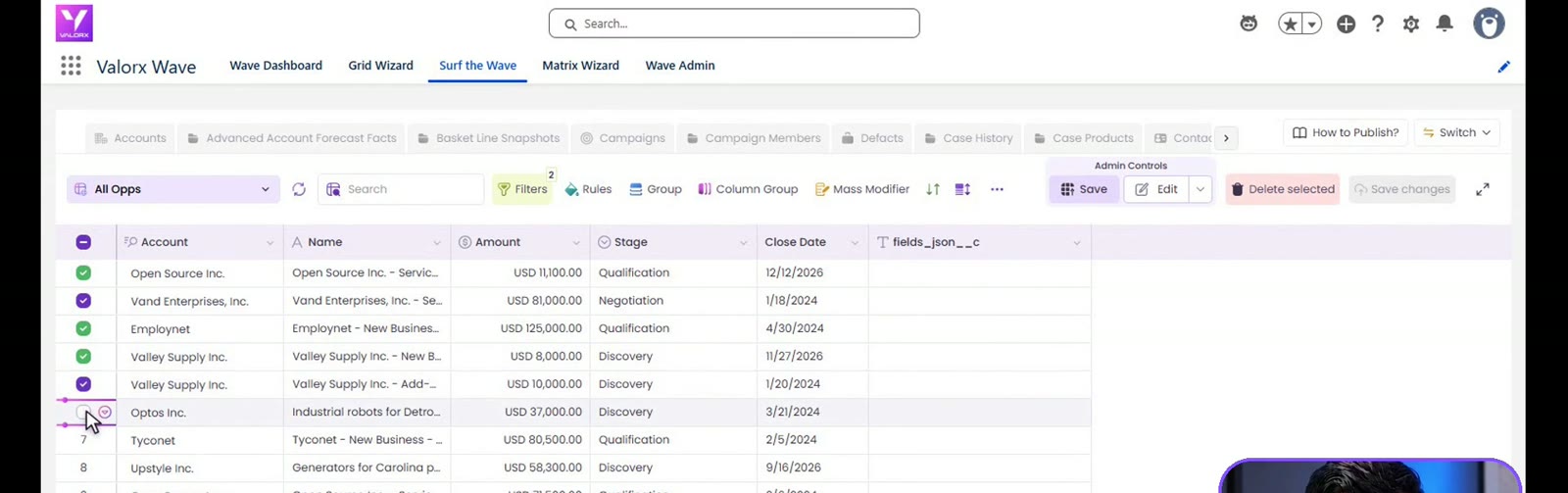
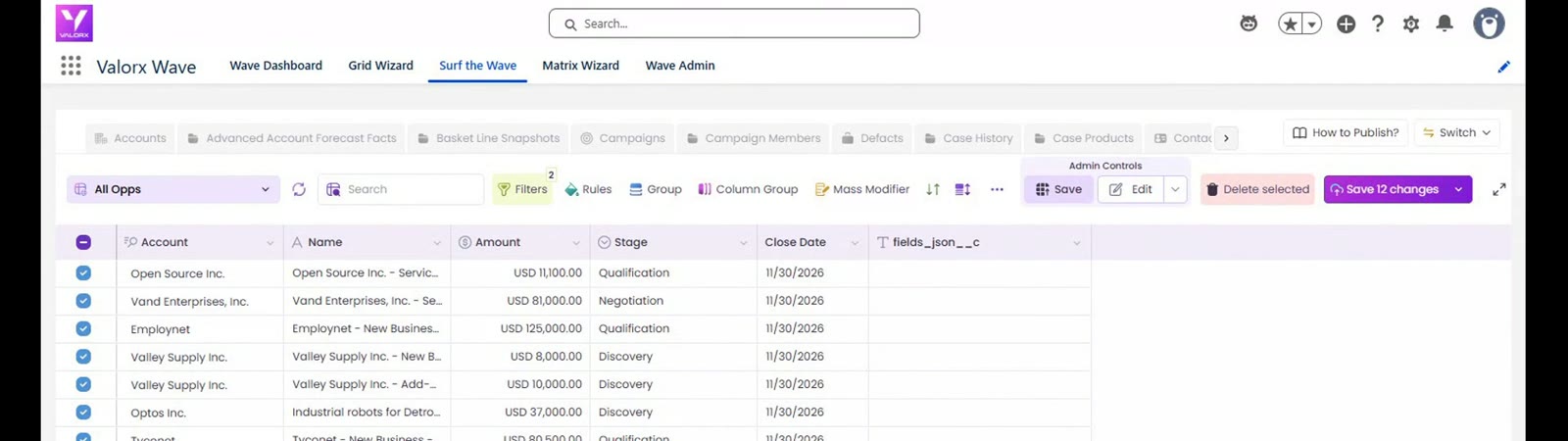
Your validation rules and required fields still apply. Wave writes through the same Salesforce layer as any other save.
Questions this video answers
How do you manage pipeline in Salesforce?
Keep every open opportunity current: stage, amount, close date, forecast category and next step. Salesforce gives you list views, reports and dashboards to review the pipeline. The updates are made on each opportunity record, or across many records at once in a grid.
How do I find open deals that are past their close date?
Filter opportunities where Close Date is before today and Stage is not Closed Won or Closed Lost. The count at the bottom of the grid tells you how big the cleanup is.
How do I mass update opportunities in Salesforce?
In a Wave grid, select the rows, open Mass Modifier, pick the field and the new value, check the pending cells, and save once. More ways to do it: How to mass update records in Salesforce.
Does a grid get around our validation rules or permissions?
No. Wave runs inside Salesforce under each user's profile, sharing rules and field-level security. If a rep can't see a field in Salesforce, they won't see it in the grid.
Keep going
- Try it yourself: the Cleaning Pipeline and Mass Modifier walkthroughs
- Step by step: How to clean up your Salesforce pipeline
- Next video: How to Run a Weekly Pipeline Review in Salesforce
Recorded in a Salesforce demo org with demo data. Every changed record was backed up first and restored after recording.
Want to see it on your own pipeline? Book a demo and we'll build the first grid with you on the call.


Choose the workflow you need:
Try Wave in browser Extension

Try Wave in Salesforce

Try Fusion In Excel

Enhancing Salesforce for industry leaders