How to Run a Weekly Pipeline Review in Salesforce: Deals, Products and Next Steps

To run a weekly pipeline review in Salesforce, put every open deal in one grid, with its products, contact roles and tasks, and fix each problem while you're still in the meeting. This guide follows the video: four reps, twelve deals, one save.
Jump to a chapter
What you'll build
- One review grid for the whole team
- Products, contact roles and tasks under each deal
- Dates, stages and forecast categories fixed in place
- Product lines added, changed and removed
- No code, built in the Grid Wizard
- Video length: 4 minutes
Most pipeline reviews are two meetings
The first is the one on the calendar. The manager opens the pipeline report and walks it rep by rep.
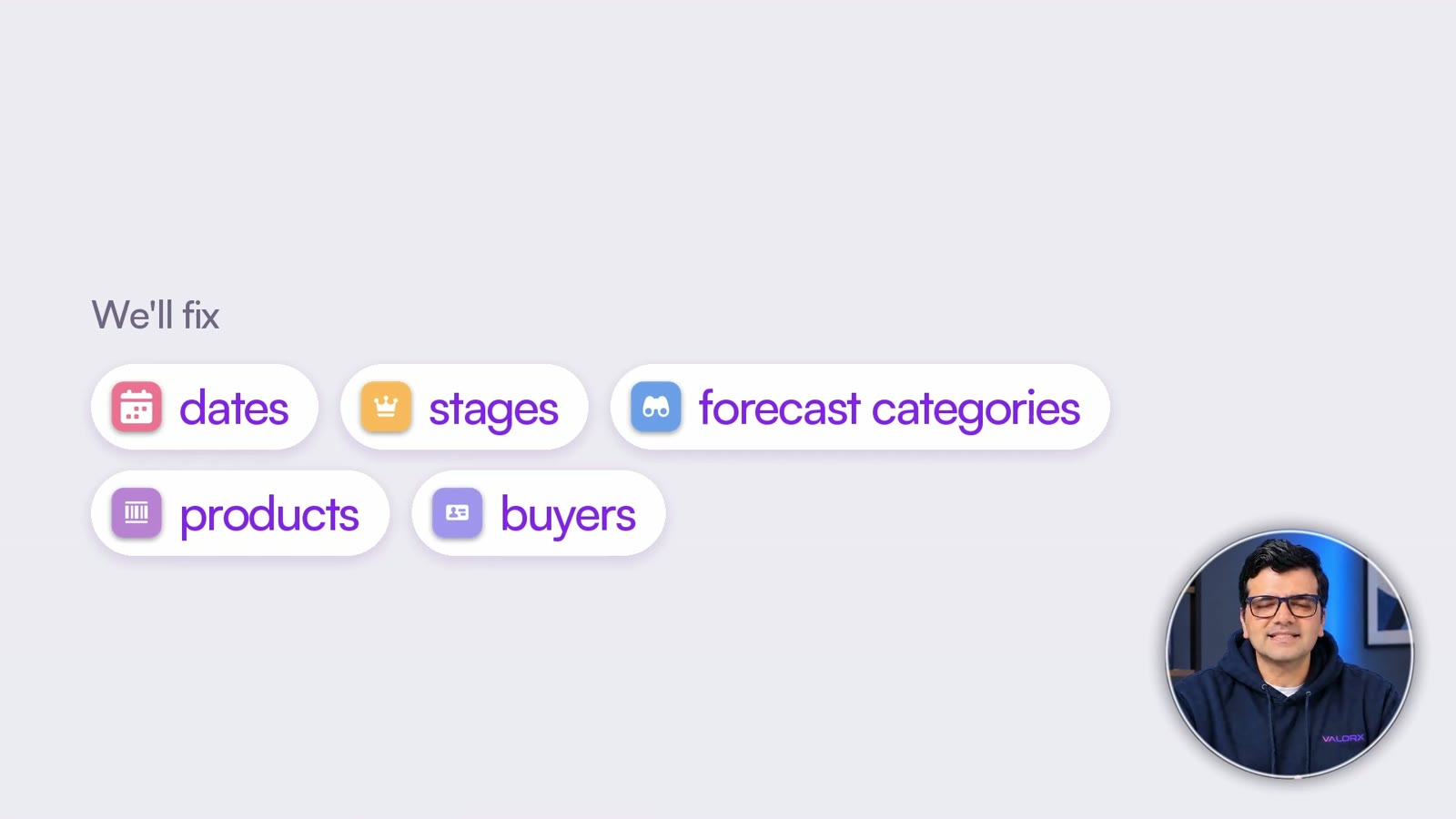
The second meeting is invisible. It's the fixing, and it happens one record at a time:
- A slipped deal: open the record, change the close date, write a new next step, save.
- The customer changed the order: another screen, Edit Products, save again.
- No economic buyer on a Commit deal: another tab, another save.
- A follow-up for the rep: one more form.

So most teams write a list, the reps fix it later, and the forecast call runs on last week's numbers.
| The usual way | In a Wave grid |
|---|---|
| Find the problems in the meeting, fix them after | Fix each one as it comes up |
| Open the record for a date, another screen for products | Date, stage and products edited in the same row |
| Another tab to add a buyer, a form to add a task | Contact roles and tasks open under the deal |
| The forecast call runs on last week's numbers | One save, and Salesforce is current |
Build the review grid
You build the grid once in the Grid Wizard and reuse it every week.
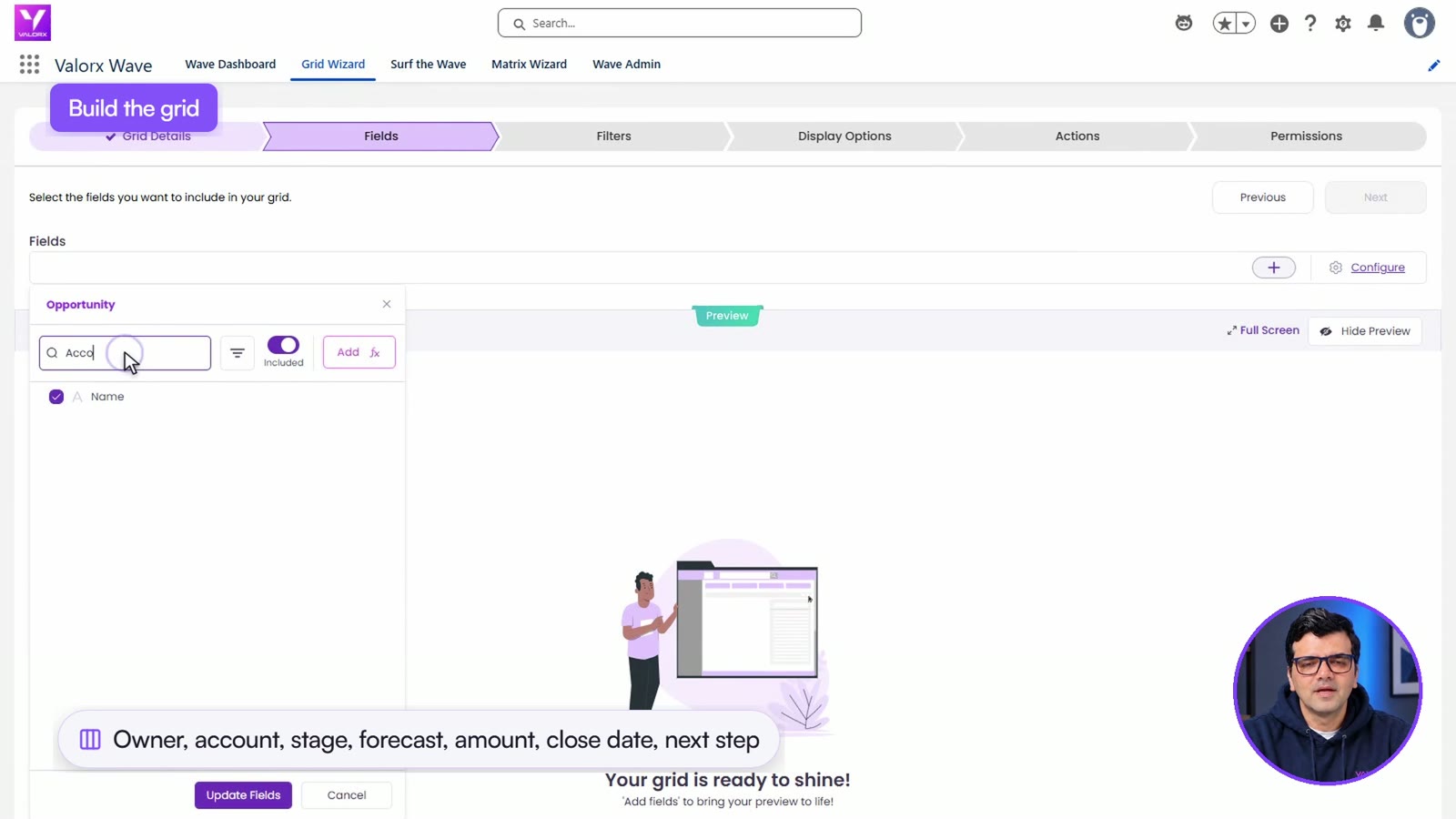
- Pick the object and columns. Choose Opportunities, then the columns the review needs: owner, account, stage, forecast category, amount, close date and next step.
- Filter and sort. Keep it to this team's deals closing this quarter and next, sorted by owner.
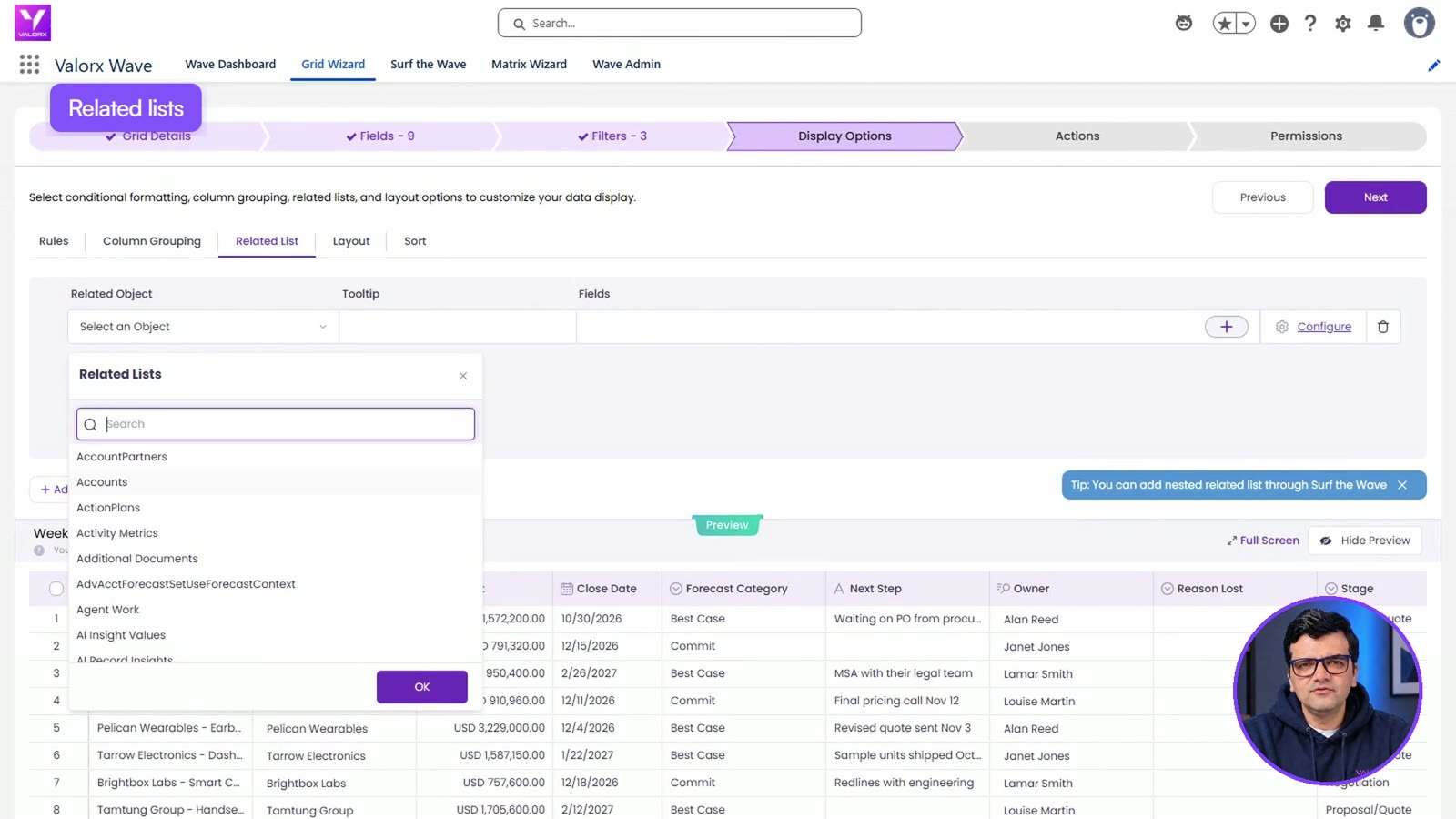
- Add the related lists. Add each deal's products, contact roles and tasks. Every row gets an icon for each one.
The review, rep by rep
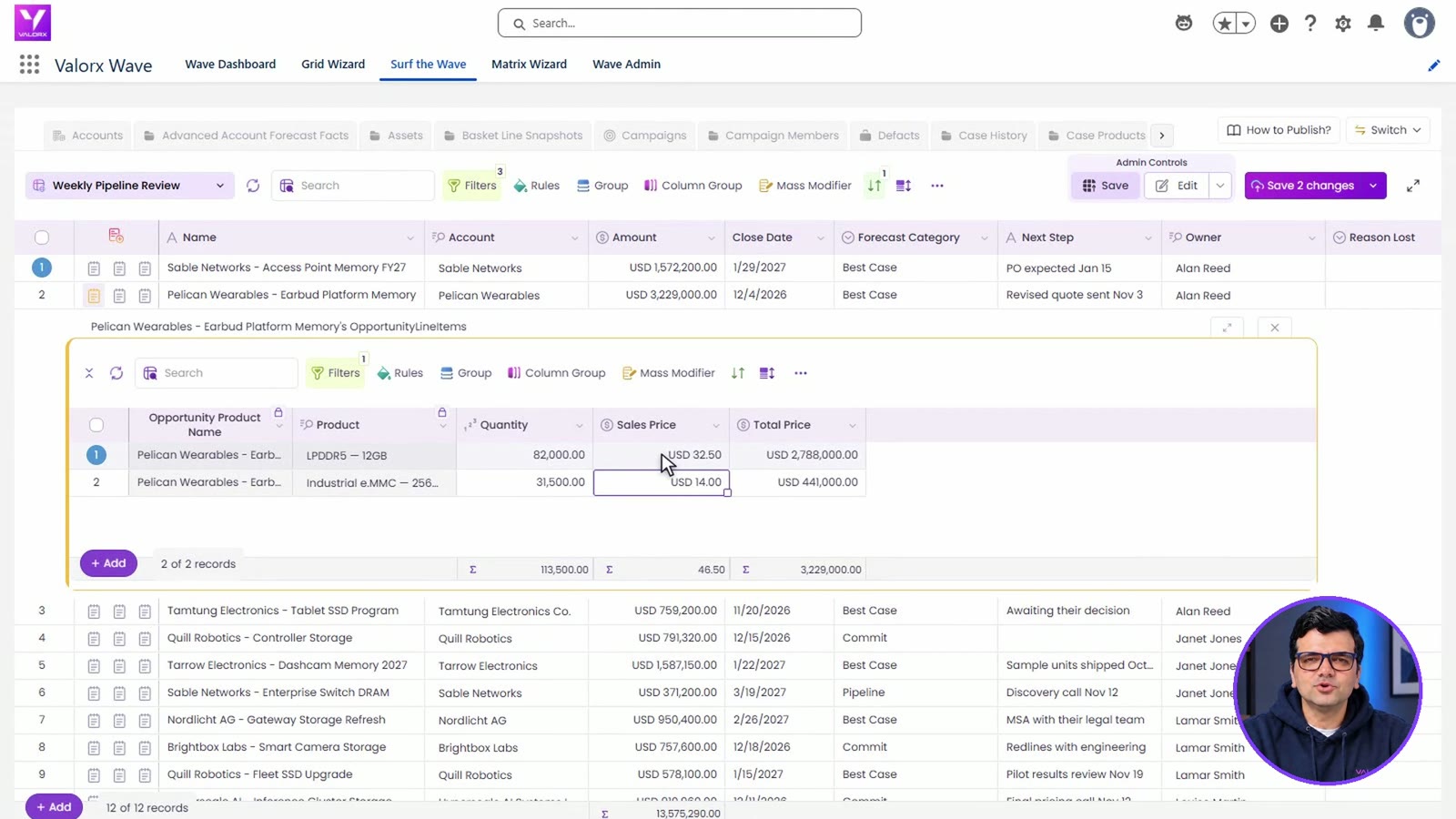
Here's the finished grid, sorted by owner. Every fix below is made here, during the review.
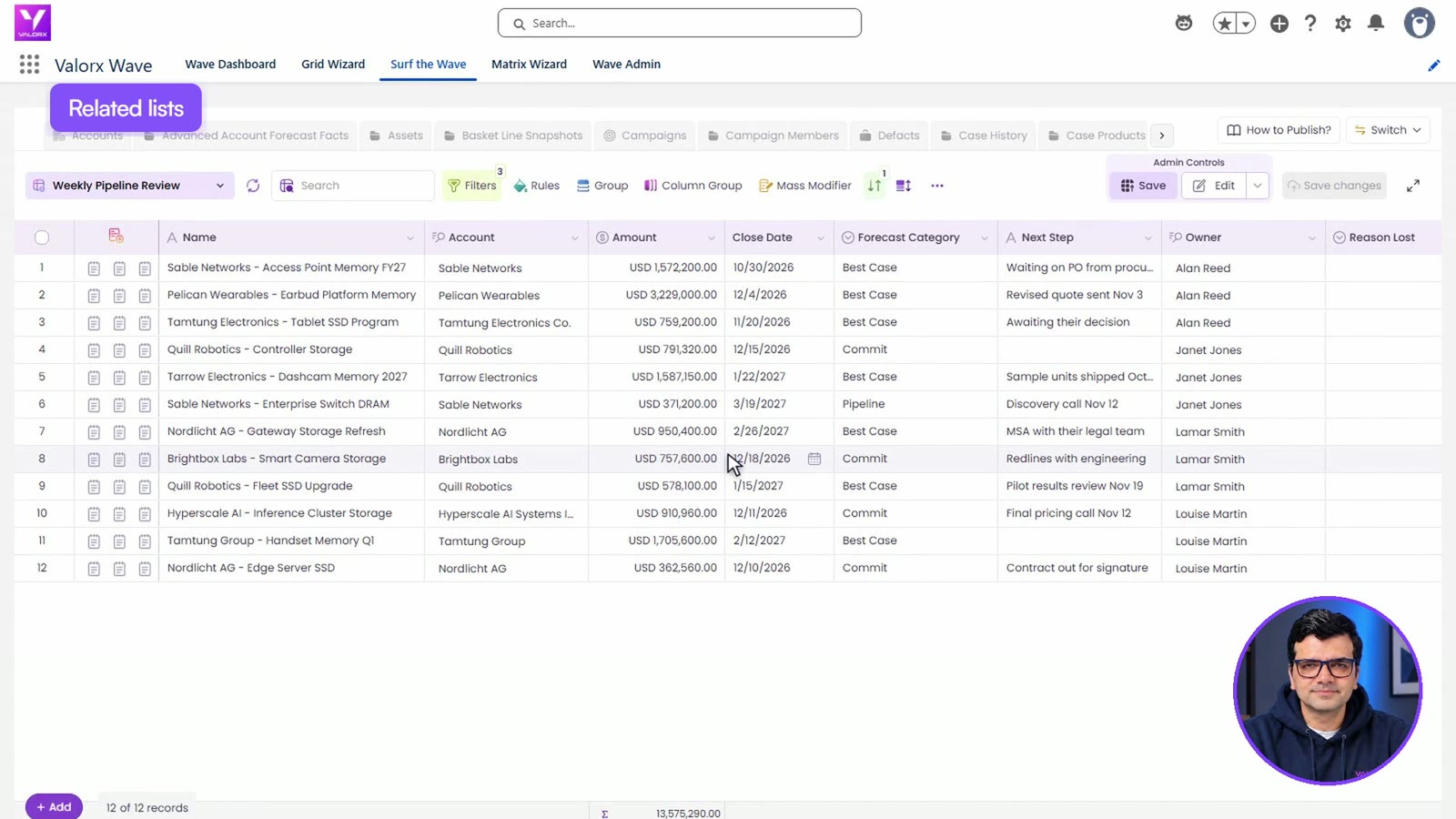
Alan: a slipped date, a volume cut and a lost deal
- A purchase order moved to January, so the close date goes to January 29 and the next step says what the team is waiting on.
- A customer cut an order from 82,000 units to 60,000 and negotiated a better price. The products open under the deal, so both change there.
- A customer went with a cheaper supplier. The deal is set to Closed Lost, reason Price, so it leaves the forecast today.
Janet: a forecast category that doesn't match the stage
- A deal says Commit but is still in Discovery, with no next step. It goes back to Best Case, with a next step and a date.
- A customer dropped one product from the order. Right-click the line and delete it.
Lamar: a pull-in and a missing buyer
- A customer signs in December, not February. New close date, and the deal moves to Commit.
- A Commit deal has only the VP of Engineering as a contact. So who signs? The CFO is added as Economic Buyer.

Louise: an upsell and a follow-up
- A deal grew. A new product line is added under it: 2,400 units at $128.
- A deal has no next step at all, so Louise gets a task: confirm Q1 volumes with procurement, due Friday.
The review in numbers
The upsell changed one deal's amount, because Salesforce calculates it from the products.
Save, refresh and check
Every change is marked before it's saved, so you can look over the whole review first. Then save.
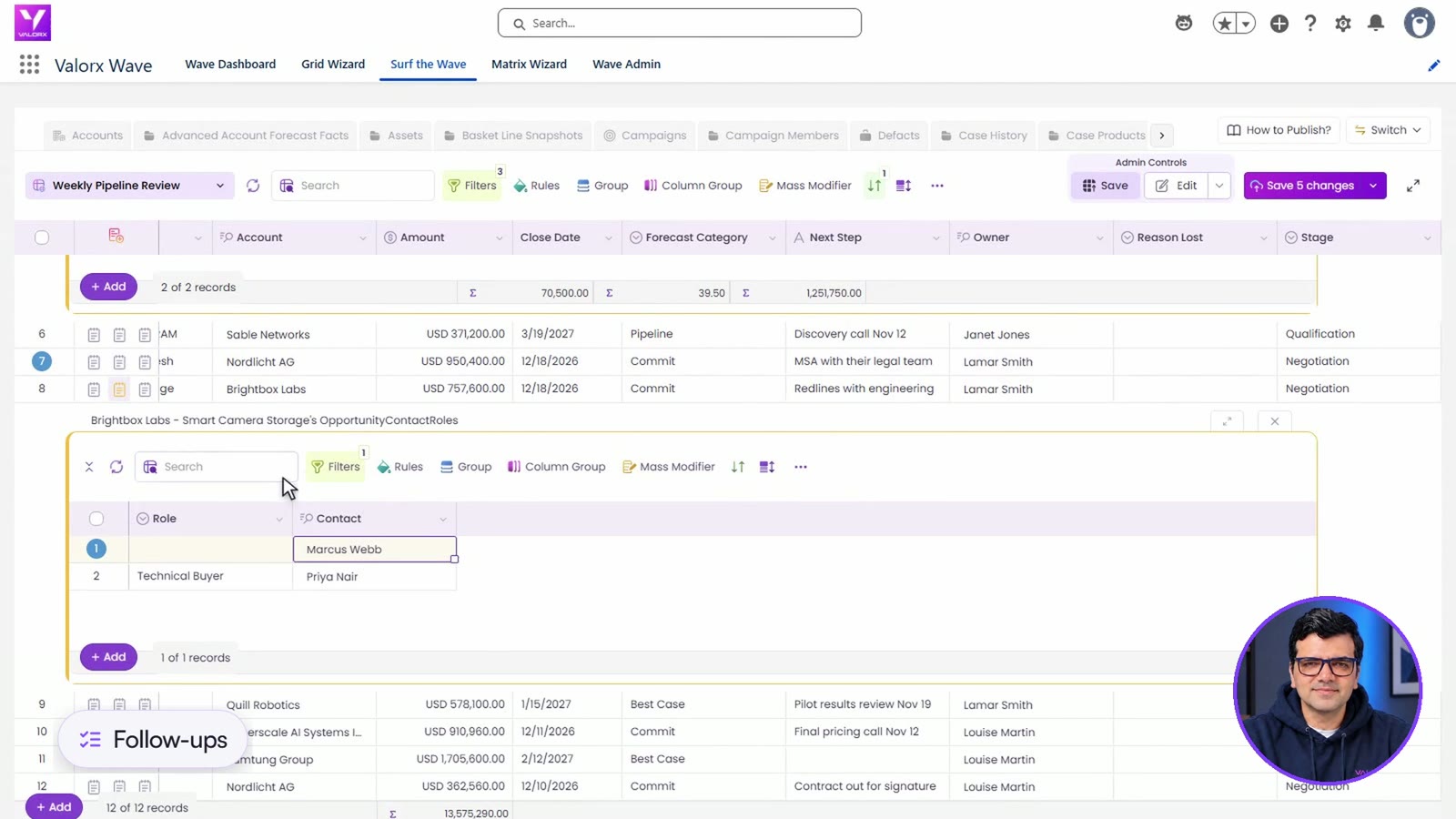
Back in Salesforce, the new product line, the new amount, the economic buyer and the task are all on the records. Wave writes through Salesforce, so your validation rules and permissions still apply.
Questions this video answers
How do you run a weekly pipeline review in Salesforce?
Walk the open deals closing this quarter and next, rep by rep. For each one, check the close date, stage, forecast category, products, buyer and next step. The review in the video does this in one grid and fixes each problem as it's found.
What should a pipeline review check?
Slipped close dates, deals whose forecast category doesn't match their stage, product and quantity changes, Commit deals with no economic buyer, deals with no next step, and lost deals that are still open.
Can I add or remove opportunity products without opening the record?
Yes. With products on the grid as a related list, you can change a quantity or price, delete a line with a right-click, or add a new line under the deal.
Does the opportunity amount update after product changes?
Yes. Salesforce calculates the amount from the products. Refresh the grid after saving to see the new amount on the deal row.
Keep going
- Try it yourself: the Forecast Call Prep and Cleaning Pipeline walkthroughs
- Step by step: How to prepare your deals for a Salesforce forecast call
- Earlier videos: How to Manage Pipeline in Salesforce and How to Inline Edit Related Lists in Salesforce
Recorded in a Salesforce demo org with demo data, restored after recording.
Want this grid for your team? Book a demo and we'll build it with you on the call.


Choose the workflow you need:
Try Wave in browser Extension

Try Wave in Salesforce

Try Fusion In Excel

Enhancing Salesforce for industry leaders